Set up Bank
Who does this: hospital administrator or accounts manager Where: Billing › Masters › Bank
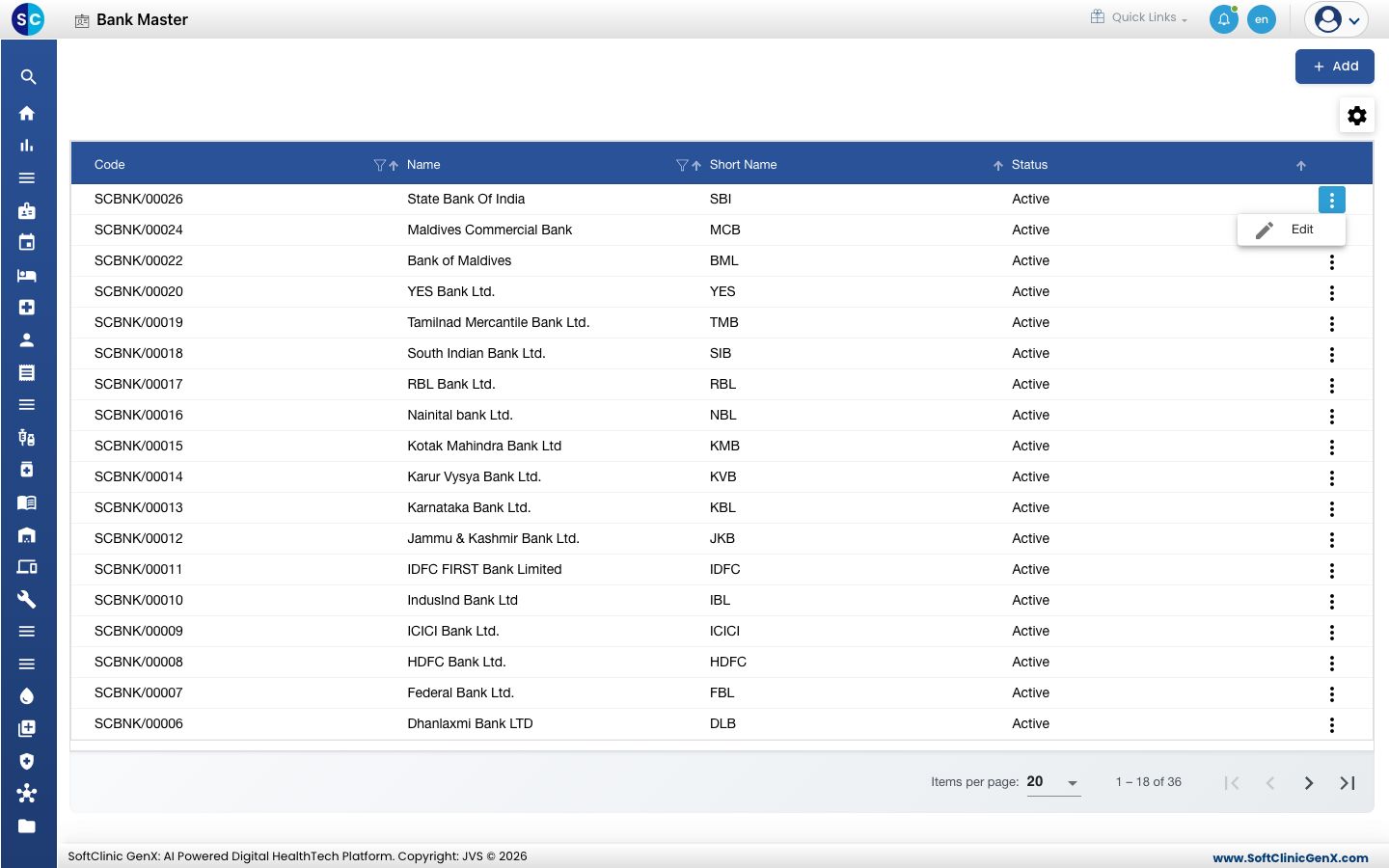
The bank list holds every bank your staff can pick when a payment is made by card, cheque, online transfer or another non-cash mode. Most common banks are already in the list. You can also mark a bank as your hospital's own bank and record its branch and account details.
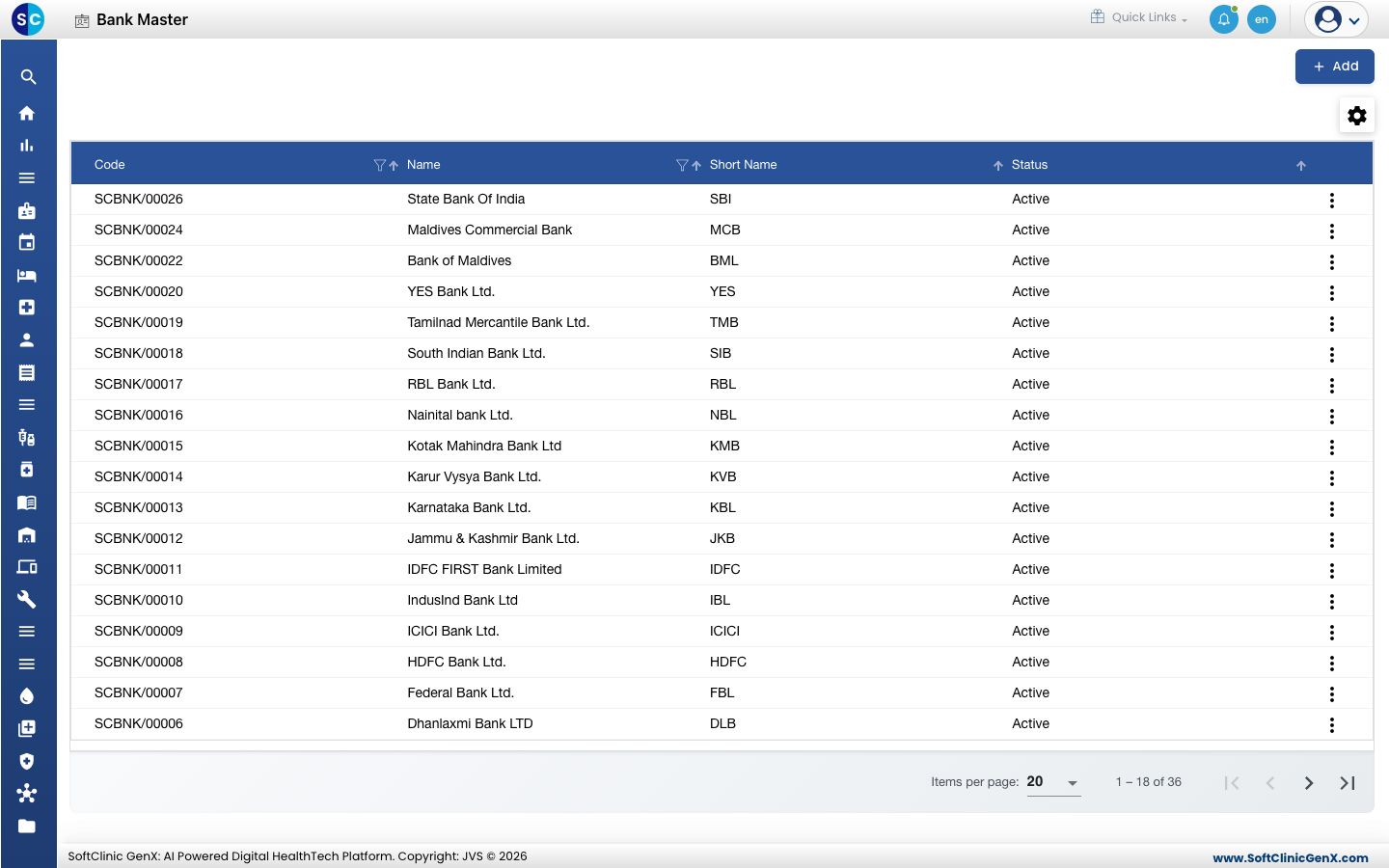
Add a bank
-
Go to Billing › Masters › Bank.
-
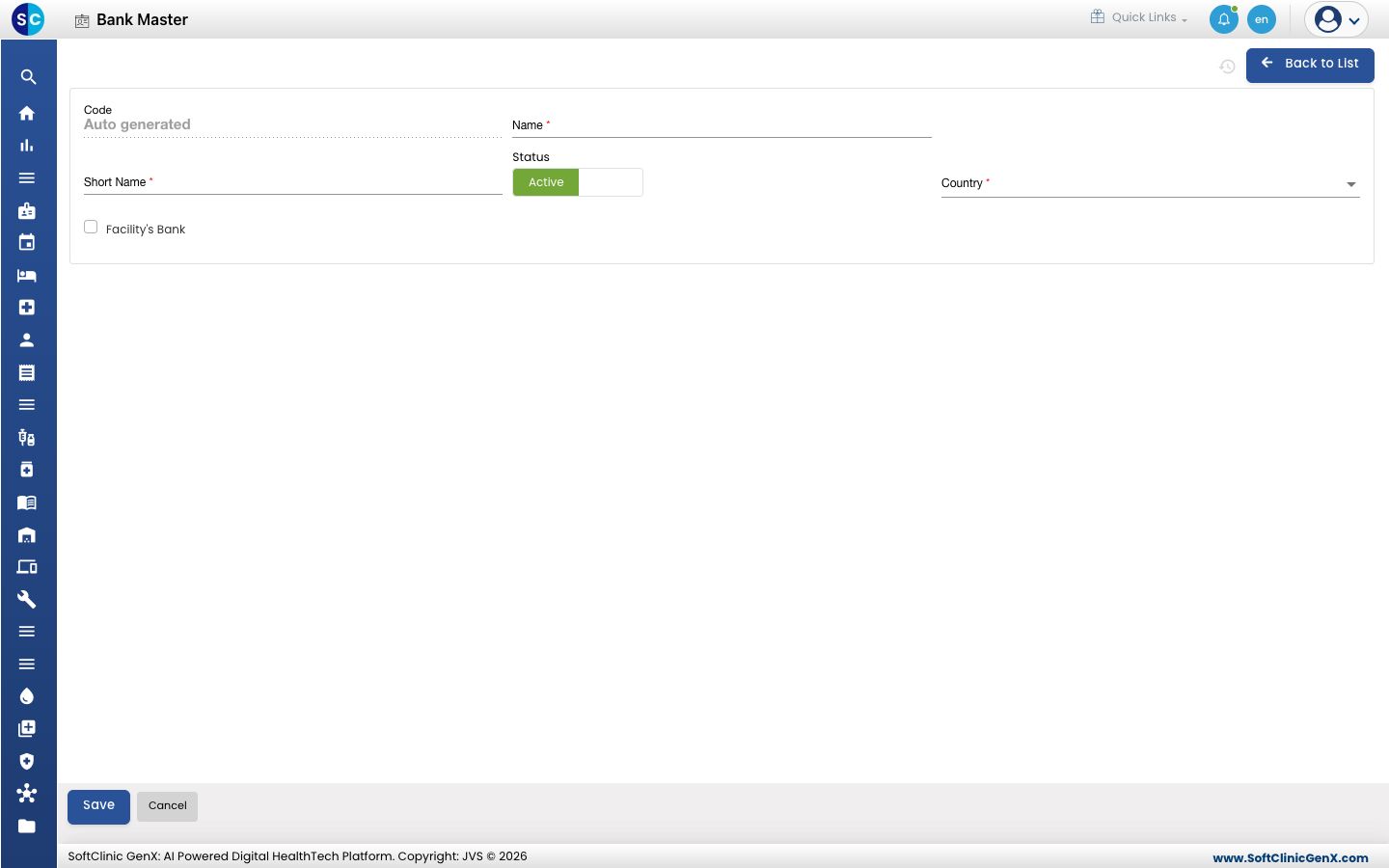
Click Add. The bank form opens.
-
Fill in the fields:
Field What to enter Required Code Filled in automatically when you save. — Name The full name of the bank, for example Punjab National Bank. Up to 50 characters. Yes Short Name The short form staff will recognise, for example PNB. 3 to 25 characters. Yes Status Leave on Active. — Country The country the bank operates in. Yes Facility's Bank Tick only if this is a bank where your hospital holds an account. No -
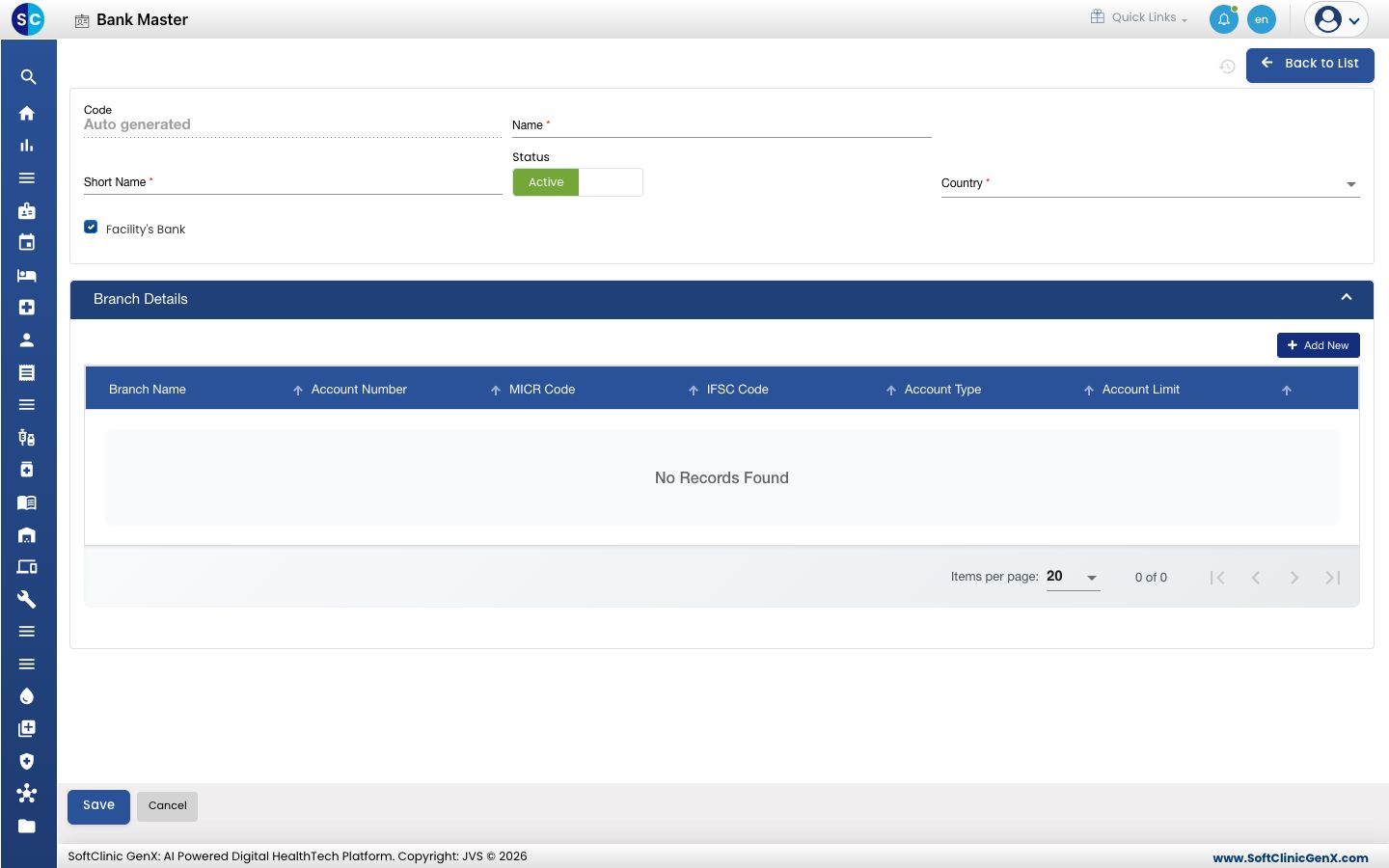
If you ticked Facility's Bank, a Branch Details section appears. Open it and click Add New to record each branch and account.
-
In the Branch Details window, fill in the branch and click Save:
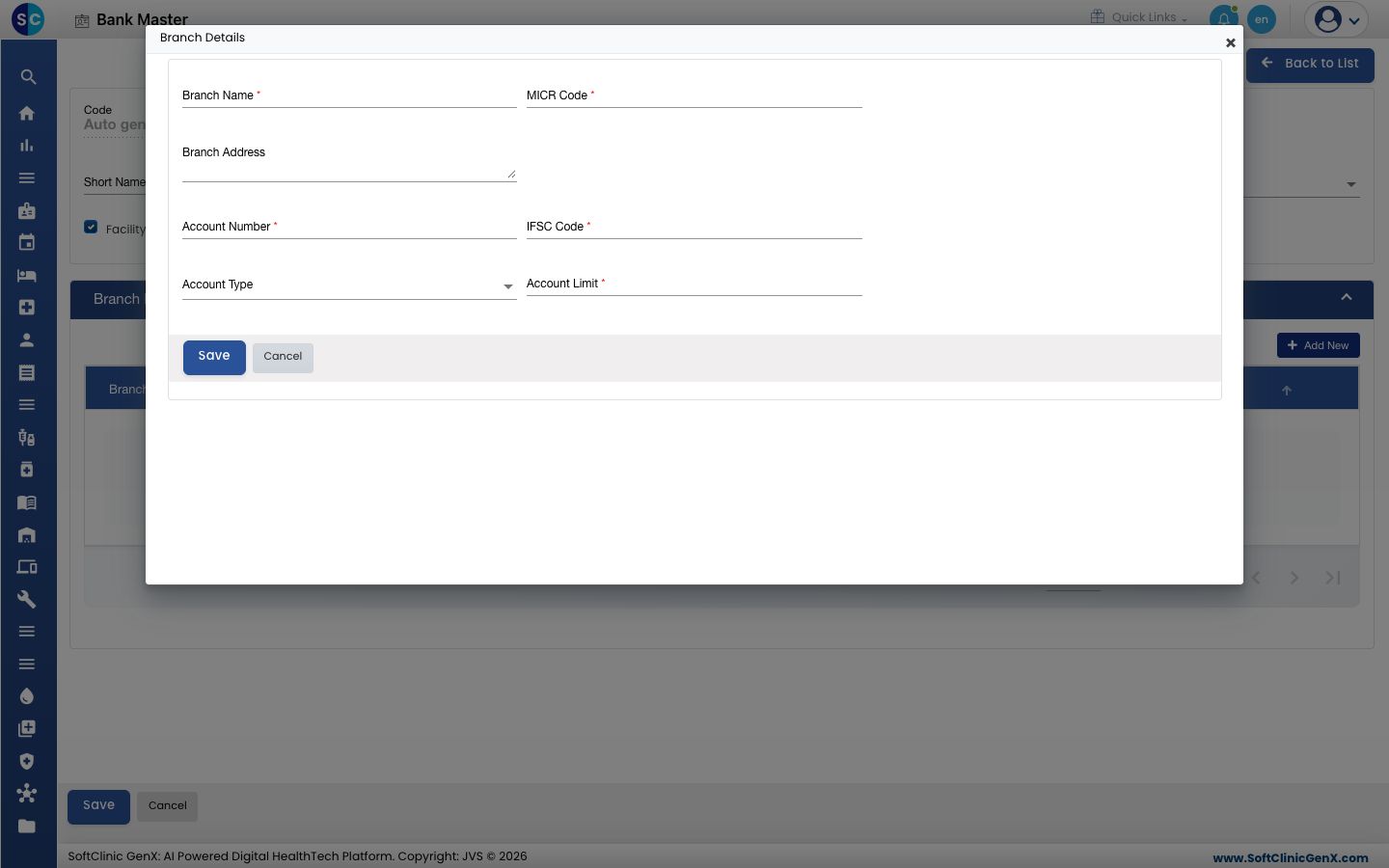
Field What to enter Required Branch Name The branch name, for example MG Road. Up to 50 characters. Yes MICR Code The branch MICR code printed on your cheques. Letters and numbers only. Yes Branch Address The branch address. No Account Number Your hospital's account number at this branch. 9 to 18 digits. Yes IFSC Code The branch IFSC code. Yes Account Type The kind of account, such as savings or current. No Account Limit The limit on the account, in numbers only. Yes -
Click Save. You return to the list and the new bank appears in it.
Change or deactivate a bank
- In the list, click the ⋮ button at the end of the row and choose Edit.
- Change the fields you need. To stop offering the bank, switch Status to Inactive.
- Click Save.
Banks cannot be deleted from this screen. Make a bank Inactive instead.
Good to know
- Bank names and codes must be unique. You cannot save a second bank with the same name.
- When Facility's Bank is ticked, add at least one branch before you save.
- Use the filter and sort icons in the column headers to find a bank quickly.
- Click Back to List or Cancel to leave the form without saving.
Related
- Next: Set up Tax
- Billing FAQs