Set up Rate Tariffs
Who does this: hospital administrator or billing manager Where: Billing › Masters › Rate Tariffs Set up before: Service, Class Master
A rate tariff (rate plan) is a price list. It holds a price for each service in each bed class, valid between two dates. You link a rate plan to an organisation, such as an insurance company, in Organization Master. Bills for that organisation's patients are then priced from the plan instead of the service's standard price.
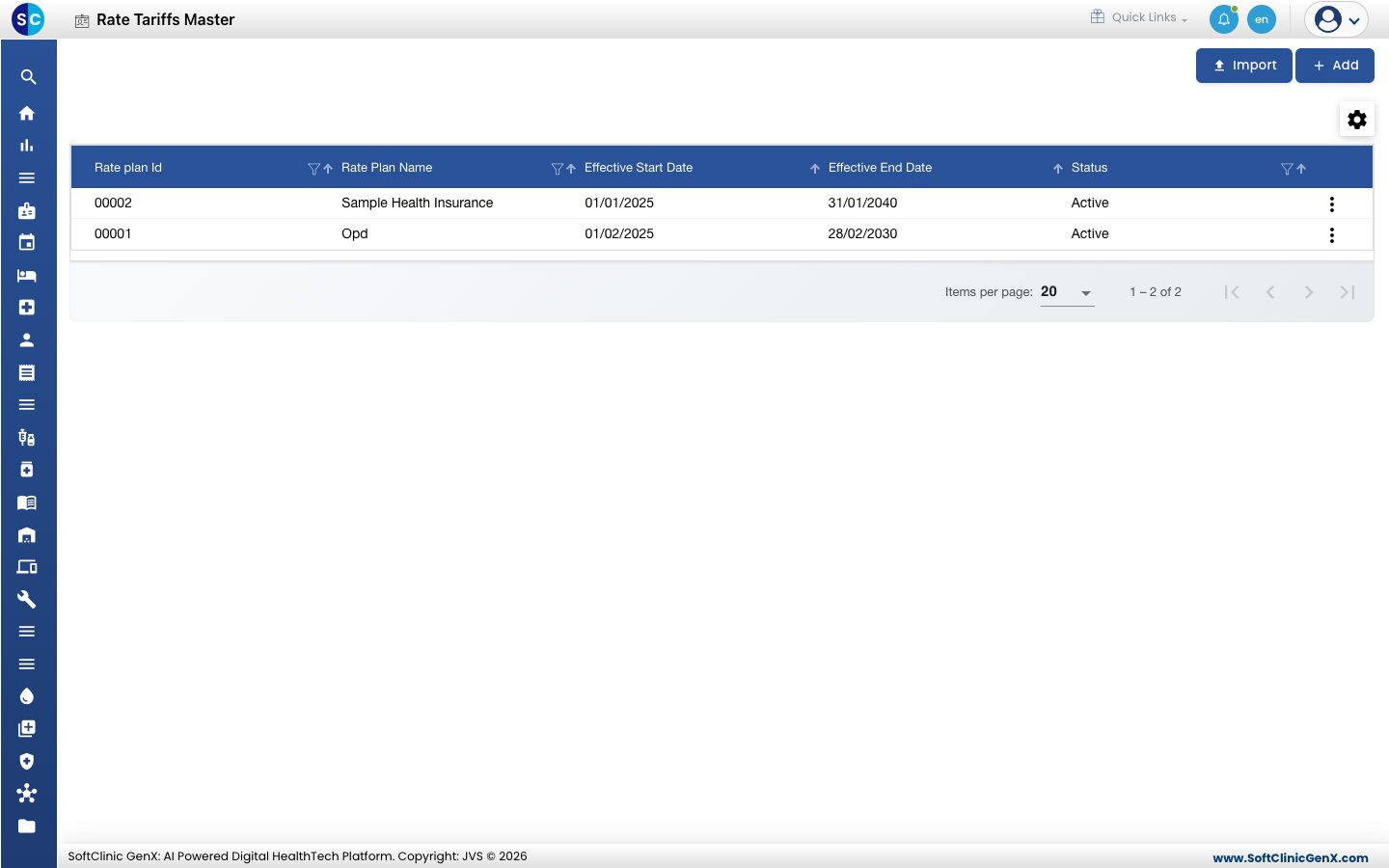
Add a rate plan
-
Go to Billing › Masters › Rate Tariffs.
-
Click Add. The rate plan form opens.
-
Fill in the plan details:
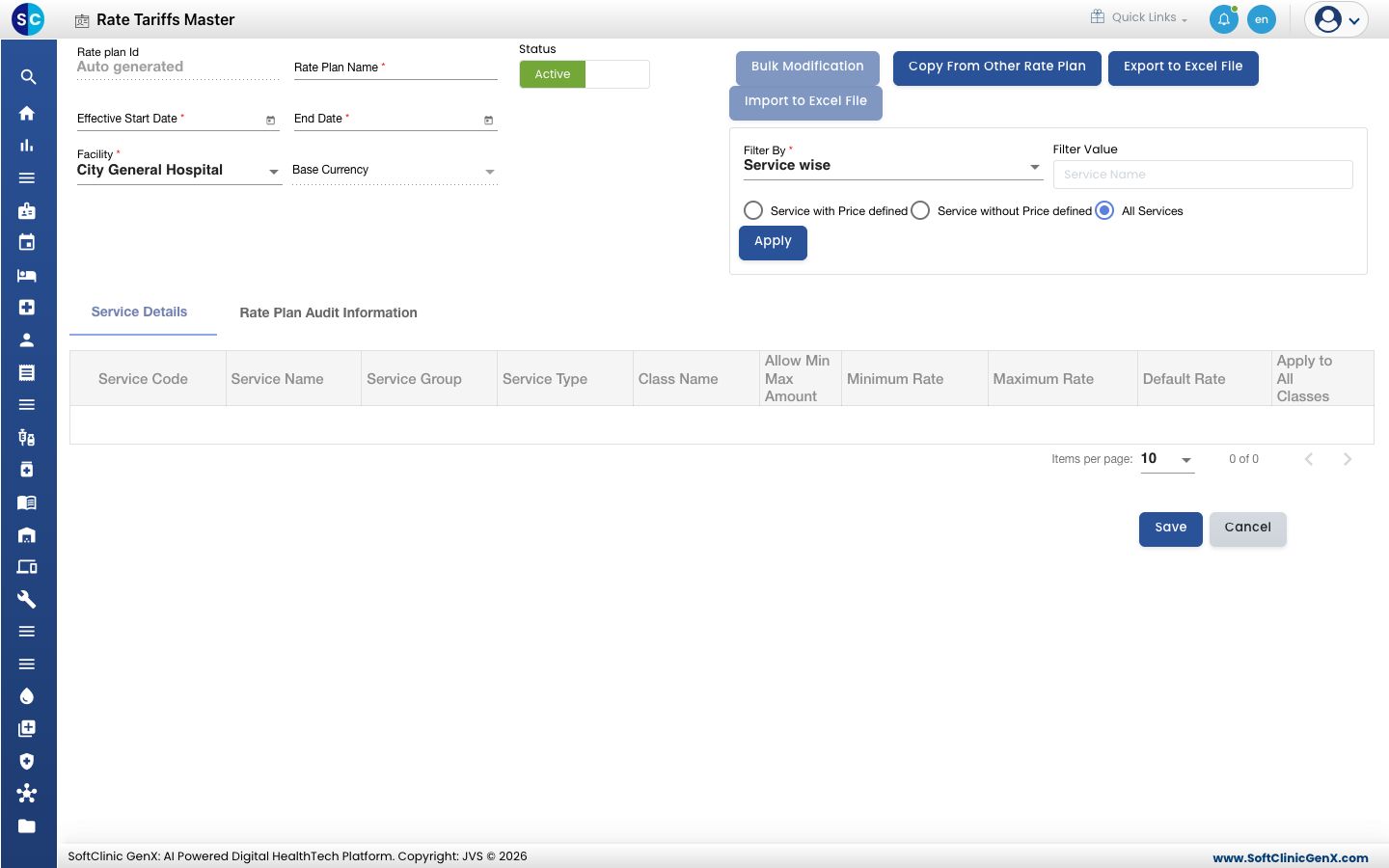
Field What to enter Required Rate plan Id Filled in automatically when you save. — Rate Plan Name A name staff will recognise, for example the payer's name. Yes Status Leave on Active. — Effective Start Date The first day the prices apply. Yes End Date The last day the prices apply. It cannot be before the start date. Yes Facility The facility the plan is for. Yes Base Currency Filled in from the facility. — -
Load the services to price. In Filter By, choose how to filter (for example Service wise), type in Filter Value if you want to narrow the list, choose Service with Price defined, Service without Price defined or All Services, and click Apply.
-
In Service Details, enter the price for each service and bed class:
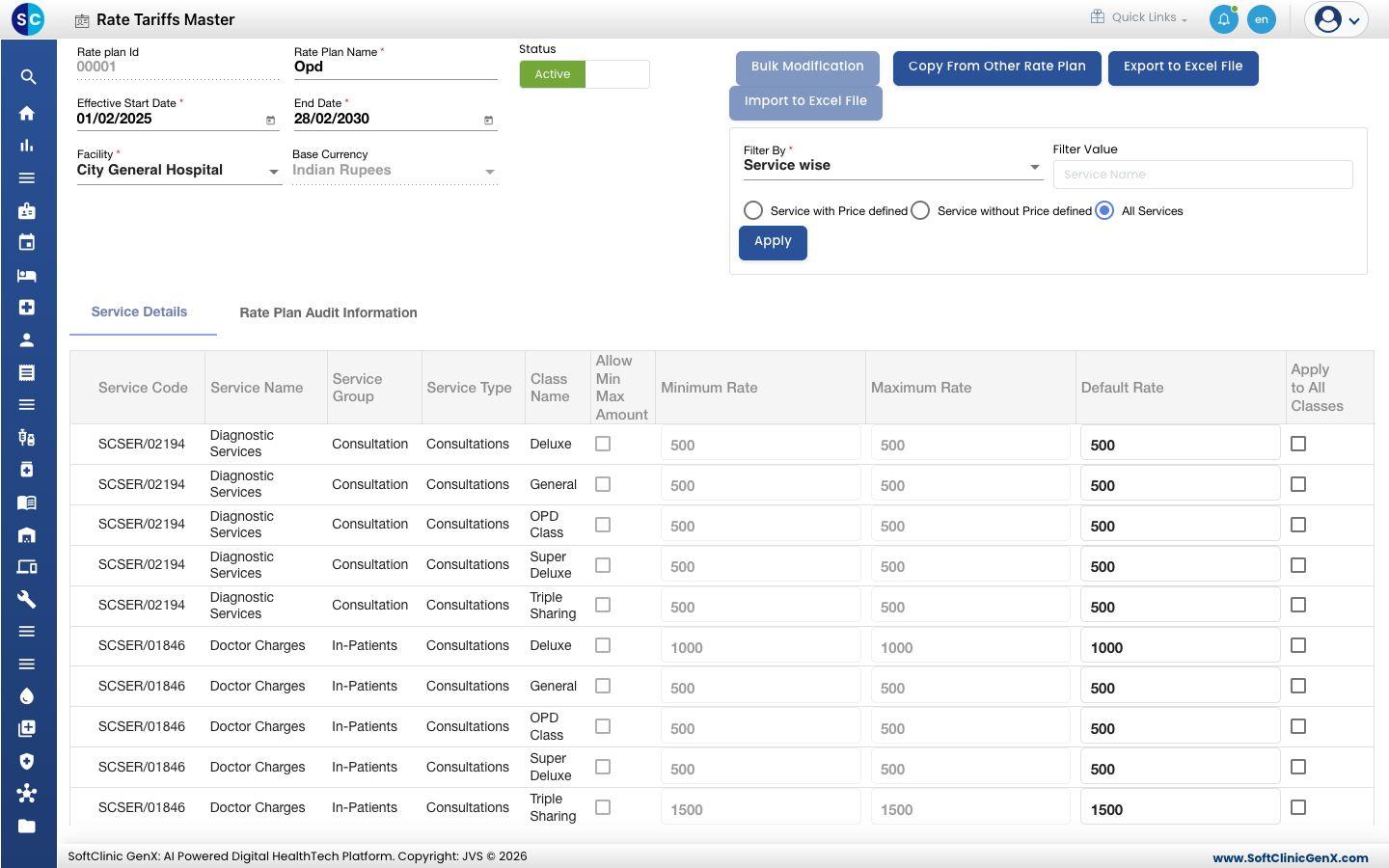
Column What to enter Allow Min Max Amount Tick to let staff change the price on the bill within a range. Minimum Rate, Maximum Rate The lowest and highest price allowed when Allow Min Max Amount is ticked. Default Rate The price charged for this service in this bed class. Apply to All Classes Tick to copy this row's price to every bed class of the service. -
Click Save. The plan appears in the list.
Faster ways to fill prices
- Copy From Other Rate Plan copies the prices of an existing plan into this one.
- Export to Excel File downloads the prices. Edit them in Excel and load them back with Import to Excel File.
- Import on the list screen loads a rate plan from a file.
Change or deactivate a rate plan
- In the list, click the ⋮ button at the end of the row and choose Edit.
- Change the dates or prices. To stop using the plan, switch Status to Inactive.
- Click Save.
Good to know
- Maximum Rate must be greater than Minimum Rate, and Default Rate must be between them. Otherwise the plan does not save and the message names the service.
- When a plan's End Date has passed, the form warns that the plan is out of contract. Extend the end date to keep using it.
- Click Cancel to close the form without saving.
Related
- Next: Set up Organization Master
- Previous: Set up Class Master
- Billing FAQs