Set up Tax Configuration
Who does this: hospital administrator or accounts manager Where: Billing › Masters › Tax Configuration Set up before: Facility, Tax
Tax configuration tells billing which tax to add, and at what rate, for each facility. For every kind of visit (such as Out patient, Laboratory or Pharmacy) you switch each tax on or off, separately for services and for medicines. You can also set a different rate for a particular specialty, service group, service, item group or item.
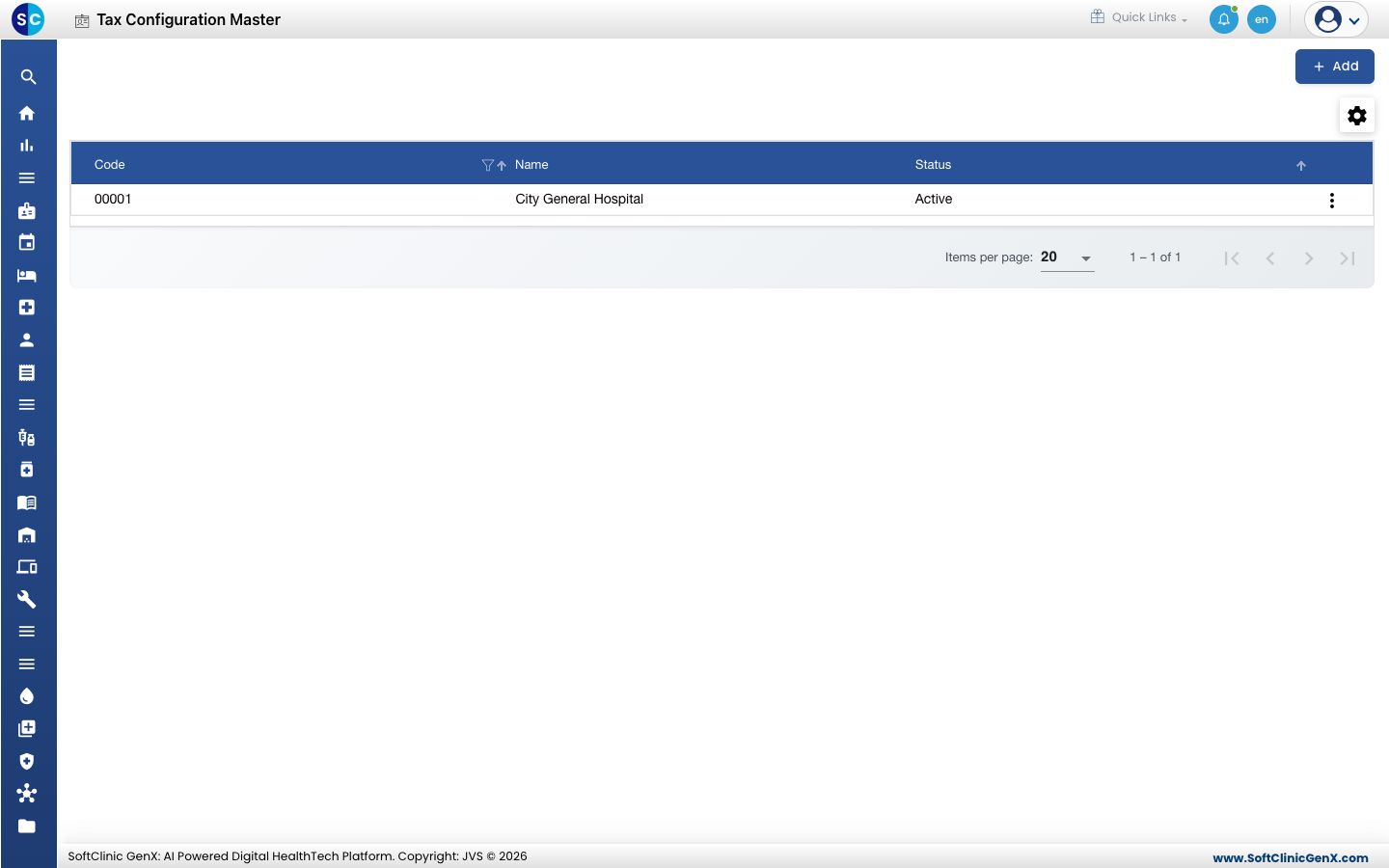
Add a tax configuration
-
Go to Billing › Masters › Tax Configuration.
-
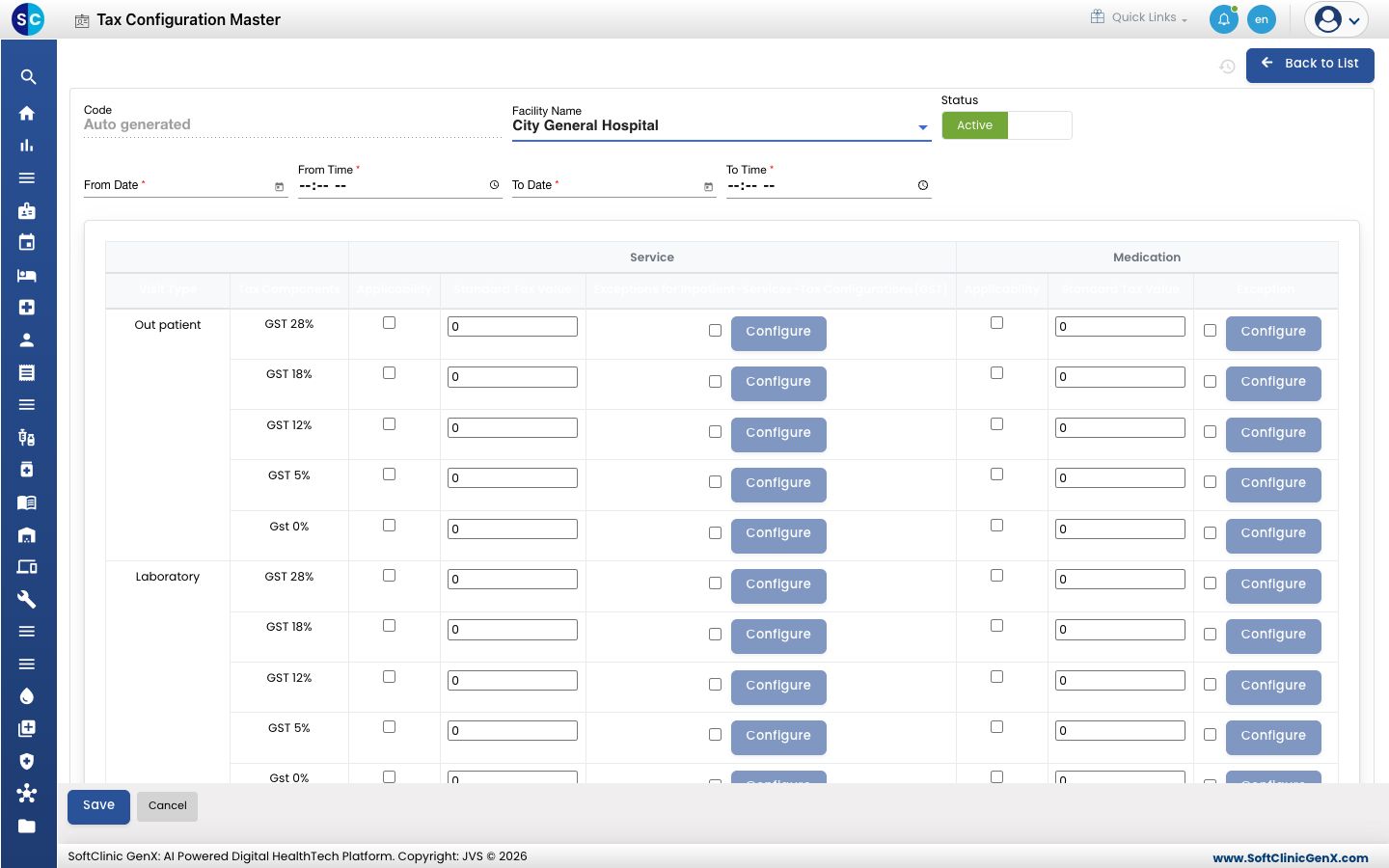
Click Add. The tax configuration form opens, with one row for every active tax under each kind of visit.
-
Fill in the top of the form:
Field What to enter Required Code Filled in automatically when you save. — Facility Name The facility this configuration is for. Yes Status Leave on Active. — From Date, From Time When the configuration starts to apply. Yes To Date, To Time When the configuration stops applying. Yes -
In the grid, for each kind of visit and each tax, fill in the Service columns (for services billed) and the Medication columns (for medicines billed):
Column What to enter Applicability Tick to charge this tax. Standard Tax Value The rate to charge, in percent. Exception Tick if some items need a different rate, then click Configure (see below). -
Click Save. You return to the list and the facility appears in it.
Set a different rate for some items
Use an exception when most items follow the standard rate but a few do not, for example one service group taxed at a lower rate.
- In the grid, tick Exception on the tax row and click Configure. The exceptions window opens.
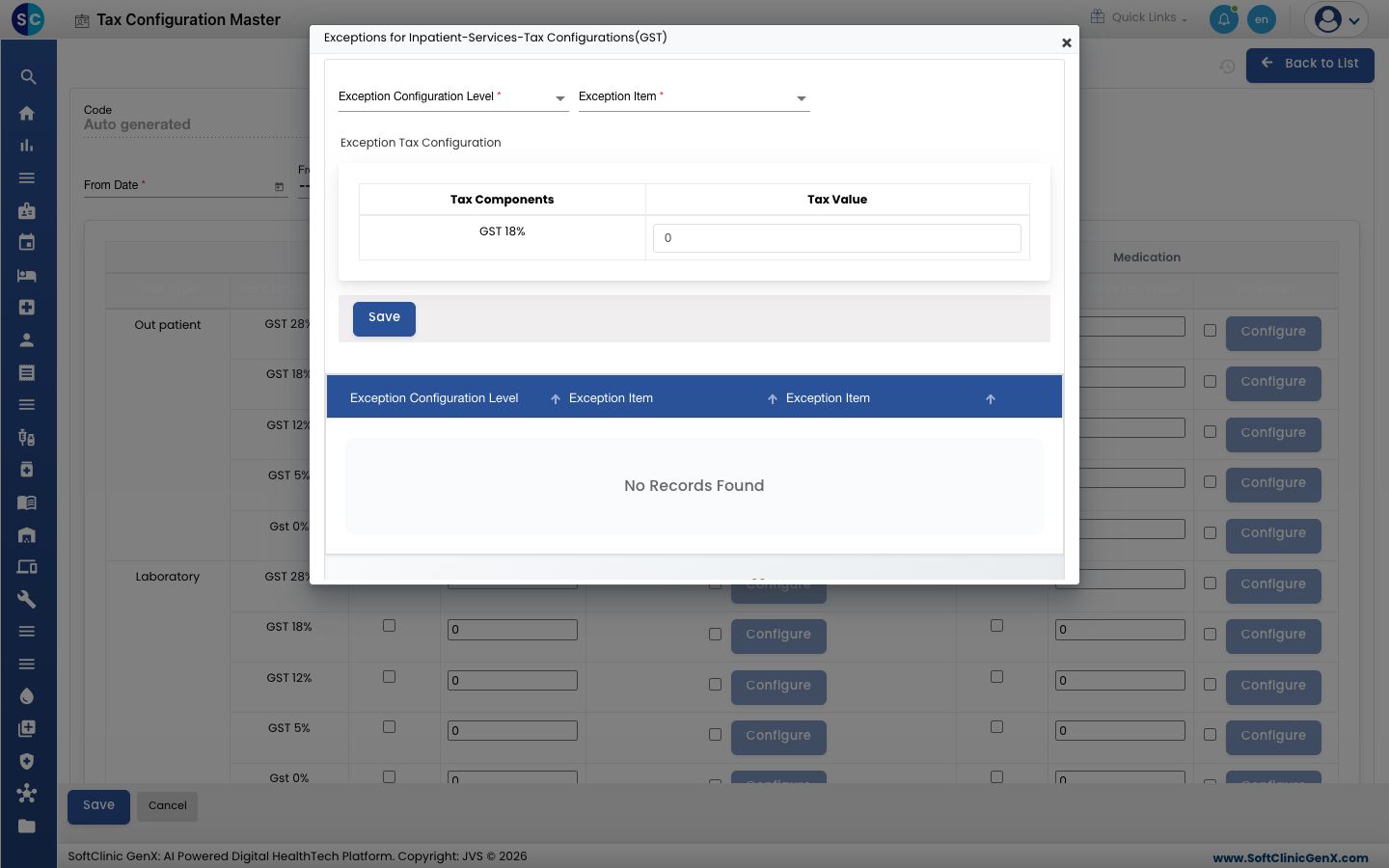
- In Exception Configuration Level, choose what the exception is for: Specialty, Service Group, Service, Item Group or Items.
- In Exception Item, pick the specialty, group, service or item.
- Enter the rate in Tax Value and click Save. The exception appears in the list at the bottom of the window.
- Close the window and click Save on the form.
Change a tax configuration
- In the list, click the ⋮ button at the end of the row and choose Edit.
- Change the dates, ticks or rates you need. To stop using the configuration, switch Status to Inactive.
- Click Save.
Good to know
- Each facility has one tax configuration. To change a facility's taxes, edit its existing configuration.
- Every active tax from Billing › Masters › Tax appears in the grid. Add the tax there first if it is missing.
- A tax is charged only where Applicability is ticked.
- Services and medicines are set separately, so a tax can apply to one and not the other.
- The item you pick in an exception must already exist in its own master.
Related
- Previous: Set up Tax
- Next: Set up Section Master
- Billing FAQs