Set up Tax
Who does this: hospital administrator or accounts manager Where: Billing › Masters › Tax
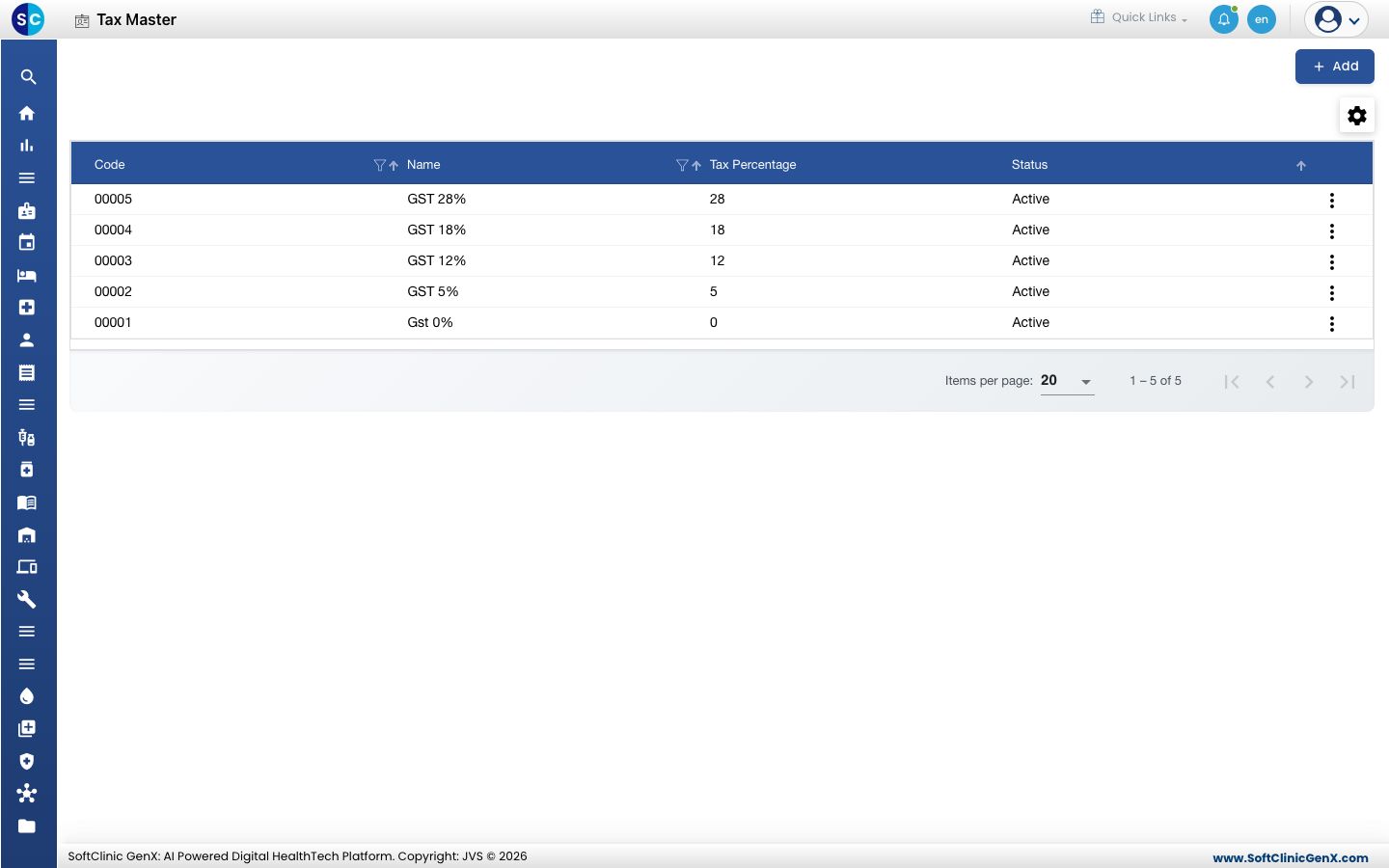
A tax is one rate your hospital charges, such as GST 5% or GST 18%. Each tax you create here appears in Tax Configuration, where you decide which visits, services and medicines it applies to.
Add a tax
-
Go to Billing › Masters › Tax.
-
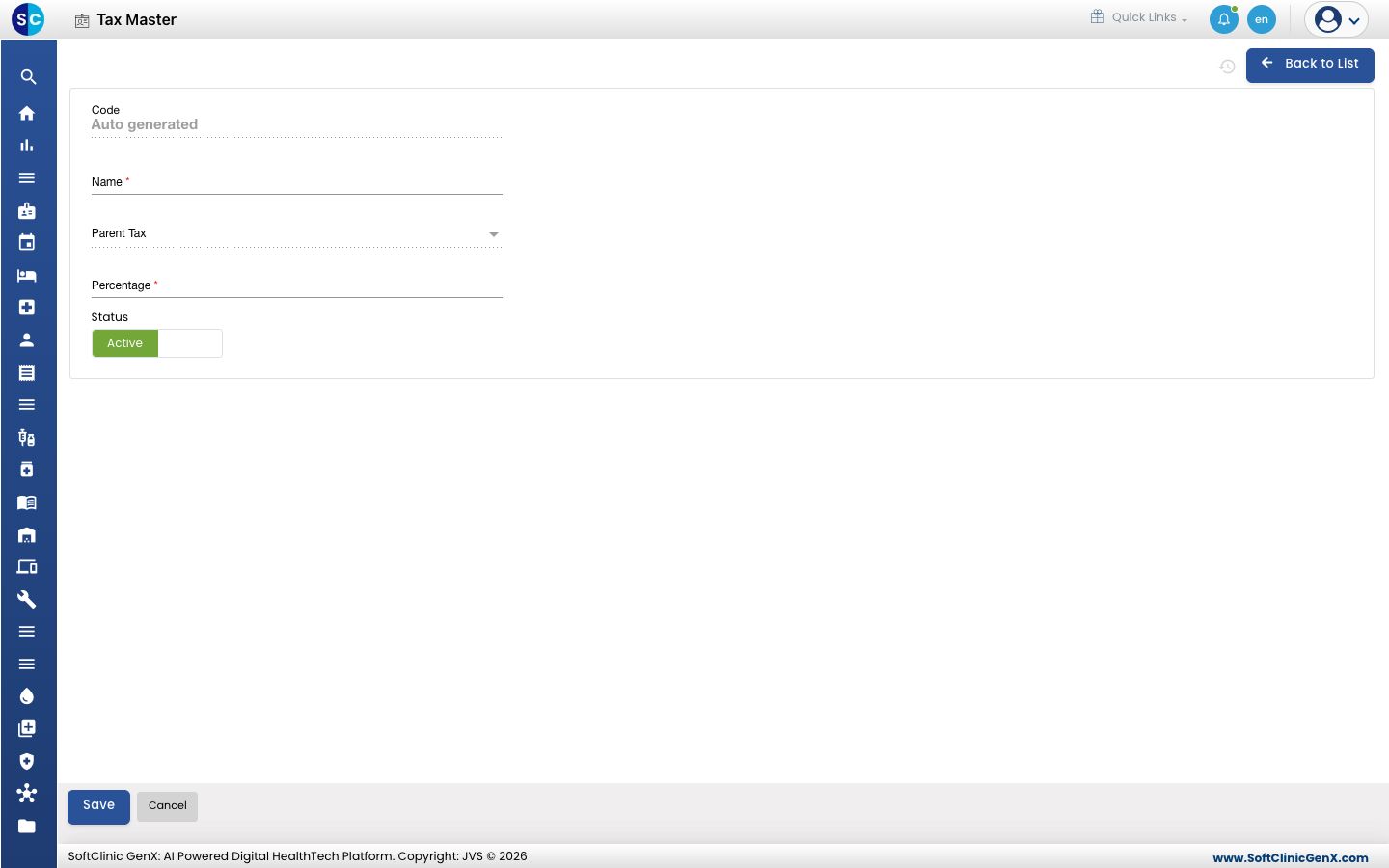
Click Add. The tax form opens.
-
Fill in the fields:
Field What to enter Required Code Filled in automatically when you save. — Name A name that shows the rate, for example GST 12%. Up to 50 characters. Yes Parent Tax Leave empty for a normal tax. Pick a tax here only when this tax is one part of a larger tax. No Percentage The rate as a whole number, for example 12. Yes Status Leave on Active. — -
Click Save. You return to the list and the new tax appears in it.
Change or deactivate a tax
- In the list, click the ⋮ button at the end of the row and choose Edit.
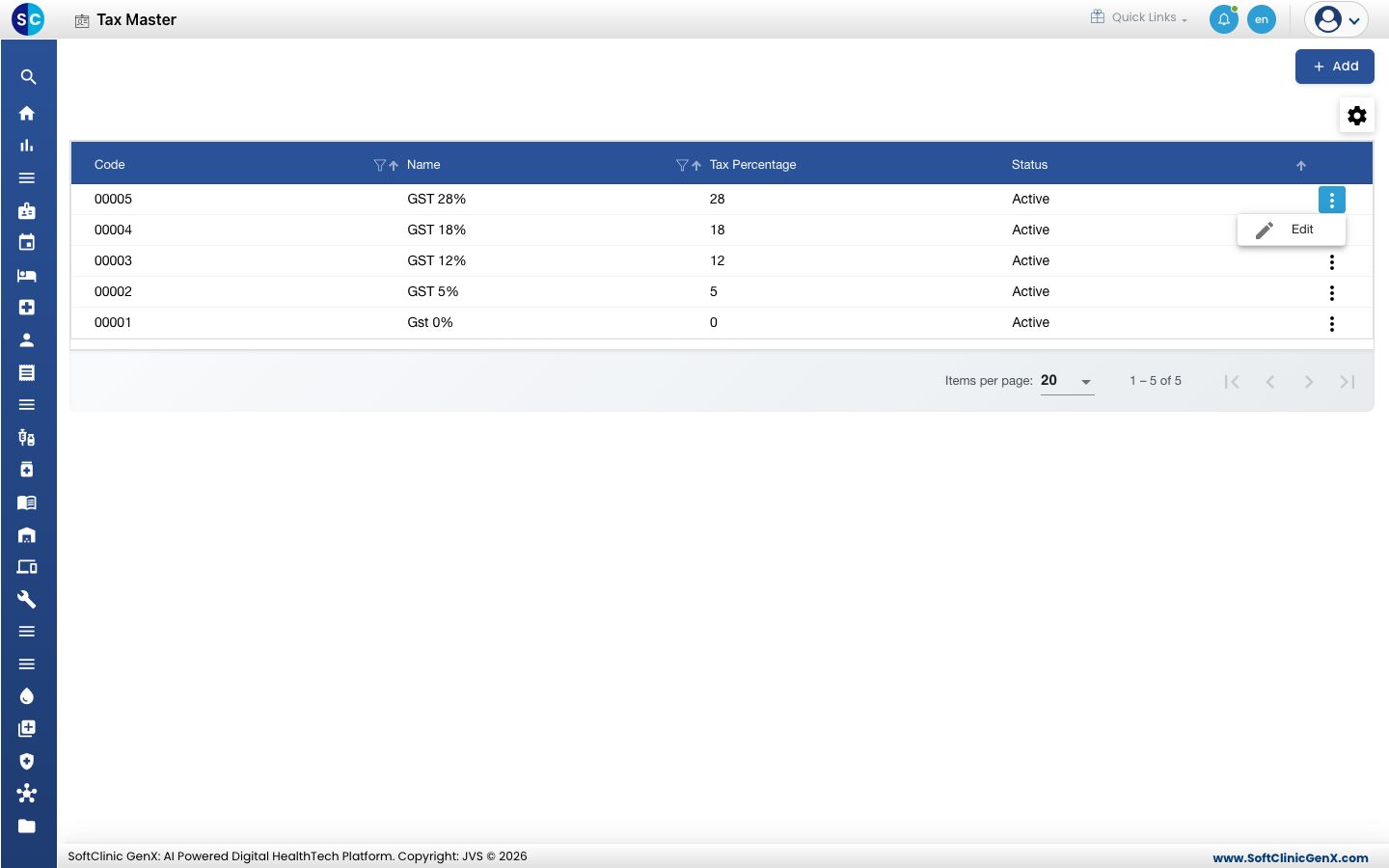
- Change the fields you need. To stop using the tax, switch Status to Inactive.
- Click Save.
Taxes cannot be deleted from this screen. Make a tax Inactive instead.
Good to know
- Tax names and codes must be unique.
- Percentage takes whole numbers only.
- Include the rate in the name (for example GST 18%). Staff see the name, not the percentage, in Tax Configuration.
- A new tax is not charged anywhere until you switch it on in Tax Configuration.
Related
- Previous: Set up Bank
- Next: Set up Tax Configuration
- Billing FAQs