Set up Class Master
Who does this: hospital administrator Where: Billing › Masters › Class Master Set up before: Facility
A bed class is the category of bed or room a patient is admitted to, such as General, Triple Sharing, Semi Private or Deluxe. Every bed belongs to a class. The class sets the minimum deposit taken at admission and which daily charges are added, and services can carry a different price for each class.
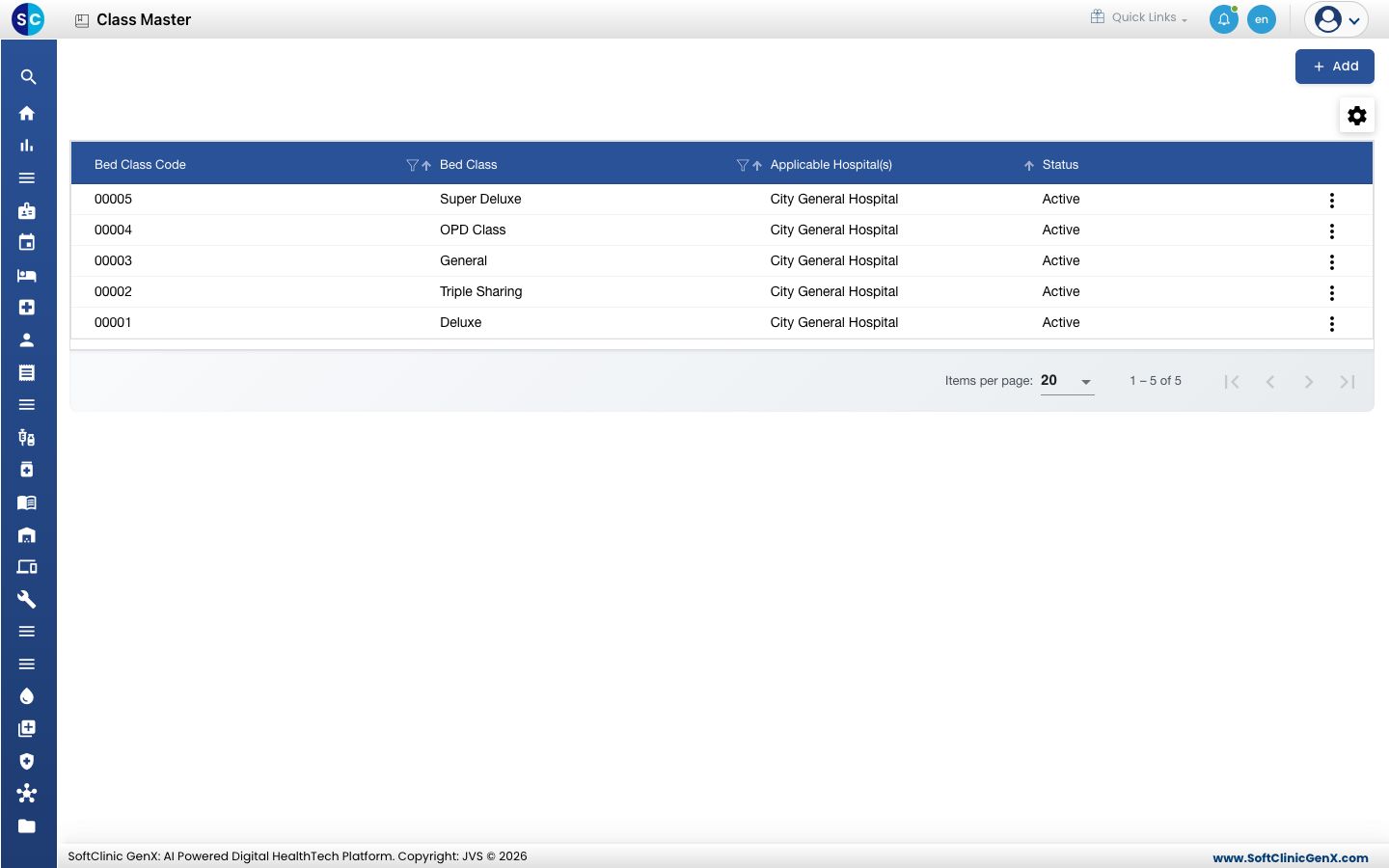
Add a bed class
-
Go to Billing › Masters › Class Master.
-
Click Add. The Bed Class Definition form opens on the right.
-
Fill in the fields:
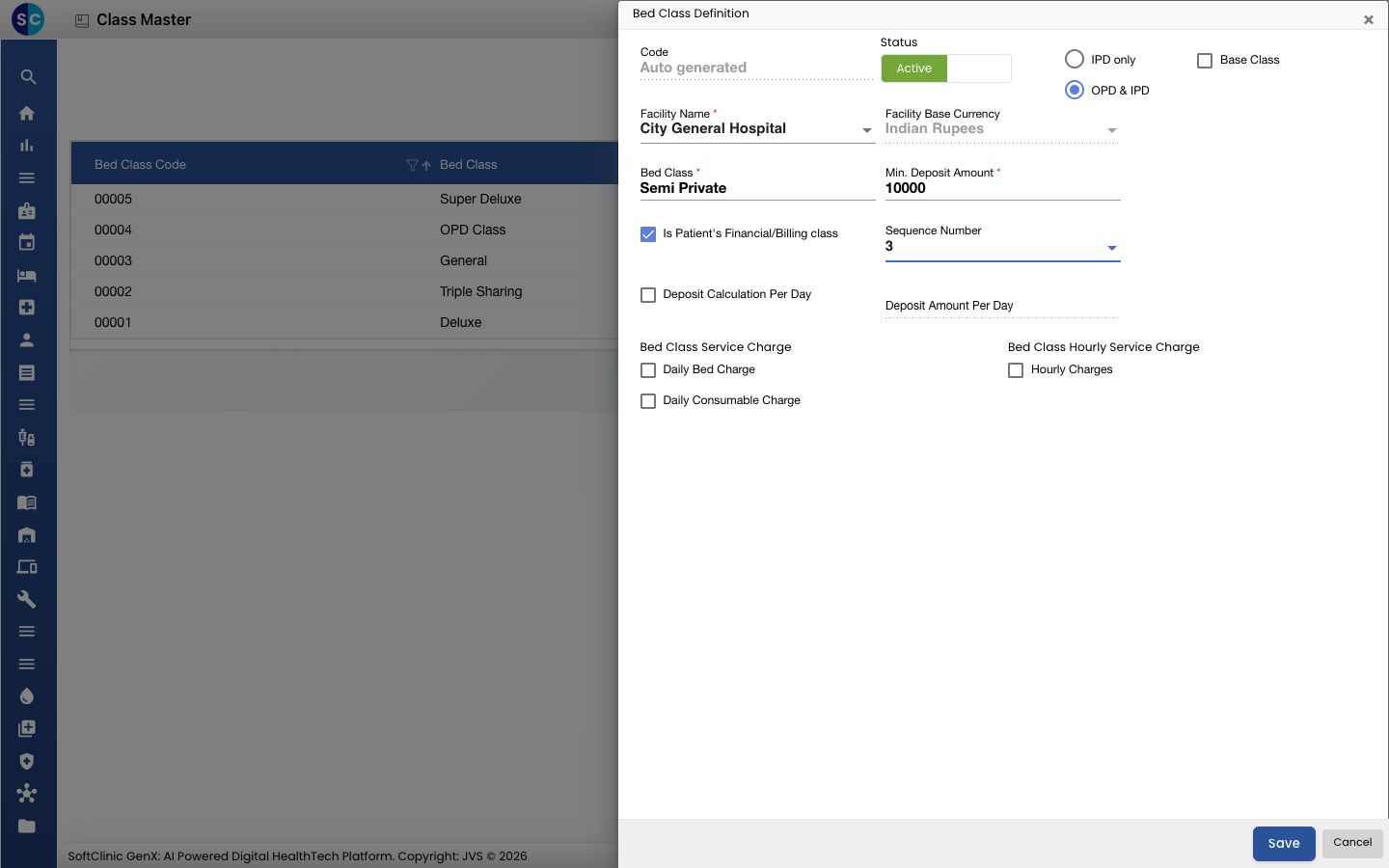
Field What to enter Required Code Filled in automatically when you save. — Status Leave on Active. — IPD only / OPD & IPD IPD only for a ward class. OPD & IPD if the class is also used for outpatient billing. — Base Class Tick for the facility's default class. Only one base class is allowed per facility. No Facility Name The facility this class belongs to. Yes Facility Base Currency Filled in from the facility. — Bed Class The class name, for example Semi Private. Yes Min. Deposit Amount The smallest deposit taken when a patient is admitted to this class. Numbers only. Yes Is Patient's Financial/Billing class Leave ticked if bills are priced by this class. No Sequence Number The order the class appears in lists, from 1 to 10. No Deposit Calculation Per Day Tick to work out the deposit per day of stay, then fill in Deposit Amount Per Day. No Daily Bed Charge, Daily Consumable Charge Tick the daily charges added for each day in this class. No Hourly Charges Tick if this class is charged by the hour. No -
Click Save. The form closes and the new class appears in the list.
Change or deactivate a bed class
- In the list, click the ⋮ button at the end of the row and choose Edit.
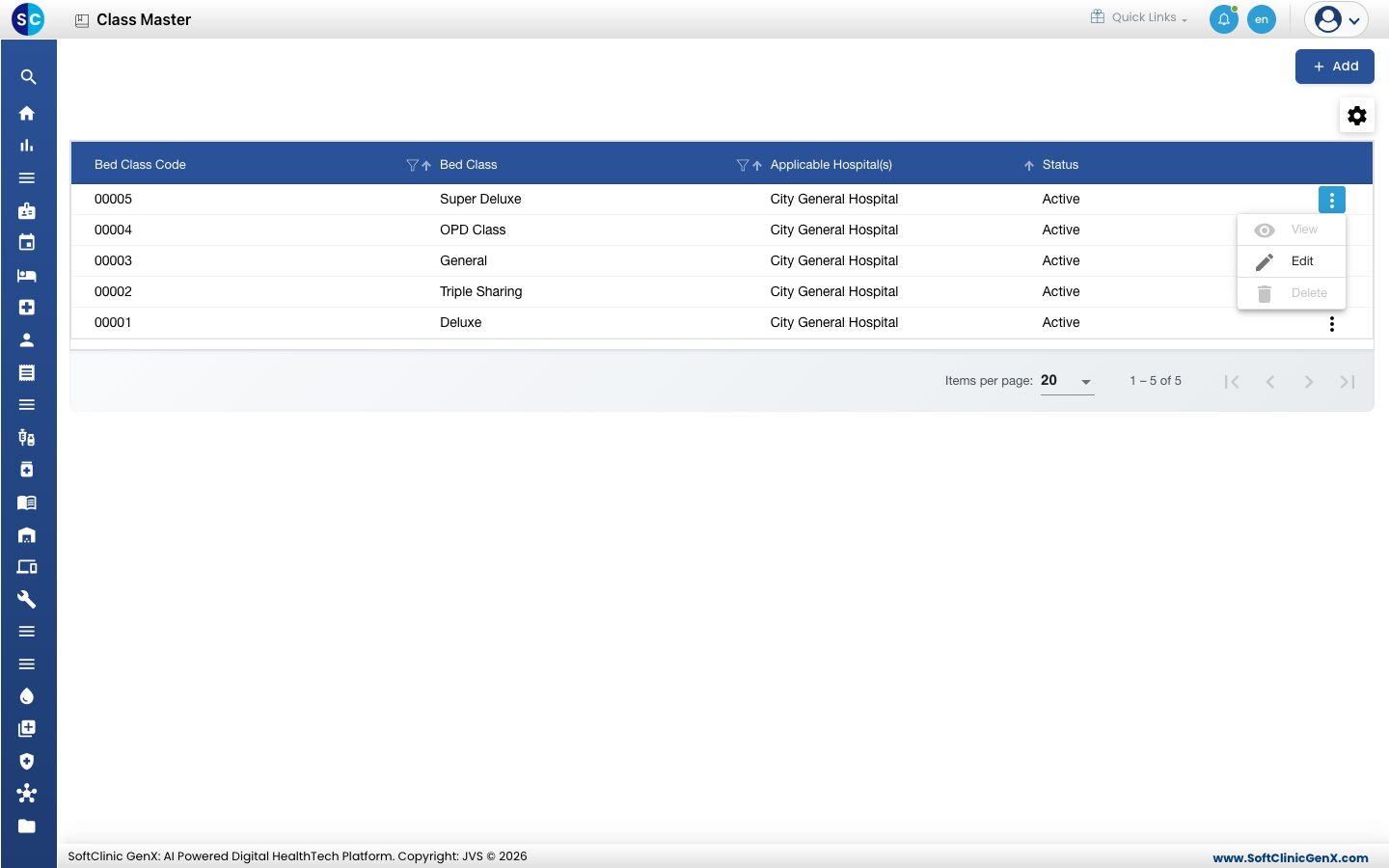
- Change the fields you need. To stop using the class, switch Status to Inactive.
- Click Save.
Bed classes cannot be deleted. Make a class Inactive instead.
Good to know
- Bed class names and codes must be unique.
- A facility can have only one Base Class. Untick it on the old class before you tick it on a new one.
- To price a service differently for each class, use Bed Class Wise Tariff on the service's Tariff tab.
- Click Cancel to close the form without saving.
Related
- Next: Set up Rate Tariffs
- Previous: Set up Service
- Billing FAQs