Set up Organization Master
Who does this: hospital administrator or billing manager Where: Billing › Masters › Organization Master Set up before: Rate Tariffs
An organisation is whoever pays a patient's bill: the patient (Self), an insurance company, a TPA, a corporate or a government fund. When a patient is registered or admitted under an organisation, their bills use that organisation's rate plan and credit terms.
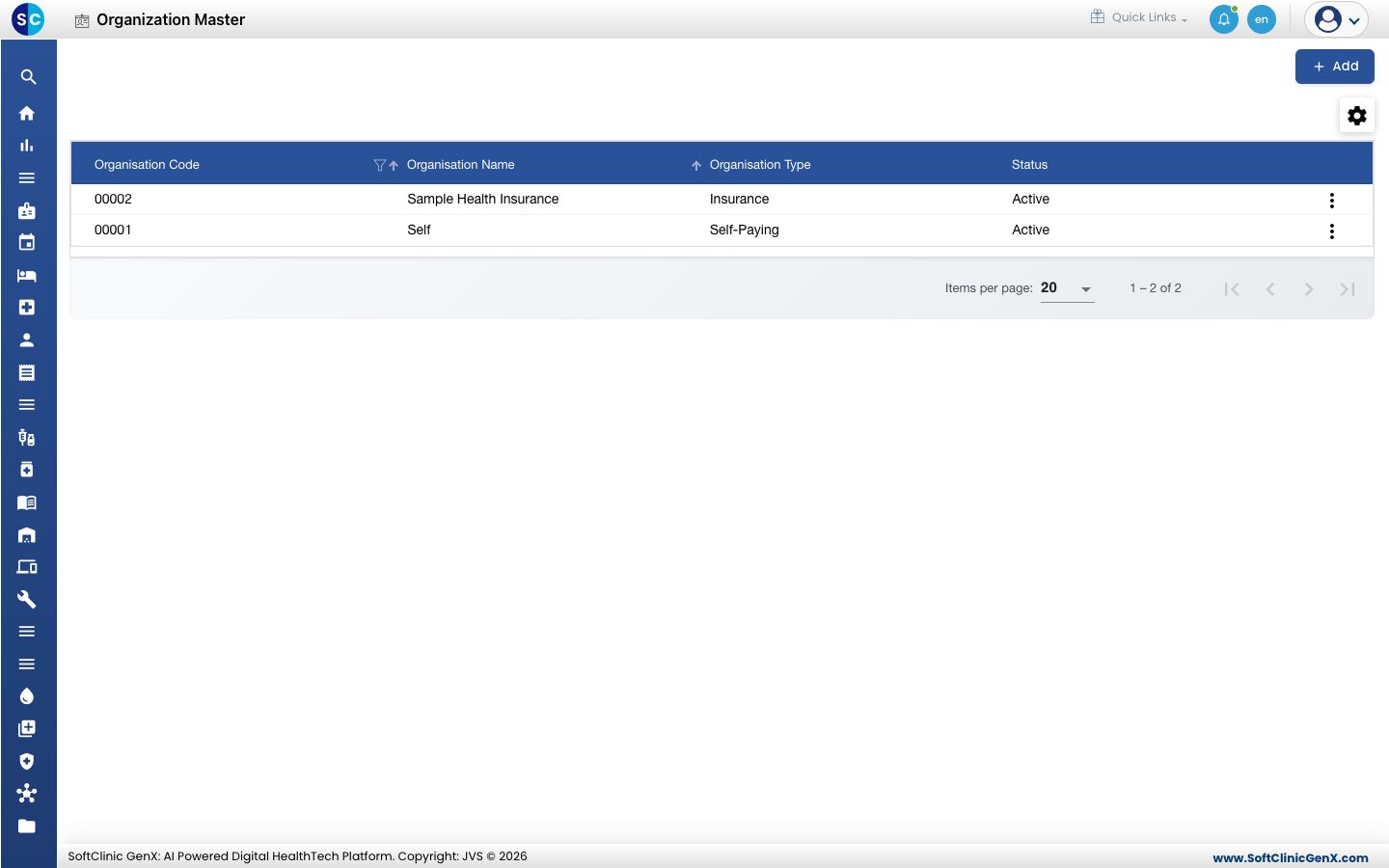
Add an organisation
-
Go to Billing › Masters › Organization Master.
-
Click Add. The Contract Organization Definition page opens.
-
Fill in the top section:
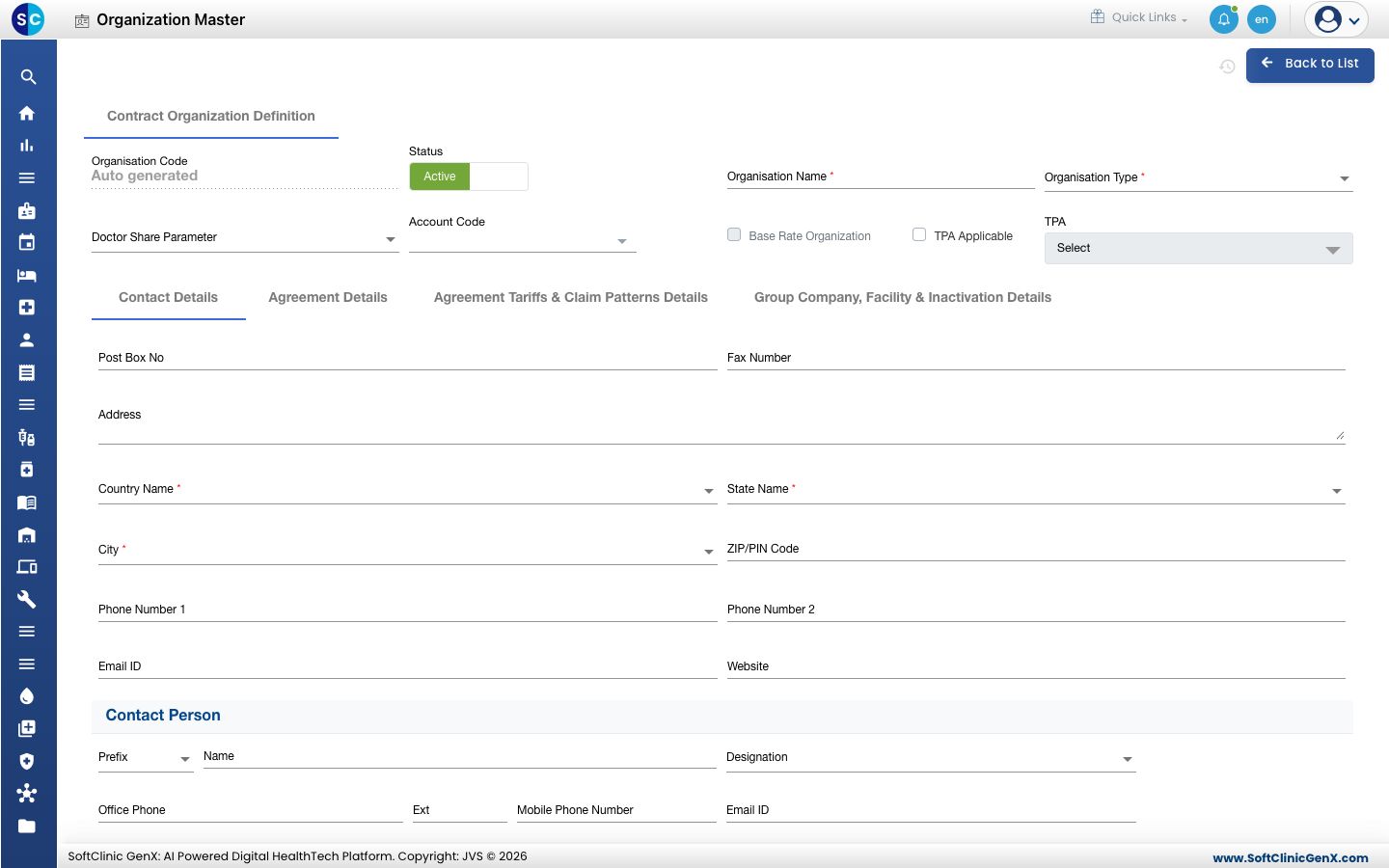
Field What to enter Required Organisation Code Filled in automatically when you save. — Status Leave on Active. — Organisation Name The payer's name. Yes Organisation Type Insurance, TPA, Organisation, Govt./CM/PM Funds or Self-Paying. Yes Doctor Share Parameter How doctor shares are worked out for this payer's patients. No Account Code The accounting ledger for this payer. No Base Rate Organization Tick for the organisation whose prices are the hospital's base rates. Only one is allowed, so the box is greyed out once another organisation has it. No TPA Applicable, TPA Tick if claims go through a TPA, then choose the TPA. No -
On the Contact Details tab, enter the address and phone numbers. Country Name, State Name and City are required. Add one or more people under Contact Person.
-
Open the Agreement Details tab and enter the contract:
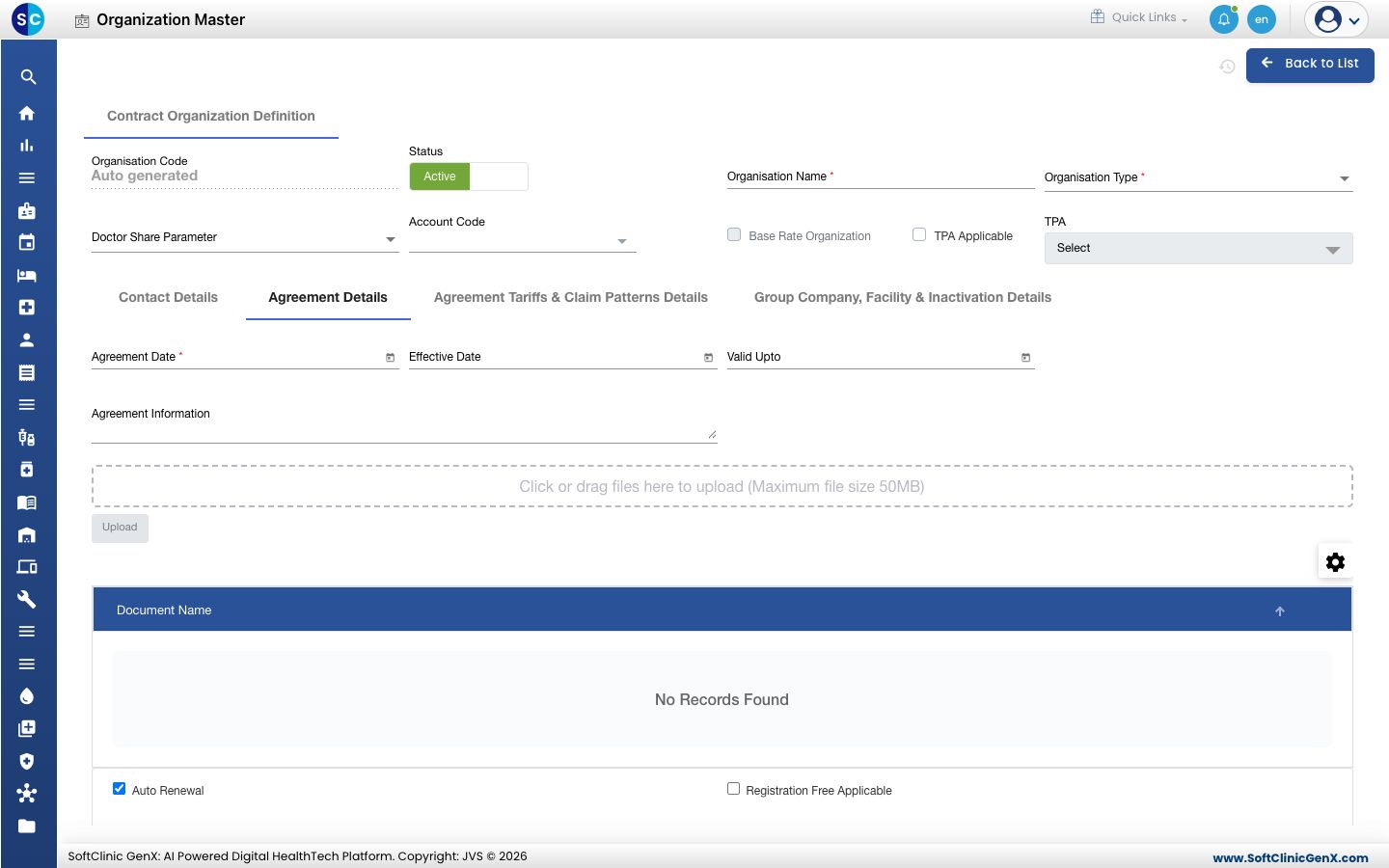
- Agreement Date (required), Effective Date and Valid Upto.
- Upload the signed agreement under Agreement Information.
- Credit terms: Credit Limit, Credit Days, Total Advance Amount, Total Outstanding Amount and Currency.
- Insurance terms, if the payer is an insurer: Default Co-pay %, Default Deductible Amount and Validity days for pre-authorization/approval.
- The people who approve claims, under Authorization Details.
-
Open the Agreement Tariffs & Claim Patterns Details tab and choose how this payer is priced and claimed:
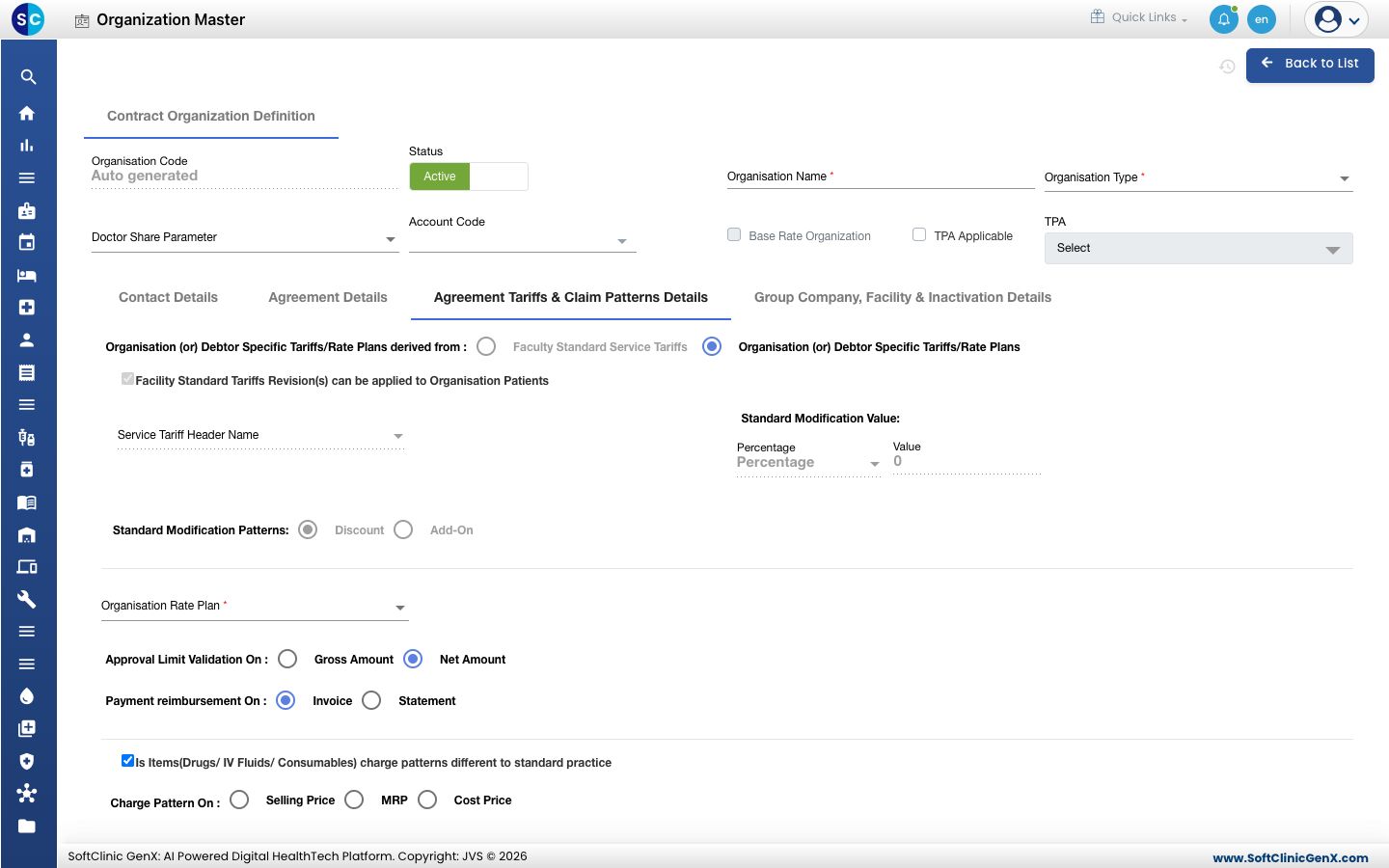
- Organisation Rate Plan (required): the rate plan this payer's patients are billed from.
- Standard Modification Patterns and Standard Modification Value: a discount or add-on, as a percentage or value, on top of the tariff.
- Approval Limit Validation On (Gross Amount or Net Amount) and Payment reimbursement On (Invoice or Statement).
- Charge Pattern On: tick the box above it if drugs and consumables are charged at Selling Price, MRP or Cost Price instead of the usual way.
- Applicable Visit Types, Pre-authorization Submission Format and Claim Submission Format.
-
Open the Group Company, Facility & Inactivation Details tab if you need to:
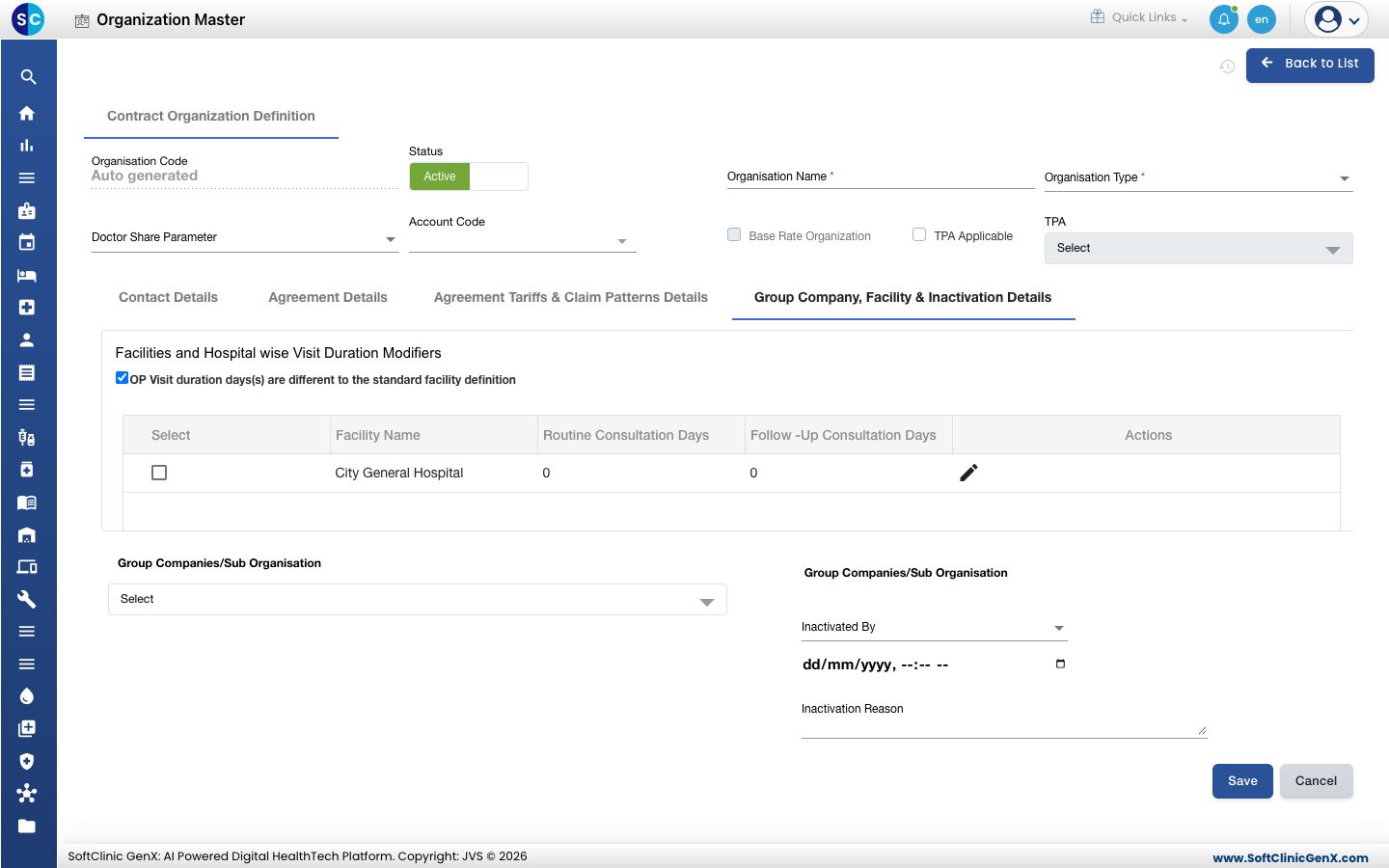
- Set different Routine Consultation Days and Follow -Up Consultation Days for this payer at a facility.
- Link Group Companies/Sub Organisation.
-
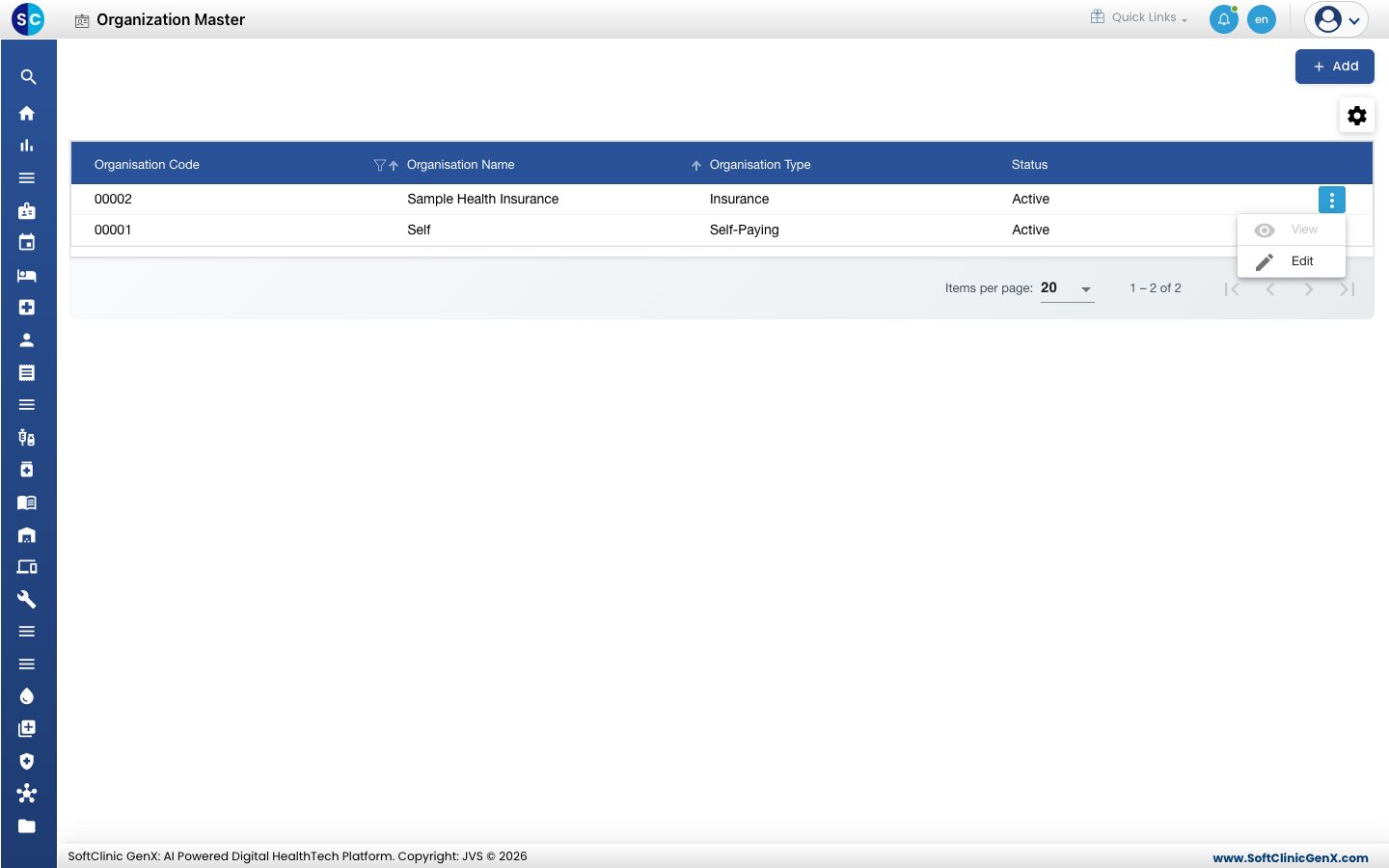
Click Save. The organisation appears in the list.
Change or deactivate an organisation
- In the list, click the ⋮ button at the end of the row and choose Edit. Choose View to look without changing anything.
- Change the fields you need.
- To stop using the organisation, switch Status to Inactive. Then fill in Inactivated By, the date and time, and the Inactivation Reason on the Group Company, Facility & Inactivation Details tab. All three are required when the status is inactive.
- Click Save.
Good to know
- Create the rate plan in Rate Tariffs first. Organisation Rate Plan lists only plans that already exist.
- Fax Number, ZIP/PIN Code and the phone fields accept numbers only.
- The Self organisation is for patients who pay their own bills.
- Click Cancel or Back to List to leave without saving.
Related
- Next: Set up Discount Master
- Previous: Set up Rate Tariffs
- Billing FAQs