Set up Vital Sign Chart Section
Who does this: hospital administrator, medical superintendent or nursing in-charge Where: Doctor Work Bench › Masters › Vital Sign Chart Section Set up before: Vital
A chart section groups related readings under one heading on the vital sign chart — for example, Blood Pressure - Systolic and Blood Pressure - Diastolic under Blood Pressure. You place each reading in a section when you build the chart in Vital Sign Chart Configuration.
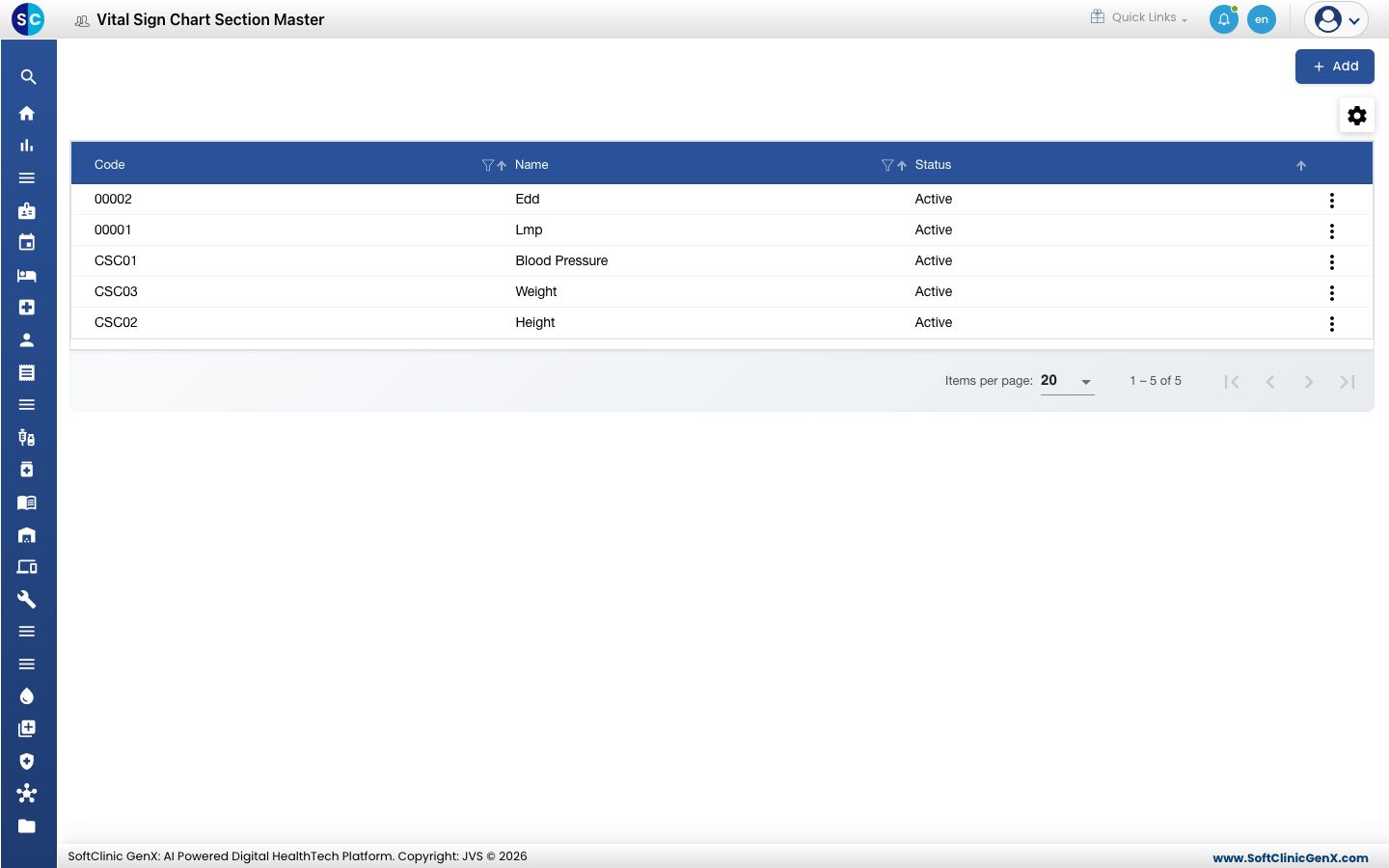
Add a chart section
-
Go to Doctor Work Bench › Masters › Vital Sign Chart Section.
-
Click Add. The section form opens.
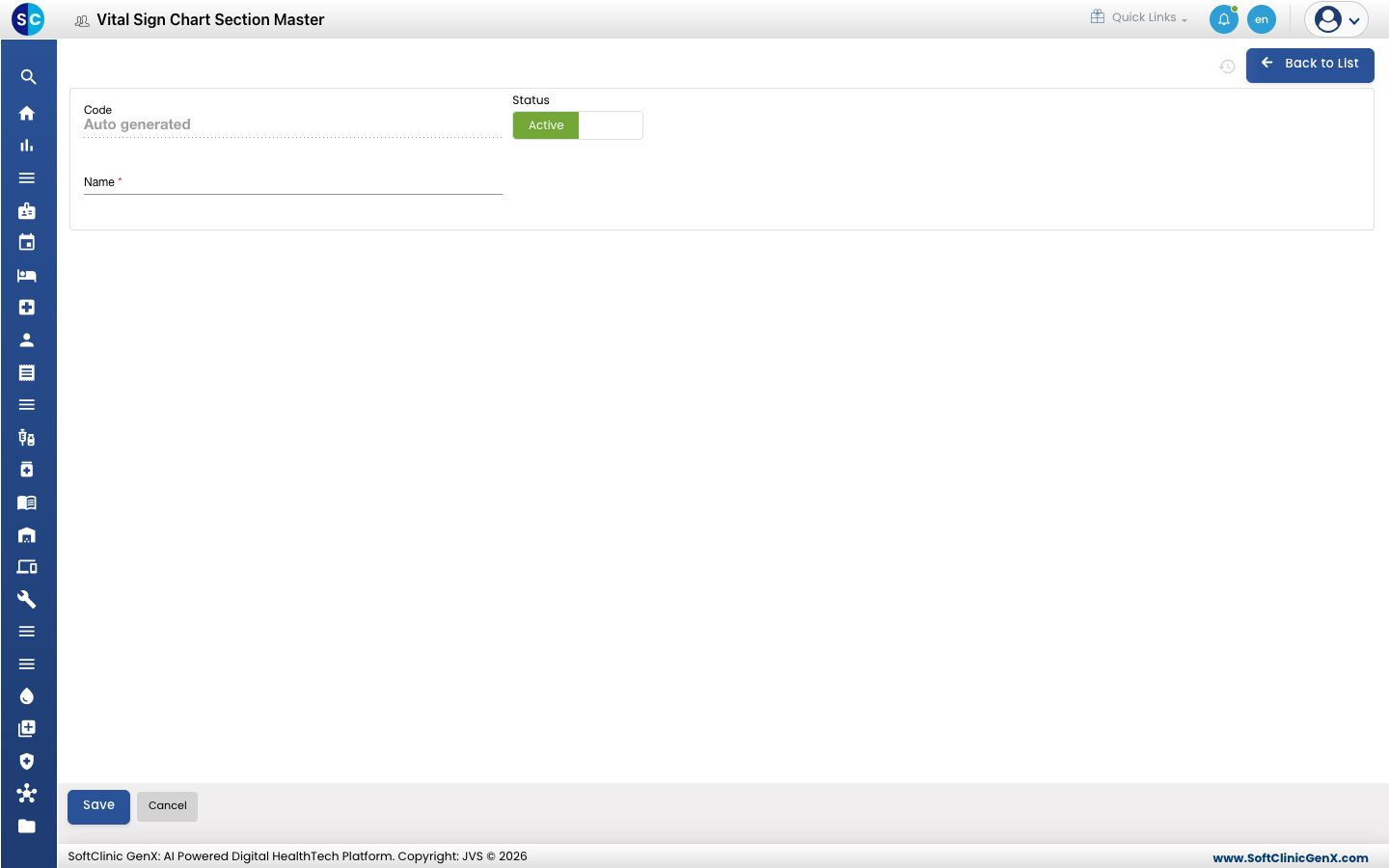
-
Fill in the fields:
Field What to enter Required Code Filled in automatically when you save. — Status Leave on Active. — Name The heading shown on the chart, for example Blood Pressure. Up to 50 characters. Yes -
Click Save. You return to the list and the new section appears in it.
Change or deactivate a chart section
- In the list, click the ⋮ button at the end of the row and choose Edit.
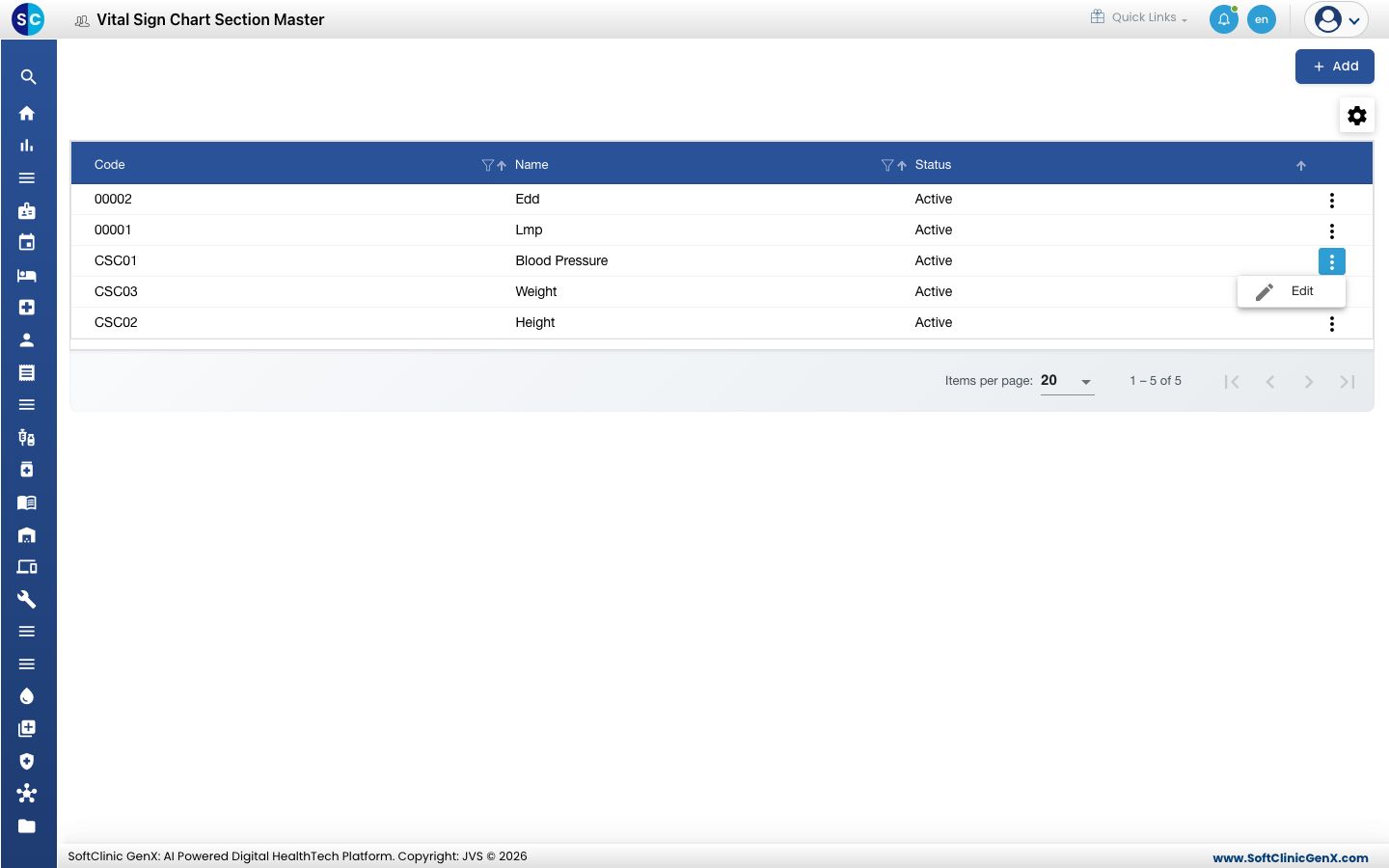
- Change the name, or switch Status to Inactive to stop offering the section.
- Click Save.
Chart sections cannot be deleted from this screen. Make a section Inactive instead.
Good to know
- A section is optional for a reading. Readings that stand alone, such as Weight, need no section.
- Click Back to List or Cancel to leave the form without saving.
Related
- Previous: Set up Vital
- Next: Set up Vital Sign Chart Configuration
- Doctor Work Bench FAQs