Set up Vital
Who does this: hospital administrator, medical superintendent or nursing in-charge Where: Doctor Work Bench › Masters › Vital
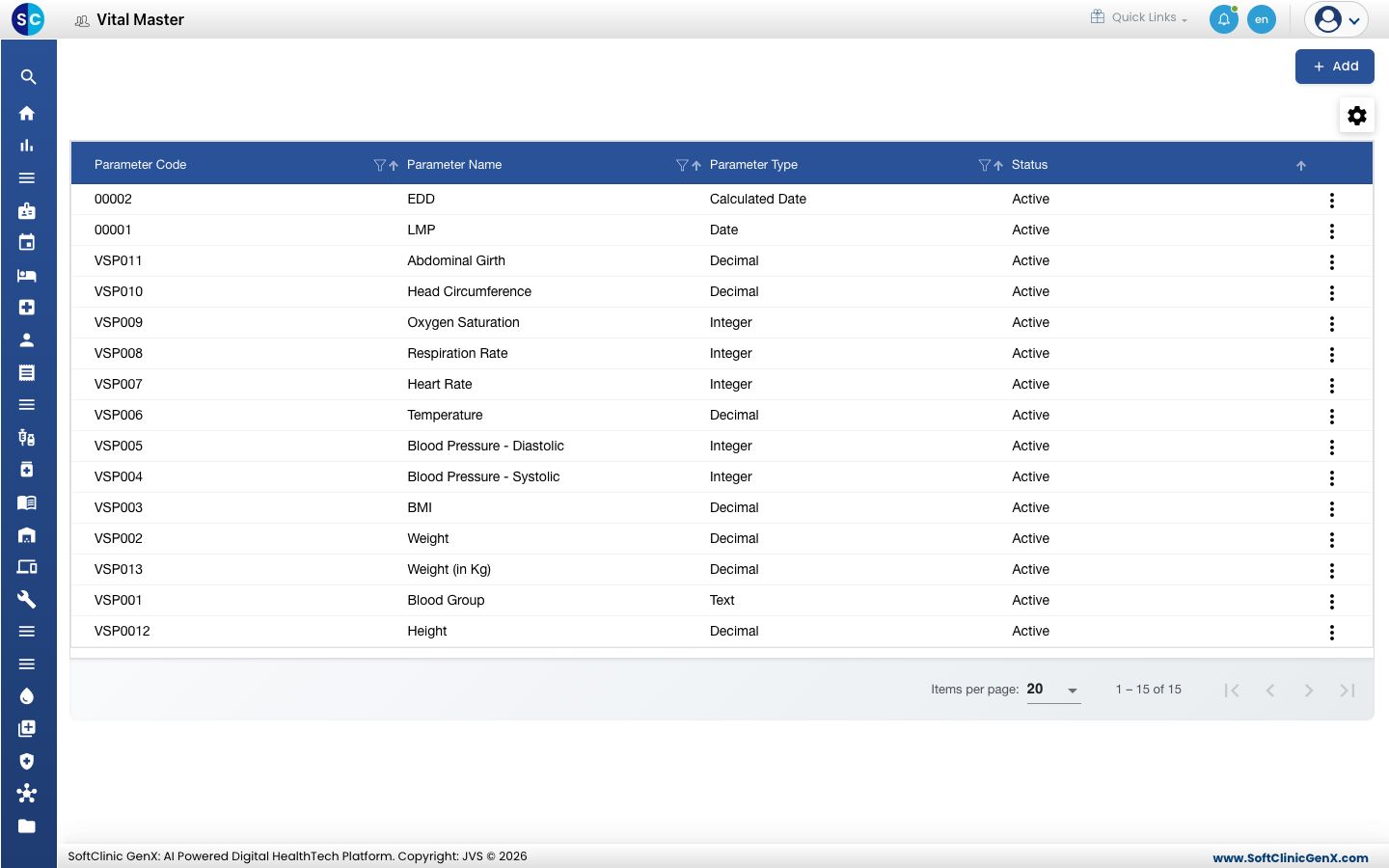
Each vital is one reading your doctors and nurses record for a patient, for example Temperature, Heart Rate or Weight. The list decides what can be recorded, in which unit, and which reading counts as normal. Vitals are then grouped on a vital sign chart in Vital Sign Chart Configuration. A set of common vitals is already in place.
Add a vital
-
Go to Doctor Work Bench › Masters › Vital.
-
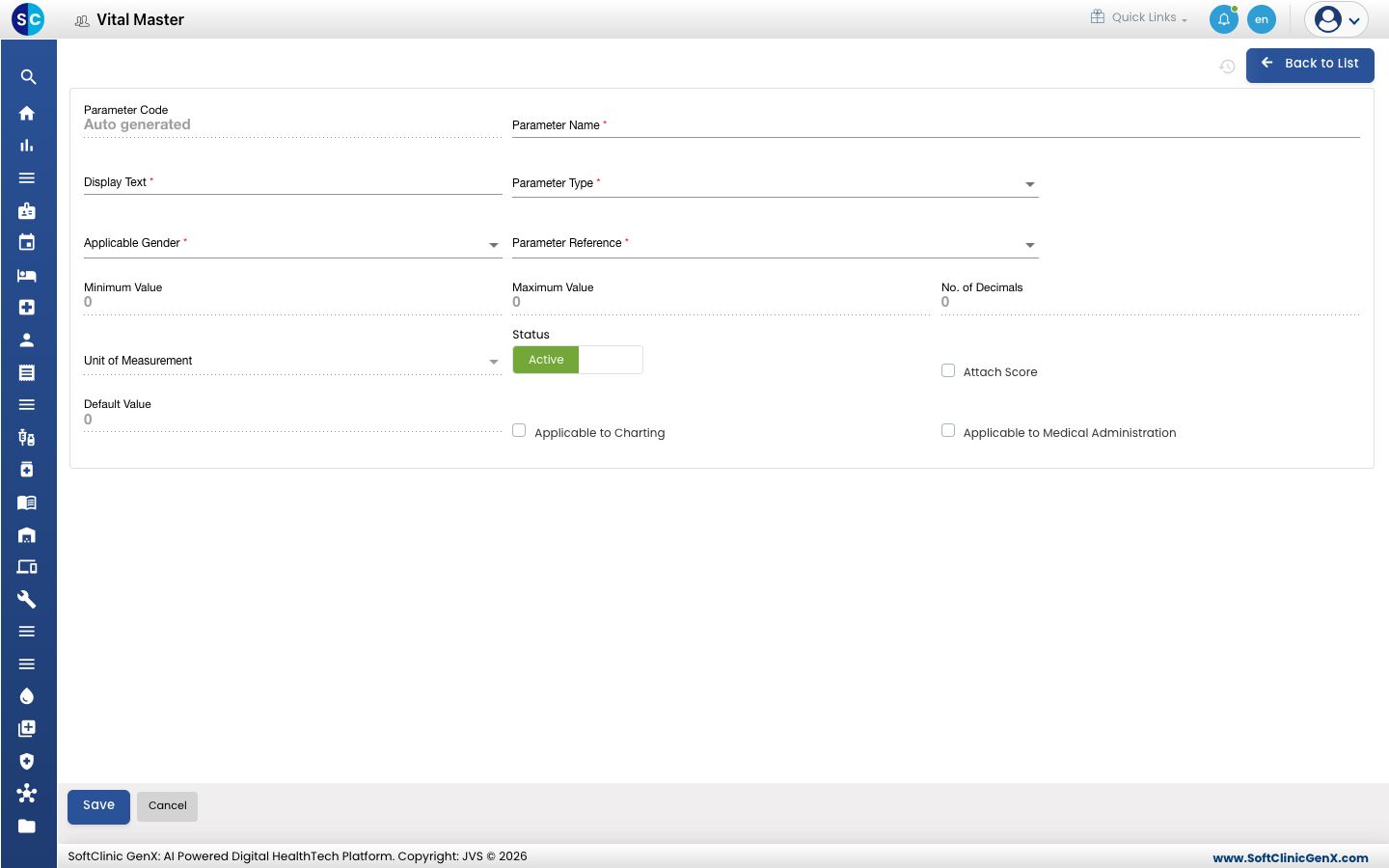
Click Add. The vital form opens.
-
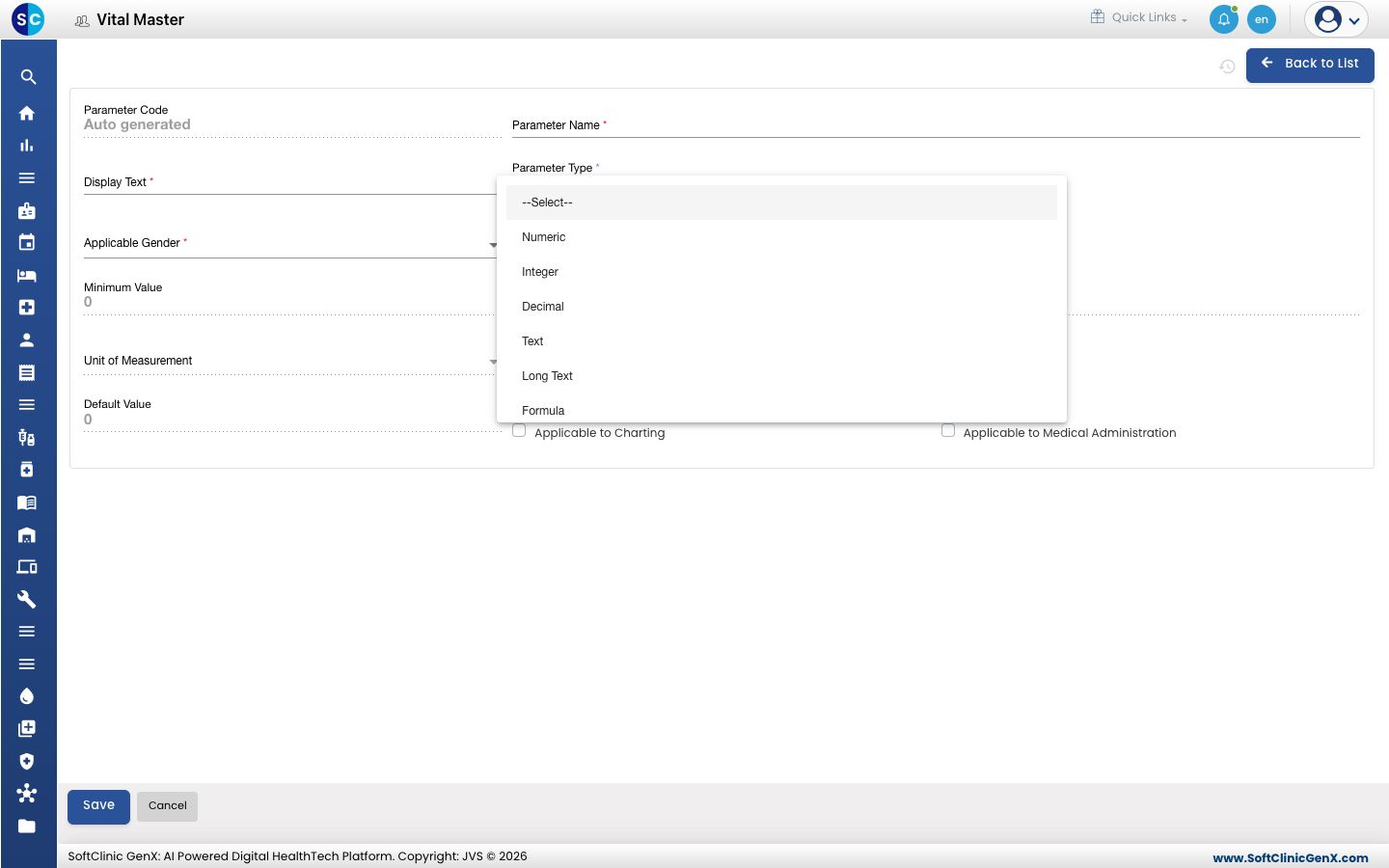
Pick the Parameter Type — the kind of value staff will enter.
-
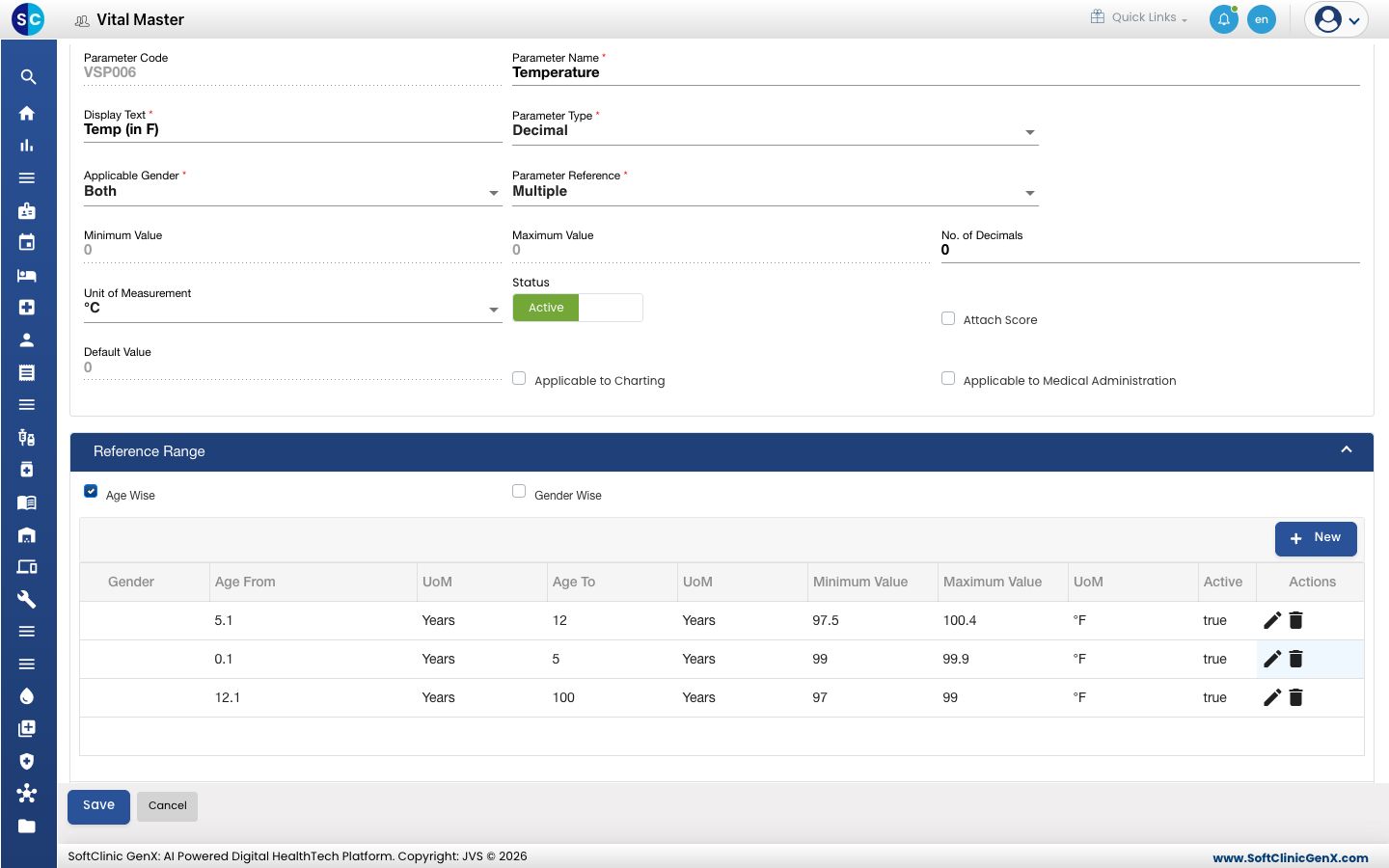
Fill in the other fields:
Field What to enter Required Parameter Code Filled in automatically when you save. — Parameter Name The name of the reading, for example Pulse Rate. Yes Display Text The short label staff see when they record it, for example Pulse. Yes Parameter Type Numeric, Integer, Decimal, Text, Long Text, Formula, List of Values, Date or Calculated Date. Yes Applicable Gender Male, Female or Both. Yes Parameter Reference Single for one normal range for everyone. Multiple to set normal ranges by age or gender (see step 5). Yes Minimum Value / Maximum Value The normal range, for a single range. No No. of Decimals How many decimal places to record. No Unit of Measurement The unit, for example °F or kg. Available for number types. No Status Leave on Active. — Attach Score Tick if the reading carries a score. No Default Value A value filled in for staff in advance. No Applicable to Charting Tick to include the reading in charting. No Applicable to Medical Administration Tick to include the reading when medicines are given. No 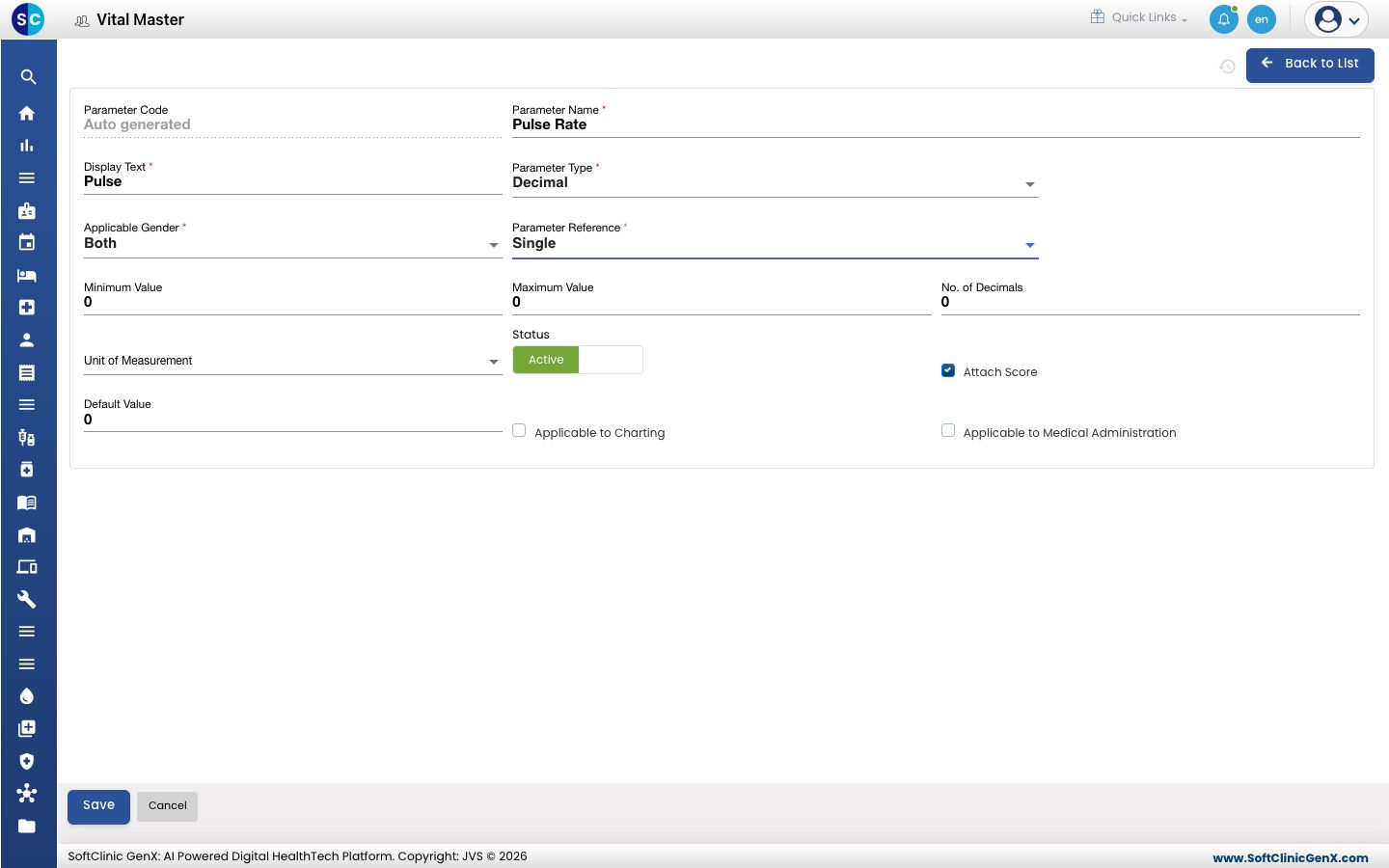
-
If you chose Multiple, open Reference Range, tick Age Wise and/or Gender Wise, and click New for each band. Enter the age from and to, the minimum and maximum values and the unit.
-
Click Save. You return to the list and the new vital appears in it.
Change or deactivate a vital
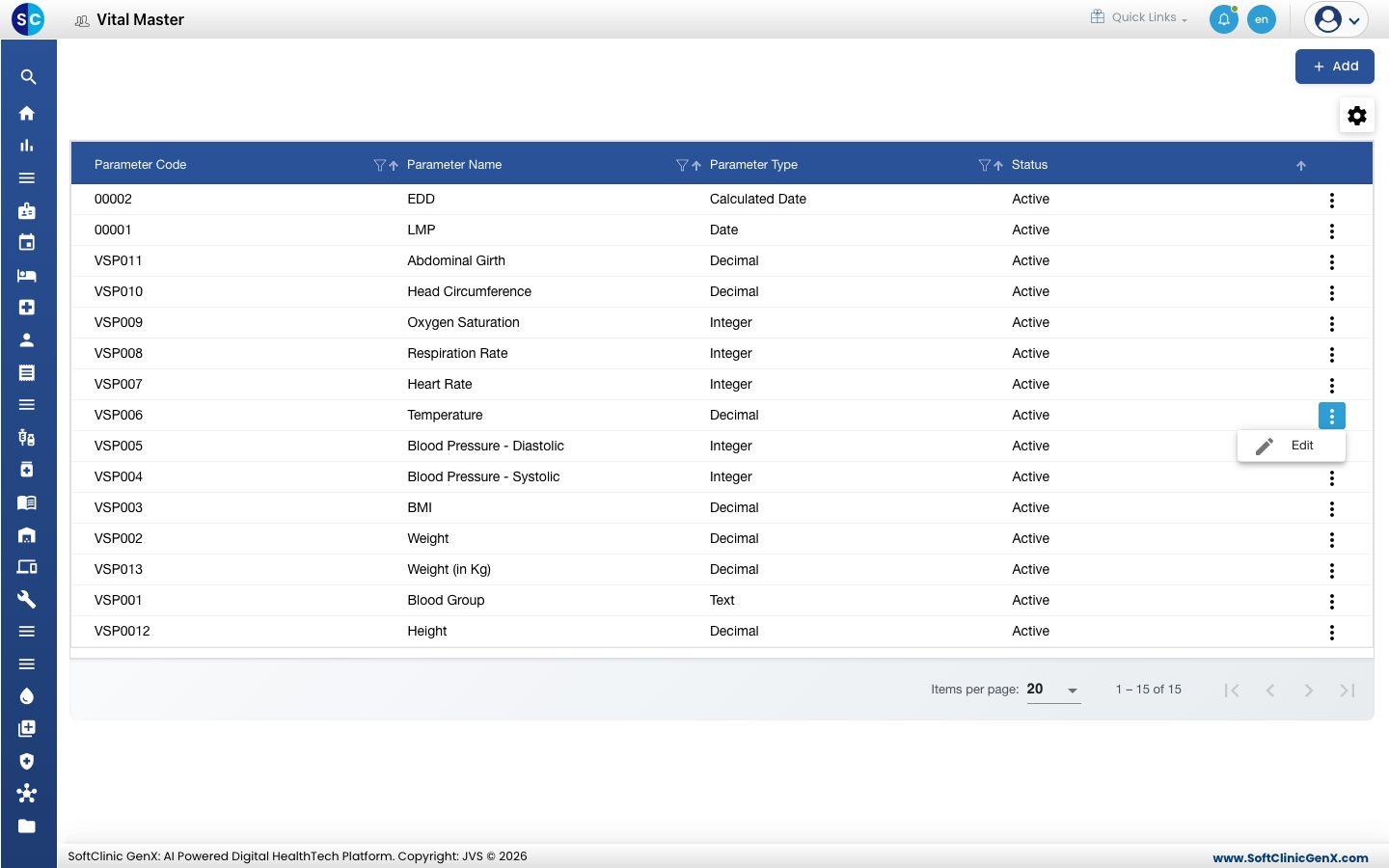
- In the list, click the ⋮ button at the end of the row and choose Edit.
- Change the fields you need. To stop offering the vital, switch Status to Inactive.
- Click Save.
Vitals cannot be deleted from this screen. Make a vital Inactive instead.
Good to know
- For Calculated Date, the form asks for the date reading it is worked out from and the number of days to add — for example an expected delivery date worked out from the last menstrual period.
- Use the filter and sort icons in the column headers to find a vital quickly.
- Click Back to List or Cancel to leave the form without saving.
Related
- Previous: Set up Frequency
- Next: Set up Vital Sign Chart Section
- Doctor Work Bench FAQs