Set up Vital Sign Chart Configuration
Who does this: hospital administrator, medical superintendent or nursing in-charge Where: Doctor Work Bench › Masters › Vital Sign Chart Configuration Set up before: Vital, Vital Sign Chart Section
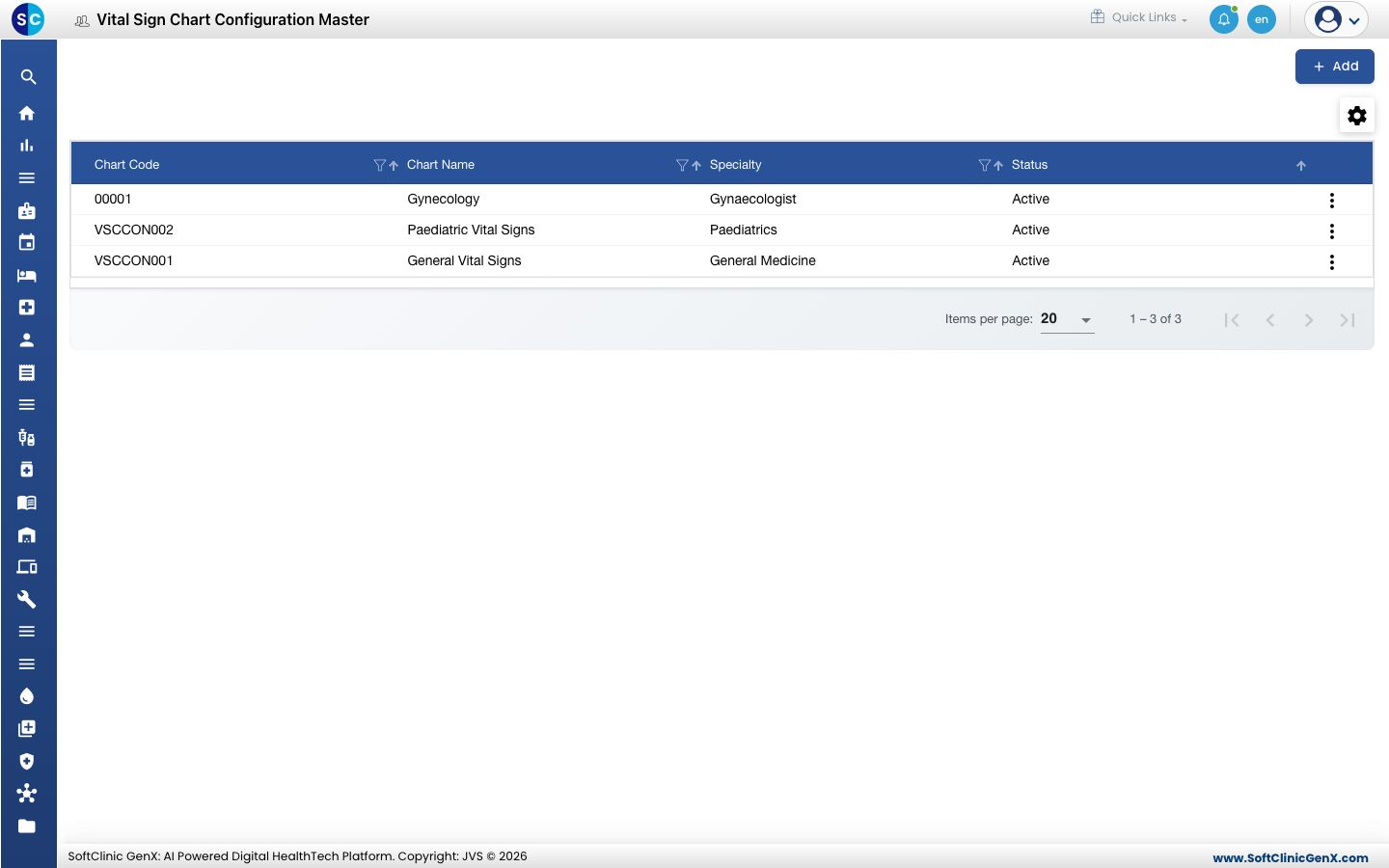
A vital sign chart is the set of readings staff record together — for example a General Vital Signs chart for adults and a Paediatric Vital Signs chart for children. Each chart can be tied to a specialty, a location and an age group, and lists the readings in the order staff fill them in.
Add a chart
-
Go to Doctor Work Bench › Masters › Vital Sign Chart Configuration.
-
Click Add. The chart form opens.
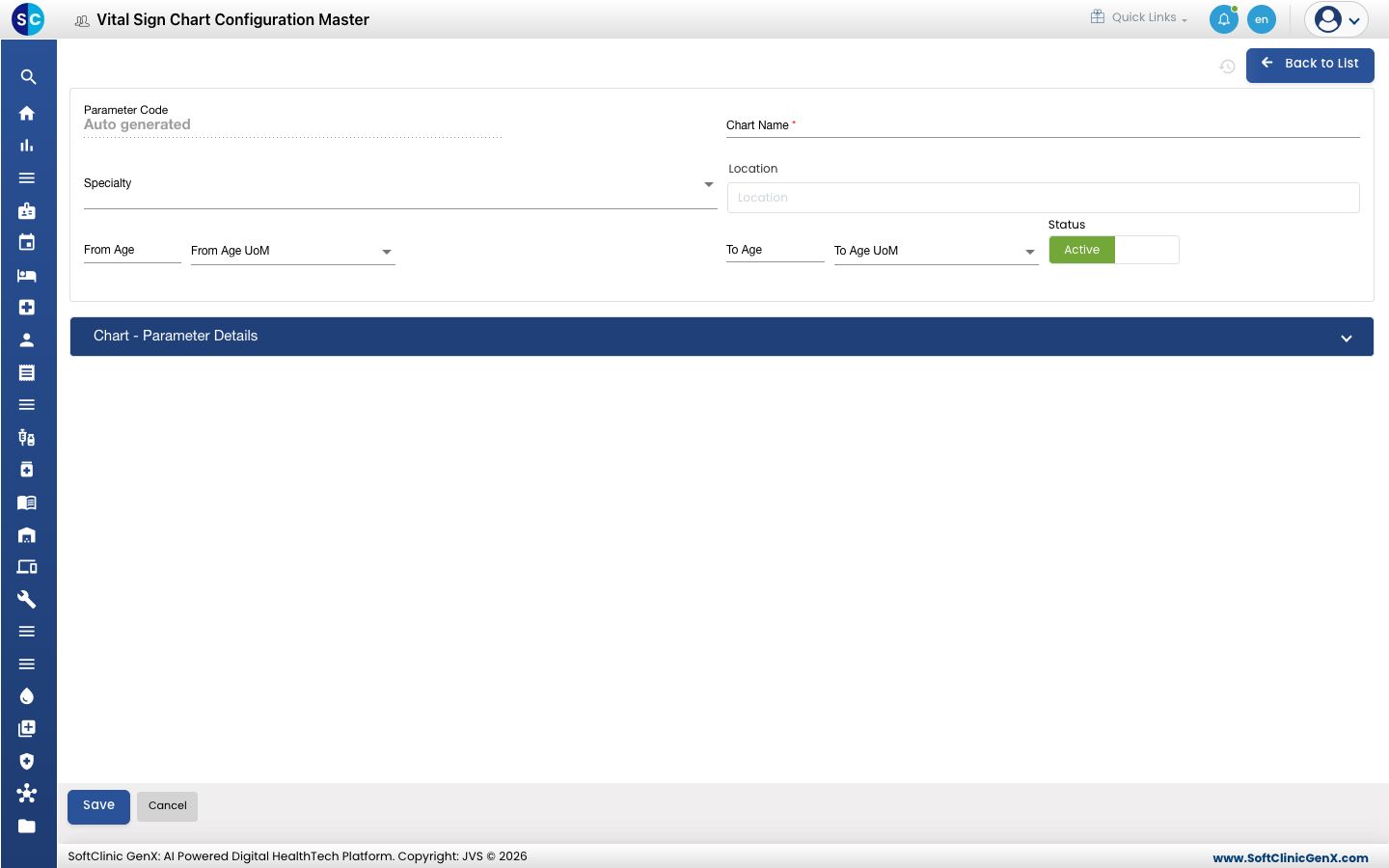
-
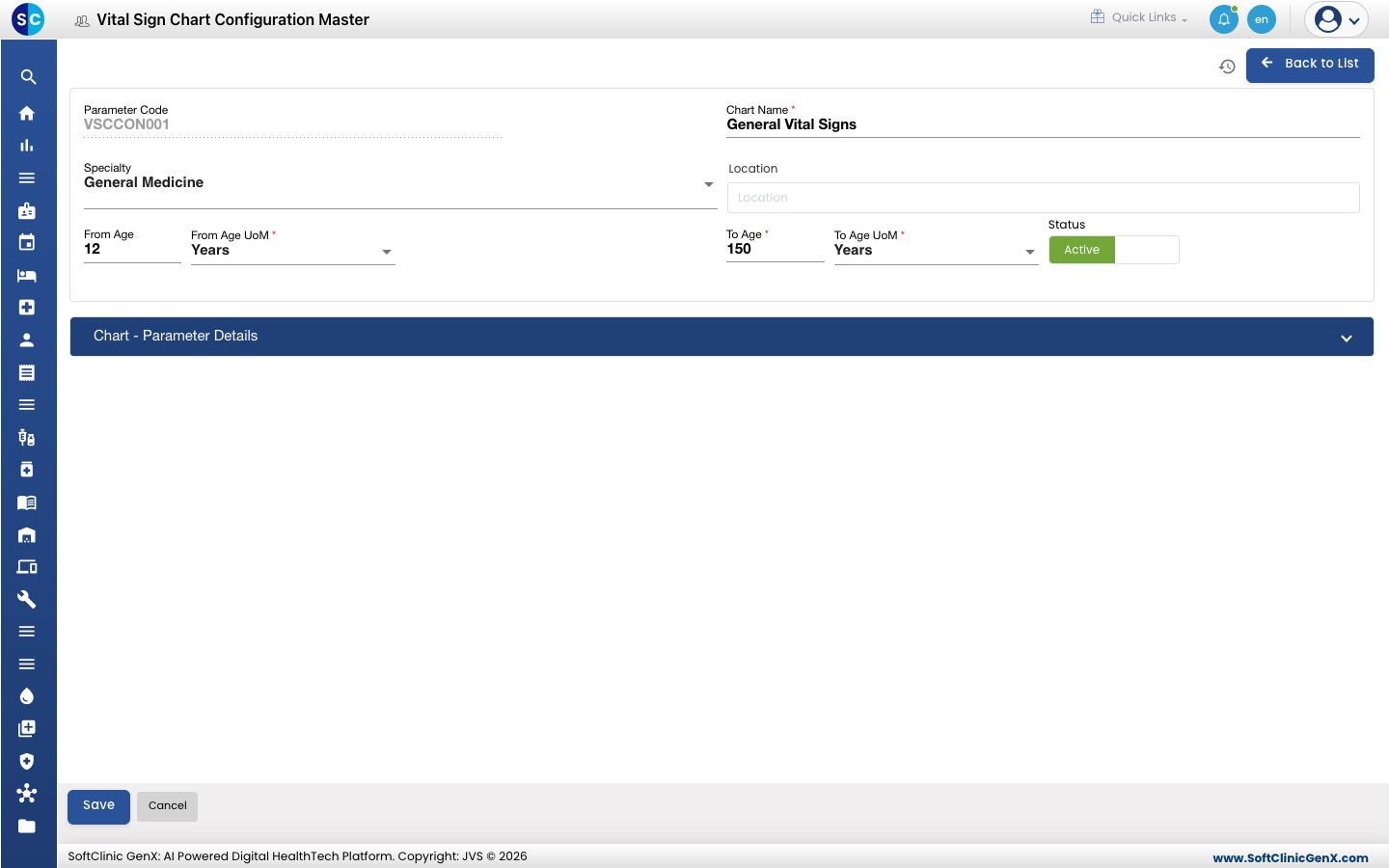
Fill in the fields:
Field What to enter Required Parameter Code Filled in automatically when you save. — Chart Name The name of the chart, for example General Vital Signs. Up to 50 characters. Yes Specialty The specialty the chart is for, for example General Medicine. No Location Start typing and pick a department, ward, clinic, room or laboratory. No From Age / From Age UoM The youngest age the chart is for, and its unit (for example Years). No To Age / To Age UoM The oldest age the chart is for, and its unit. Required once From Age is filled in. — Status Leave on Active. — -
Open Chart - Parameter Details and click Add to add each reading.
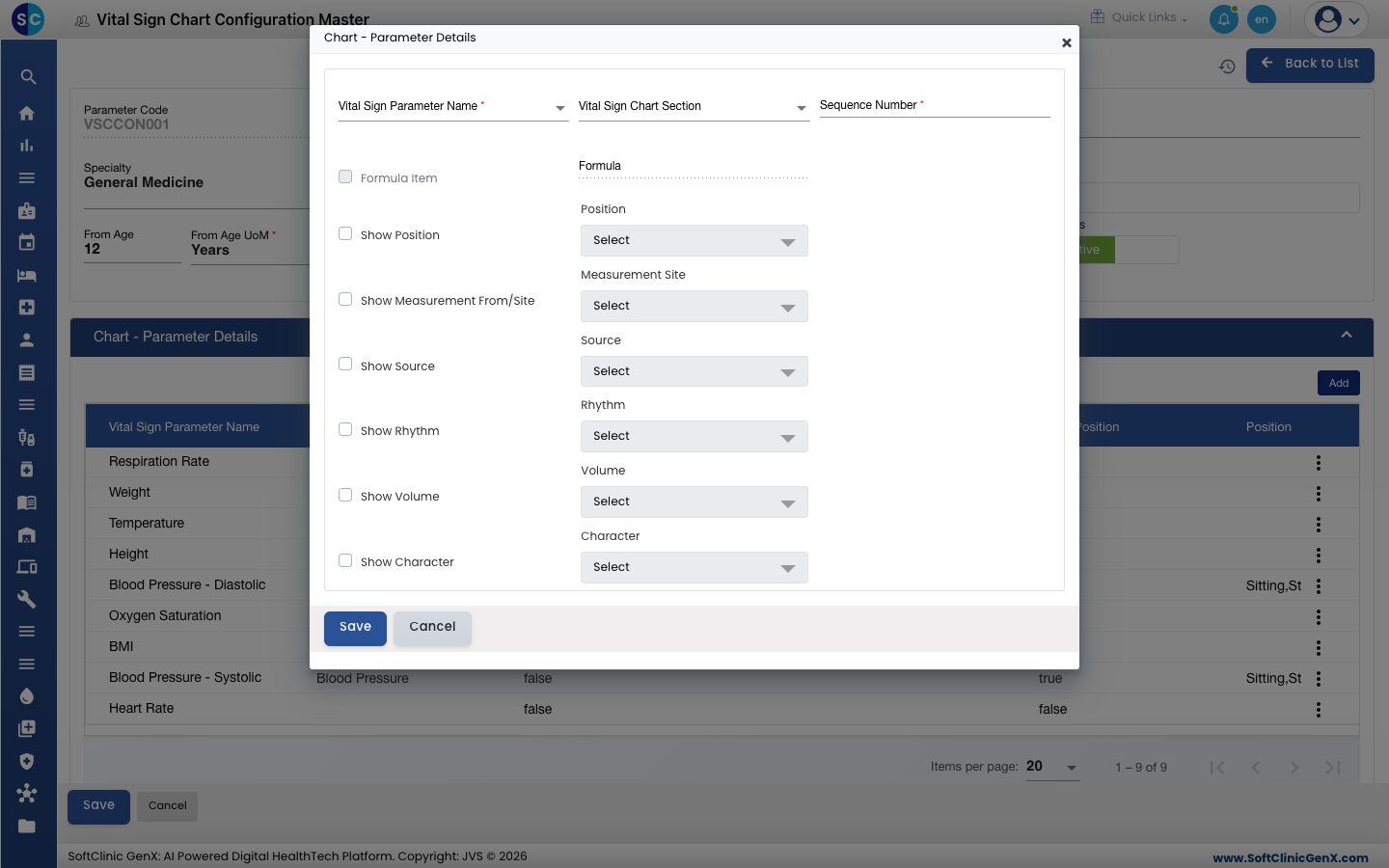
-
In the window, pick the Vital Sign Parameter Name, optionally a Vital Sign Chart Section, and enter a Sequence Number for its place on the chart. Tick the extra details staff should record with it — Show Position, Show Measurement From/Site, Show Source, Show Rhythm, Show Volume, Show Character, Show Oxygen Source, Show Flow Rate — and pick the choices to offer for each. Click Save in the window.
-
Repeat step 5 for every reading, then click Save at the bottom of the form.
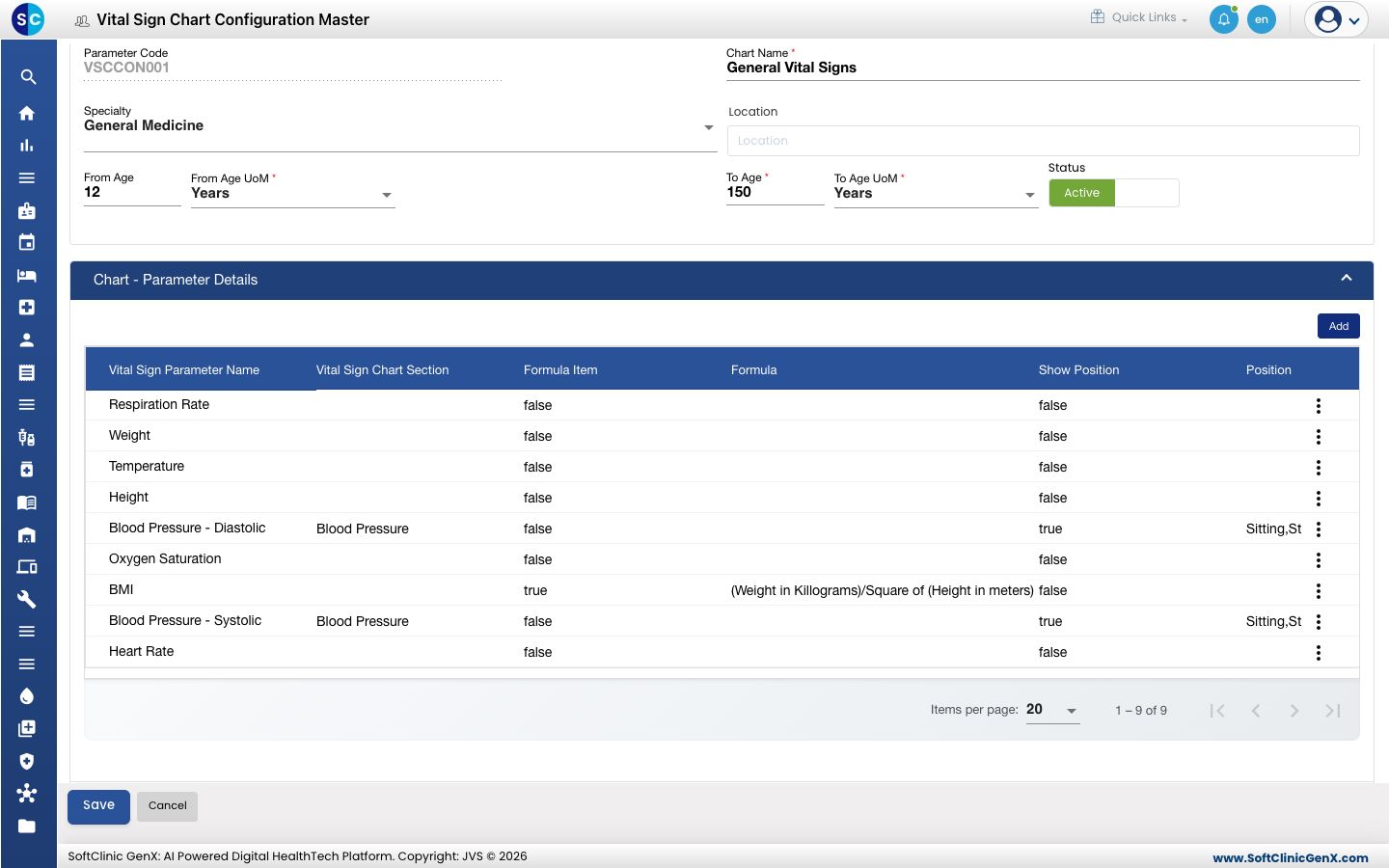
Change or deactivate a chart
- In the list, click the ⋮ button at the end of the row and choose Edit.
- Change the fields you need, or the readings under Chart - Parameter Details. To stop offering the chart, switch Status to Inactive.
- Click Save.
Charts cannot be deleted from this screen. Make a chart Inactive instead.
Good to know
- From Age cannot be greater than To Age.
- A reading worked out from others, such as BMI, is marked Formula Item in the chart and shows its Formula.
- Click Back to List or Cancel to leave the form without saving.