Set up Allergen
Who does this: hospital administrator or medical superintendent Where: Doctor Work Bench › Masters › Allergen Set up before: Allergy Category (Doctor Work Bench › Masters › Allergy Category)
An allergen is anything a patient can be allergic to — a medicine, a food, dust, latex and so on. Doctors pick from this list when they record an allergy in the patient's consultation note. Each allergen belongs to an allergy category, such as Drug, Food or Environmental. A long list of common allergens is already in place; add the ones your hospital needs.
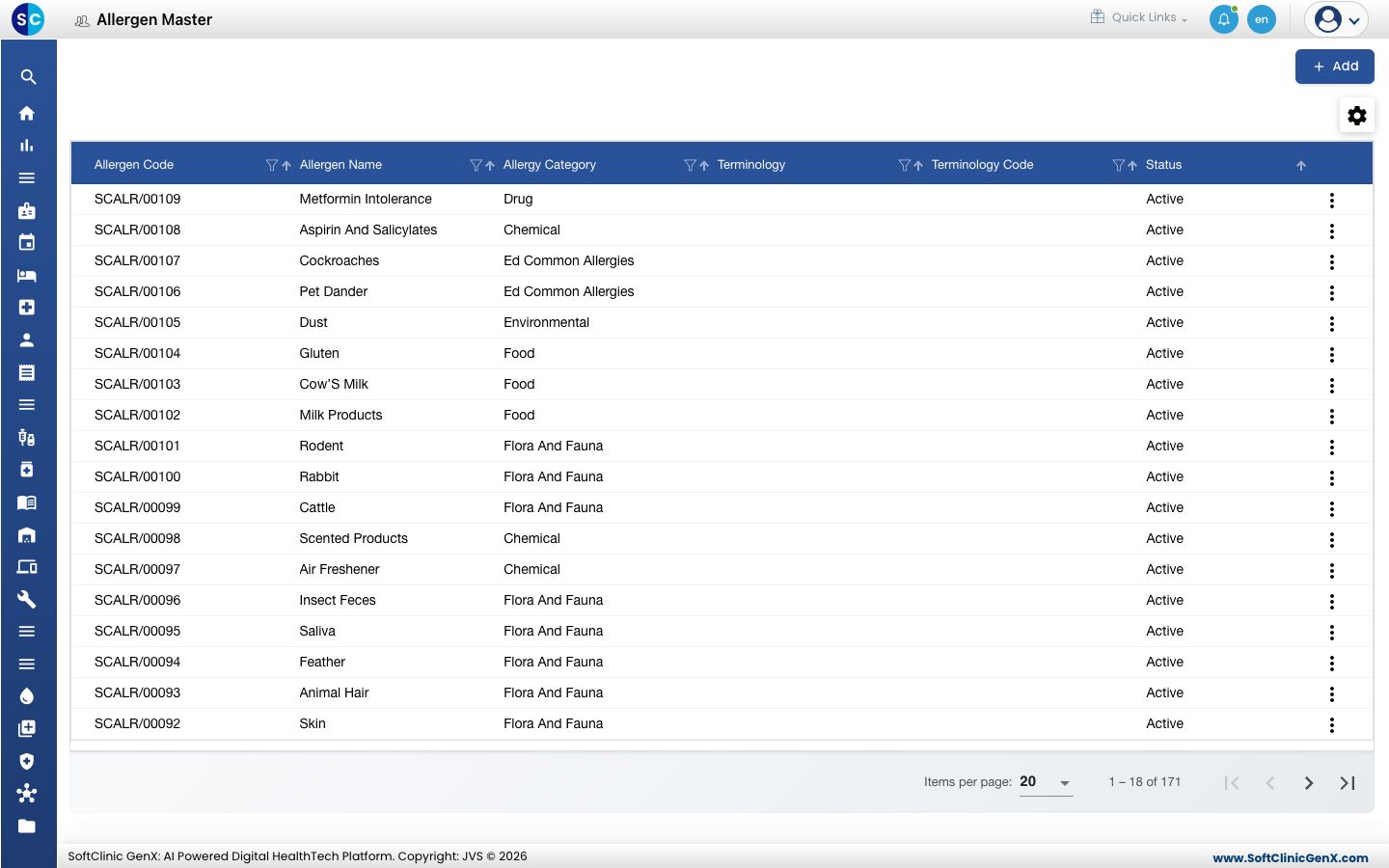
Add an allergen
-
Go to Doctor Work Bench › Masters › Allergen.
-
Click Add. The allergen form opens.
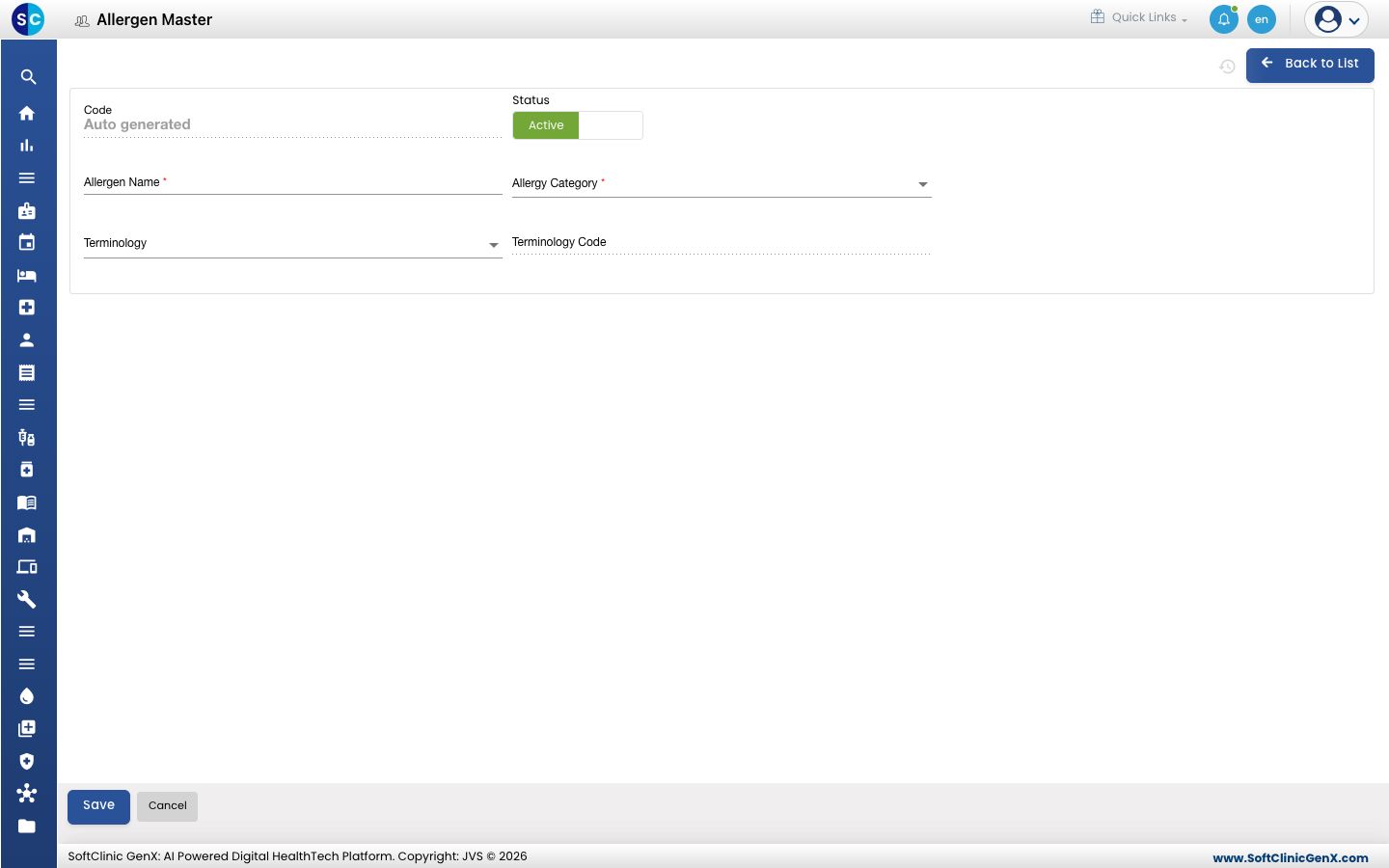
-
Fill in the fields:
Field What to enter Required Code Filled in automatically when you save. — Status Leave on Active. — Allergen Name The name doctors will search for, for example Penicillin or Peanuts. Up to 50 characters. Yes Allergy Category The group the allergen belongs to. Yes Terminology The clinical coding system the allergen is coded in, if you use one. No Terminology Code Filled in automatically from the terminology you pick. — -
Open Allergy Category and pick the group.
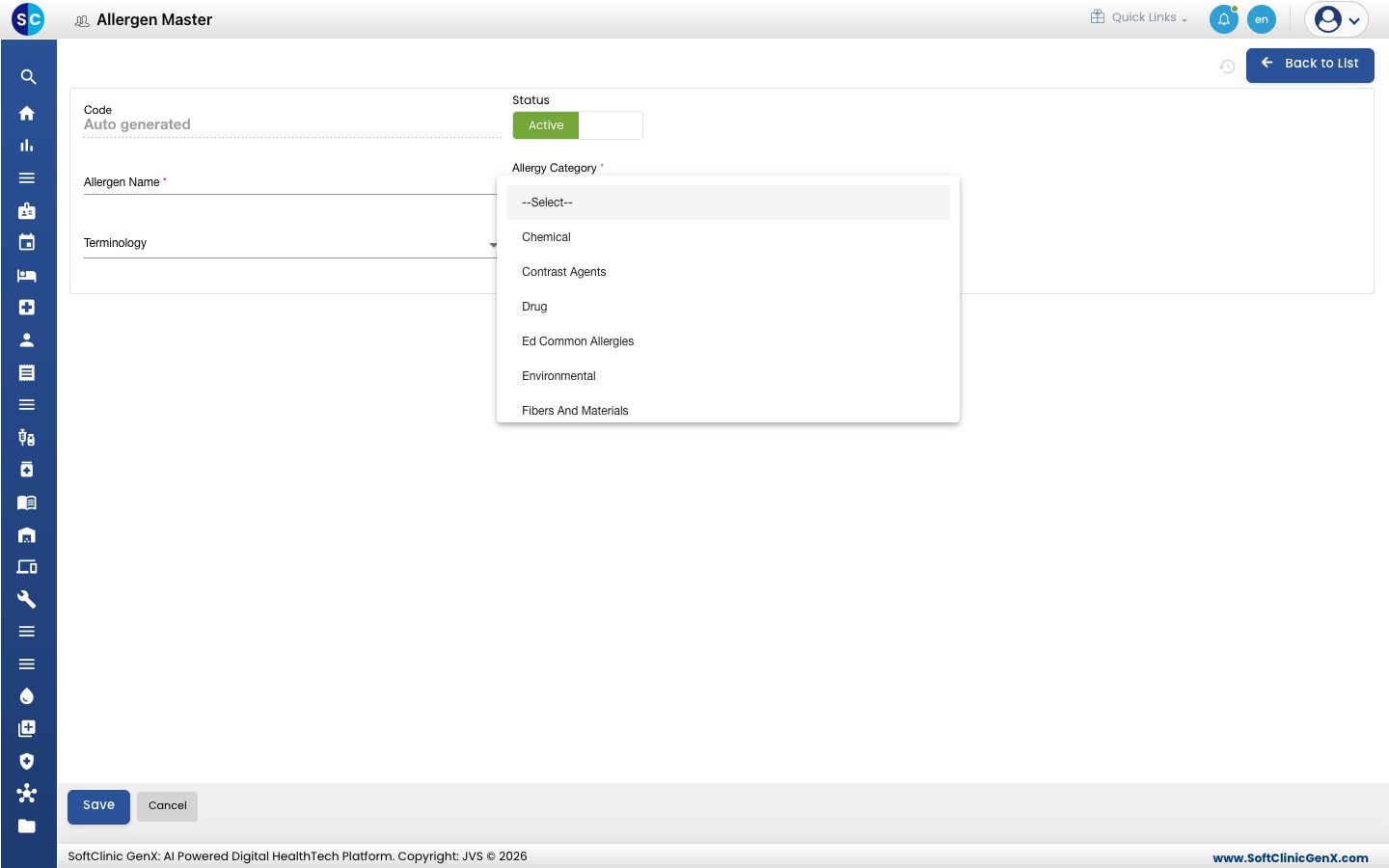
-
Click Save. You return to the list and the new allergen appears in it.
Change or deactivate an allergen
- In the list, click the ⋮ button at the end of the row and choose Edit.
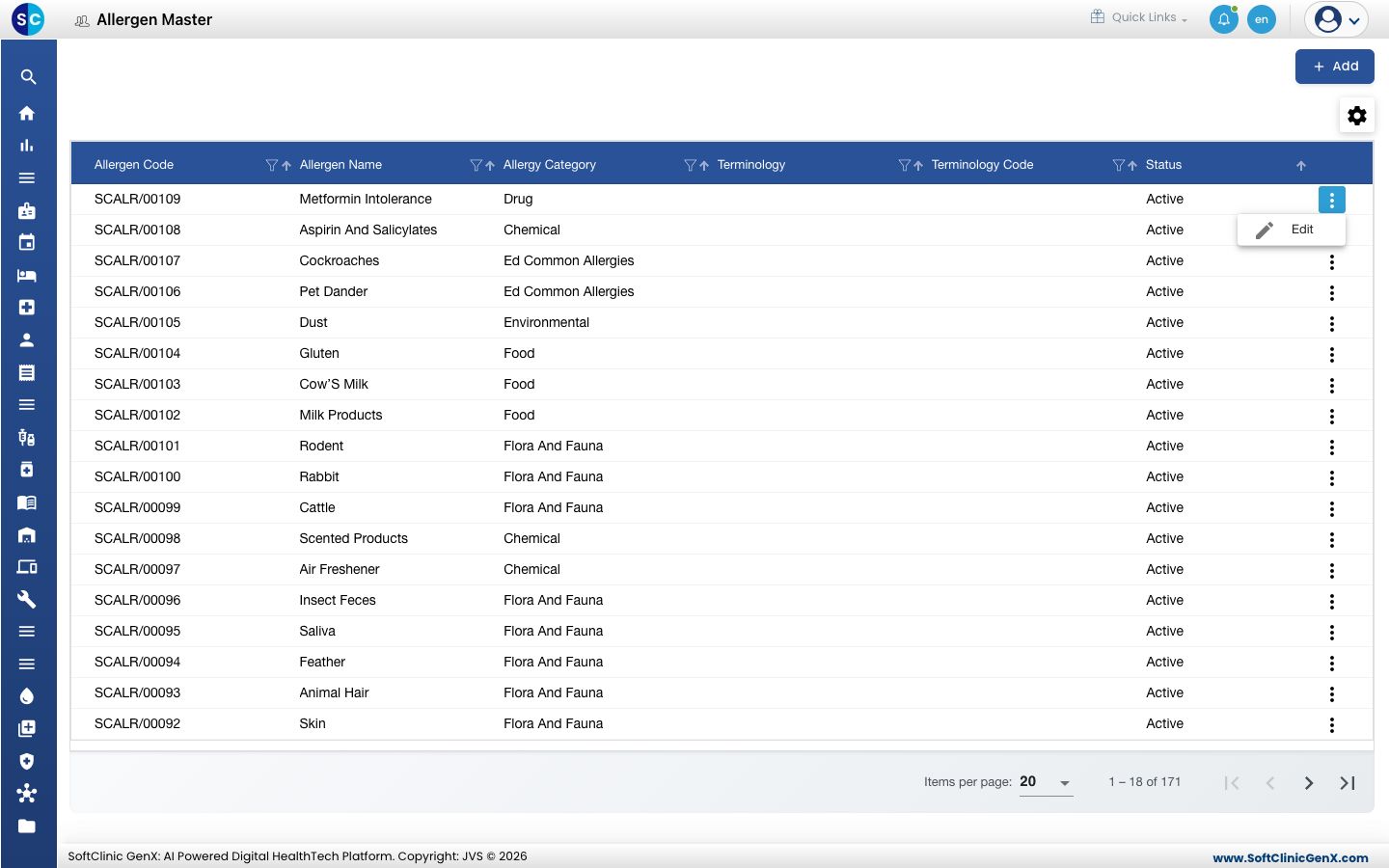
- Change the fields you need. To stop offering the allergen, switch Status to Inactive.
- Click Save.
Allergens cannot be deleted from this screen. Make an allergen Inactive instead.
Good to know
- Allergen names must be unique. You cannot save a second allergen with the same name.
- An allergen cannot be saved without an allergy category. If the category you need is missing, add it first under Doctor Work Bench › Masters › Allergy Category.
- The Terminology list shows the coding systems set up at the top level of the Diagnosis master.
- Use the filter and sort icons in the column headers to find an allergen quickly.
- Click Back to List or Cancel to leave the form without saving.