Set up SOAP Note Template
Who does this: hospital administrator or medical superintendent Where: Doctor Work Bench › Masters › SOAP Note Template Set up before: Template Section, SOAP Notes Questionnaires
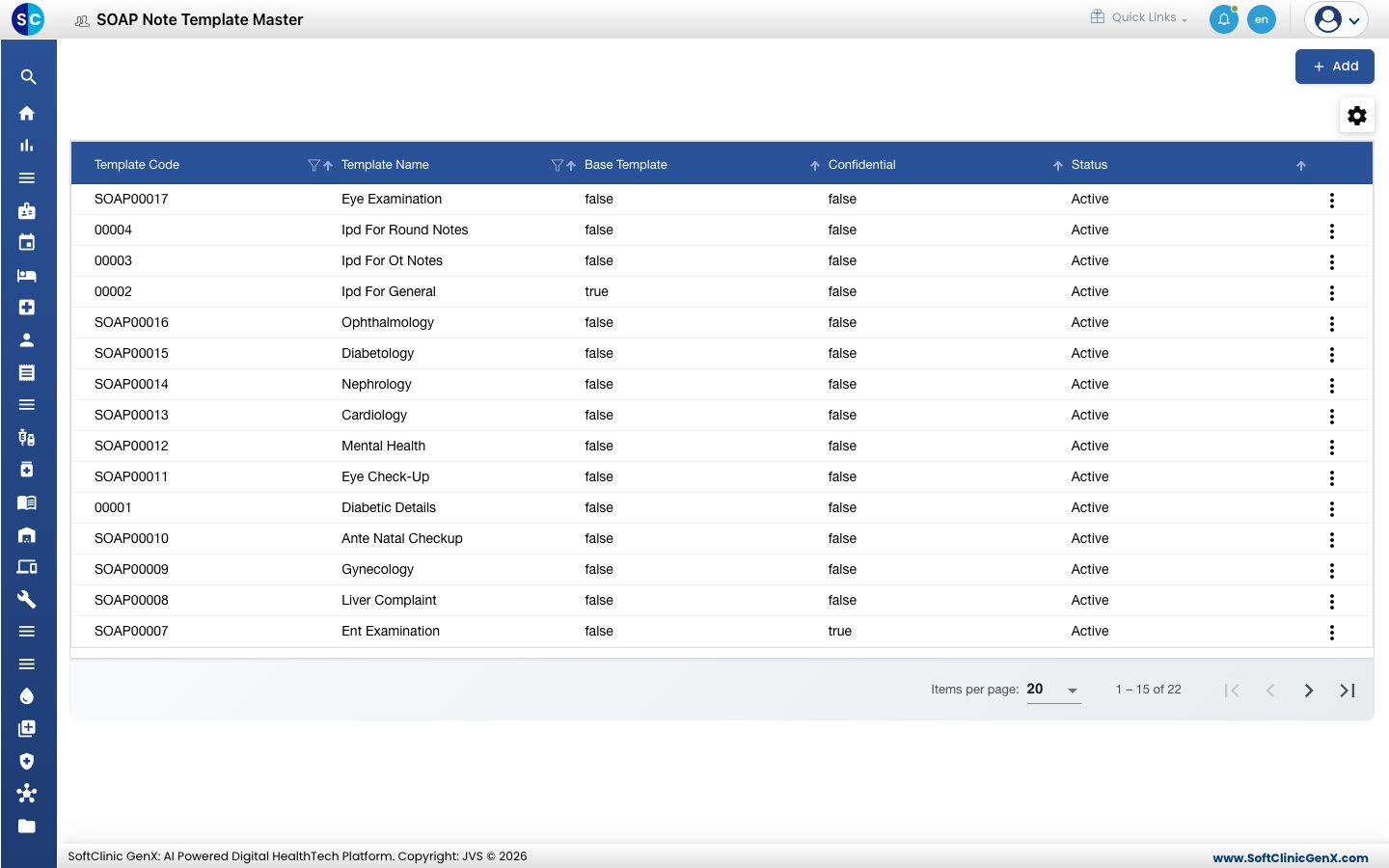
A SOAP note template is the form a doctor fills in during a consultation or round — for example Cardiology, Eye Examination or Ante Natal Checkup. Each template is a list of template sections in a set order, and can be limited to a visit type, facility, department, clinic or gender. The Print Title heads the printed note. Many templates are already in place.
Add a template
-
Go to Doctor Work Bench › Masters › SOAP Note Template.
-
Click Add. The template form opens.
-
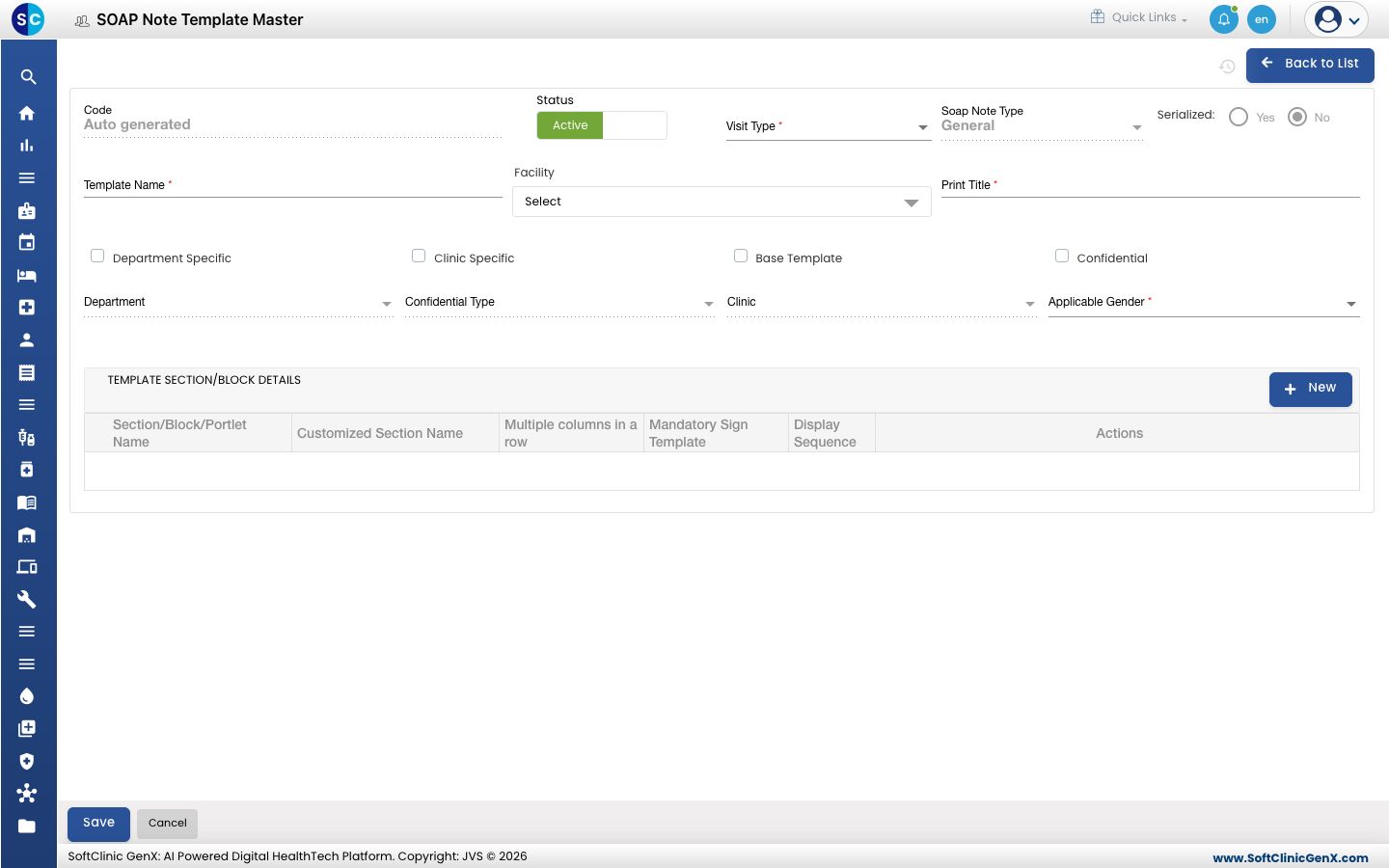
Fill in the fields:
Field What to enter Required Code Filled in automatically when you save. — Status Leave on Active. — Visit Type The visits the template is for, for example Out Patient, In Patient or Emergency. Yes Soap Note Type The kind of note, for example General or OT Notes. Yes Serialized Yes to number each note of this type in order. Not available for General notes. — Template Name The name doctors pick, for example Cardiology. Up to 50 characters. It cannot be changed after saving. Yes Facility The facilities that use the template. You can pick more than one. Yes Print Title The heading printed on the note. Up to 50 characters. Yes Department Specific / Department Tick and pick a department to offer the template in that department only. No Clinic Specific / Clinic Tick and pick a clinic to offer the template in that clinic only. No Base Template Tick to make this the default template for the visit type. Shown for out-patient templates and general in-patient templates. No Confidential / Confidential Type Tick to mark the notes as confidential, and pick the type. No Applicable Gender Both, Male or Female. Yes -
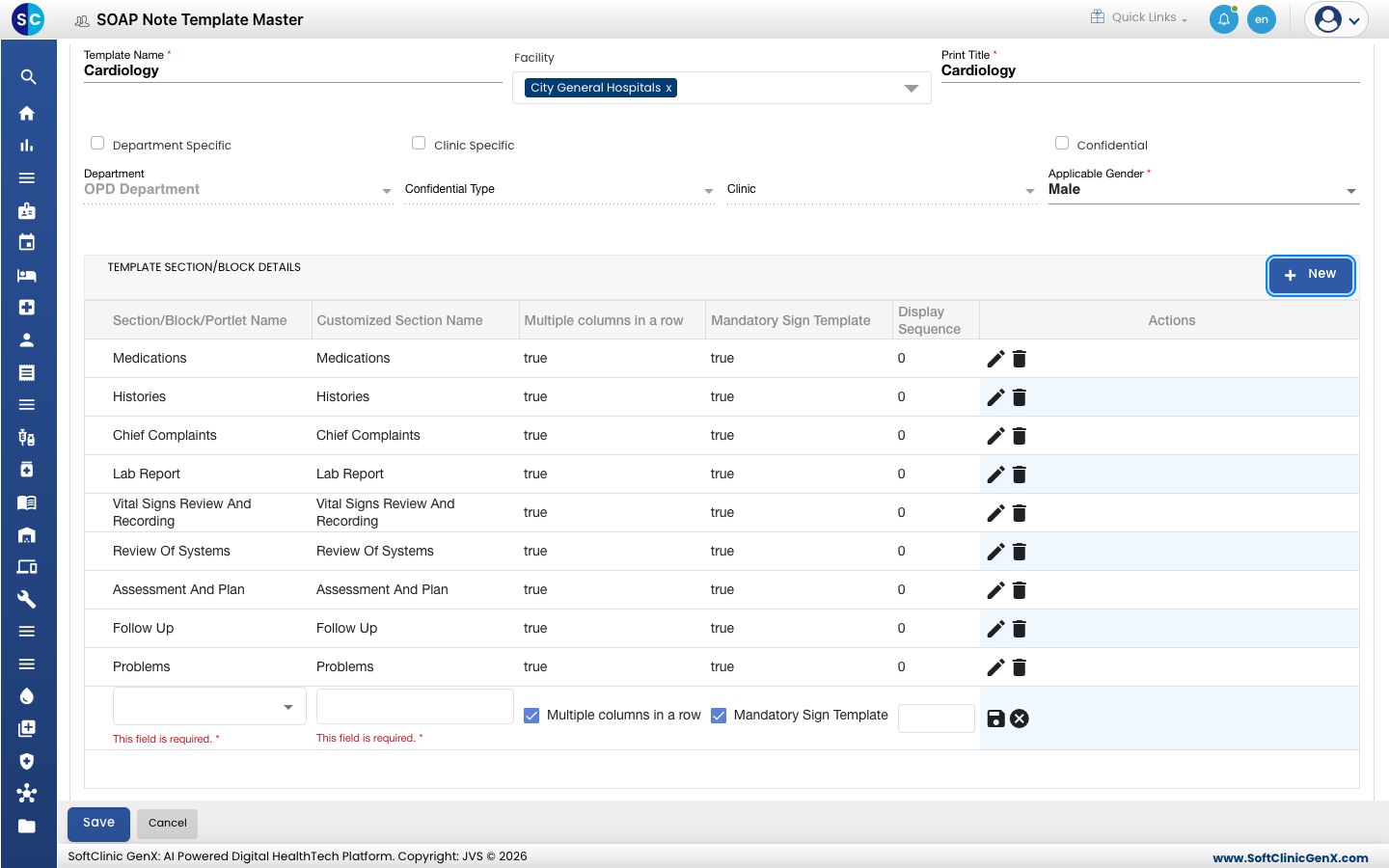
Under TEMPLATE SECTION/BLOCK DETAILS, click New. A new row appears.
-
In the row, pick the Section/Block/Portlet Name, type the Customized Section Name the doctor will see, tick Multiple columns in a row and Mandatory Sign Template as needed, and enter the Display Sequence. Click the save icon at the end of the row.
-
Repeat steps 4 and 5 for every section, then click Save at the bottom of the form.
Change or deactivate a template
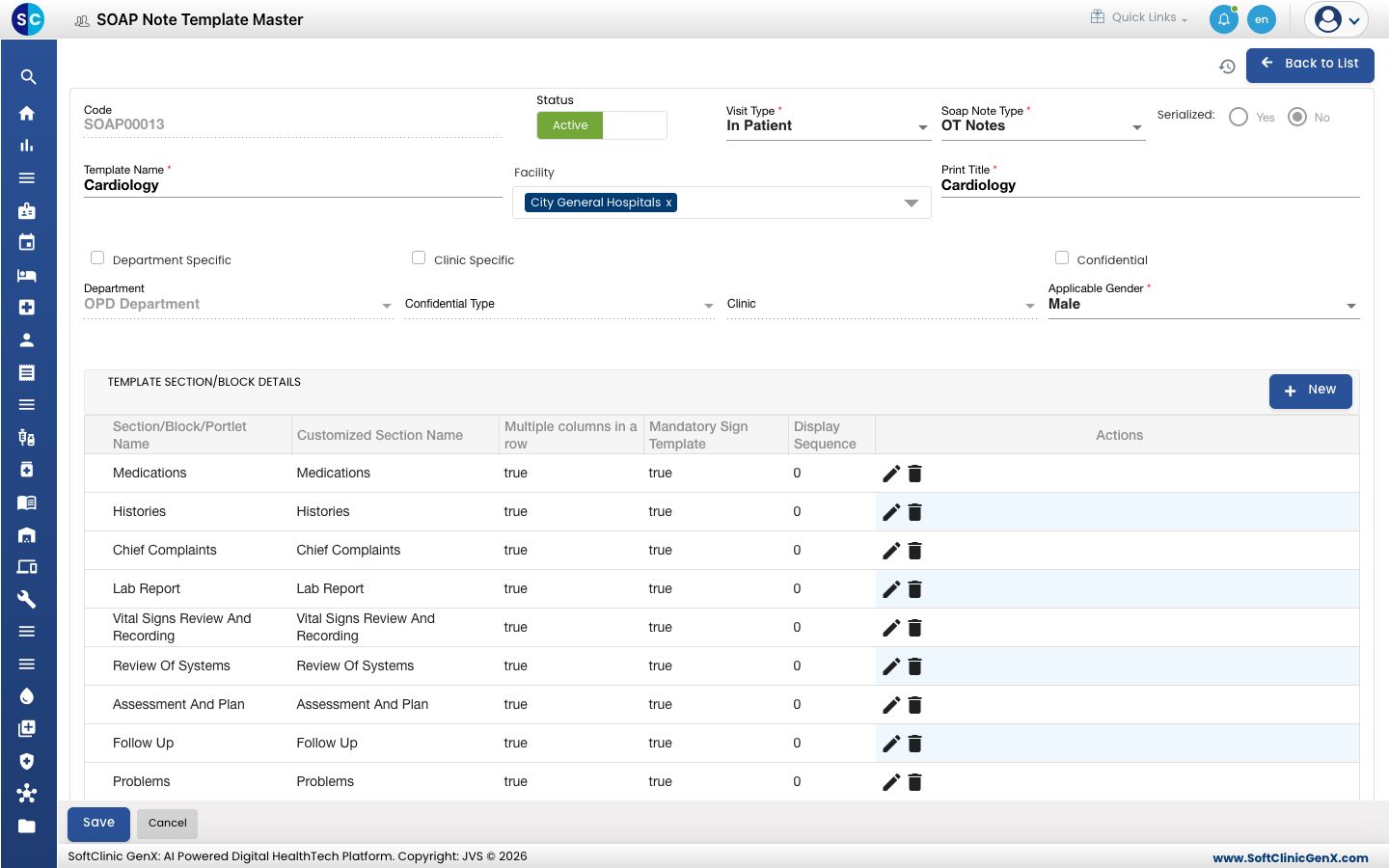
- In the list, click the ⋮ button at the end of the row and choose Edit.
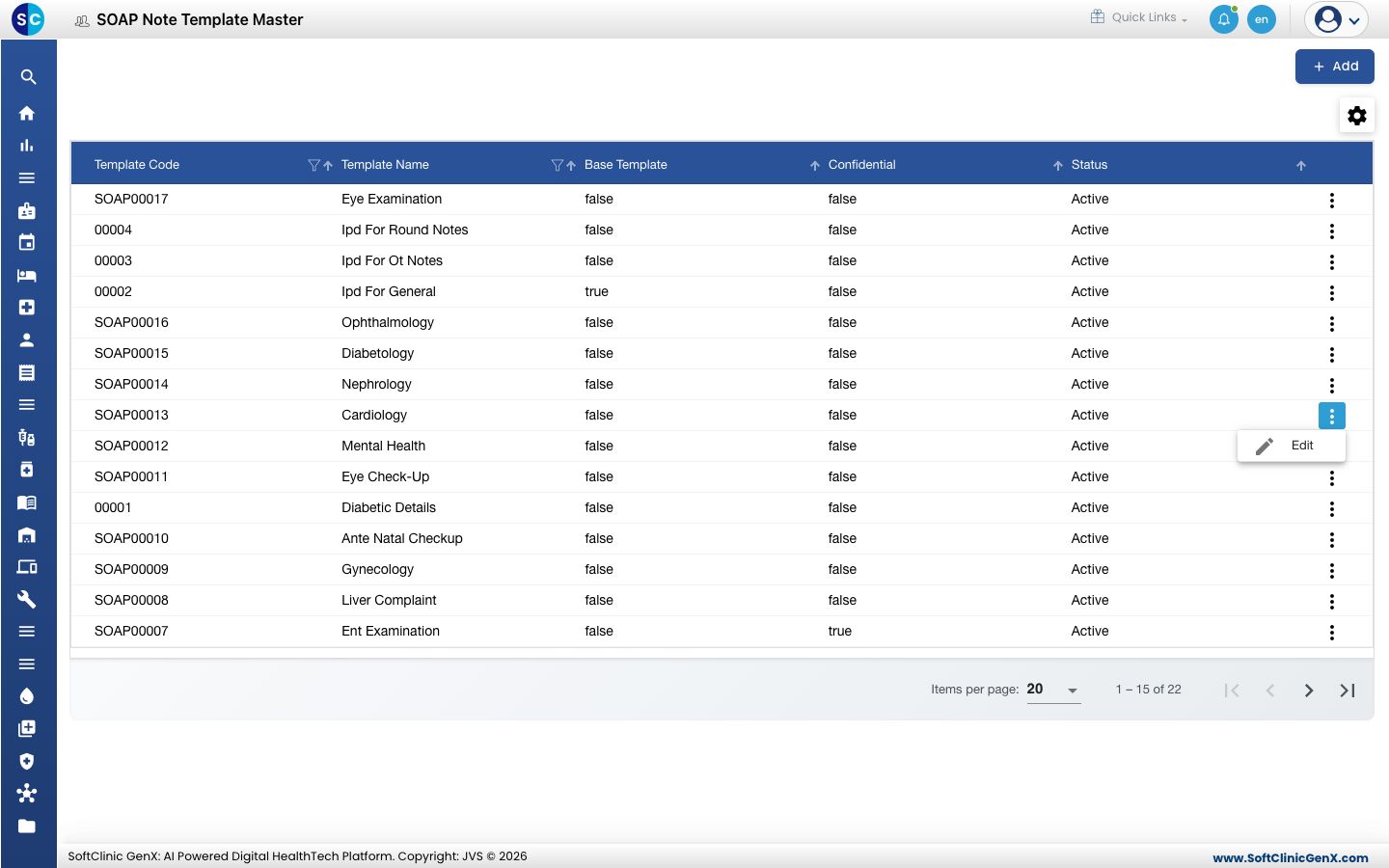
- Change the fields or sections you need. Use the pencil and bin icons on a section row to change or remove it. To stop offering the template, switch Status to Inactive.
- Click Save.
Templates cannot be deleted from this screen. Make a template Inactive instead.
Good to know
- A template needs at least one section. Save each section row before you save the template.
- Only one base template is kept per visit type. When you tick Base Template on a new one, you are asked to confirm that it replaces the current one.
- Click Back to List or Cancel to leave the form without saving.