Set up Template Section
Who does this: hospital administrator or medical superintendent Where: Doctor Work Bench › Masters › Template Section
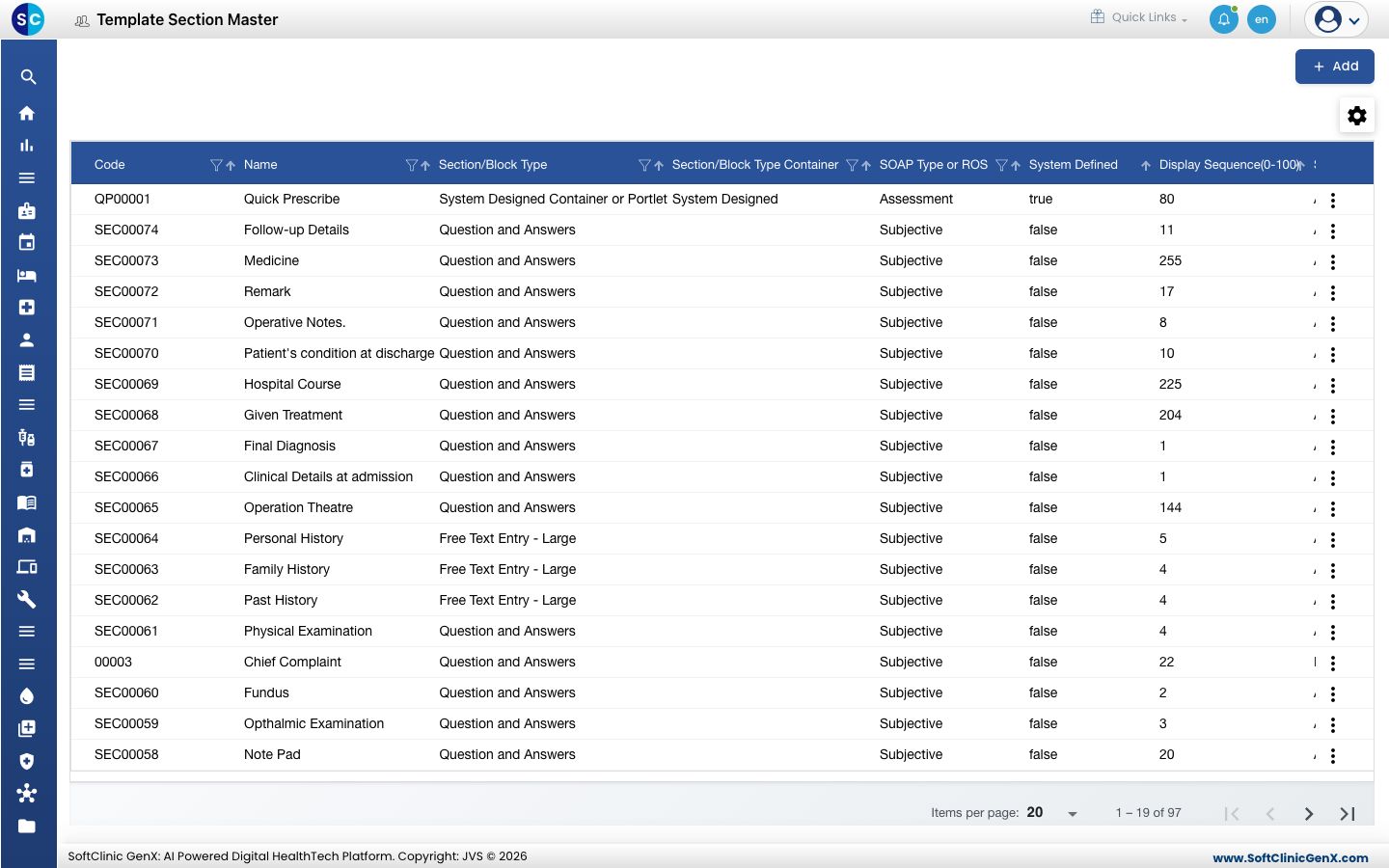
A template section is one block of a doctor's note, for example Past History, Physical Examination or Final Diagnosis. Each section decides how the doctor fills it in — with questions and answers, or as free text — and where it sits in the SOAP note (Subjective, Objective, Assessment or Plan). You combine sections into a note in SOAP Note Template. Many sections are already in place.
Add a section
-
Go to Doctor Work Bench › Masters › Template Section.
-
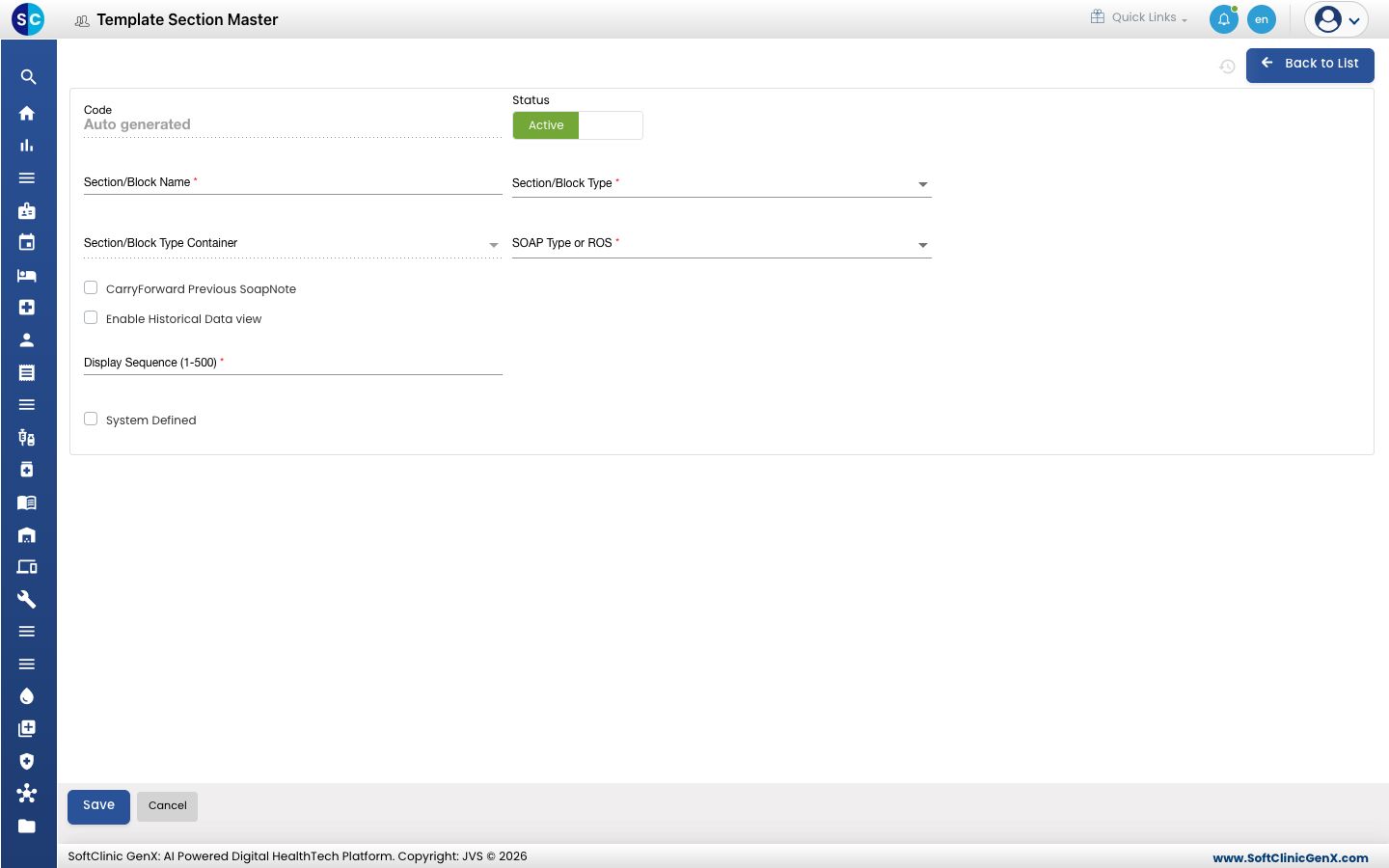
Click Add. The section form opens.
-
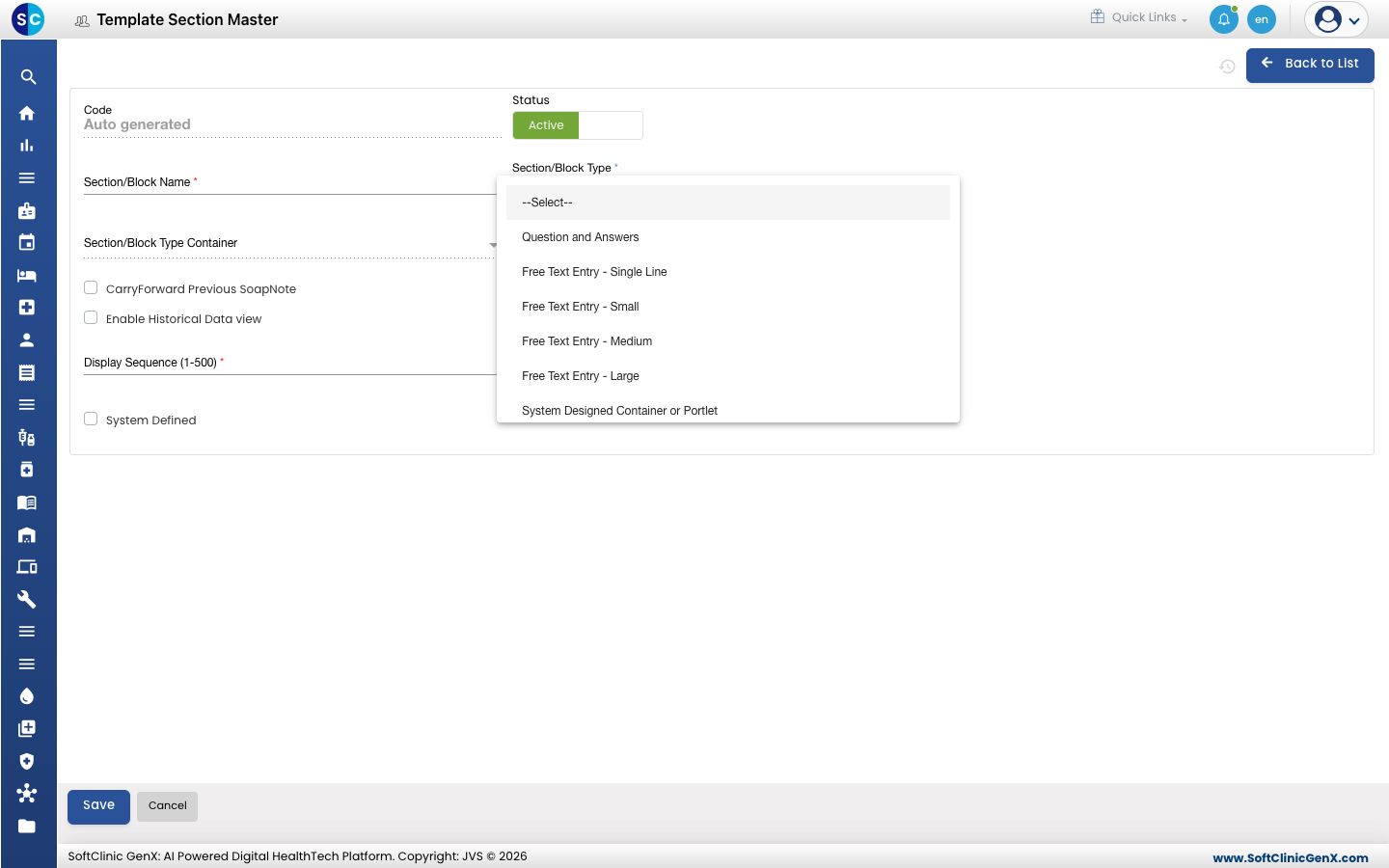
Pick the Section/Block Type — how the doctor fills the section in.
-
Fill in the fields:
Field What to enter Required Code Filled in automatically when you save. — Status Leave on Active. — Section/Block Name The heading of the section, for example Past History. Up to 50 characters. Yes Section/Block Type Question and Answers for a section made of questions; Free Text Entry (Single Line, Small, Medium or Large) for a typing box of that size; or one of the System Designed types for a ready-made block. Yes Section/Block Type Container For the System Designed types only: the ready-made block to use. For System Designed types SOAP Type or ROS Where the section belongs: Subjective, Objective, Assessment, Plan, or a body system for a review of systems (for example Cardiovascular). Yes CarryForward Previous SoapNote Tick to fill the section from the patient's previous note. No Enable Historical Data view Tick to let the doctor see earlier entries for this section. No Display Sequence (1-500) The section's position in the note. Lower numbers come first. Yes System Defined Tick for a built-in section. No -
Click Save. You return to the list and the new section appears in it.
For a Question and Answers section, add its questions in SOAP Notes Questionnaires.
Change or deactivate a section
- In the list, click the ⋮ button at the end of the row and choose Edit.
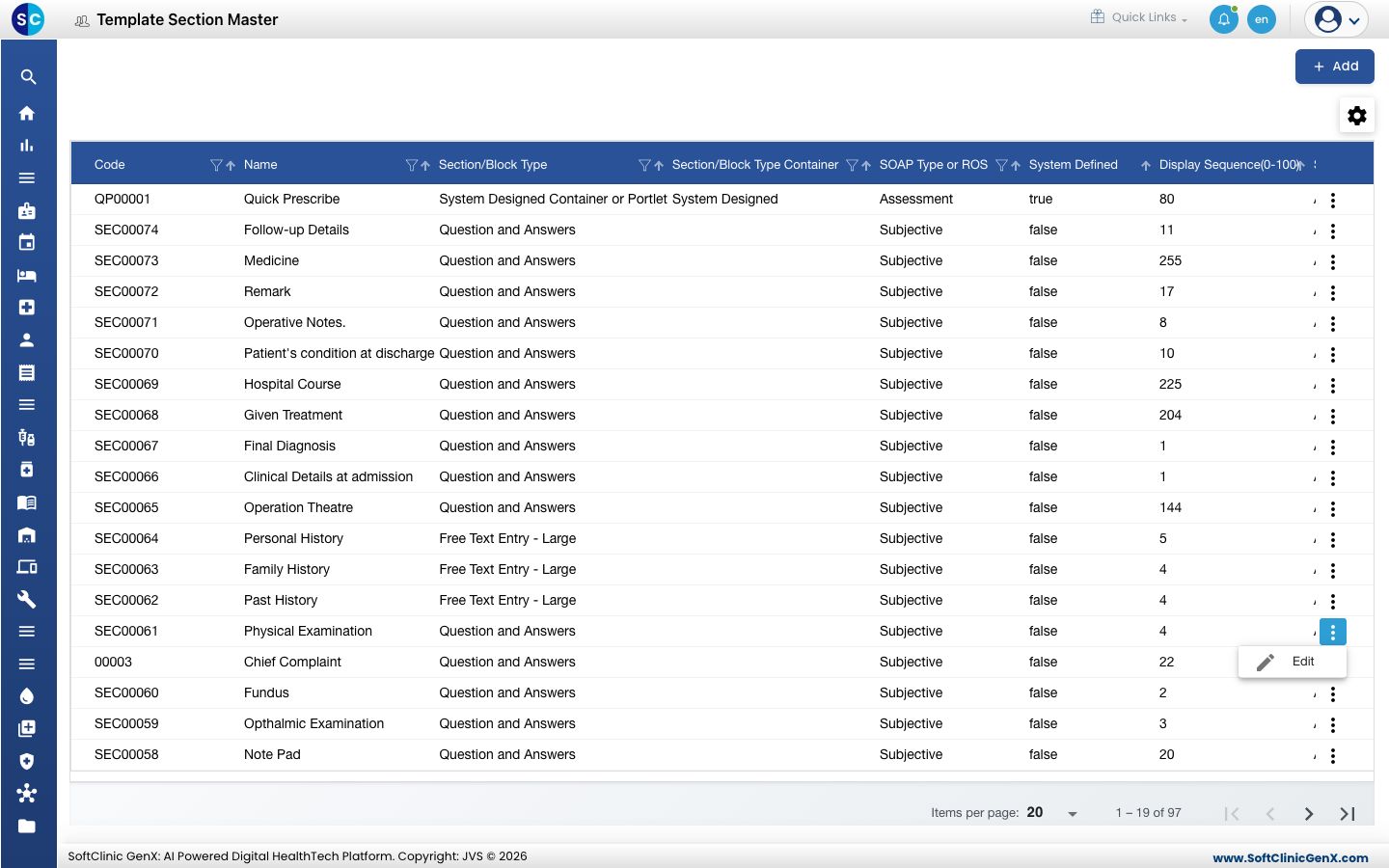
- Change the fields you need. To stop offering the section, switch Status to Inactive.
- Click Save.
Sections cannot be deleted from this screen. Make a section Inactive instead.
Good to know
- Display Sequence takes whole numbers from 1 to 500.
- Use the filter and sort icons in the column headers to find a section quickly.
- Click Back to List or Cancel to leave the form without saving.