Change admission details
Edit a saved admission to change the doctor or consultant, add other consultants and update the stay details.
After a patient is admitted you can still correct the admission: change the treating doctor or the admitting consultant, add the other consultants who see the patient, or fill in details that were skipped at the desk.
note
Who can do this: admission desk staff with Admission List rights
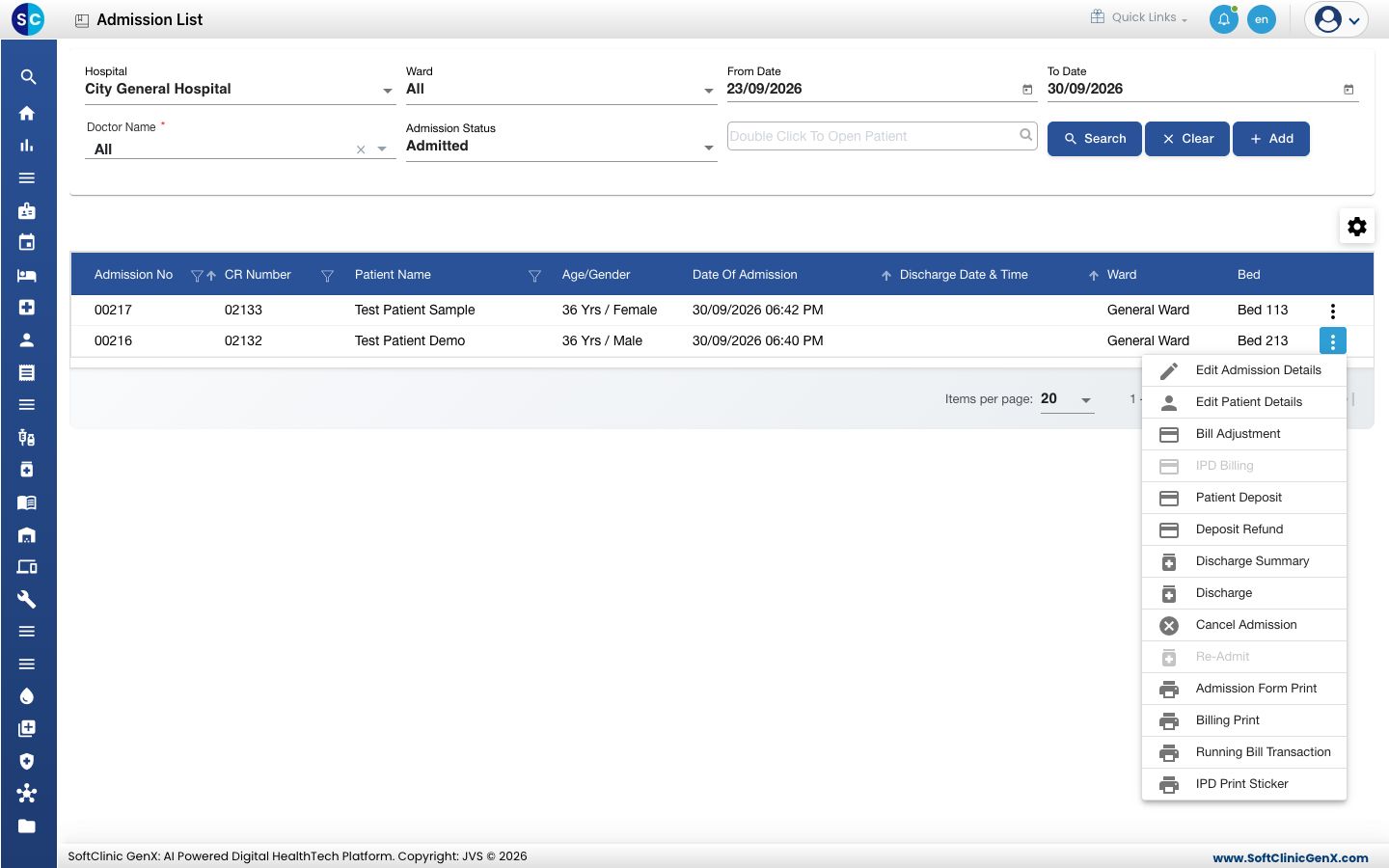
Where: In-Door Management › Admission List › row menu › Edit Admission Details
Open the admission
- Go to In-Door Management › Admission List and find the patient.
- Click the three dots at the end of the row and choose Edit Admission Details.
- The admission form opens with the Admission Number and the saved details. The patient cannot be changed.
Change the doctor or consultant
- Click Doctor Name or Admitting Consultant and select the new doctor.
- Click Save. You see Record updated successfully.
Add another consultant
- Click the Other Consultant Details tab and click New. An empty row appears.
- Select the Consultant Name and the Role, for example Consulting Doctor, Surgeon or Anaesthetist.
- Click the save icon at the end of the row. The consultant is listed with pencil and bin icons to edit or remove the row.
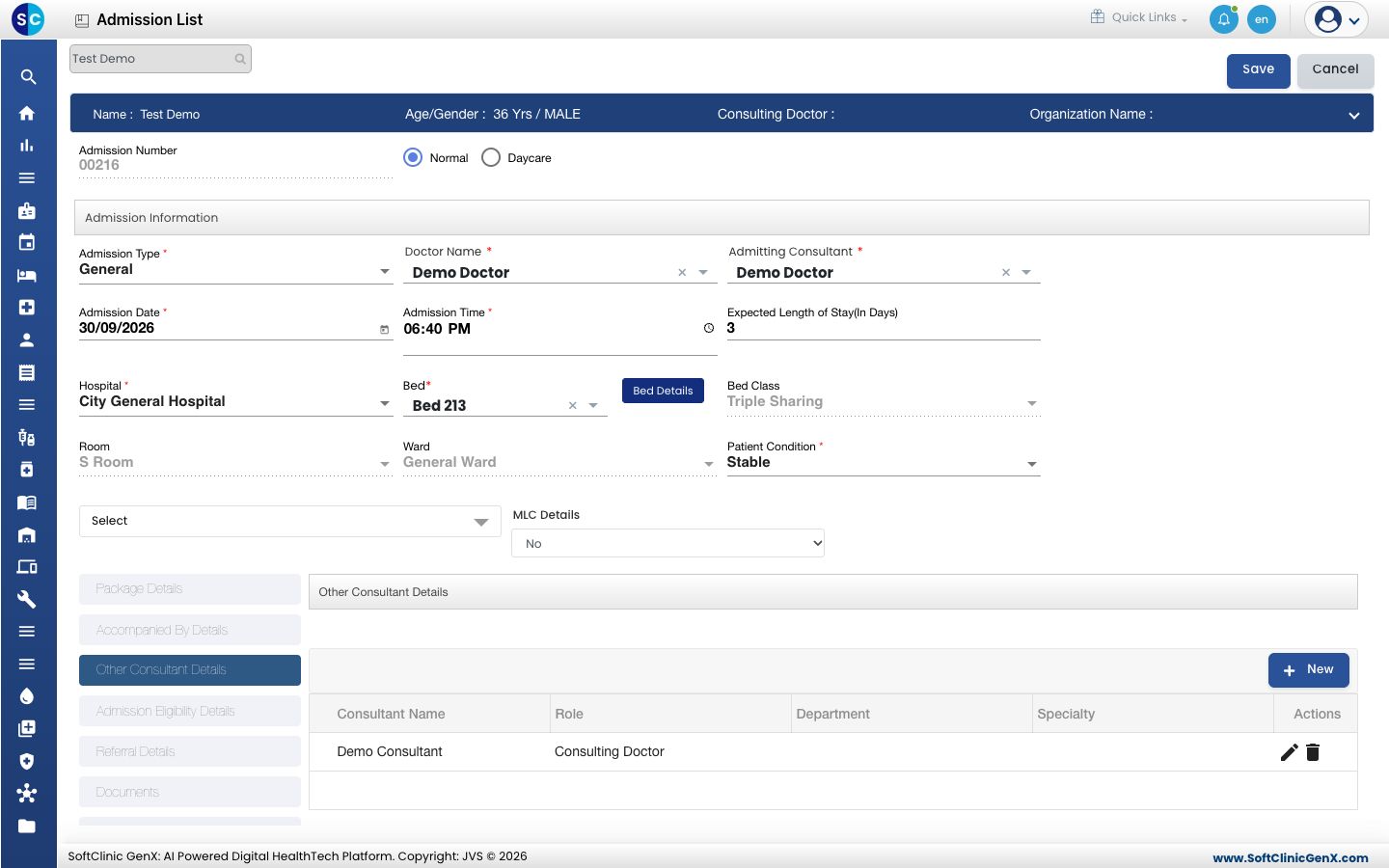
- Click Save at the top of the form.
What you can change
| Field or tab | Can you change it? |
|---|---|
| Patient | No |
| Admission Type, Normal / Daycare | Yes |
| Doctor Name, Admitting Consultant | Yes |
| Admission Date, Admission Time | Yes |
| Expected Length of Stay(In Days) | Yes |
| Bed | Yes. Bed Class, Room and Ward follow the bed and cannot be typed. |
| Patient Condition, MLC Details | Yes |
| Accompanied By Details, Referral Details, Documents, Admission Notes | Yes |
tip
To move the patient to another bed and keep a record of the move, raise a transfer request instead of changing Bed here.
Troubleshooting
| What you see | What it means | What to do |
|---|---|---|
| Please fill all required fields. | A field marked with * was emptied. | Fill the fields shown in red. |
| The consultant is not saved | The row was not applied before the form was saved. | Click the save icon on the row, then Save. |
| Bed is already occupied by an admitted patient | The bed you selected is taken. | Select a vacant bed. |
Related
- Find an admitted patient: search the Admission List.
- Transfer a patient to another bed: move the patient with a record.
- Edit a patient: change the patient's own details, such as name or mobile number.