Transfer a patient to another bed
Raise a transfer request to move an admitted patient to another bed, room or ward, and confirm it.
A transfer moves an admitted patient to another bed, which can be in another room or ward. You raise a transfer request with the new bed and the reason, and the move takes effect when the request is confirmed. The list keeps every request as a record of where the patient was.
note
Who can do this: ward and admission desk staff with Patient Transfer rights
Where: In-Door Management › Patient Transfer
Before you start
- The patient is admitted. See Find an admitted patient.
- The bed you want is vacant. Check it on the Bed Chart.
Raise the transfer request
- Go to In-Door Management › Patient Transfer. The Patient's Transfer Requests List opens.
- Click Add. The Bed Transfer form opens on the right.
- Type the patient's name, CR number or admission number in the Patient Card box and pick the patient. Only admitted patients are listed.
- Check Requested Date & Time and Requested Time, keep Transfer Type as Bed Transfer, and type the Reason For Transfer.
- Leave Transfer Request Status as Request in Progress.
- Under Bed Transfer Request Details, select the Hospital, Ward, Room and Bed Class, in that order, then the Bed. The Bed list shows only vacant beds of that room and class.
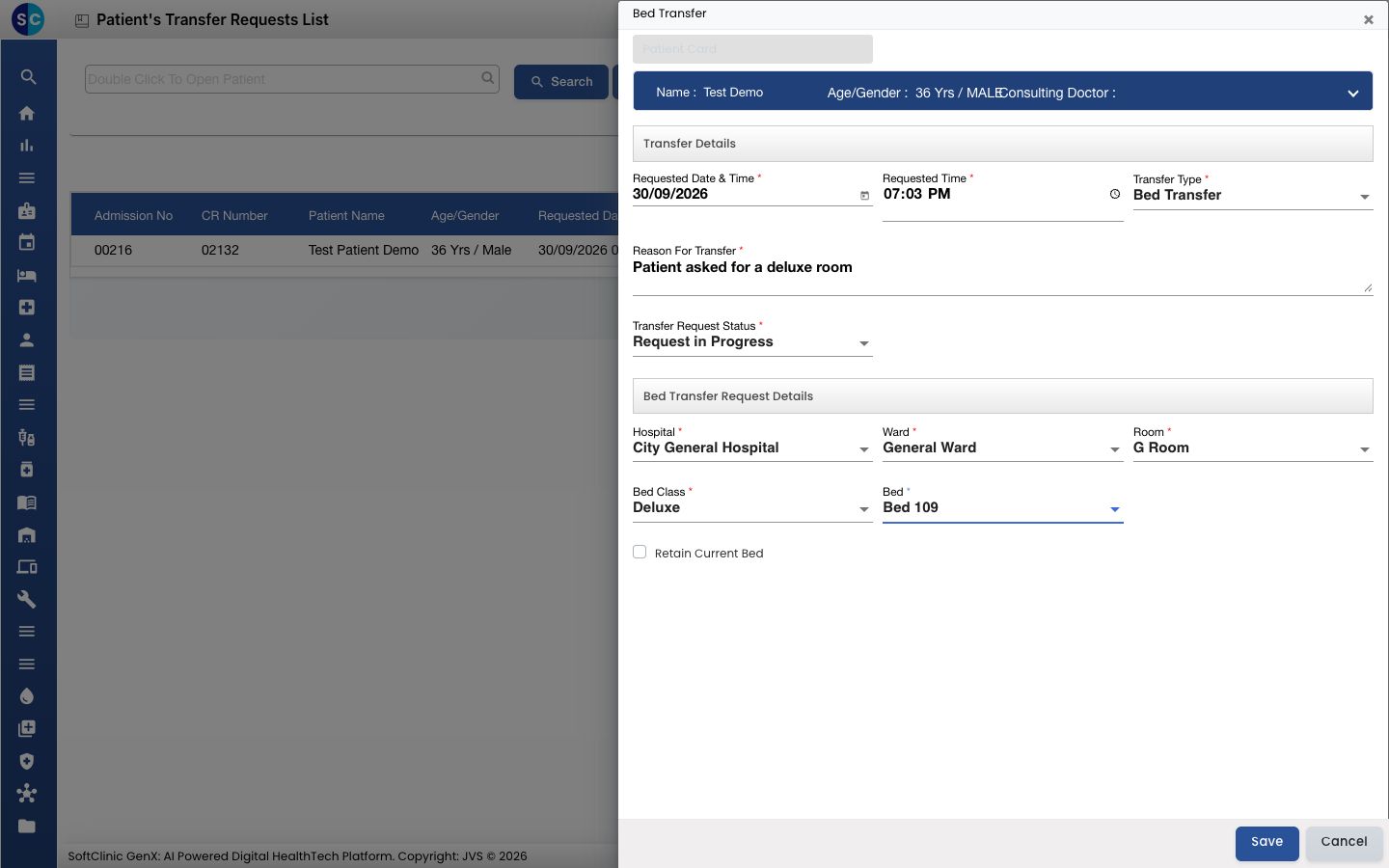
- Click Save. You see Record saved successfully and the request is listed with Requested Status Request in Progress.
Confirm the request
- In the Patient's Transfer Requests List, find the request.
- Click the three dots at the end of the row and choose Confirm Request.
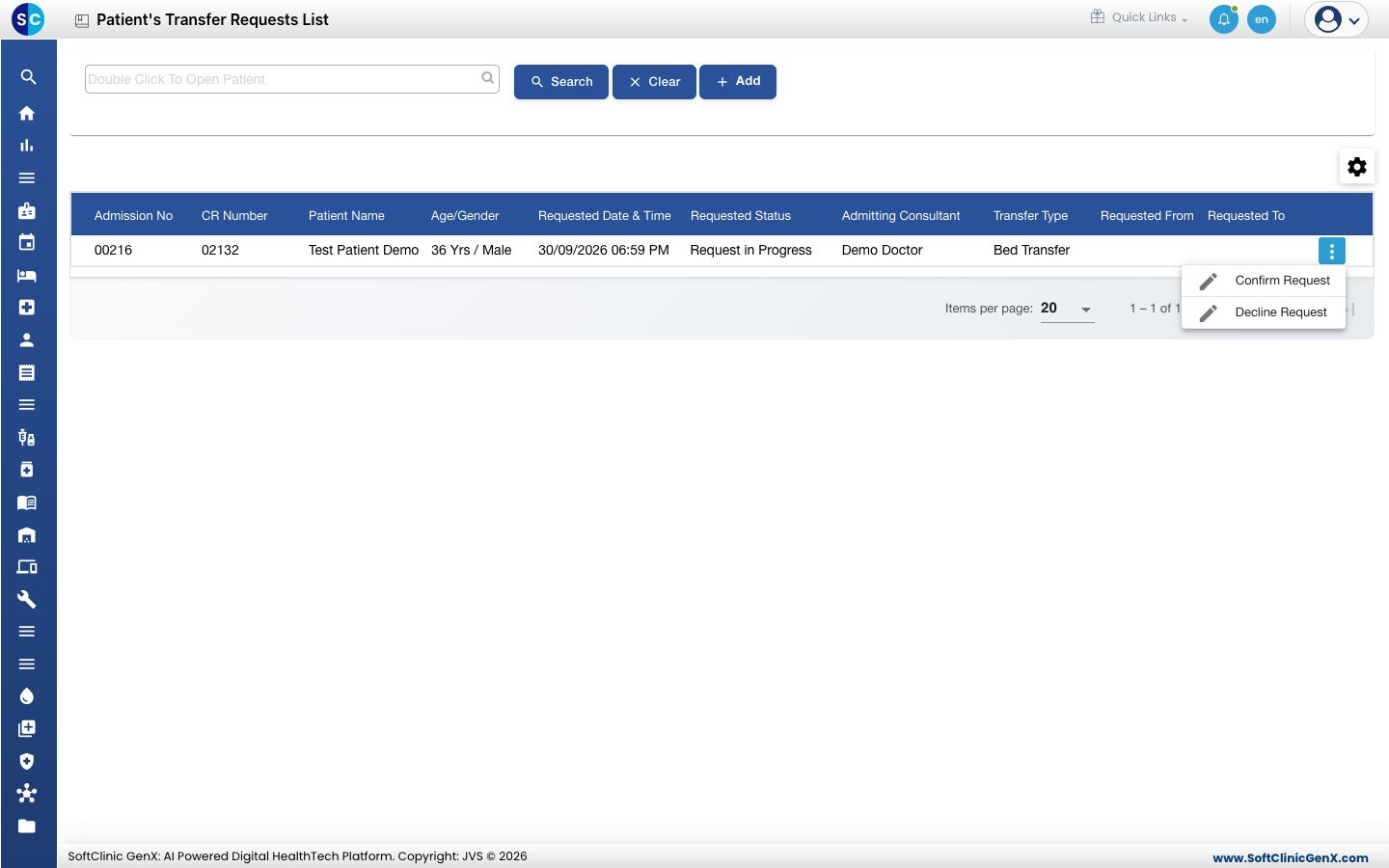
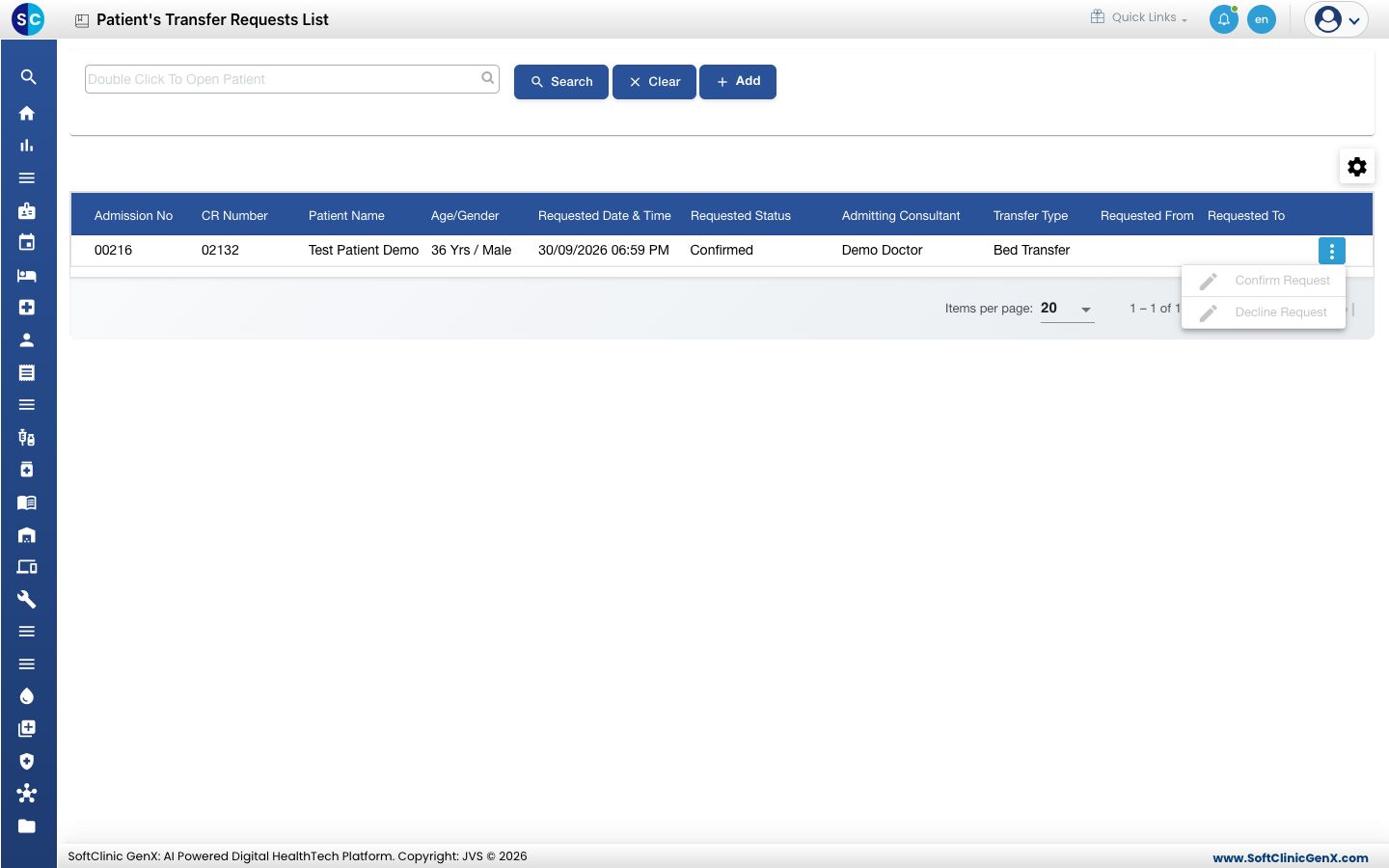
- You see Record updated successfully. The Requested Status changes to Confirmed, and the Admission List and Bed Chart show the patient on the new bed. The old bed becomes Vacant.
warning
Confirm Request moves the patient at once, without asking again. Check the row before you click. A confirmed request cannot be changed; raise a new request to move the patient again.
Fields on the form
| Field | What to enter | Required |
|---|---|---|
| Patient Card | The admitted patient. | Yes |
| Requested Date & Time, Requested Time | When the transfer is asked for. Now by default. | Yes |
| Transfer Type | Bed Transfer, Consultant Transfer, Patient Movement or Bed Swapping. | Yes |
| Reason For Transfer | Why the patient is moved, up to 1000 characters. | Yes |
| Transfer Request Status | Request in Progress for a new request. | Yes |
| Hospital, Ward, Room, Bed Class, Bed | The bed the patient moves to. | Yes |
| Retain Current Bed | Tick to record that the present bed is to be kept for the patient. | No |
Good to know
- Confirm a request soon after it is raised. The new bed is held for the patient from the moment the request is saved.
- The list shows every request of every patient. A patient who moved twice has two rows.
Troubleshooting
| What you see | What it means | What to do |
|---|---|---|
| Please select patient! | No patient is picked in Patient Card. | Type the name and pick the patient from the list. |
| This field is required. | A field marked with * is empty. | Fill the field and save again. |
| The Bed list is empty | No vacant bed exists in that room and class. | Choose another Room or Bed Class. |
| Warning: this bed is designated for the opposite gender. You can still continue if the ward requires it. | The bed is set for the other gender. | Pick another bed, or continue if the ward allows it. |
| Confirm Request is greyed out | The request is already Confirmed or declined. | Raise a new request. |
Related
- See free and occupied beds: find a vacant bed first.
- Change admission details: change the doctor or other details of the stay.
- In-Door Management FAQs: common questions on Patient Transfer.