See free and occupied beds
Use the Bed Chart to see which beds are vacant, which are occupied and who is on each bed.
The Bed Chart shows every bed as a card, coloured by its status. Use it to find a free bed before an admission or a transfer, or to see which bed a patient is on.
note
Who can do this: staff with Bed Chart rights
Where: In-Door Management › Bed Chart
Read the chart
- Go to In-Door Management › Bed Chart.
- Select the Ward. The counters above the cards show Total, Vacant, Occupied and Maintenance beds.
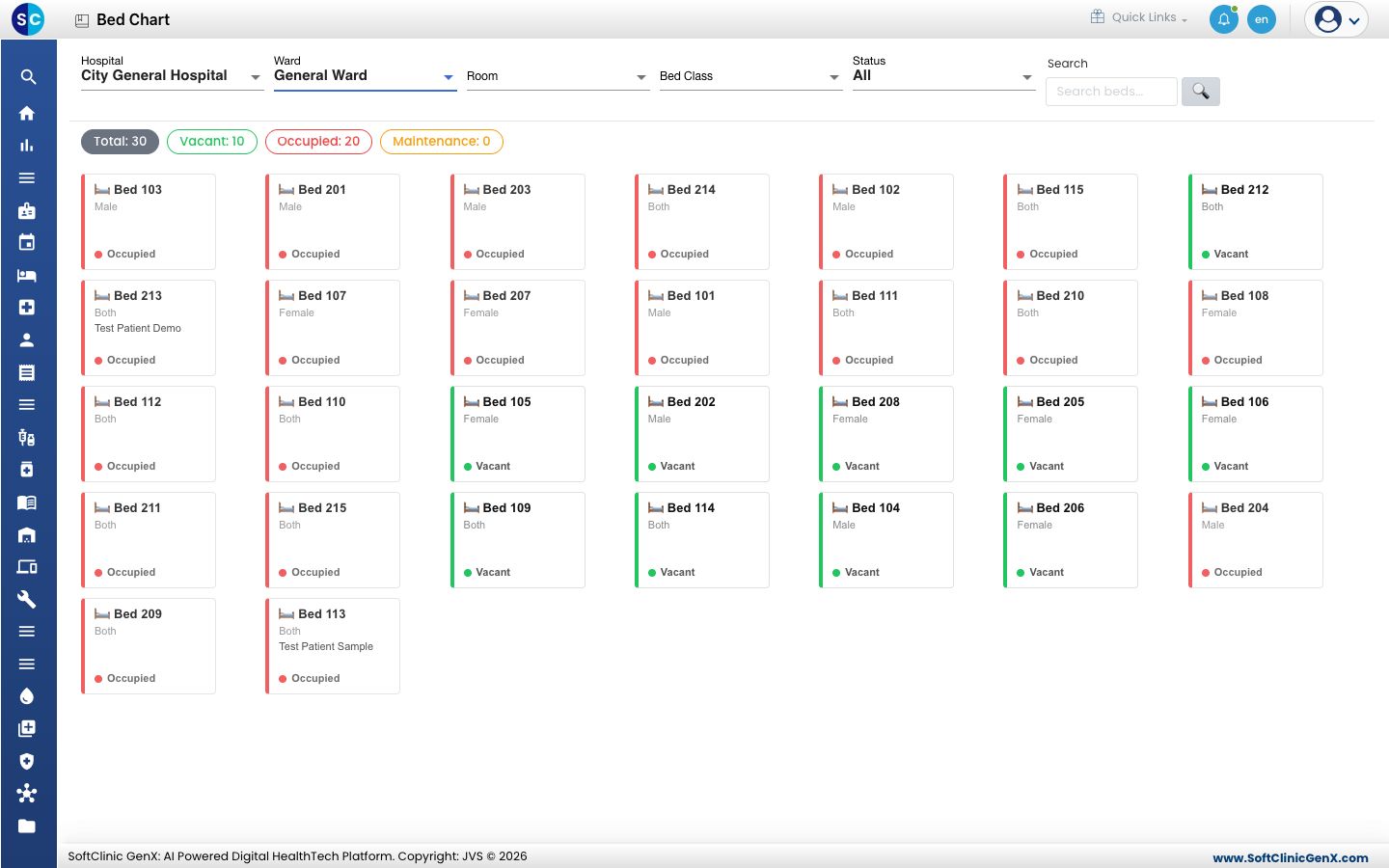
- Read each card:
- The bed number, and under it who the bed is meant for: Male, Female or Both.
- The patient's name, when the bed is occupied.
- The status: green for Vacant, red for Occupied.
- Hold the pointer over an occupied bed to see the patient, the doctor, the admission date and the admission number.
Find a free bed
- Set Status to Vacant. Only the free beds stay on the chart.
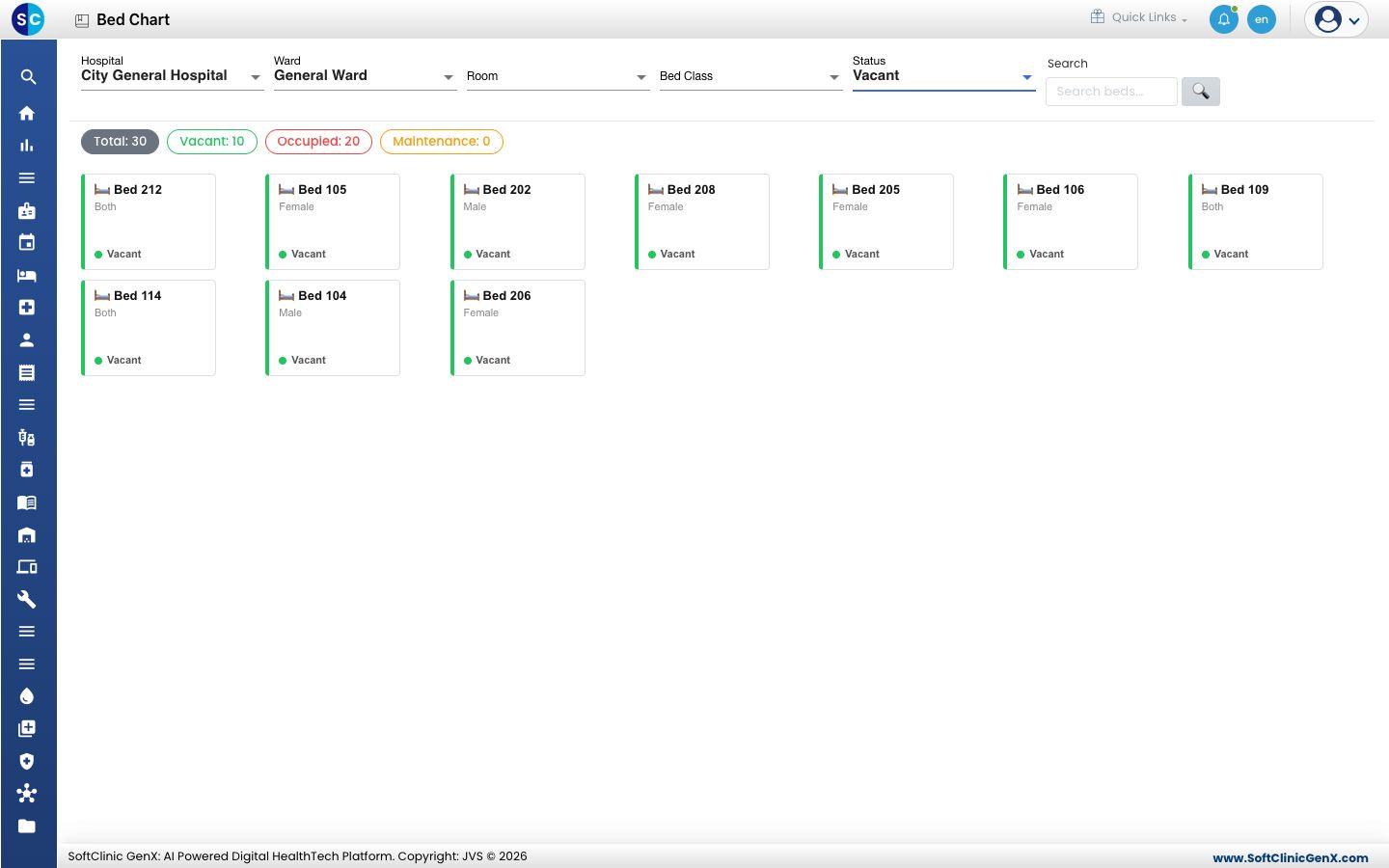
- Narrow the chart with Room or Bed Class if the patient needs a particular room or class.
- Click a vacant bed to start a new admission. The admission form opens; select the bed there.
Find the bed of a patient
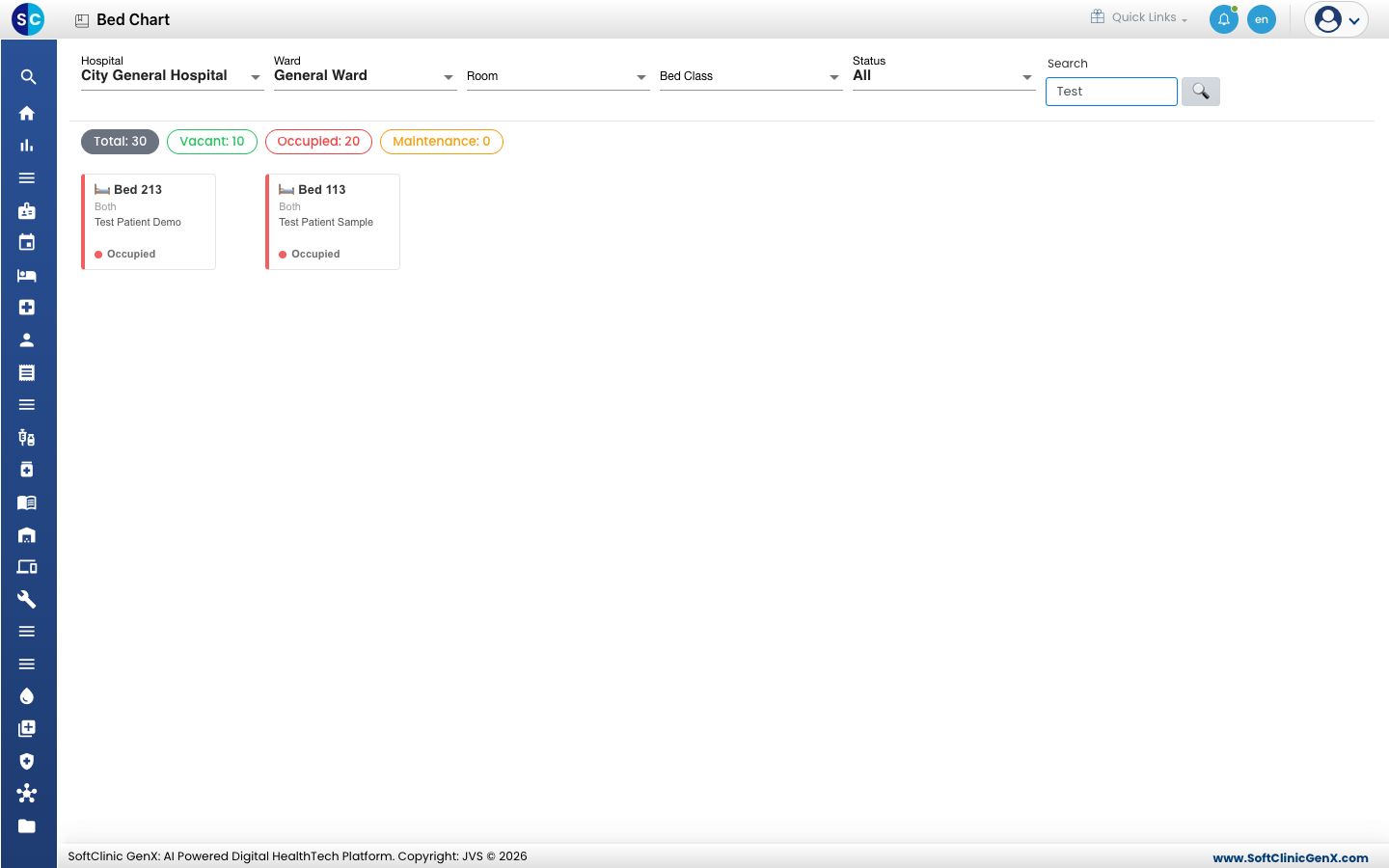
- Set Status back to All.
- Type part of the patient's name or the bed number in Search. The chart keeps only the matching beds.
Troubleshooting
| What you see | What it means | What to do |
|---|---|---|
| No beds found. Adjust your filters. | No bed matches the filters or the search text. | Clear Search and set Status to All. |
| A bed is missing from the chart | The bed is inactive or belongs to another hospital or ward. | Check Hospital and Ward, then the bed in Bed Masters. |
Related
- Choose a bed for an admission: the same chart inside the admission form.
- Transfer a patient to another bed: move a patient to a free bed.
- Find an admitted patient: the same patients as a list.