Print or reprint a bill and receipt
Print a bill again from the Billing Dashboard and a payment receipt from the Receipt List, on letterhead or plain paper.
A bill prints when you click Save & Print. You can print it again at any time from the Billing Dashboard or the Bill List. Each payment also has its own receipt, which you print from the Receipt List.
note
Who can do this: cashier and billing staff with the right to print bills
Where: Billing › Billing Dashboard › row menu › Print, and Billing › Views › Receipt List › row menu › Print
Before you start
- The bill is saved. See Create an OPD bill.
Reprint a bill
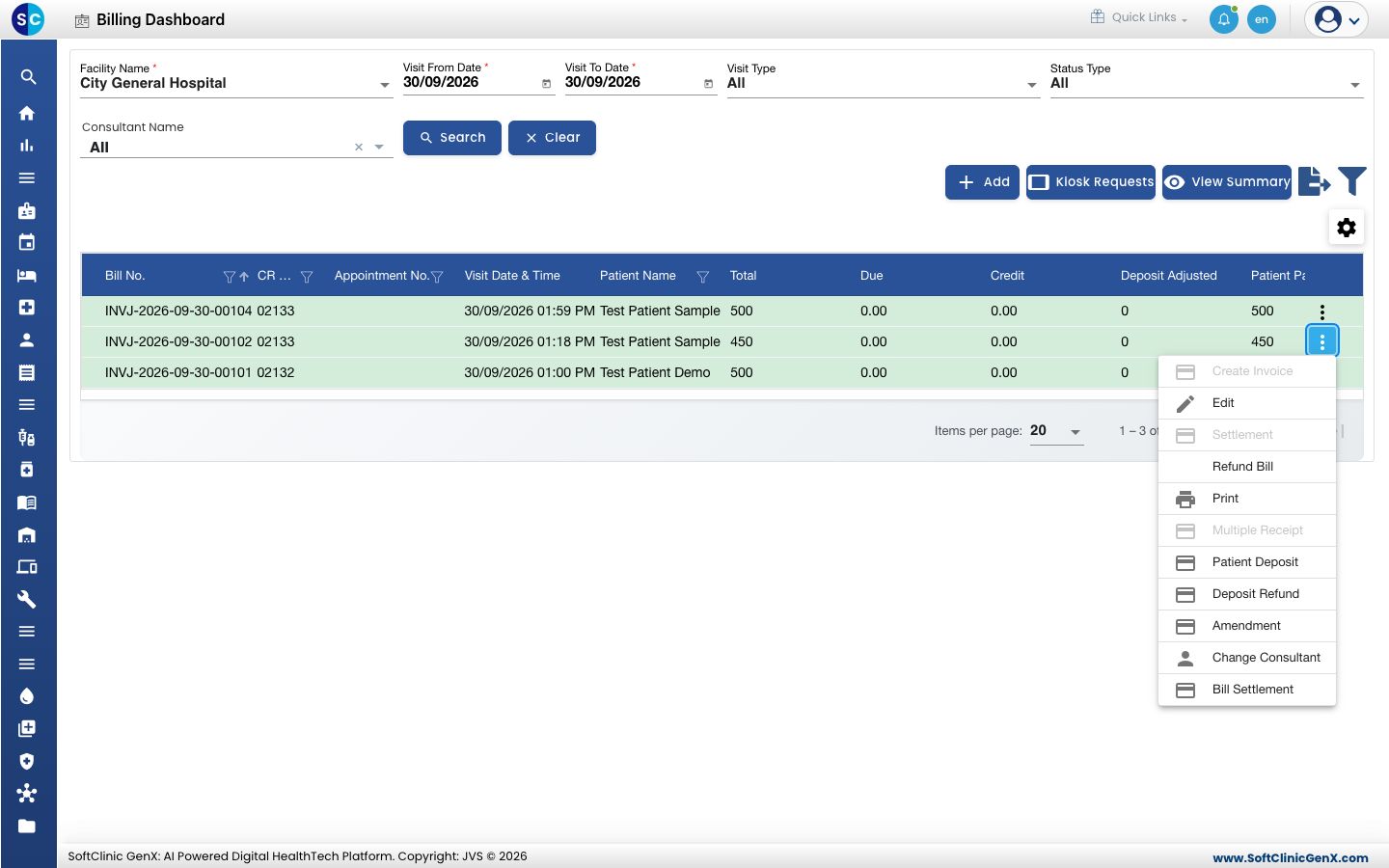
- Go to Billing › Billing Dashboard.
- Set Visit From Date and Visit To Date to the bill date, set Status Type to All and click Search.
- Click the three dots at the end of the bill's row and choose Print.
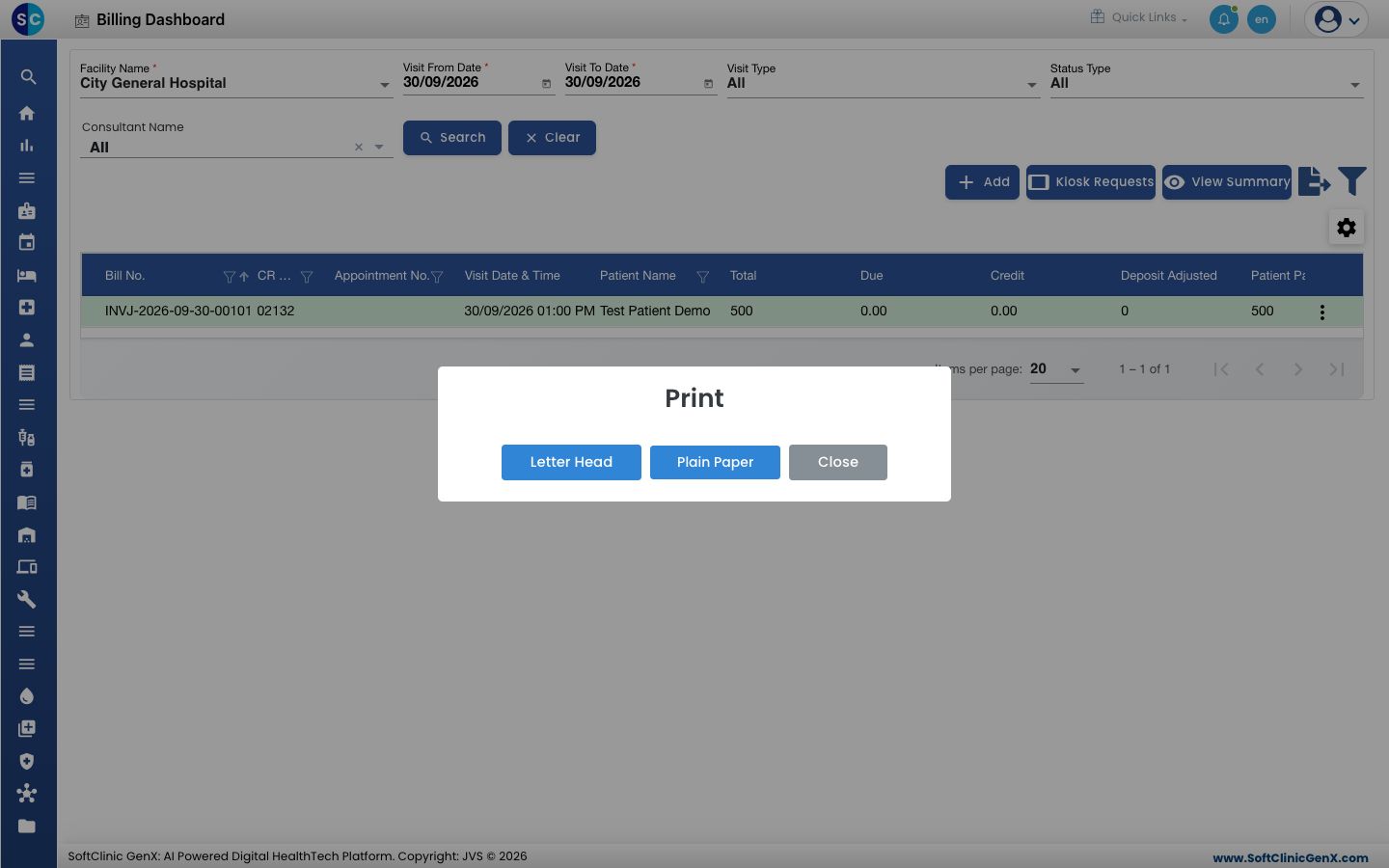
- Choose the paper. Letter Head leaves room for your pre-printed letterhead. Plain Paper prints the hospital header on the page.
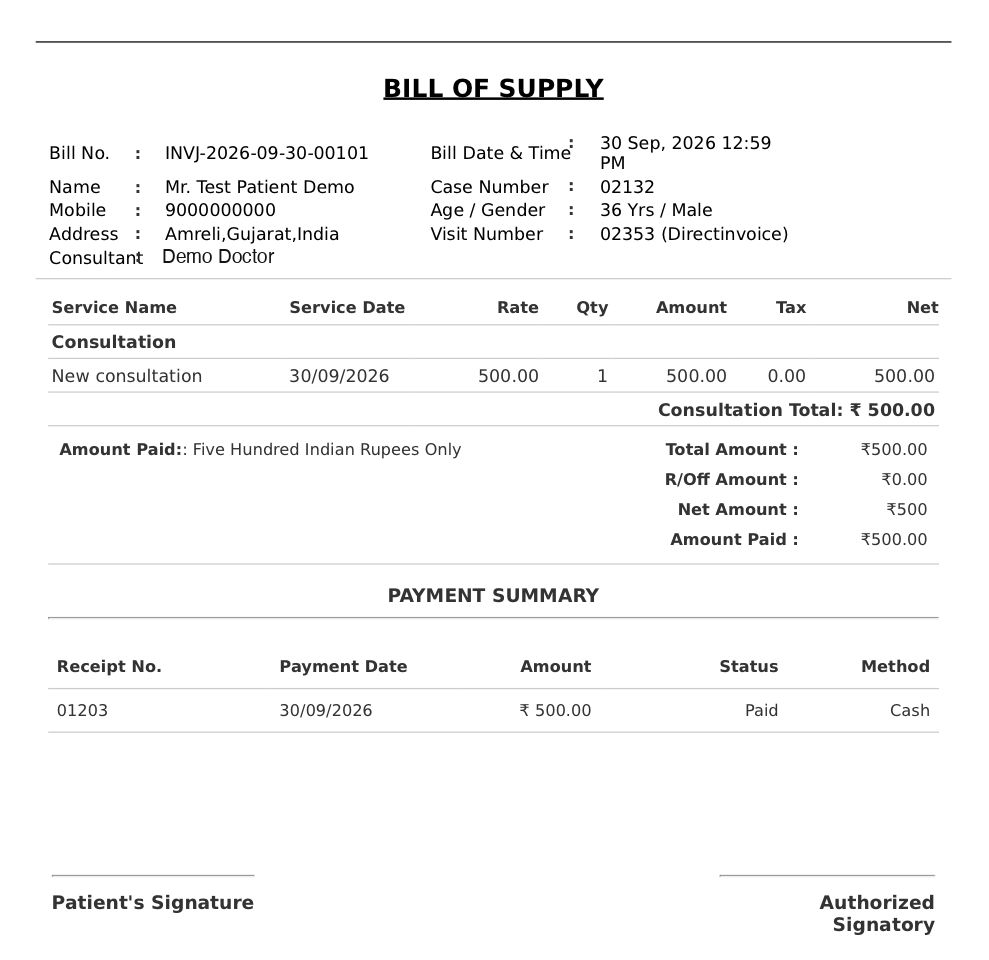
- The bill opens as a PDF. It shows the services, the totals and a PAYMENT SUMMARY with each receipt number. Use the print icon of the PDF viewer to print it.
tip
You can also print from Billing › Views › Bill List. Click the three dots on the bill's row and choose Print.
Reprint a receipt
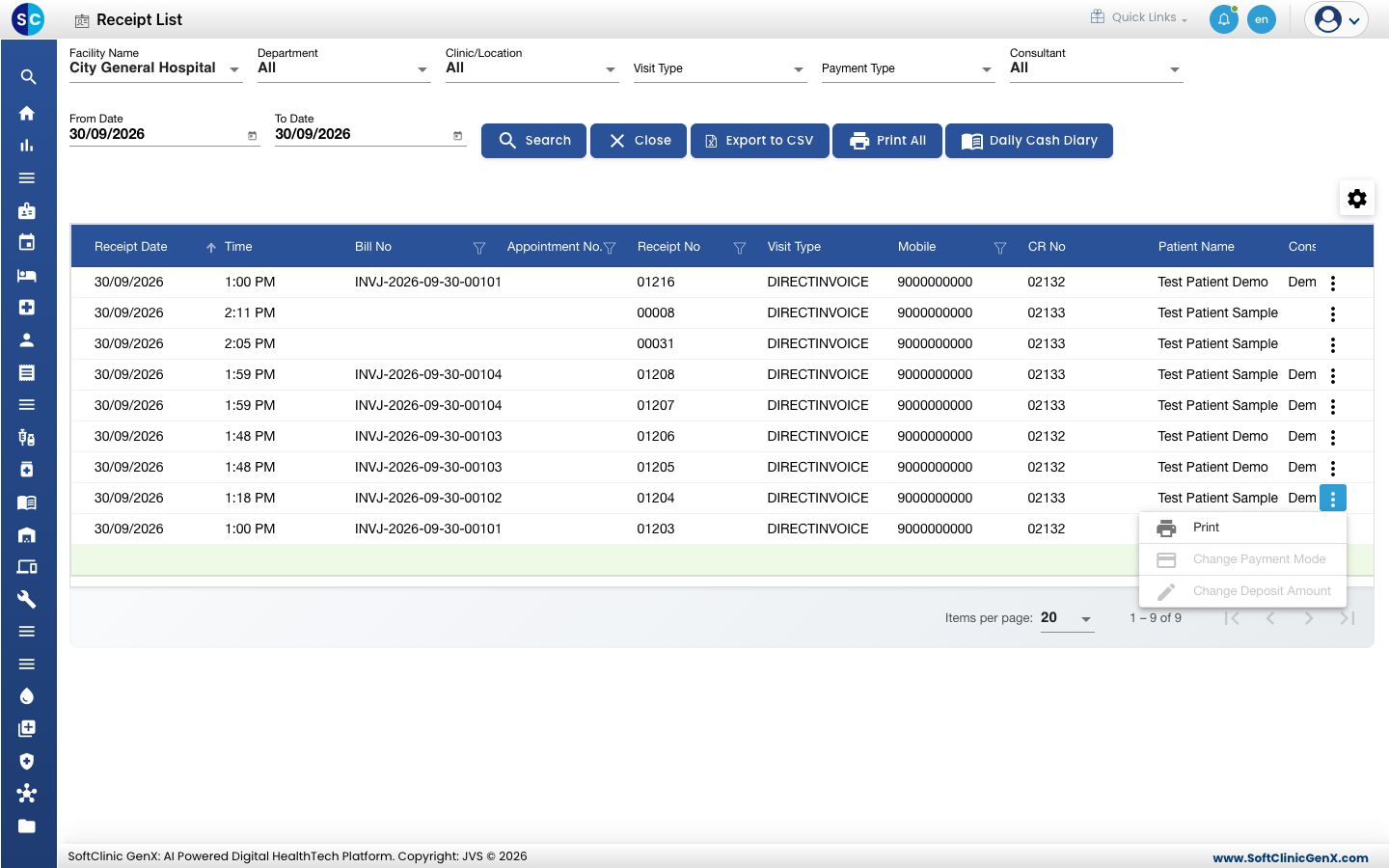
- Go to Billing › Views › Receipt List.
- Set From Date and To Date and click Search. Each payment, deposit and refund is one row with its Receipt No.
- Click the three dots at the end of the receipt's row and choose Print.
- The receipt opens as a PDF with the bill number, the amount and the payment method.
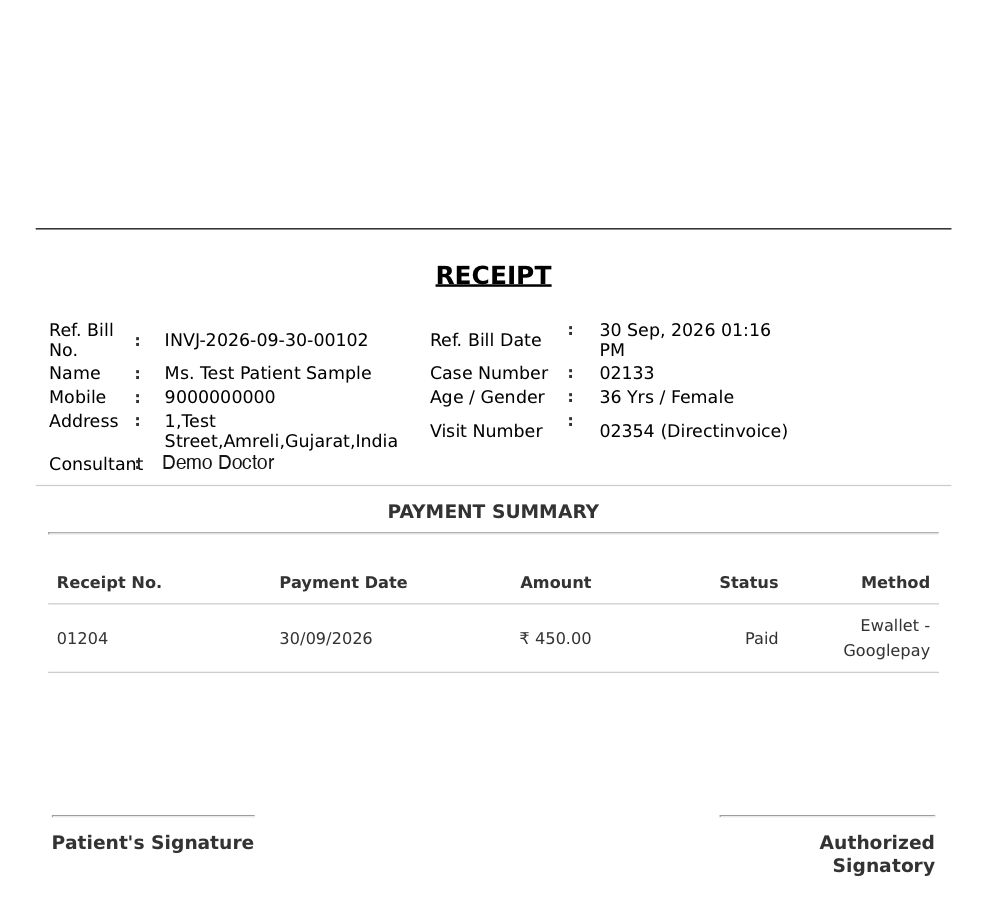
To print every receipt in the list at once, click Print All.
Troubleshooting
| What you see | What it means | What to do |
|---|---|---|
| You do not have rights to print | Your role cannot print bills. | Ask your administrator for the print right. |
| Print is missing from the row menu | The row is not billed yet. Its status is Pending for Invoice. | Create the bill first. |
| The bill is not in the list | The date range or Status Type filter hides it. | Set the bill date, choose All in Status Type and click Search. |
| The hospital name and logo are missing on the print | Letter Head was chosen and the paper is plain. | Print again and choose Plain Paper. |
Related
- View bills and the daily collection: find a bill or receipt by date.
- Create an OPD bill: save and print a new bill.
- Billing FAQs: common questions about the Receipt List.