Create an OPD bill
Bill an outpatient for a consultation or service, take the payment and print the bill in one go.
An OPD bill lists the services an outpatient has taken and records what was paid. You create it on the bill form, which opens from the Billing Dashboard. A bill made without an appointment is called a Direct Invoice.
note
Who can do this: cashier and front desk staff with billing rights
Where: Billing › Billing Dashboard › Add
Before you start
- The patient is registered. If not, register the patient first.
- The service and its price exist in the Service master.
Create the bill
- Go to Billing › Billing Dashboard.
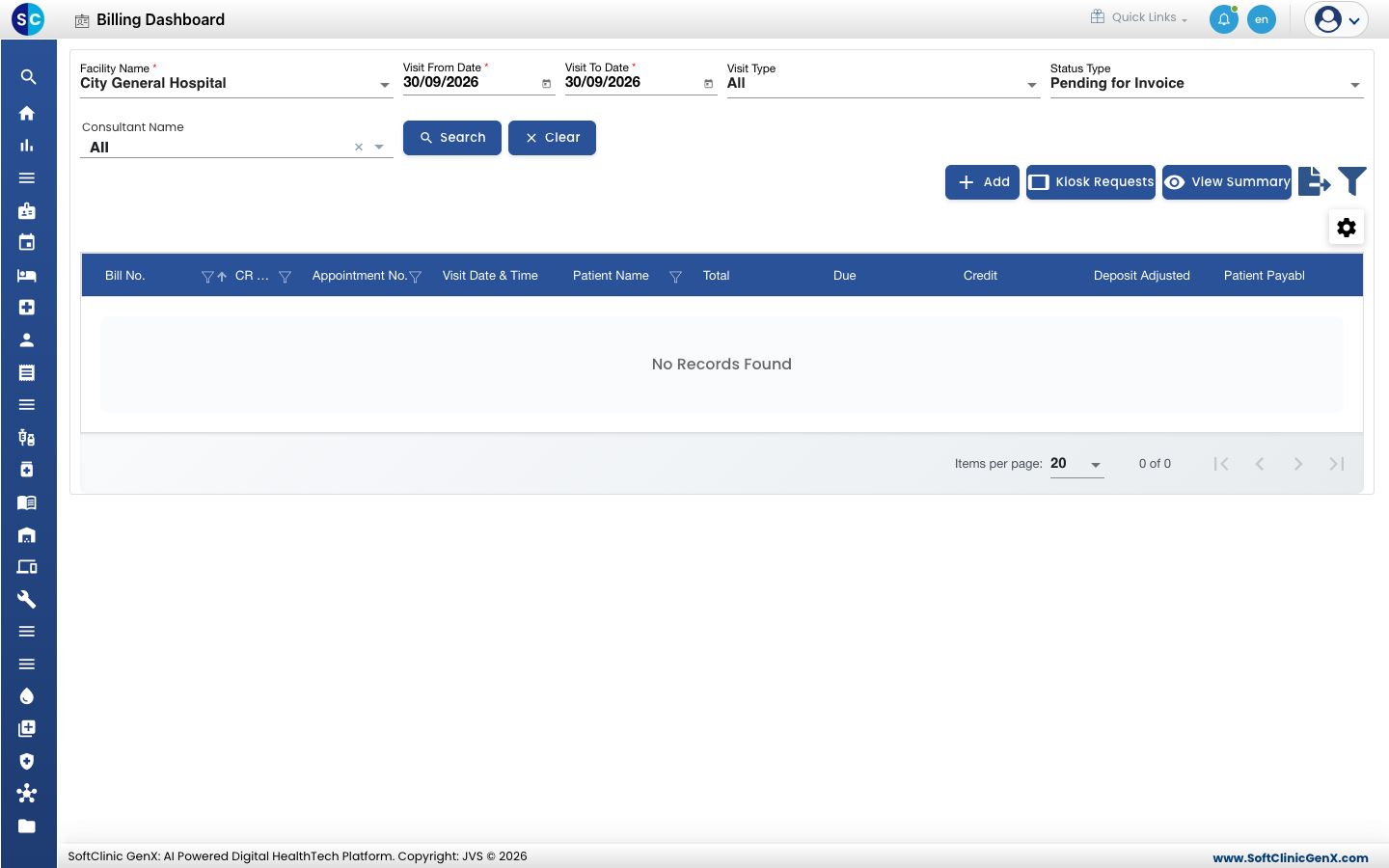
- Click Add. A blank bill form opens with Visit Type set to Direct Invoice.
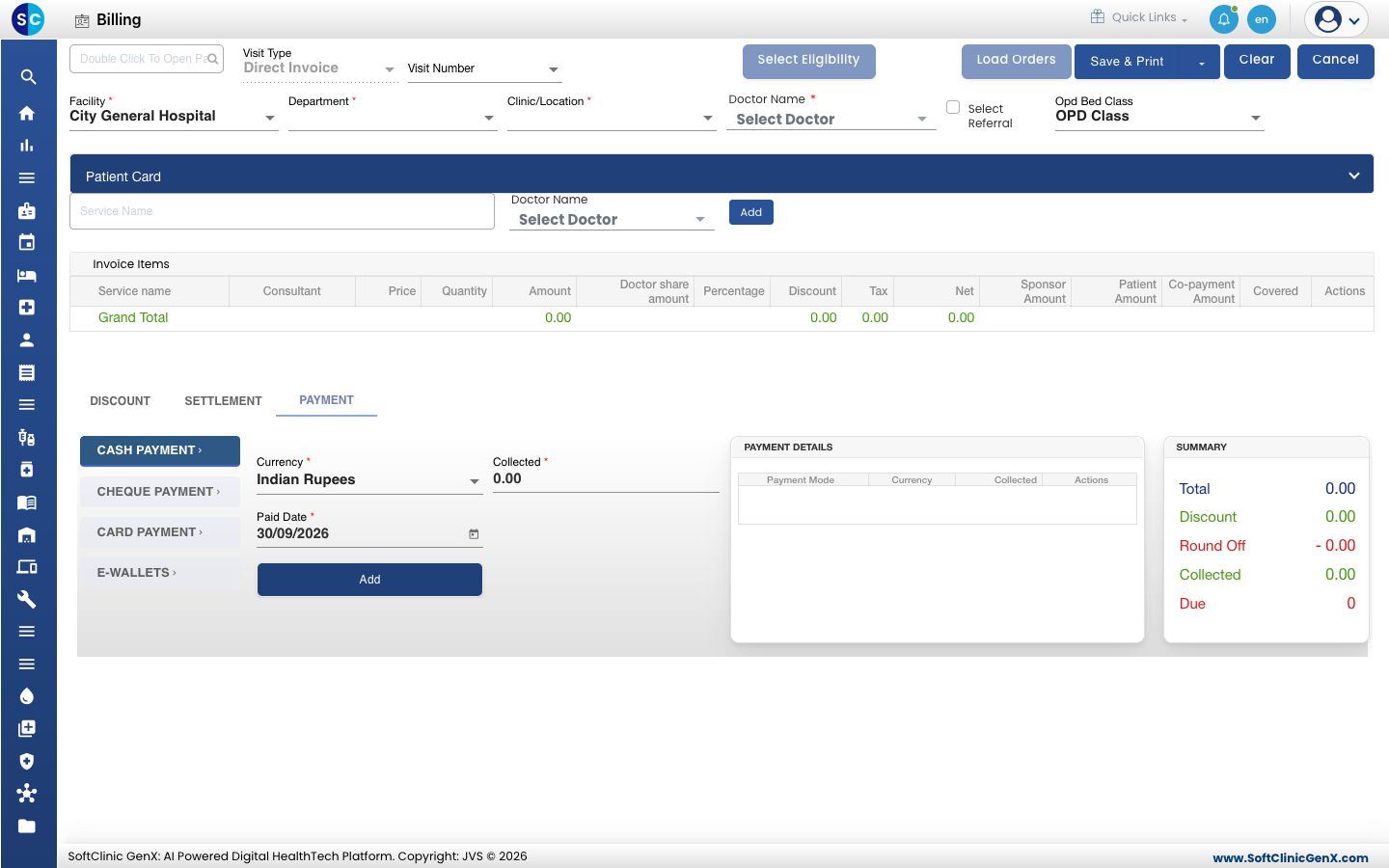
- Type the patient's CR number, name or mobile number in the box at the top left and pick the patient from the list.
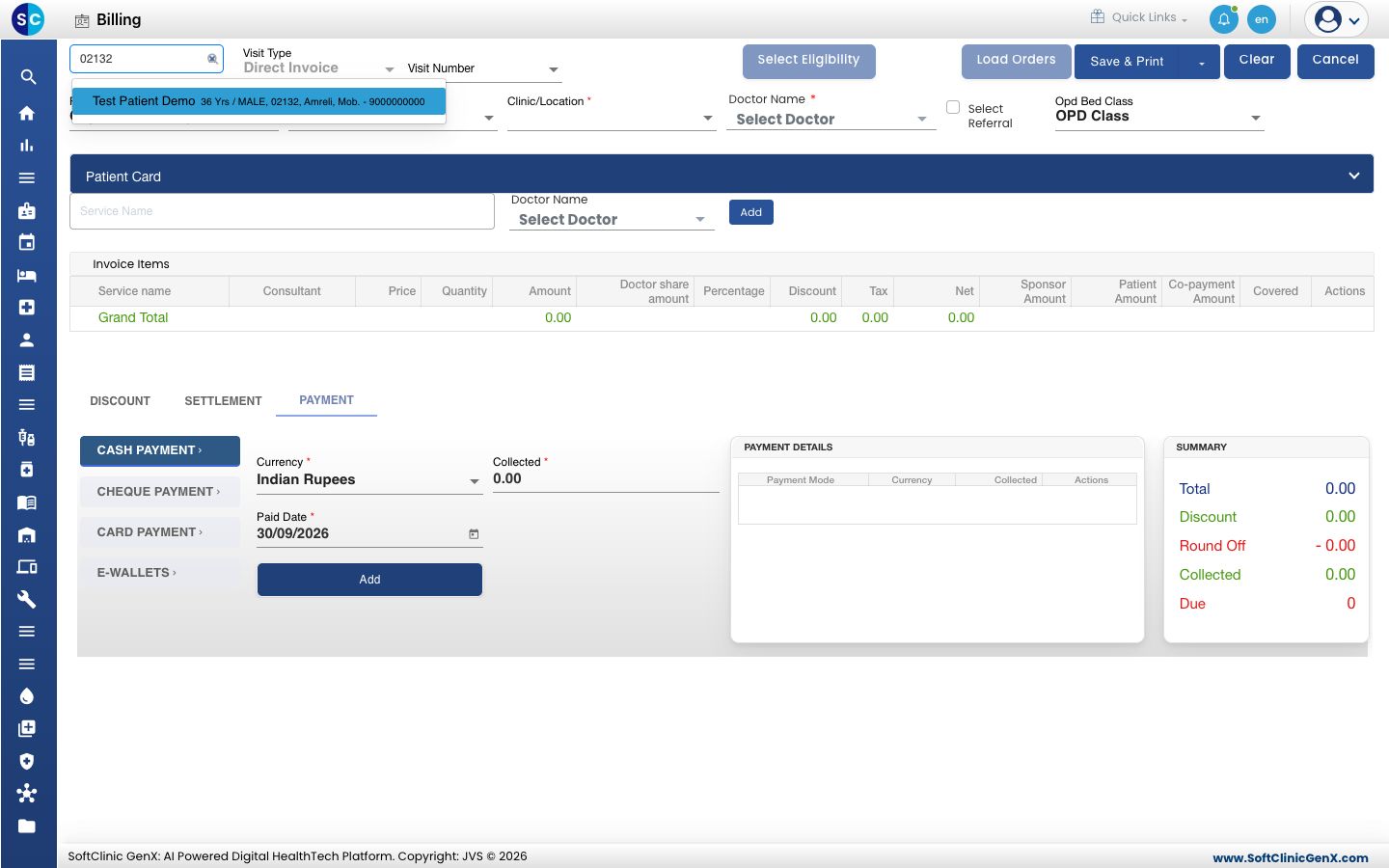
- Select the Department, the Clinic/Location and the Doctor Name. All three are required. The patient's name, age and gender show in the blue bar.
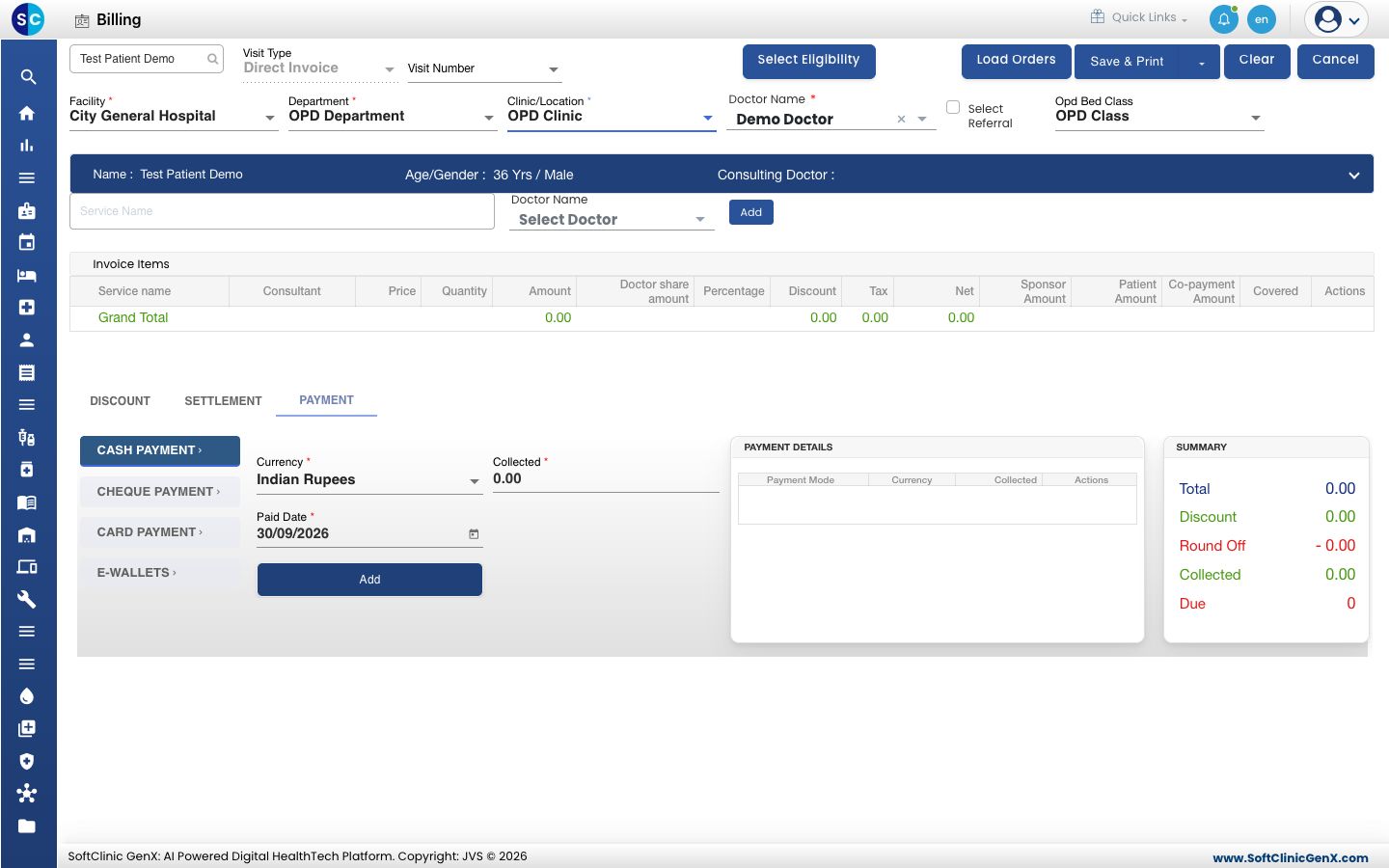
- Type at least three letters in Service Name. The list shows each matching service with its price.
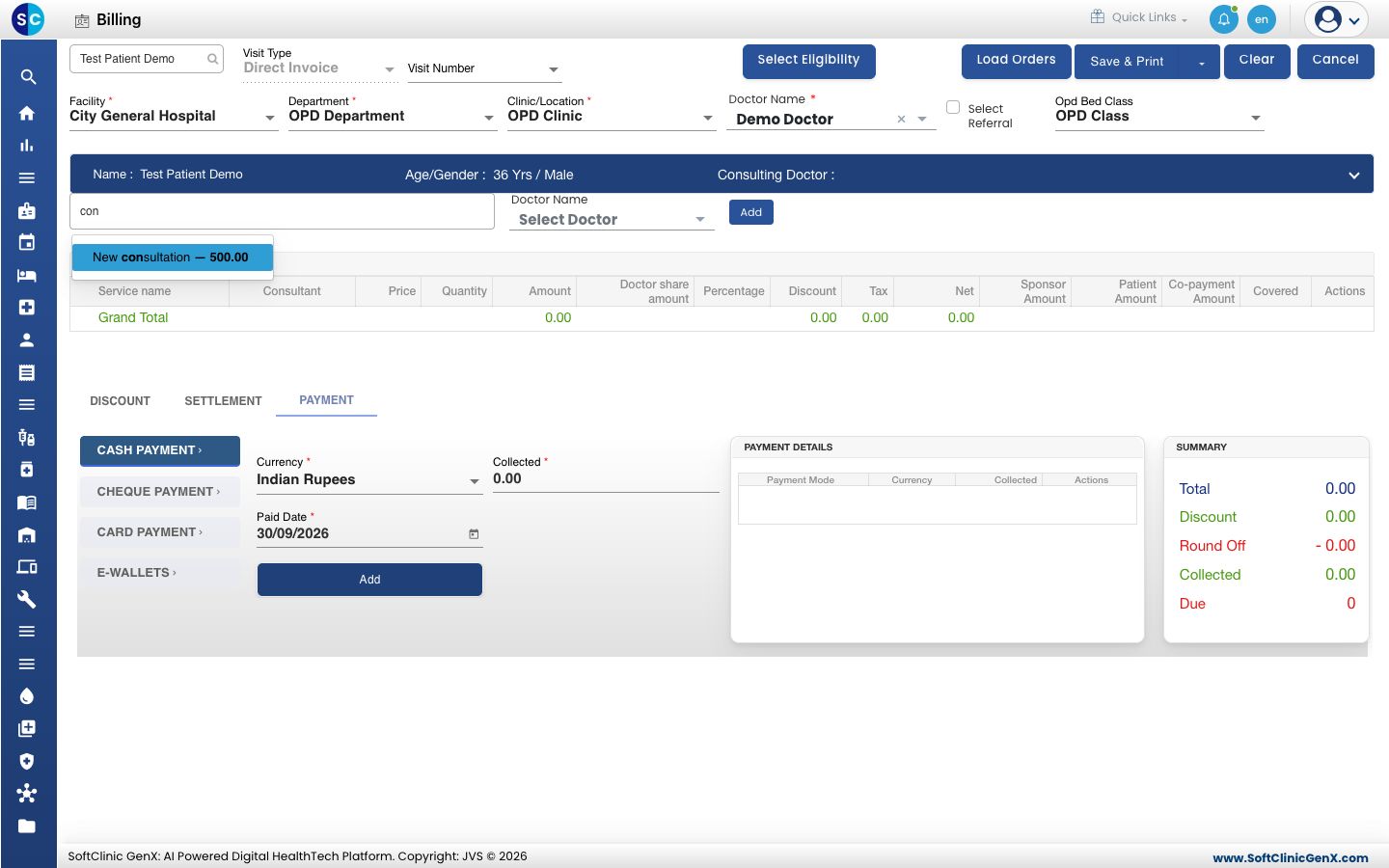
- Pick the service and click Add next to it. The service appears under Invoice Items and the Grand Total updates.
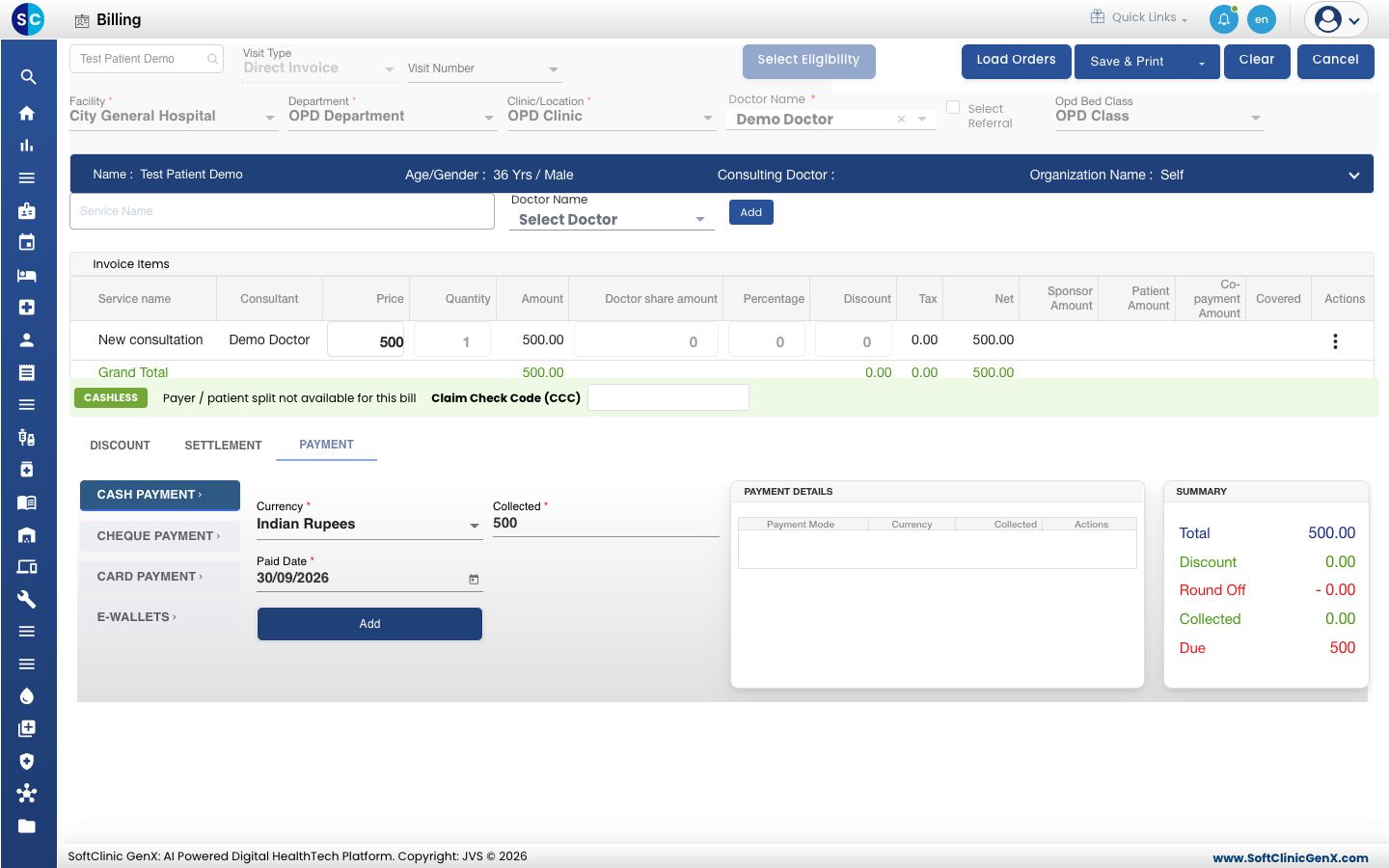
- On the PAYMENT tab, keep CASH PAYMENT selected. Collected already shows the bill amount. Click the Add button below it. The payment moves to PAYMENT DETAILS and Due becomes 0.
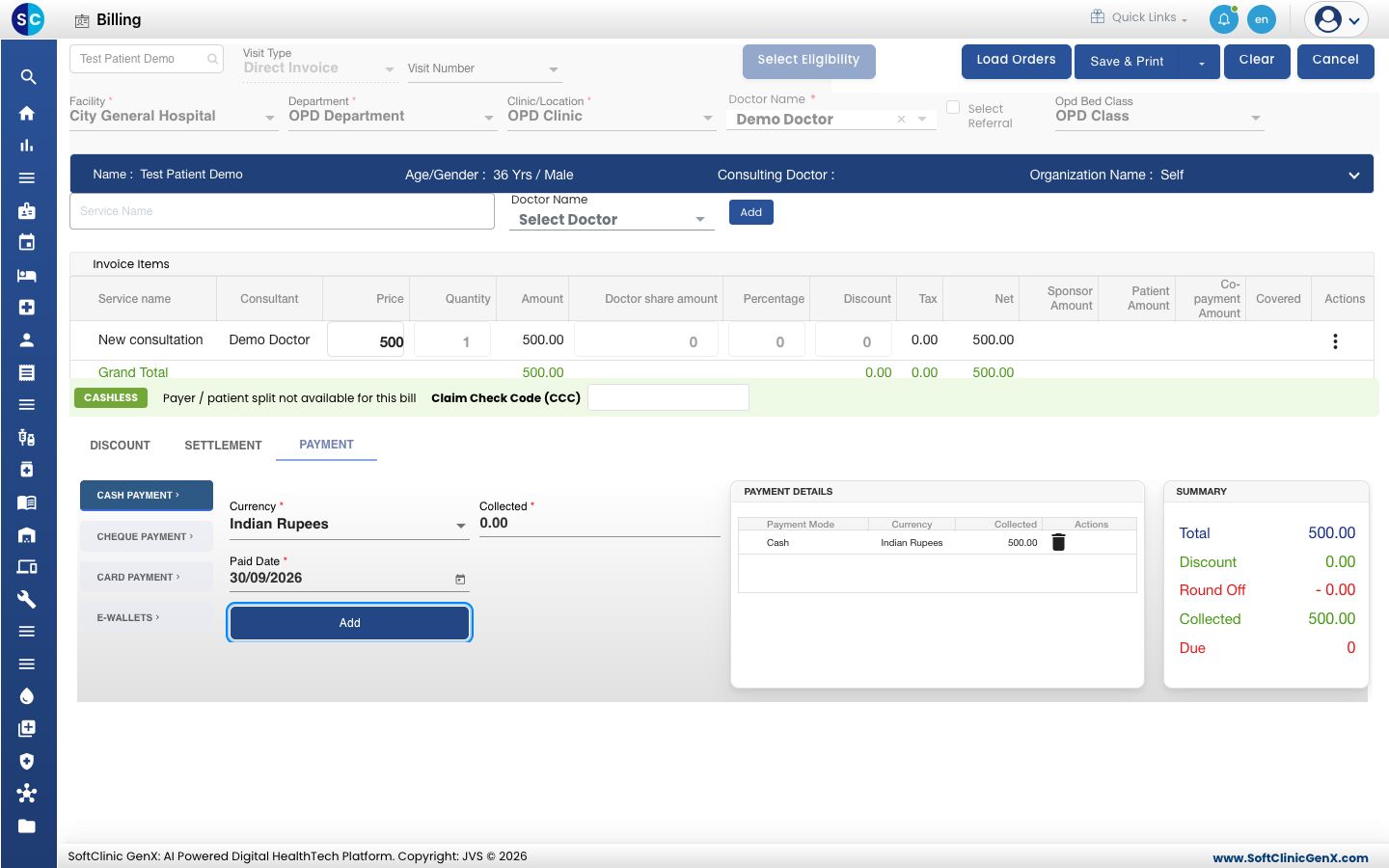
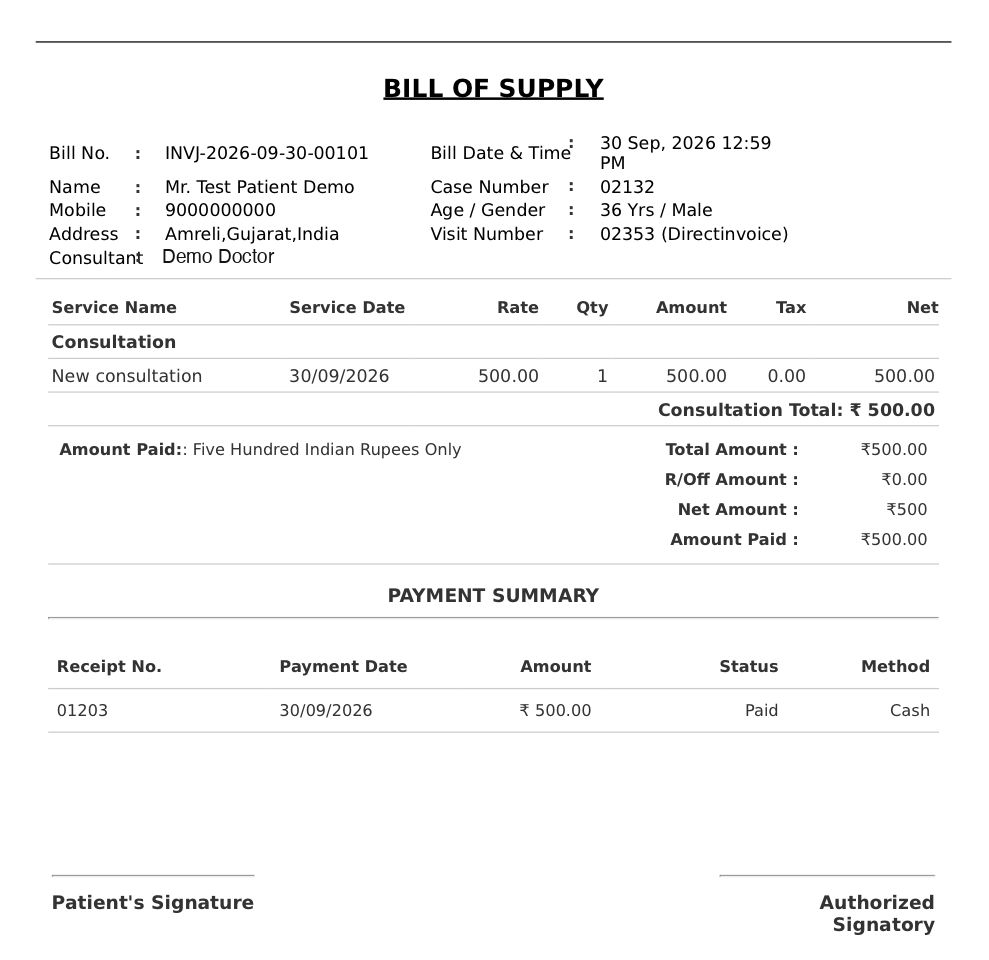
- Click Save & Print. You see Record saved successfully and the bill opens as a PDF with its receipt number.
- Close the preview. You are back on the Billing Dashboard, and the bill shows with the status Invoiced.
tip
To save without printing, click the arrow beside Save & Print and choose Save.
Bill a patient who has an appointment
- On the Billing Dashboard, keep Status Type as Pending for Invoice and click Search. The list shows checked-in patients who are not billed yet.
- Click the three dots at the end of the patient's row and choose Create Invoice. The bill form opens with the patient, department and doctor filled in.
- Add the services and the payment as in steps 5 to 8 above.
Troubleshooting
| What you see | What it means | What to do |
|---|---|---|
| Please select patient! | No patient is selected on the bill. | Search for the patient in the box at the top left and pick one. |
| This field is required. | Department, Clinic/Location or Doctor Name is empty. | Fill the field marked in red and save again. |
| Service Already Exist! | The service is already on this bill. | Change the Quantity on the existing line instead. |
| Total payment amount is not matched with total service amount | The payments added are less or more than the bill amount. | Correct the payment lines, or take a part payment. |
| Please clear all payment details first | You tried to add a service after adding a payment. | Delete the lines under PAYMENT DETAILS, add the service, then add the payment again. |
Related
- Add services and packages to a bill: bill more than one service, change quantity or remove a line.
- Apply a discount to a bill: reduce the bill before you take payment.
- Collect a payment: card, UPI, cheque and part payments.
- Print or reprint a bill and receipt: print again later.
- Billing FAQs: common questions about the Billing Dashboard.