Settle a pending bill
Collect the balance of a part-paid bill so that it is fully paid and shows as Invoiced.
A bill saved with a part payment stays on the Billing Dashboard as Partially Settled Invoices, with the balance in the Due column. When the patient pays the balance, you settle the bill from its row.
note
Who can do this: cashier and billing staff with settlement rights
Where: Billing › Billing Dashboard › row menu › Settlement
Before you start
- The bill has a balance. See Take a part payment.
Settle the bill
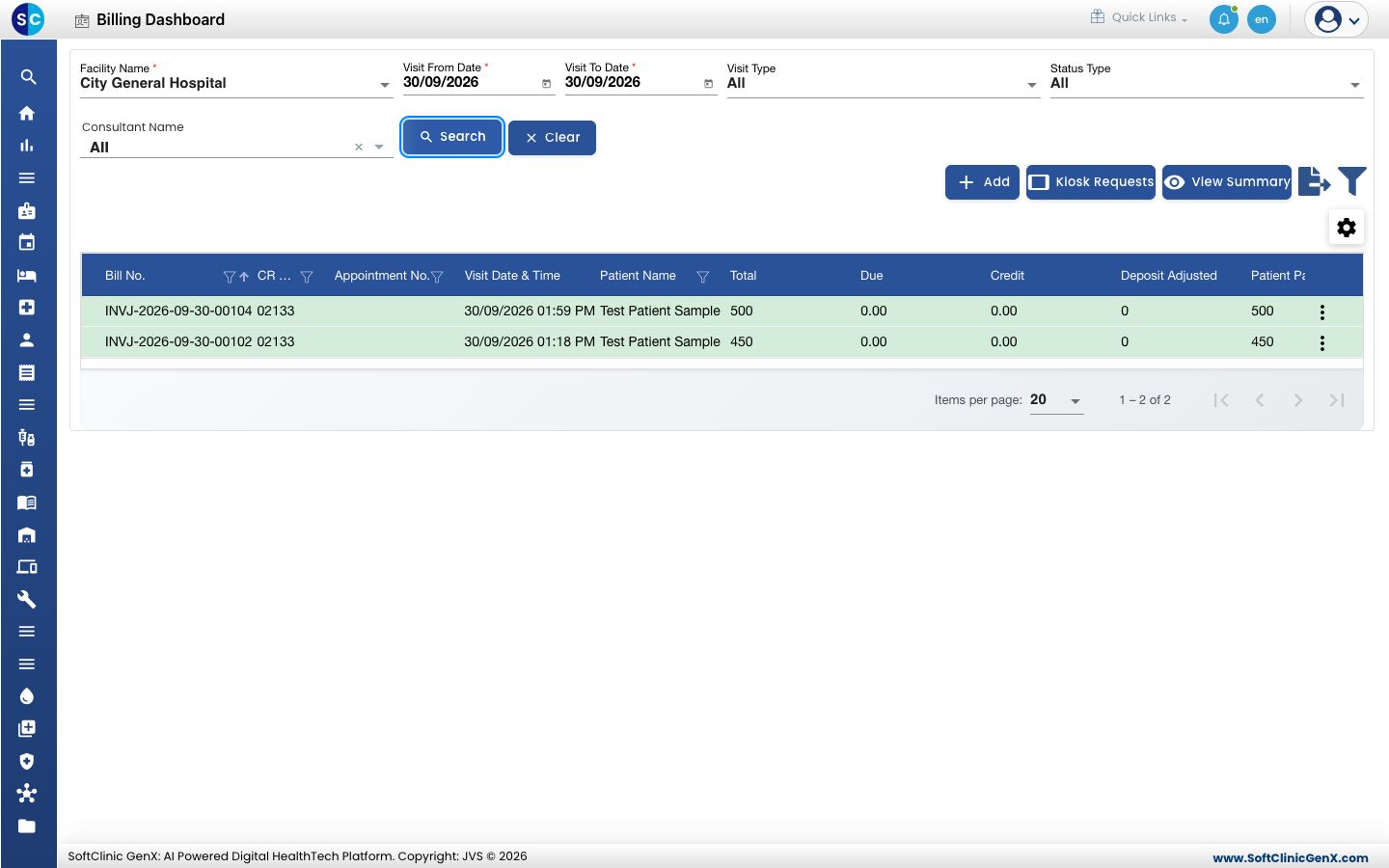
- Go to Billing › Billing Dashboard. Set the bill date, choose Partially Settled Invoices or All in Status Type and click Search. The bill shows its balance under Due.
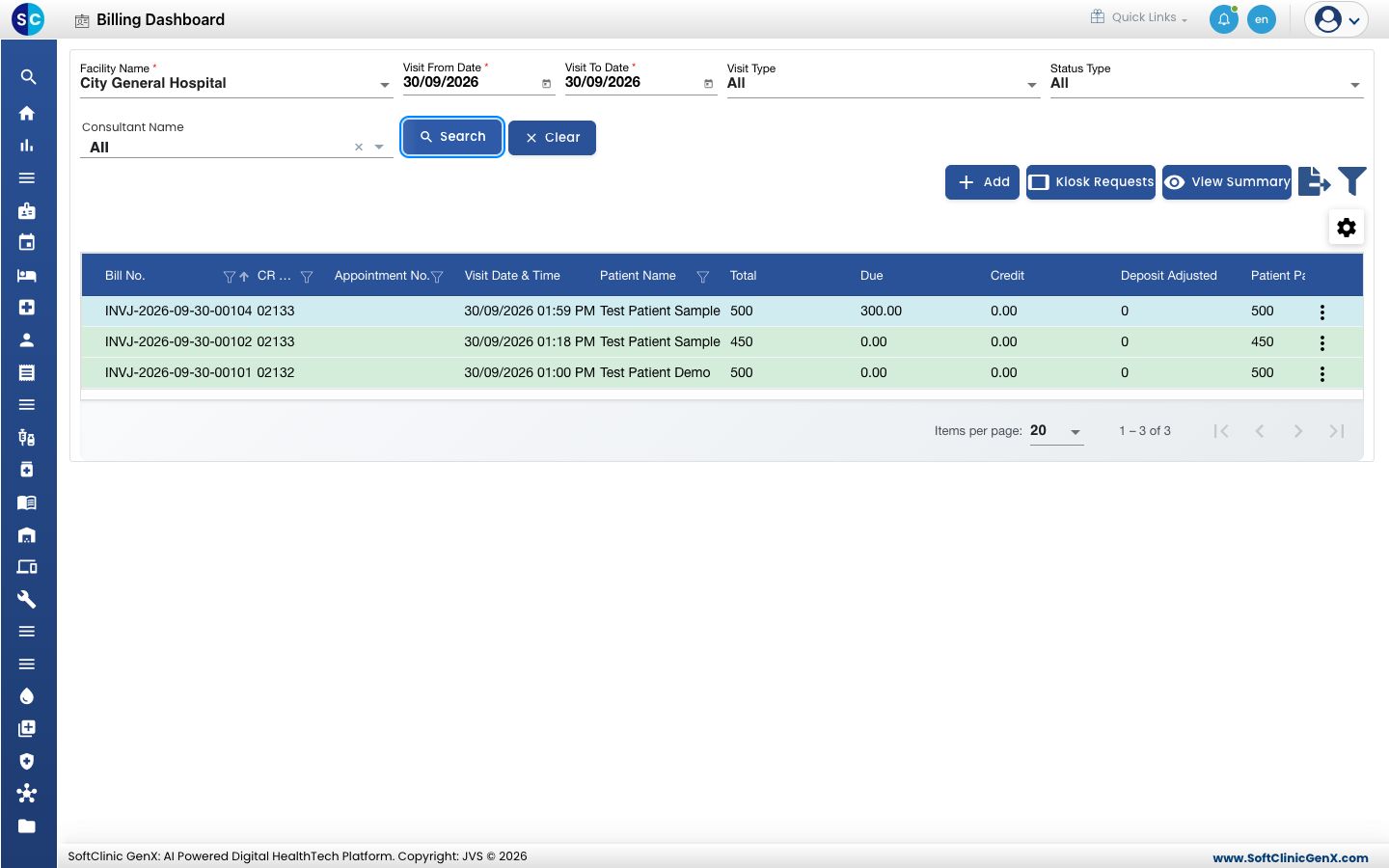
- Click the three dots at the end of the row and choose Settlement.
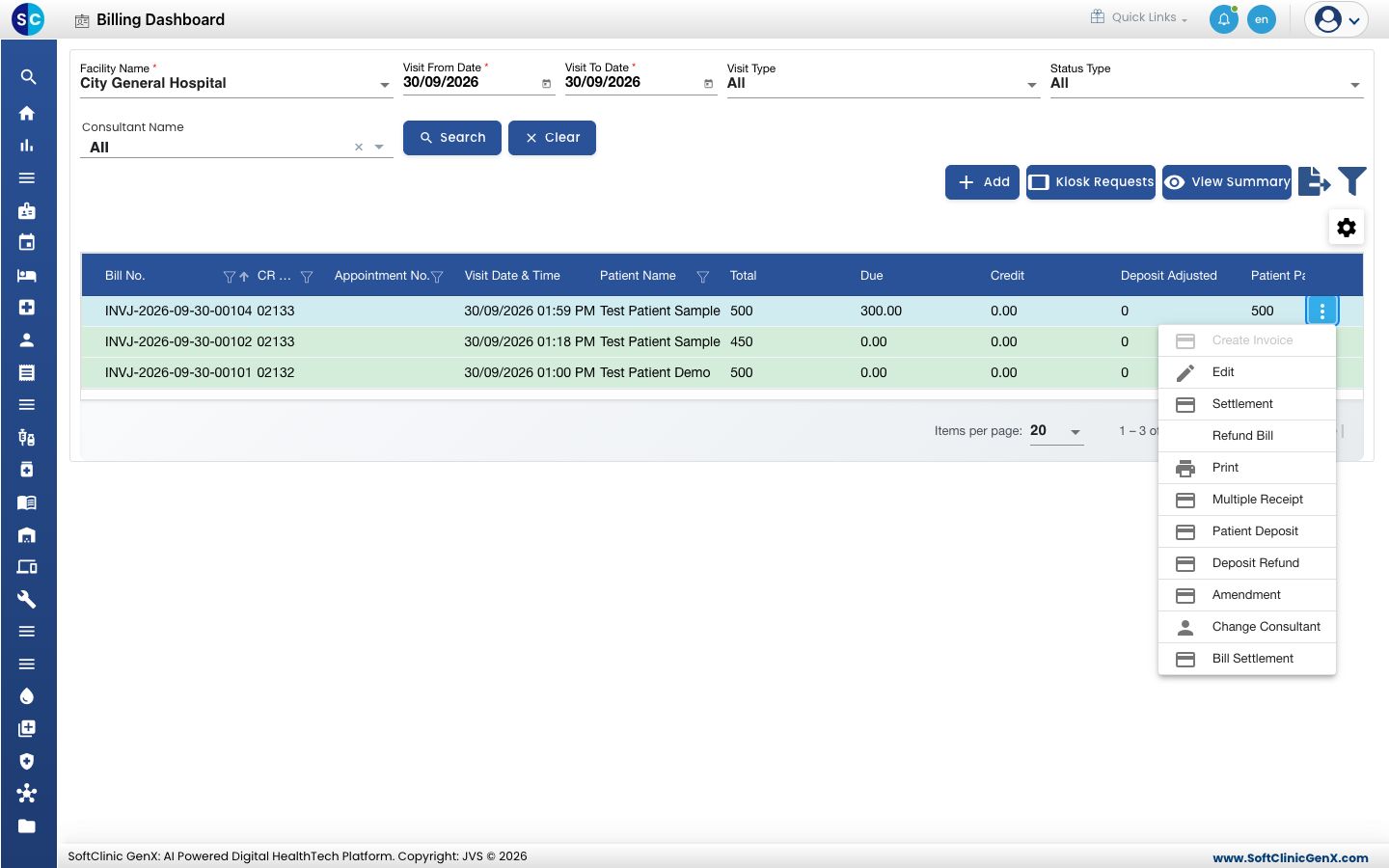
- The Settlement screen opens. Invoice Items shows the bill and the balance. PAYMENT DETAILS lists what was paid earlier, and SUMMARY shows the Due.
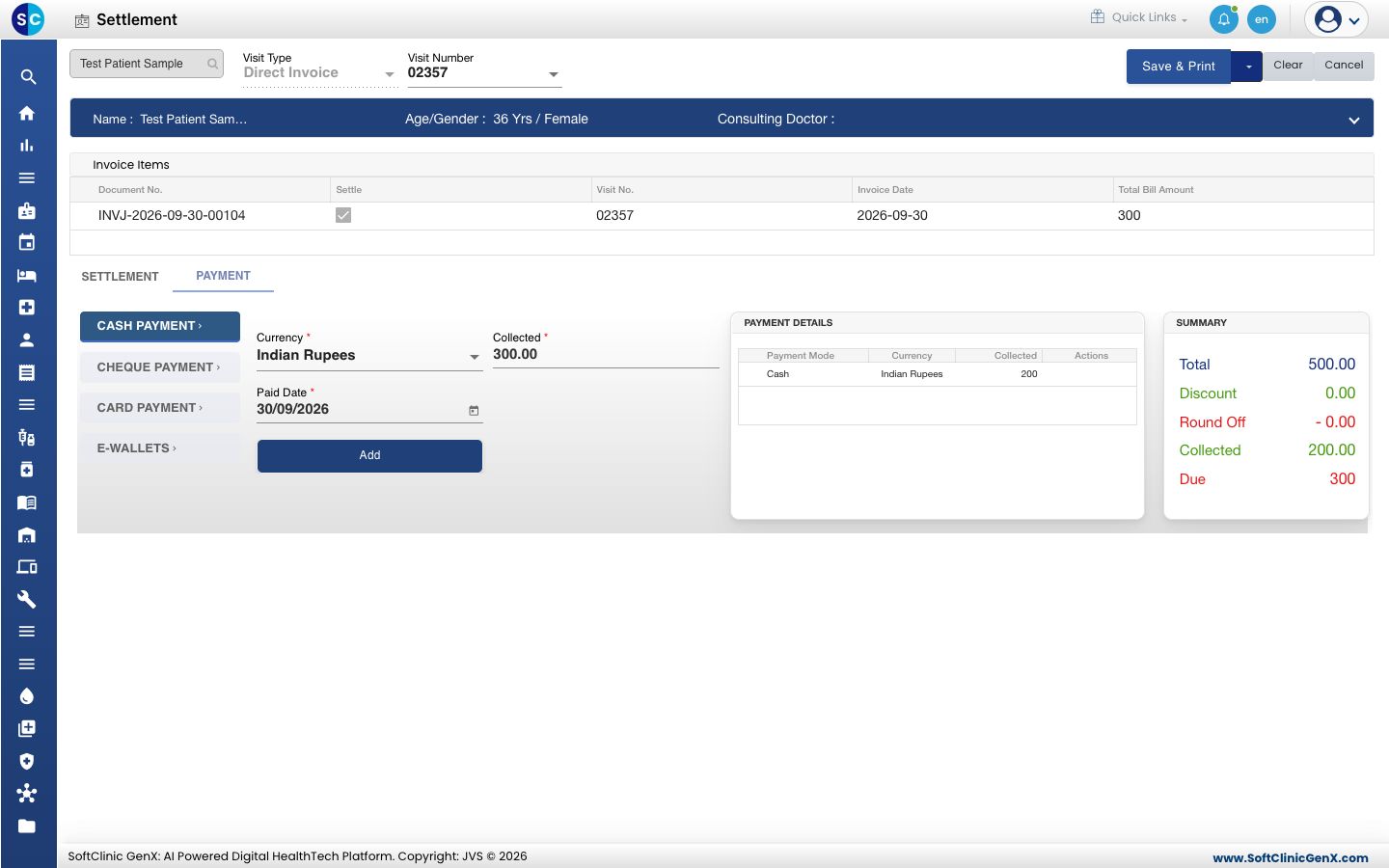
- To use a patient deposit, click the SETTLEMENT tab, tick Adjust Amount and click Deposit Detail. Keep Full Settlement selected to clear the whole balance.
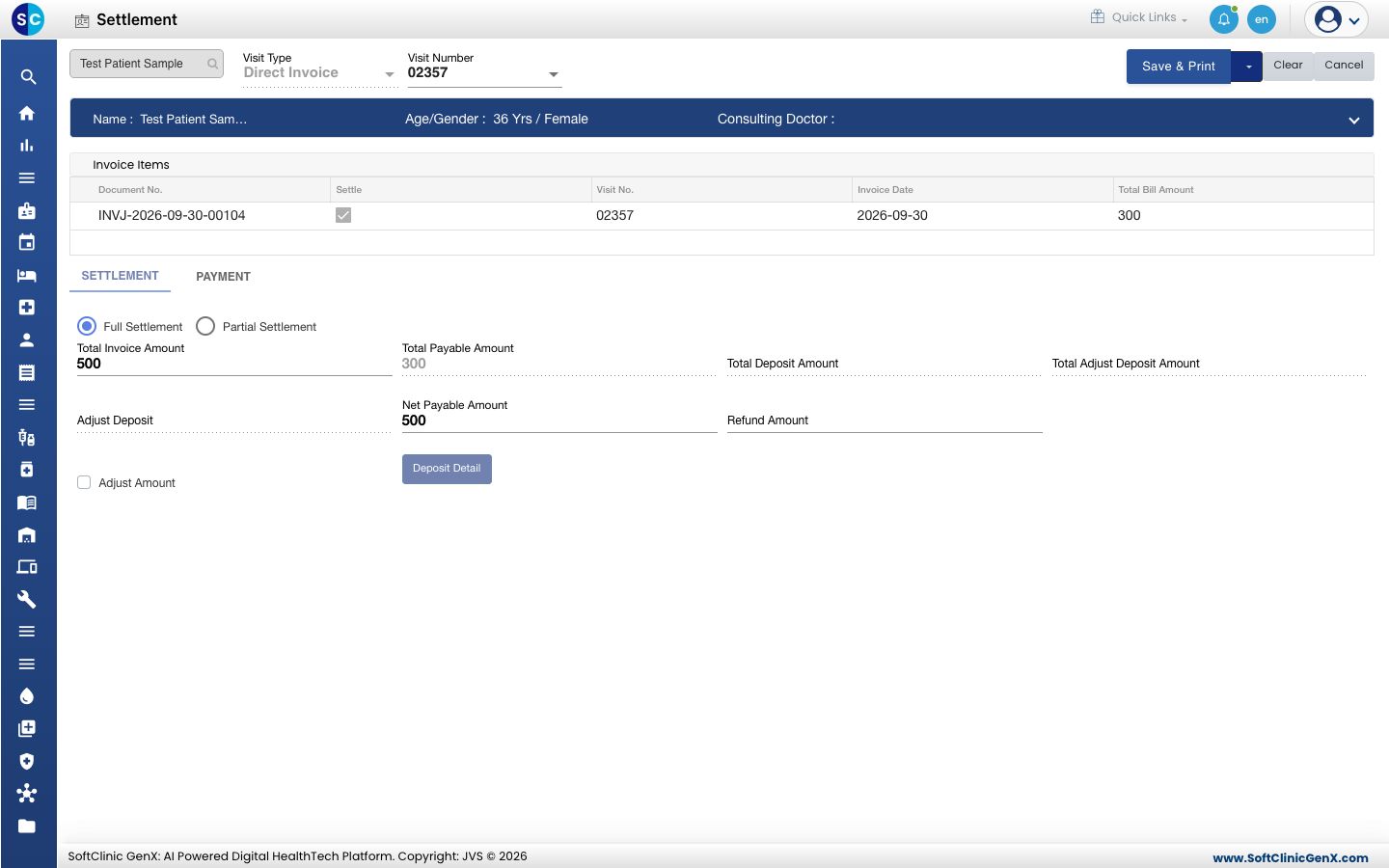
- On the PAYMENT tab, choose the payment mode and check the amount. It must equal the Due, not the bill total.
- Click Add. The new line appears under PAYMENT DETAILS and Due becomes 0.
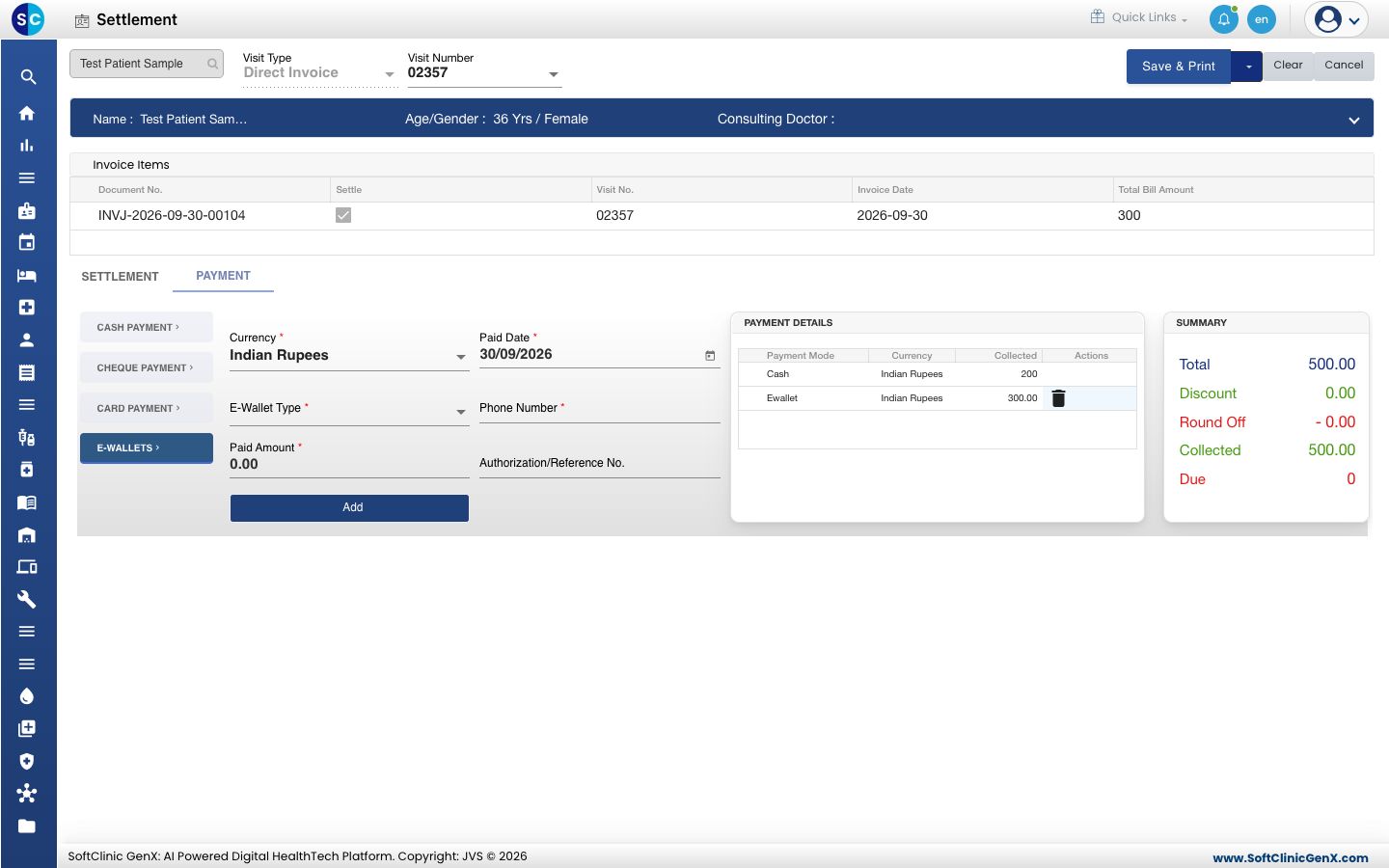
- Click Save & Print, or click the arrow beside it and choose Save. You see Record updated successfully.
- Go back to the Billing Dashboard. The bill now shows Due 0.00 and the status Invoiced.
note
Check the amount before you click Add. If you add more than the Due, the extra is saved as a credit on the bill.
Take another part payment
- On the SETTLEMENT tab, select Partial Settlement and type the Partial Settlement Reason.
- On the PAYMENT tab, add the amount paid now and save. The bill stays Partially Settled Invoices with the new balance.
Troubleshooting
| What you see | What it means | What to do |
|---|---|---|
| Settlement is greyed out in the row menu | The bill is fully paid, cancelled or not billed yet. | No settlement is needed. Check the Due column. |
| Please collect full amount | Full Settlement is selected but Due is not 0. | Add the balance, or select Partial Settlement. |
| Please enter payment details | No new payment line is added. | Add the payment and save again. |
| Partial Settlement Reason is Required | Partial Settlement is selected without a reason. | Type the reason on the SETTLEMENT tab. |
| Due Amount Should not less than 1 | Partial Settlement is selected but the full balance is collected. | Select Full Settlement. |
Related
- Collect a payment: payment modes and part payments.
- Take a patient deposit: collect an advance to adjust later.
- Print or reprint a bill and receipt: print the receipt for the balance.
- Billing FAQs: how to see what a patient still owes.