View bills and the daily collection
Find any bill or receipt by date and check the day's collection by receipt book and payment mode.
Billing has four everyday lists. The Billing Dashboard is where you work on a patient's bill. The Bill List shows every bill with its net amount. The Receipt List shows every payment, deposit and refund. The Daily Cash Diary totals the day's collection, which you use to tally the cash drawer.
Who can do this: cashier, billing and accounts staff
Where: Billing › Billing Dashboard, and Billing › Views › Bill List, Receipt List and Daily Cash Diary
Find a bill on the Billing Dashboard
- Go to Billing › Billing Dashboard. It opens on today's patients with the status Pending for Invoice.
- Set Visit From Date and Visit To Date, choose a Status Type and click Search.
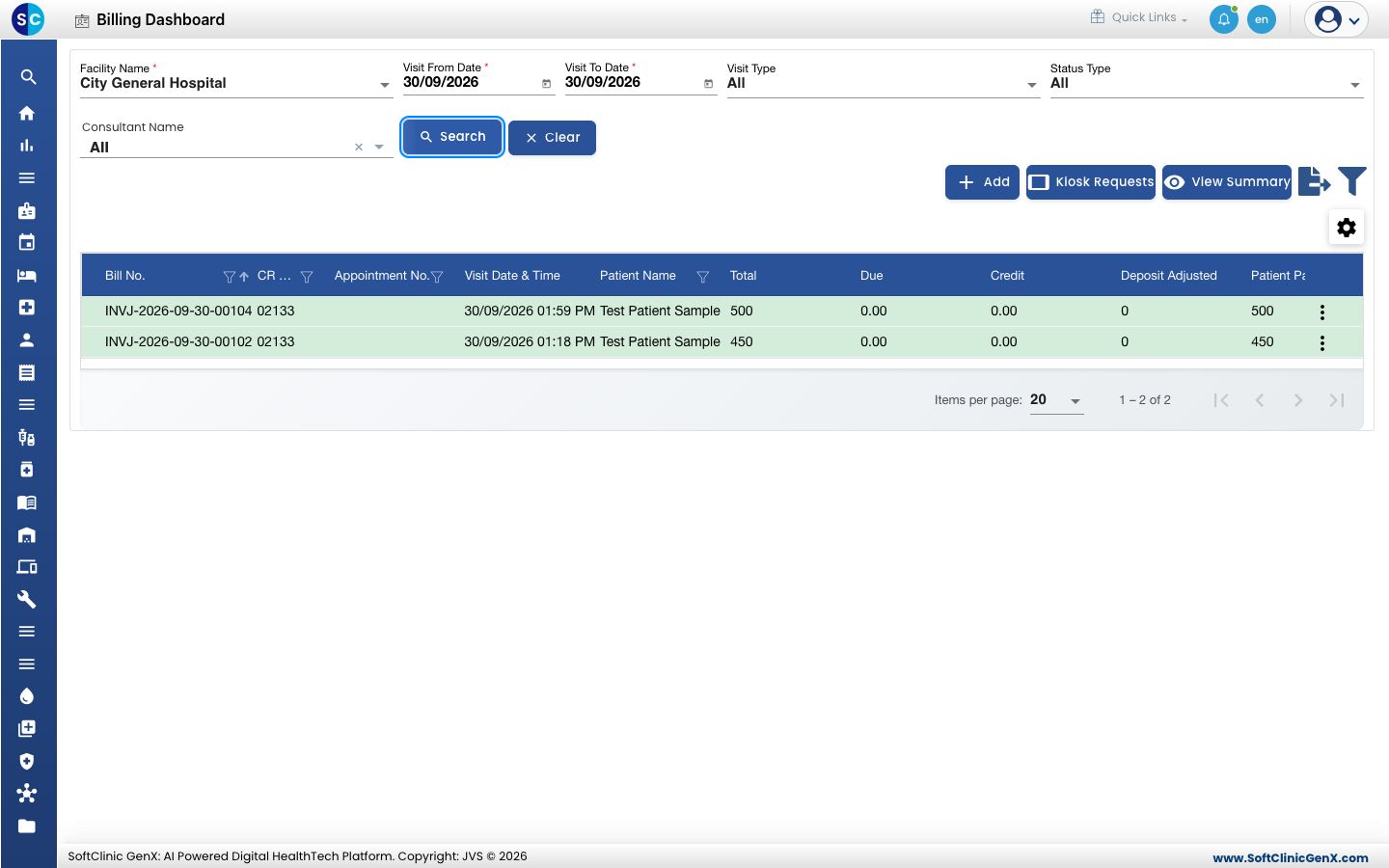
- Read the row: Total, Due, Payment Mode and Status. Scroll right for Prepared by, Visit Type and Consultant Name.
- Click the three dots at the end of a row to work on the bill: Edit, Settlement, Print, Patient Deposit and more.
Status Type narrows the list:
- Pending for Invoice: patients with a visit but no bill yet.
- Invoiced: bills that are fully paid.
- Partially Settled Invoices: bills with a balance due.
- Pending for Settlement: bills saved with no payment.
- Cancelled Invoice: cancelled bills.
- All: everything in the date range.
See all bills of a day
- Go to Billing › Views › Bill List. Today's bills are listed with Status, Net, Due, Payment Mode and Credit. The last row totals the columns.
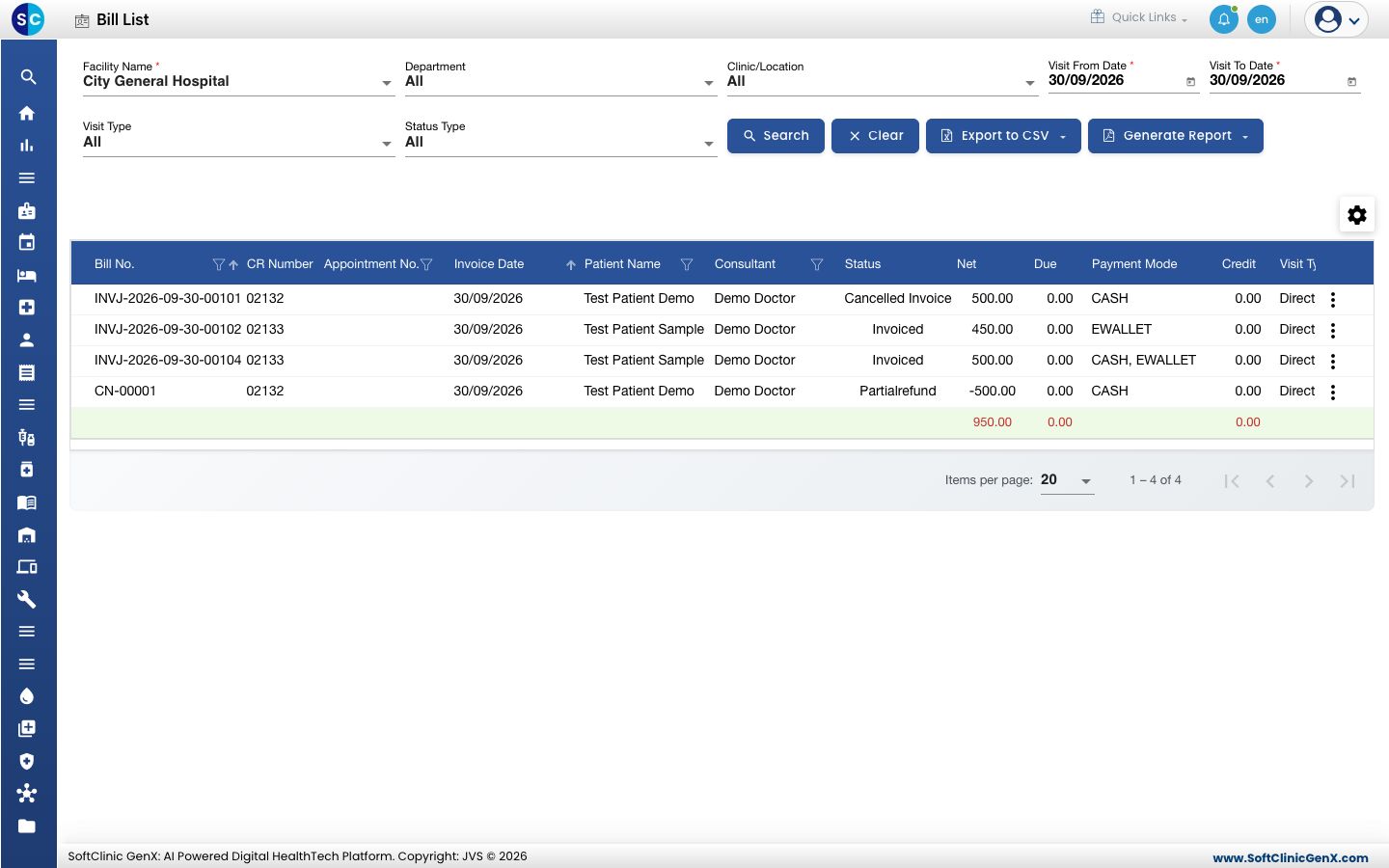
- Narrow the list with Department, Clinic/Location, Visit Type or Status Type and click Search.
- Click Export to CSV to open the list in a spreadsheet, or Generate Report for a printable summary or detail report.
A cancelled bill appears twice: once as Cancelled Invoice and once as a credit note with a negative Net.
See all receipts of a day
- Go to Billing › Views › Receipt List.
- Set From Date and To Date and click Search. Each payment, deposit and refund is one row with its Receipt No, Transaction Type, Payment Mode and Amount. Refunds show as negative amounts.
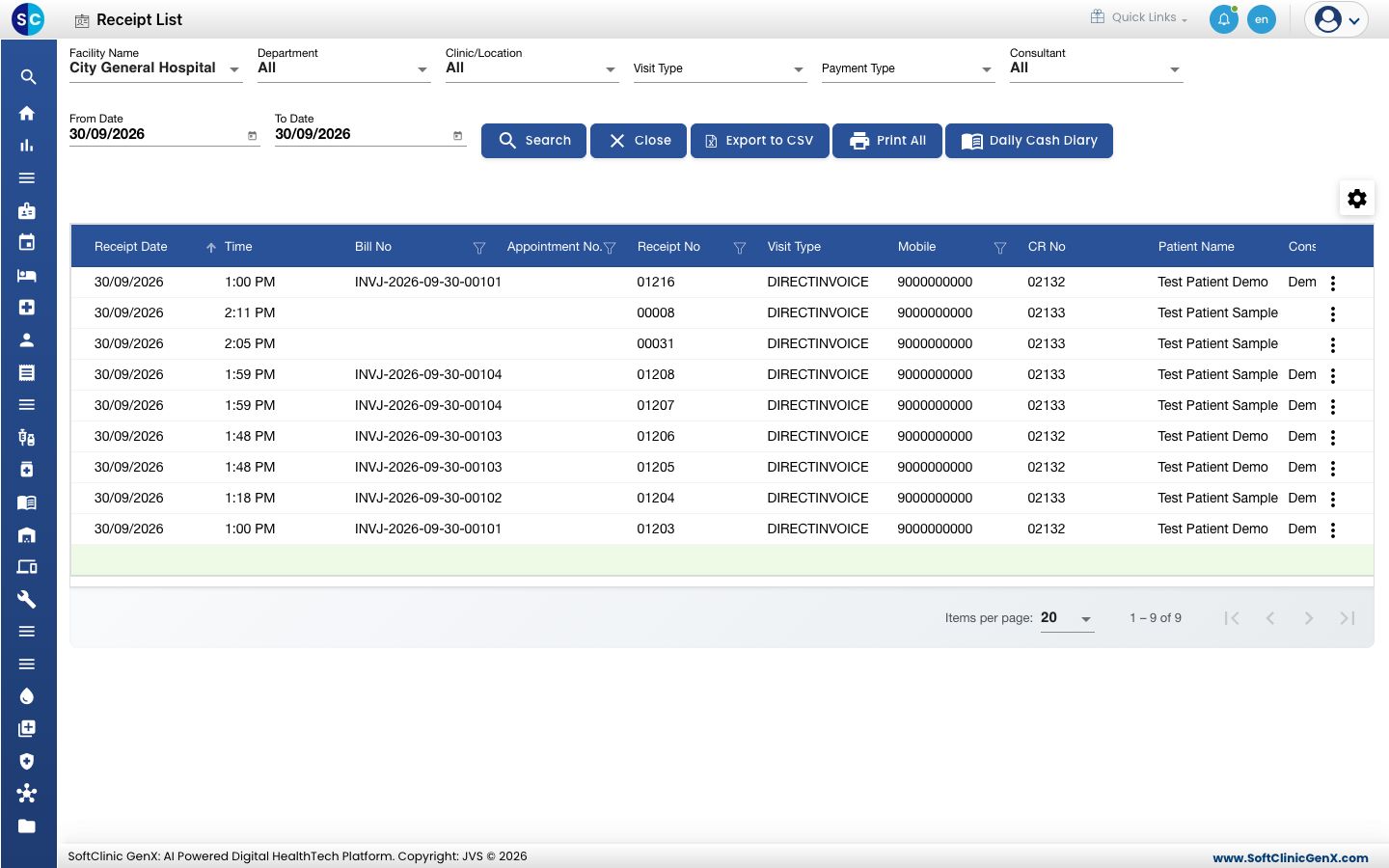
- Filter by Payment Type or Consultant if you need one mode or one doctor.
- Click Export to CSV or Print All to take the list out.
Check the day's collection
- Go to Billing › Views › Daily Cash Diary, or click Daily Cash Diary on the Receipt List.
- Set From Date and To Date. To check one shift, also set From Time and To Time. Click Search.
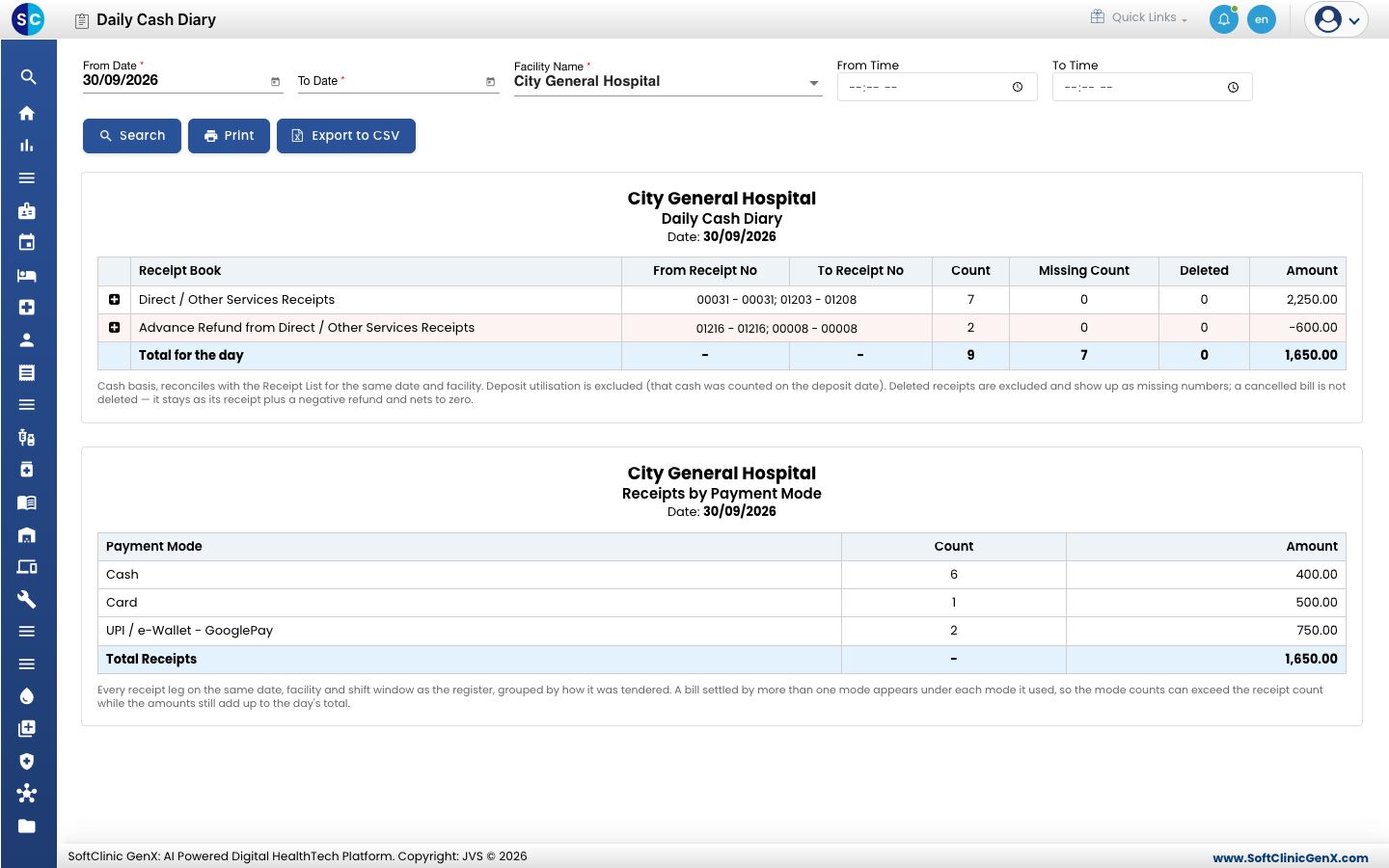
- Read the first table. Each Receipt Book shows its receipt number range, Count and Amount. Refunds are a separate line with a negative amount. Total for the day is the net collection.
- Read Receipts by Payment Mode. It splits the same total into Cash, Card and UPI / e-Wallet. The Cash amount is what the drawer should hold.
- Click Print or Export to CSV to hand over the day's report.
Click the plus sign beside a receipt book to see its receipts by transaction type.
Troubleshooting
| What you see | What it means | What to do |
|---|---|---|
| No Records Found on the Billing Dashboard | Status Type is Pending for Invoice and nobody is waiting to be billed. | Choose All or Invoiced and click Search. |
| A bill is missing from the list | The date range or a filter hides it. | Widen the dates, set the filters to All and search again. |
| To Date cannot be earlier than From Date | The dates on the Daily Cash Diary are in the wrong order. | Correct the dates. |
| The cash in the drawer does not match Cash | A payment was saved under the wrong mode, or a refund was paid out. | Check the Receipt List for the day, mode by mode. |
Related
- Print or reprint a bill and receipt: print from these lists.
- Settle a pending bill: clear a bill that shows a balance.
- Cancel a bill and refund the patient: how refunds get into the day's totals.
- Billing FAQs: common questions about the day's collection.