Apply a discount to a bill
Reduce a bill by an amount or a percentage, on the whole bill or on one service, and record the reason.
You give a discount on the DISCOUNT tab of the bill form, before you add the payment. A Header discount applies to the whole bill. A Line discount applies to the services you choose.
note
Who can do this: cashier and billing staff allowed to give discounts
Where: Billing › Billing Dashboard › Add › DISCOUNT tab
Before you start
- Open a bill and add the services. See Create an OPD bill.
- If your hospital uses fixed discount schemes, they are listed under Discount Master. See Set up Discount Master.
Give a discount on the whole bill
- On the bill form, click the DISCOUNT tab. Discount Type is Header and Discount Method is Amount.
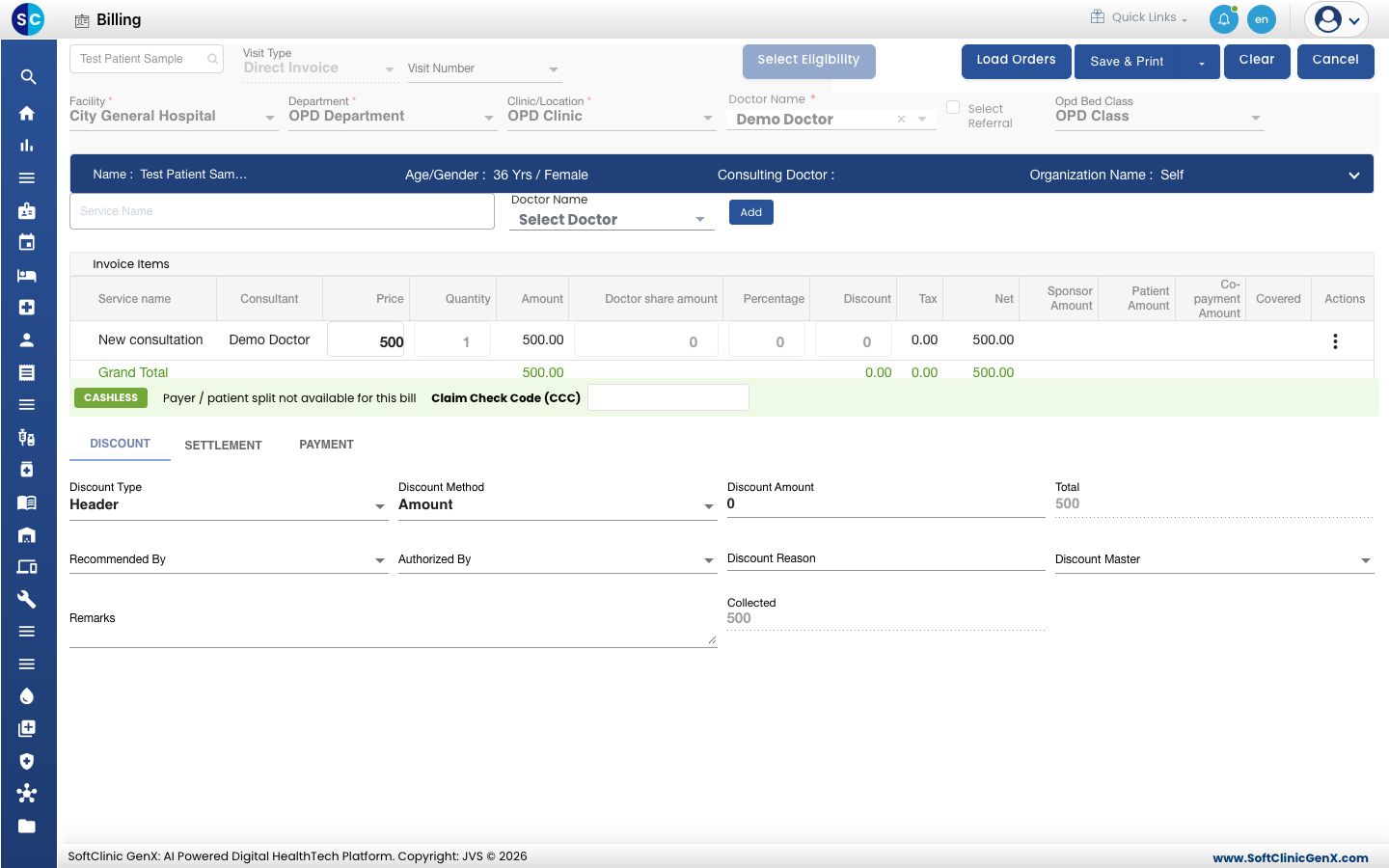
- To discount by percentage, change Discount Method to Percentage.
- Type the discount in Discount Amount (or Discount Value for a percentage) and press Tab. The Percentage, Discount and Net columns of each line update, and Collected shows the new amount to collect.
- Type why the discount is given in Discount Reason. Select Recommended By and Authorized By if your hospital records them.
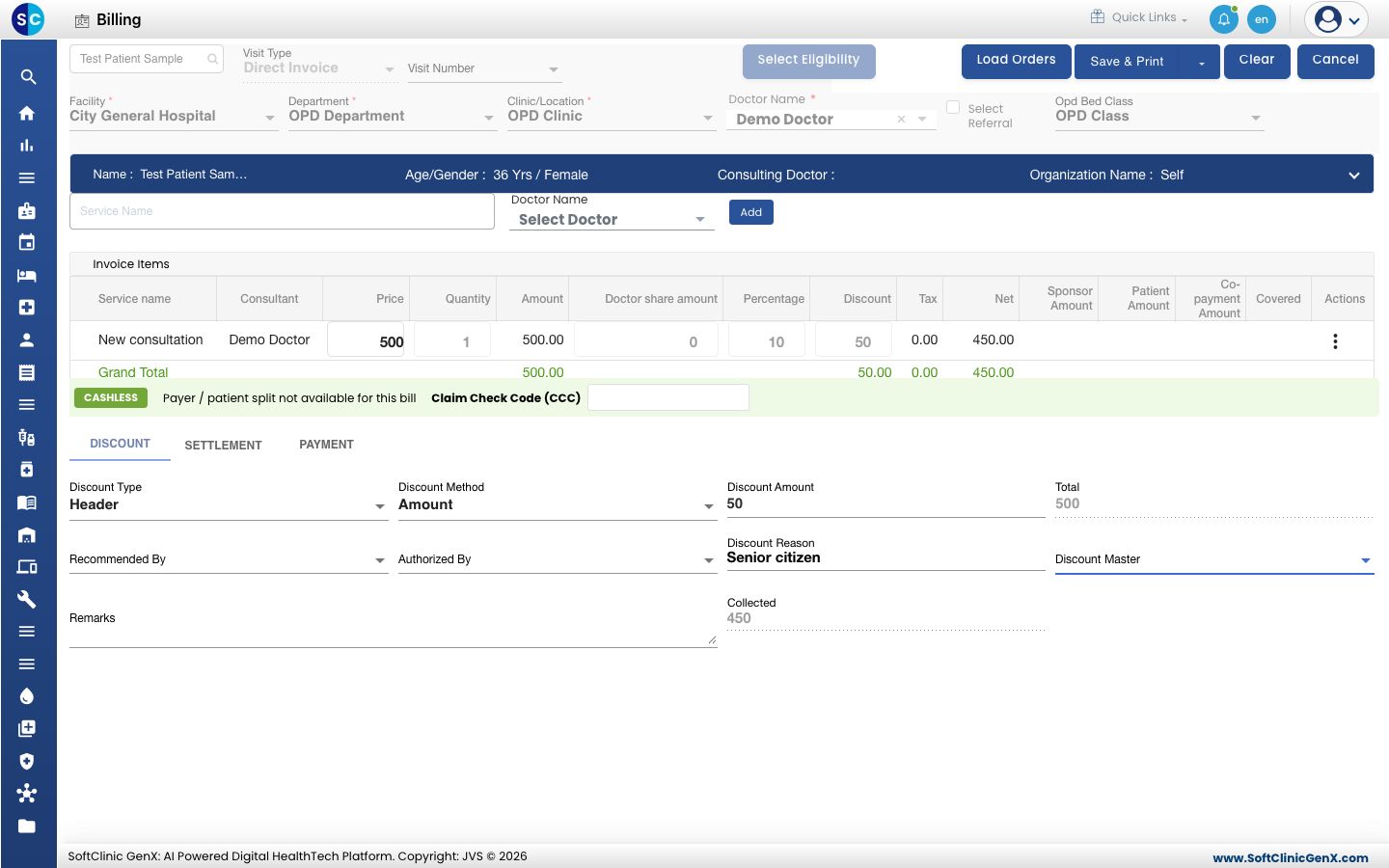
- Click the PAYMENT tab. SUMMARY shows the Discount and the reduced Due.
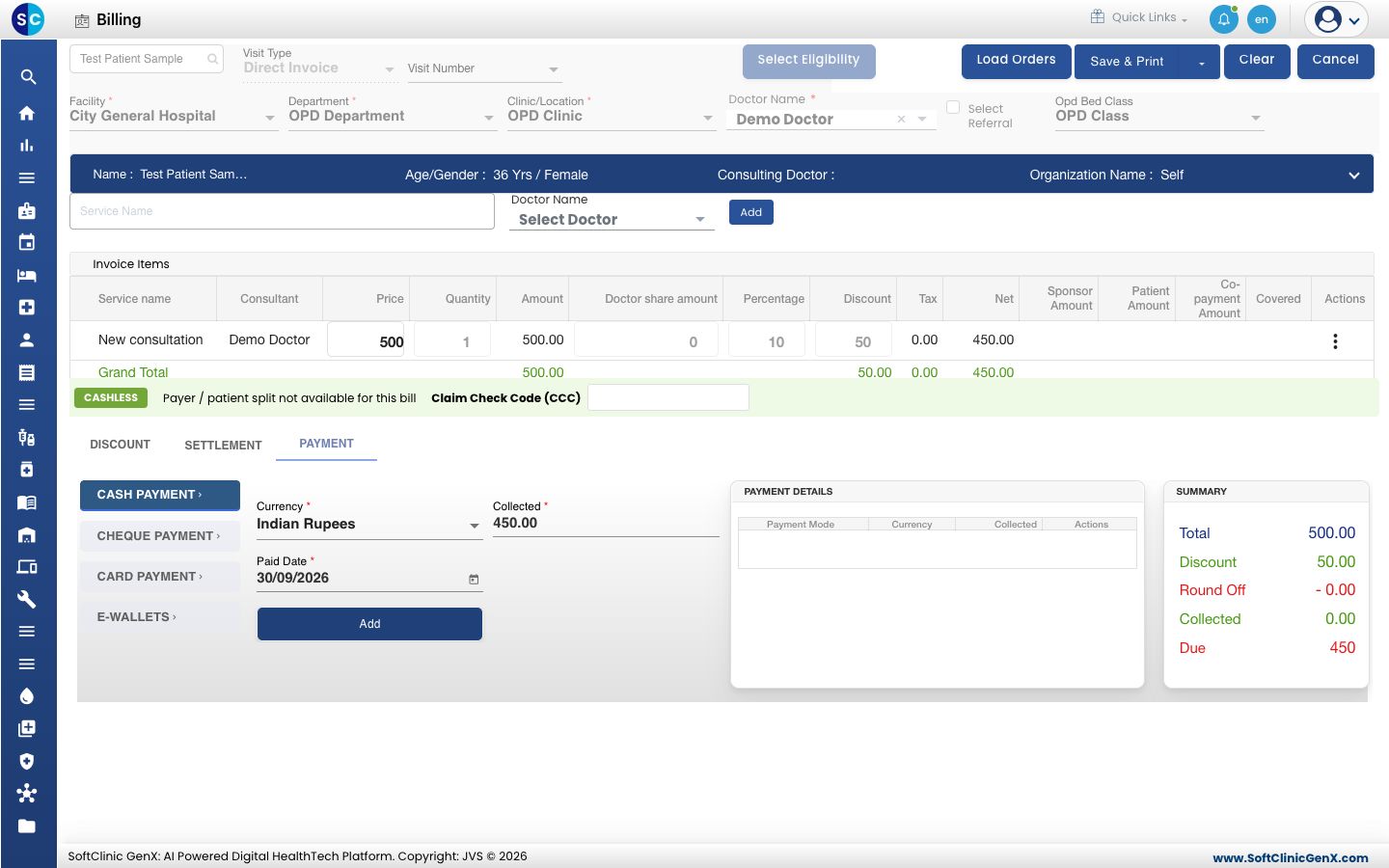
- Add the payment and save the bill. See Collect a payment.
Give a discount on one service
- On the DISCOUNT tab, change Discount Type to Line.
- Under Invoice Items, type the discount in the Percentage or Discount box of the service. Net on that line updates.
- Type the Discount Reason, then add the payment and save.
Fields on the DISCOUNT tab
| Field | What to enter | Required |
|---|---|---|
| Discount Type | Header for the whole bill, Line for chosen services. | No |
| Discount Method | Amount or Percentage. | No |
| Discount Amount / Discount Value | The amount, or the percentage from 1 to 100. | No |
| Total | The bill total before discount. Filled for you. | — |
| Recommended By | The person who asked for the discount. | No |
| Authorized By | The person who approved it. | No |
| Discount Reason | Why the discount is given. | No |
| Discount Master | A discount scheme set up by your hospital. | No |
| Remarks | Any extra note. | No |
| Collected | The amount to collect after discount. Filled for you. | — |
Troubleshooting
| What you see | What it means | What to do |
|---|---|---|
| Discount cannot be more than Bill amount | The discount is larger than the bill total. | Type a smaller amount. |
| Percentage between 1 and 100 | The percentage on a line is outside 1 to 100. | Type a value from 1 to 100. |
| Discount Value Should Be Less than Actual Service Price | The line discount is equal to or more than the service price. | Type a smaller discount. |
| Please clear all payment details first | A payment is already added to the bill. | Delete the lines under PAYMENT DETAILS, change the discount, then add the payment again. |
| Discount Master is empty | No discount scheme is set up. | Ask your administrator to set up Discount Master. You can still type a discount. |
Related
- Collect a payment: take the reduced amount by cash, card or UPI.
- Set up Discount Master: create discount schemes.
- Billing FAQs: common questions about discounts.