Set up Country
Who does this: hospital administrator Where: General Masters › Location Masters › Country
Countries are the first level of every address — for patients, staff, suppliers and your own facilities. The list comes pre-loaded with the world's countries, so you only need this screen to add a missing one or correct a detail. States are added under a country.
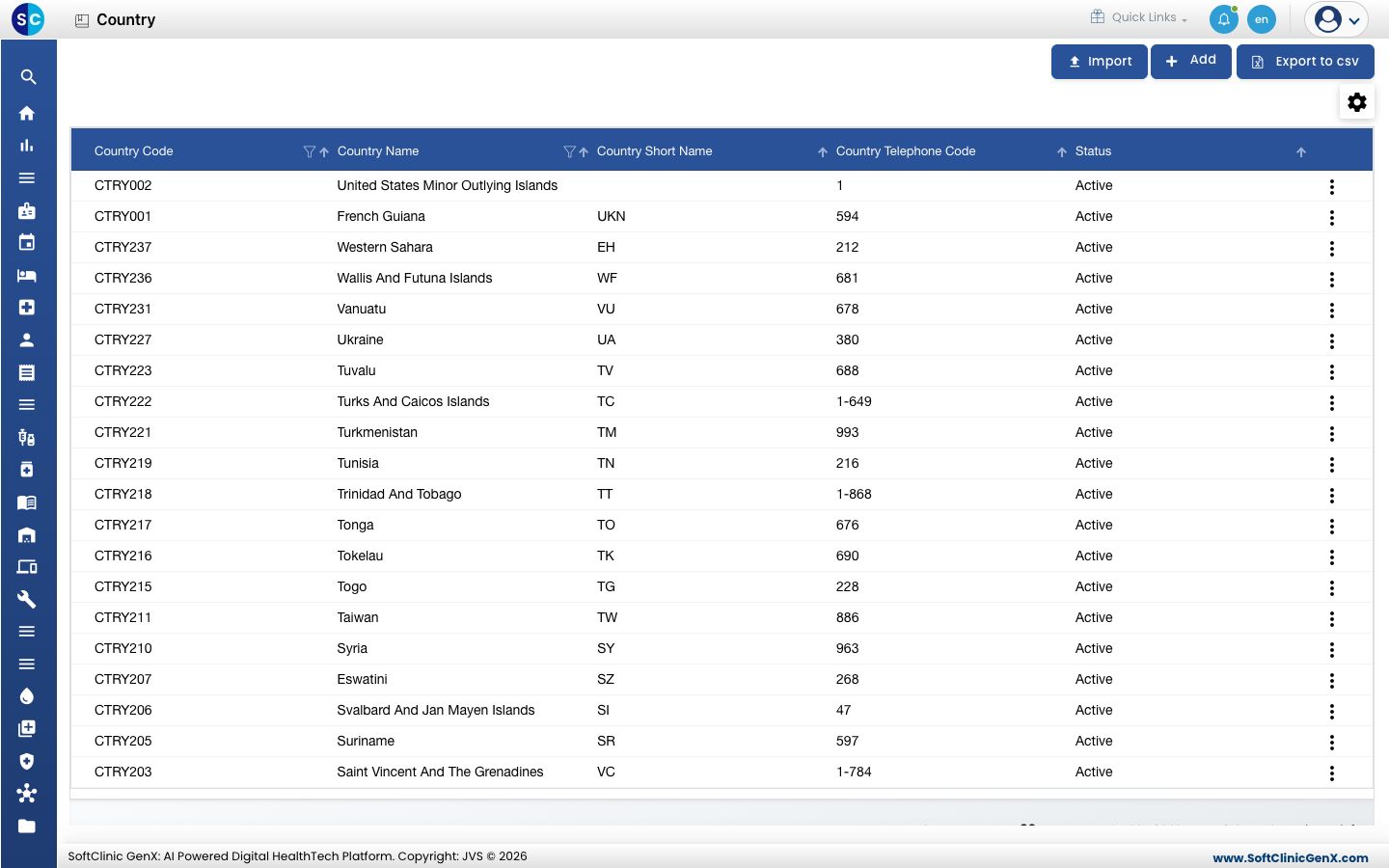
Add a country
-
Go to General Masters › Location Masters › Country.
-
Click Add. The country form opens.
-
Fill in the fields:
Field What to enter Required Country Code Filled in automatically when you save. — Country Name The country's name, for example Mauritius. Up to 50 characters.Yes Country Short Name A short code in letters only, for example MU. Up to 15 characters.No Country Telephone Code The international dialling code, for example 230.No Status Leave on Active. — 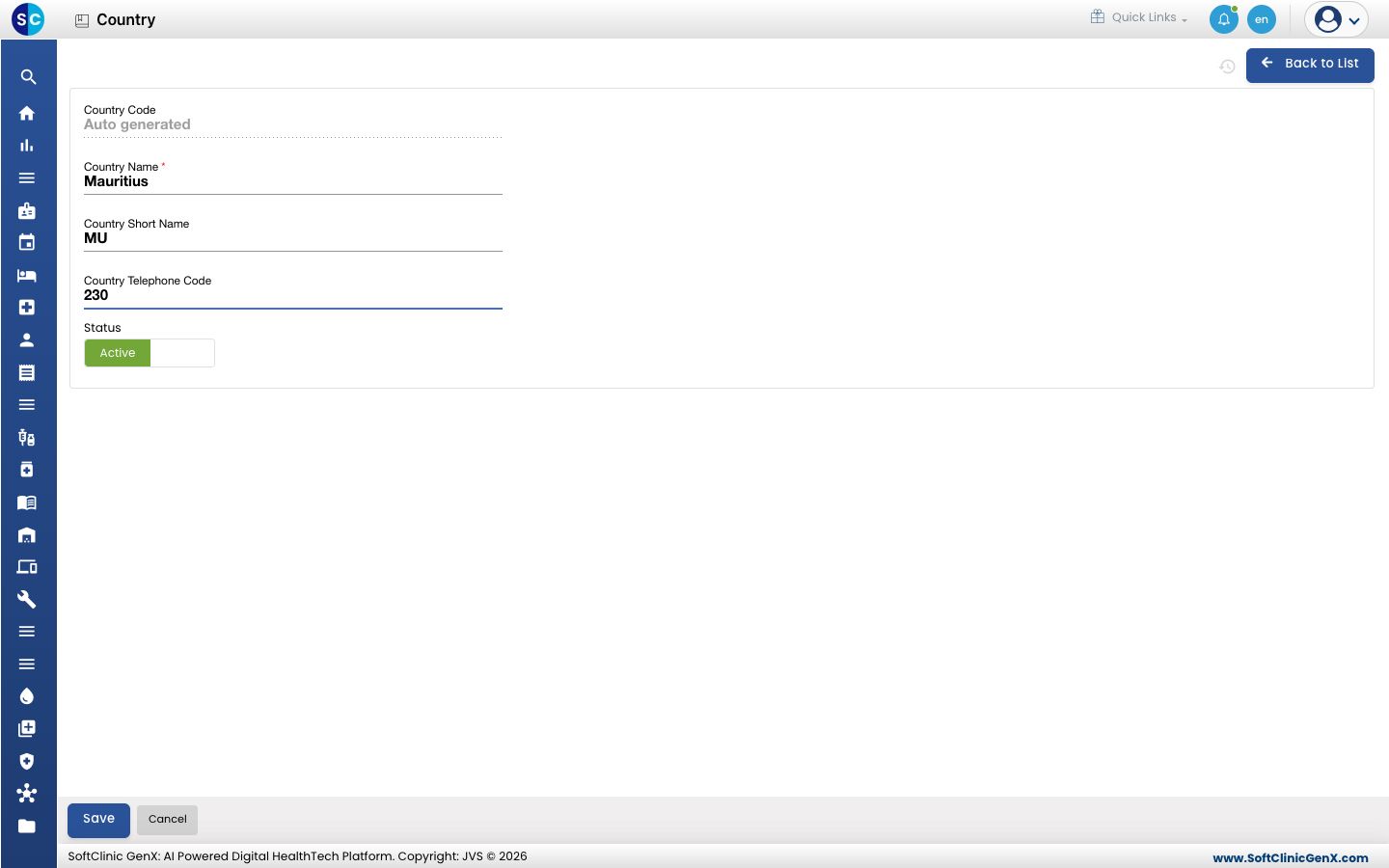
-
Click Save. You return to the list.
Change or deactivate a country
- In the list, click the ⋮ button at the end of the row and choose Edit.
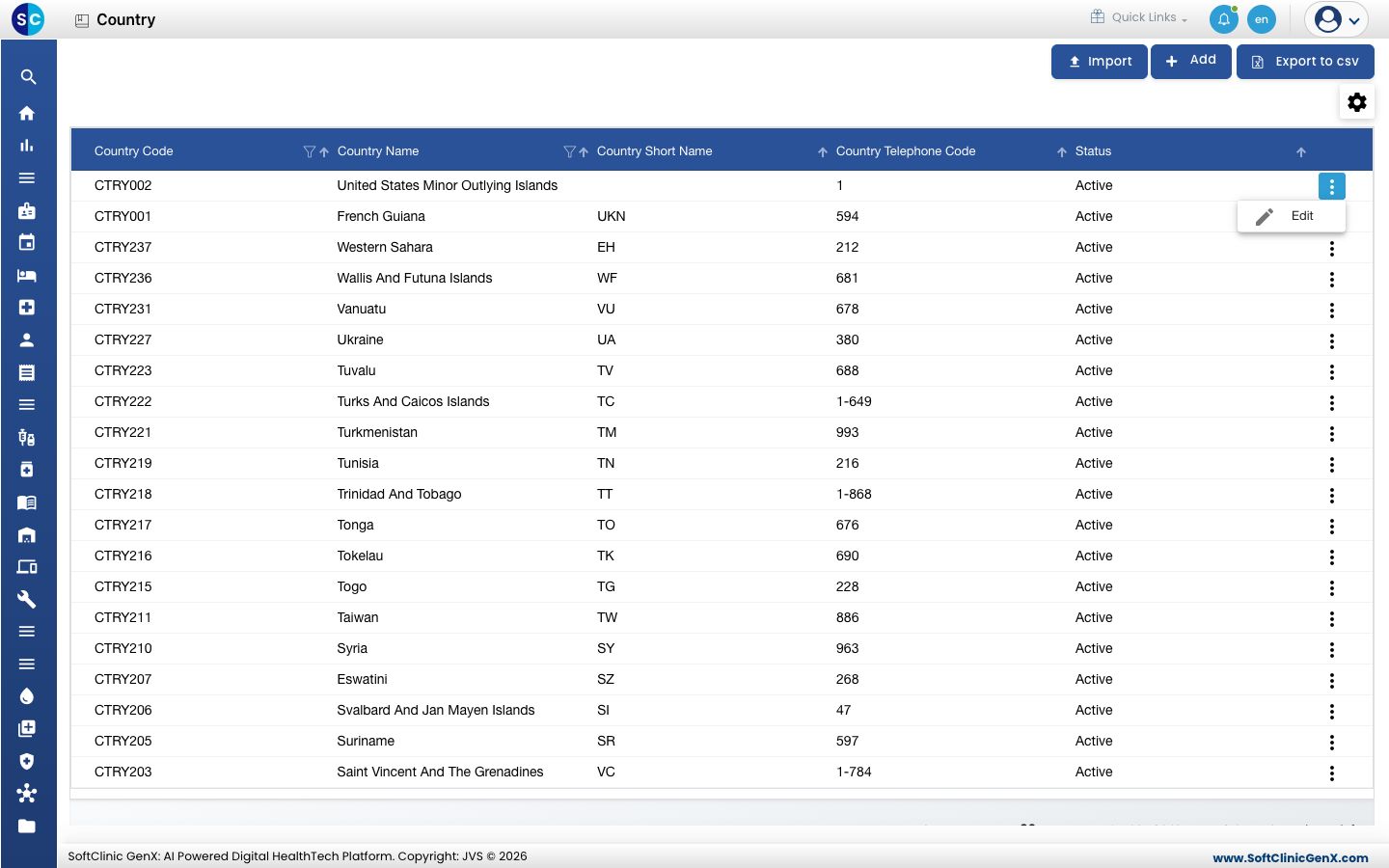
- Change the fields you need. To hide the country from address lists, switch Status to Inactive.
- Click Save.
Countries cannot be deleted. Make a country Inactive instead.
Good to know
- Each country name must be unique.
- Use the filter icon in a column heading to find a country quickly.
- Export to csv downloads the list. Import loads countries from a file.
- Click Back to List to leave the form without saving.
Related
- Previous: Set up Location
- Next: Set up State
- General Masters FAQs