Set up Relationship
Who does this: hospital administrator Where: General Masters › Other Masters › Relationship
A relationship, such as Father, Wife or Colleague, describes how a person is related to the patient, for example the relative or contact recorded at registration. The list comes pre-loaded, so you only need this screen to add a missing relationship or correct a name.
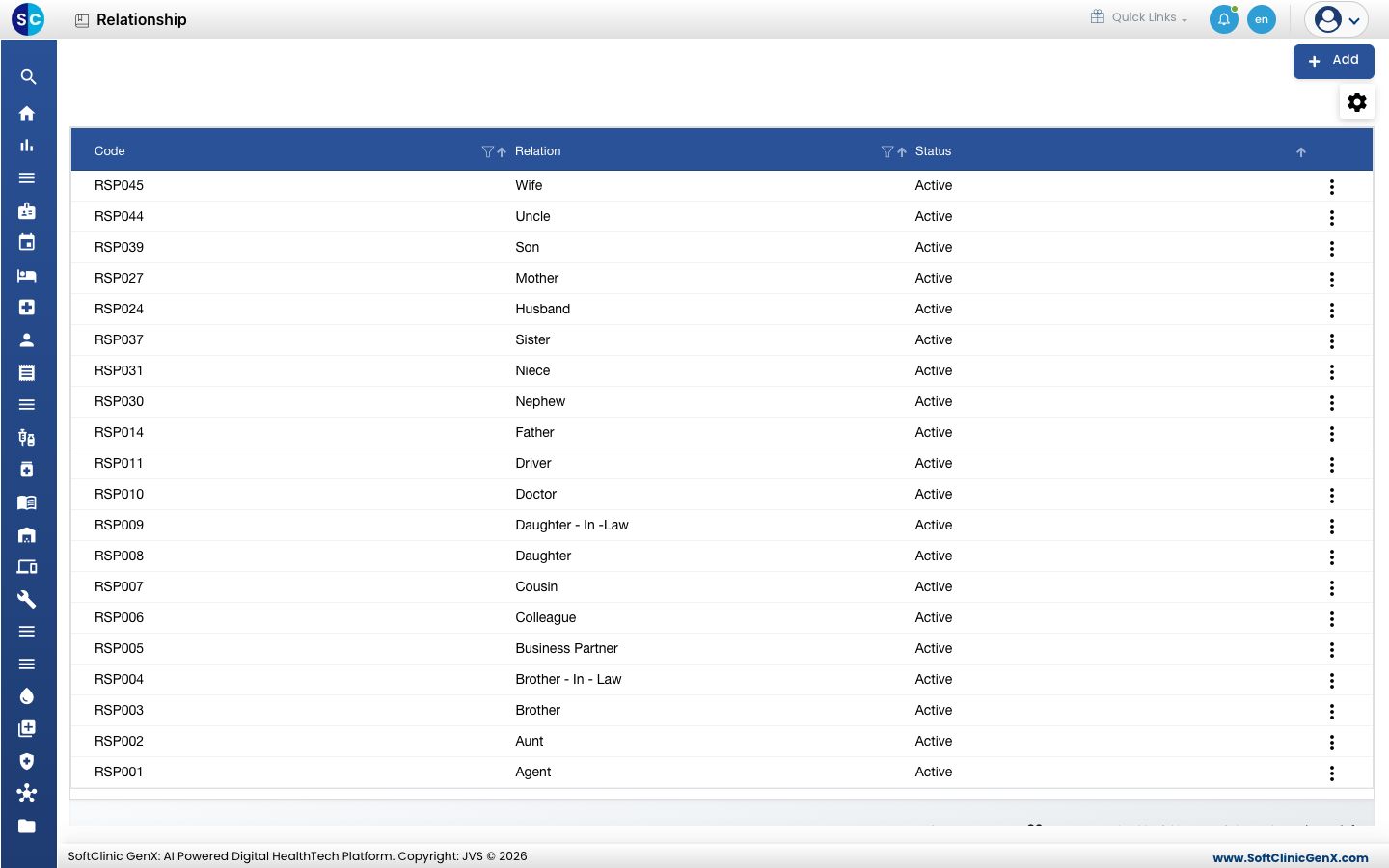
Add a relationship
-
Go to General Masters › Other Masters › Relationship.
-
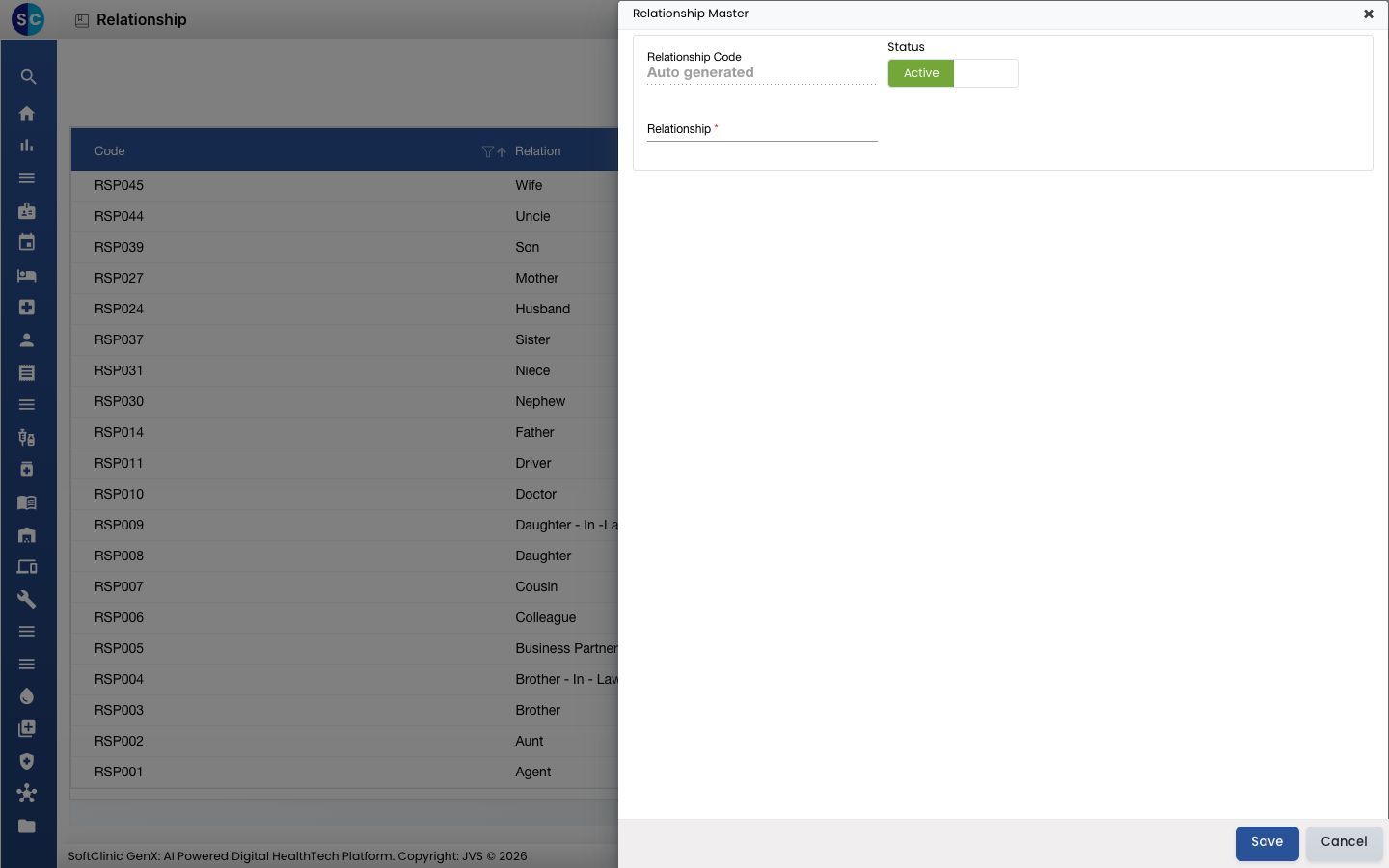
Click Add. The form opens on the right.
-
Fill in the fields:
Field What to enter Required Relationship Code Filled in automatically when you save. — Status Leave on Active. — Relationship The relationship, for example Guardian.Yes -
Click Save. You return to the list and the new entry appears in it.
Change or deactivate a relationship
- In the list, click the ⋮ button at the end of the row and choose Edit.
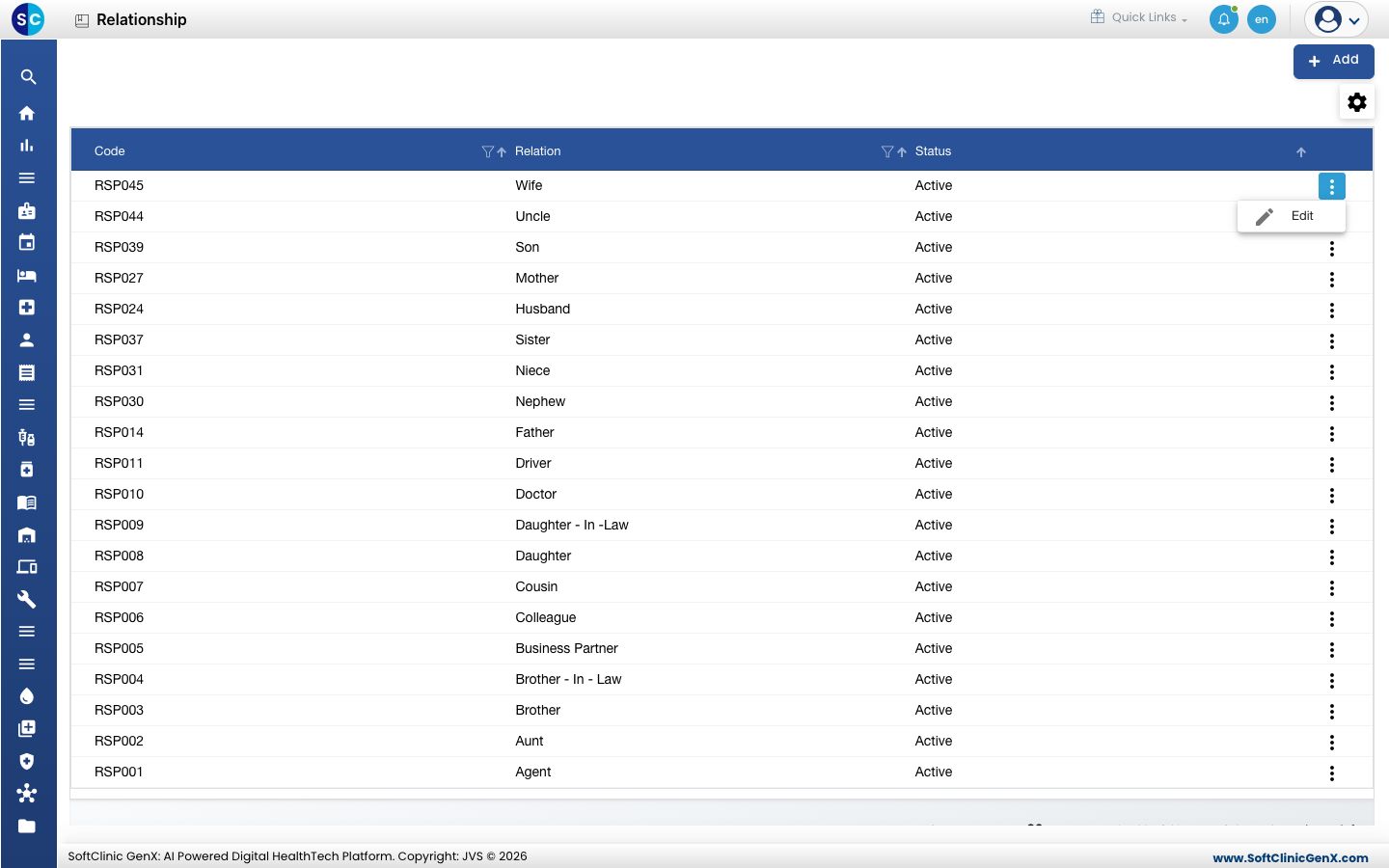
- Change the fields you need. To stop offering it, switch Status to Inactive.
- Click Save.
Entries cannot be deleted from this screen. Make them Inactive instead.
Good to know
- Search the list before you add a relationship. It may already exist.
- Use the filter and sort icons in the column headers to find an entry quickly.
- Click Cancel or × to close the form without saving.
Related
- Previous: Set up Referral Hospital or Doctor
- Next: Set up Religion
- General Masters FAQs