Set up Identification Types
Who does this: hospital administrator Where: General Masters › Other Masters › Identification Types
An identification type is a kind of identity document, such as Aadhaar, Passport, Driving License or a health scheme card. Staff pick from this list when they record a patient's identity document. The list comes pre-loaded, so you only need this screen to add a missing document type or change the order.
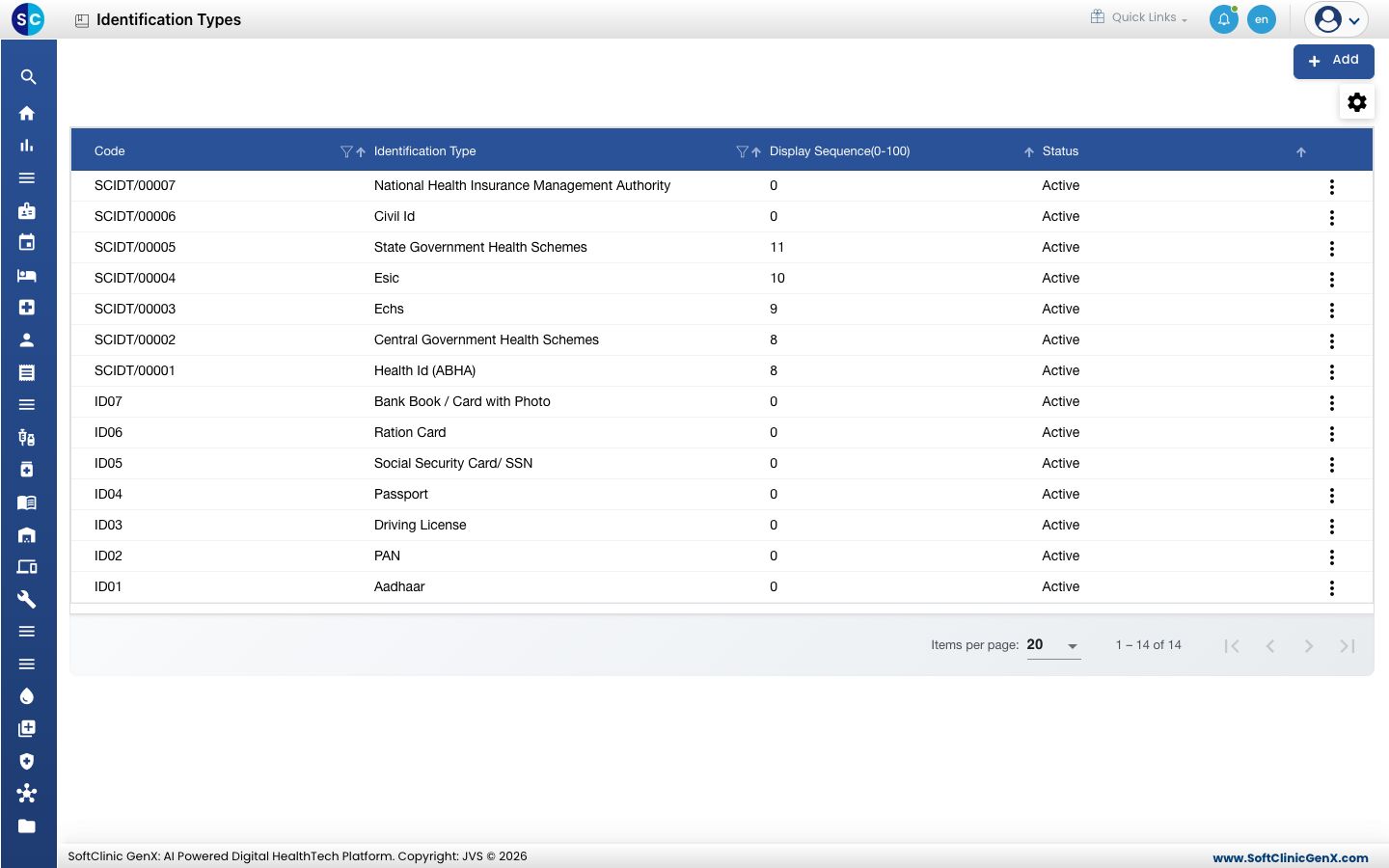
Add an identification type
-
Go to General Masters › Other Masters › Identification Types.
-
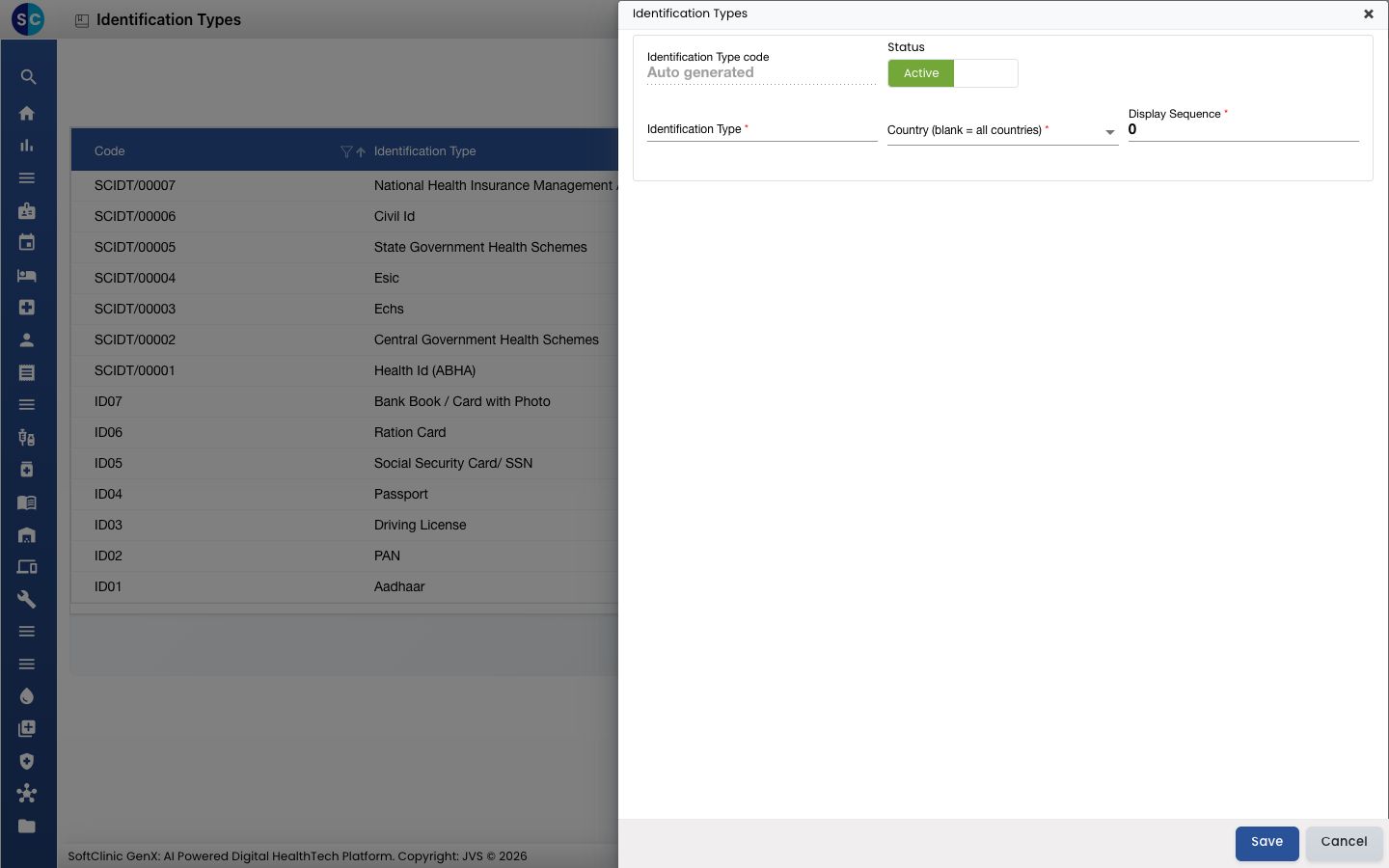
Click Add. The form opens on the right.
-
Fill in the fields:
Field What to enter Required Identification Type code Filled in automatically when you save. — Status Leave on Active. — Identification Type The document name, for example Voter ID.Yes Country (blank = all countries) Pick a country to offer this document only for that country. Leave it blank to offer it everywhere. No Display Sequence A number from 0 to 100 that sets the document's position in the list. No -
Click Save. You return to the list and the new entry appears in it.
Change or deactivate an identification type
- In the list, click the ⋮ button at the end of the row and choose Edit.
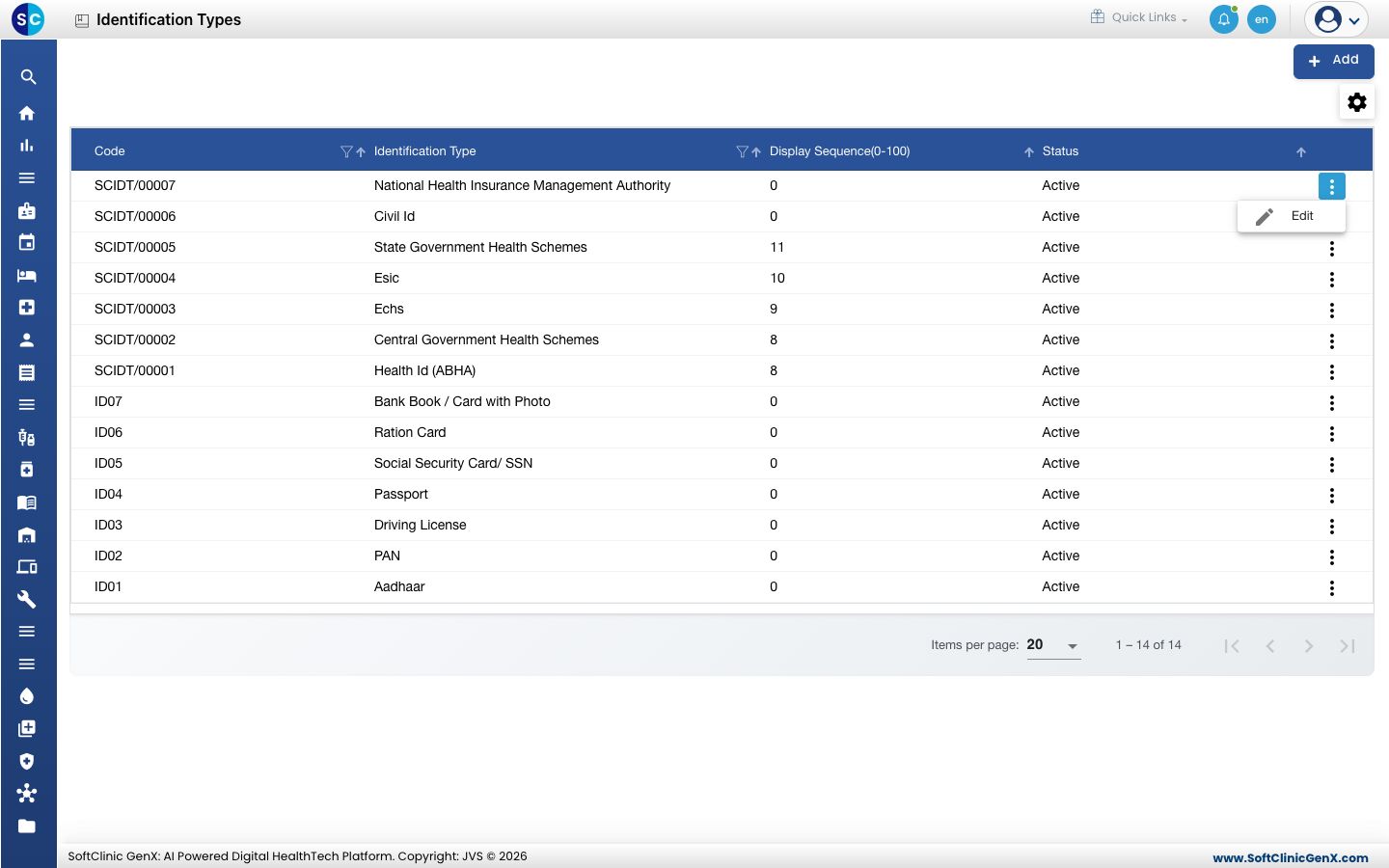
- Change the fields you need. To stop offering it, switch Status to Inactive.
- Click Save.
Entries cannot be deleted from this screen. Make them Inactive instead.
Good to know
- Use Country for documents that only exist in one country, such as a national ID card, so staff elsewhere do not see them.
- Display Sequence accepts whole numbers from 0 to 100 only.
- Use the filter and sort icons in the column headers to find an entry quickly.
- Click Cancel or × to close the form without saving.
Related
- Previous: Set up Nationality
- Next: Set up Mandatory Information
- General Masters FAQs