Set up District
Who does this: hospital administrator Where: General Masters › Location Masters › District Set up before: Country and State
A district is the level of an address between a state and a town. The list comes pre-loaded, so you only need this screen to add a missing district — for example, a newly formed one — or correct a detail. Towns are added under a district.
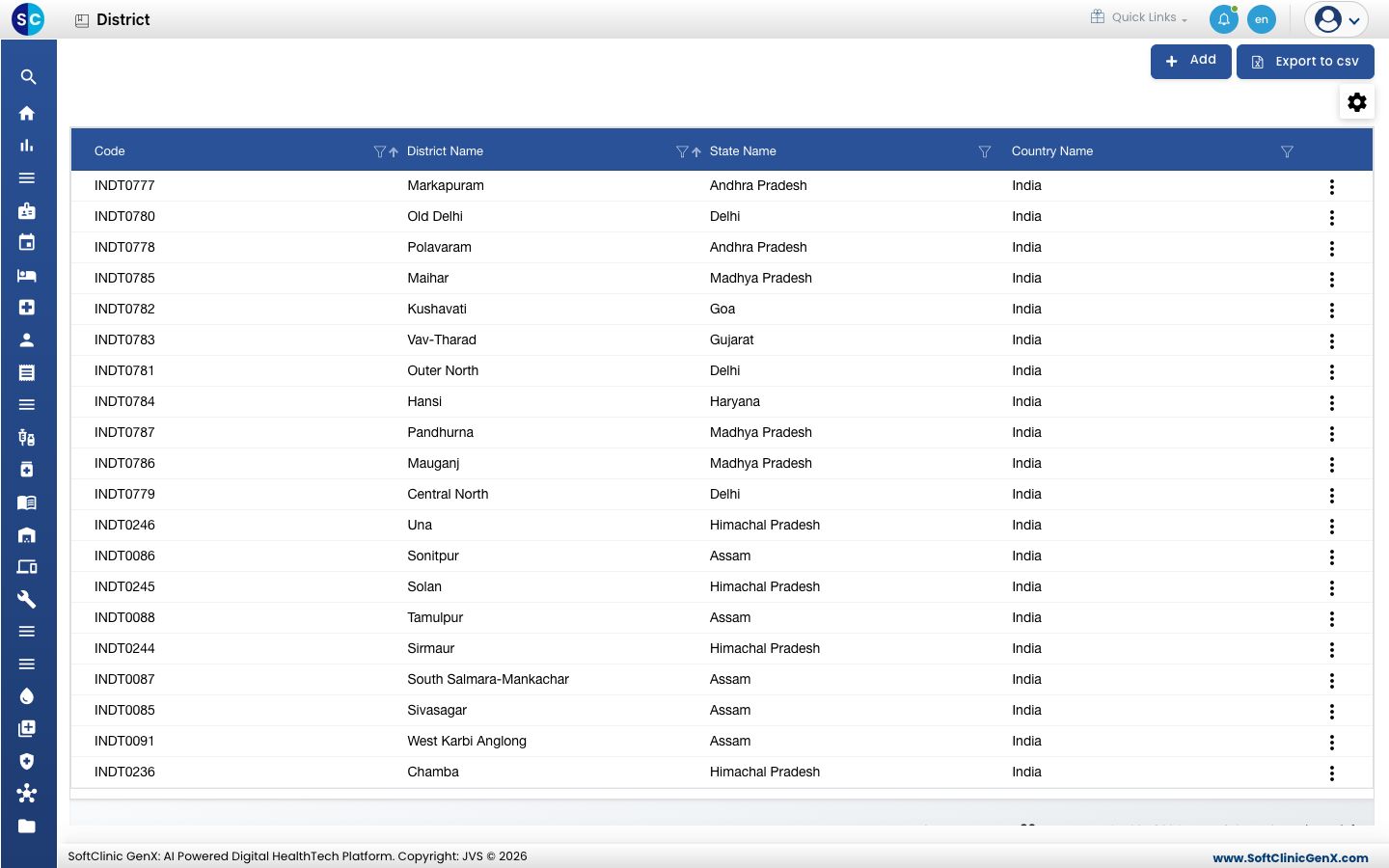
Add a district
-
Go to General Masters › Location Masters › District.
-
Click Add. The district form opens.
-
Enter the District Name and, if you use one, a Short Name.
-
Pick the Country Name, then the State Name. The state list shows only the states of the country you picked. Type in the search box at the top of either list to find an entry quickly.
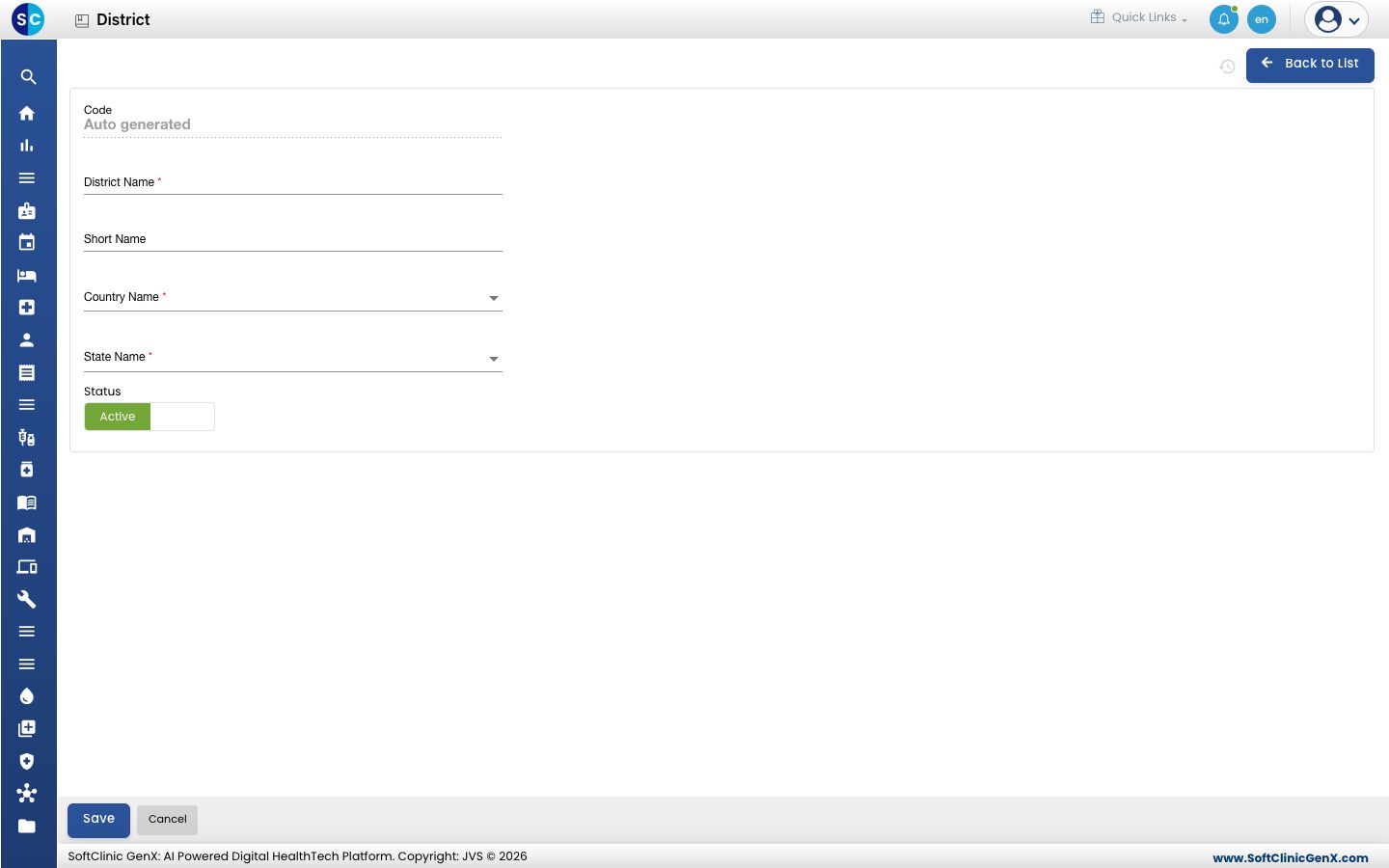
-
The fields are:
Field What to enter Required Code Filled in automatically when you save. — District Name The district's name. Up to 50 characters. Yes Short Name A short code. Up to 15 characters. No Country Name The country the district is in. Yes State Name The state the district is in. Yes Status Leave on Active. — -
Click Save. You return to the list.
Change or deactivate a district
- In the list, click the ⋮ button at the end of the row and choose Edit.
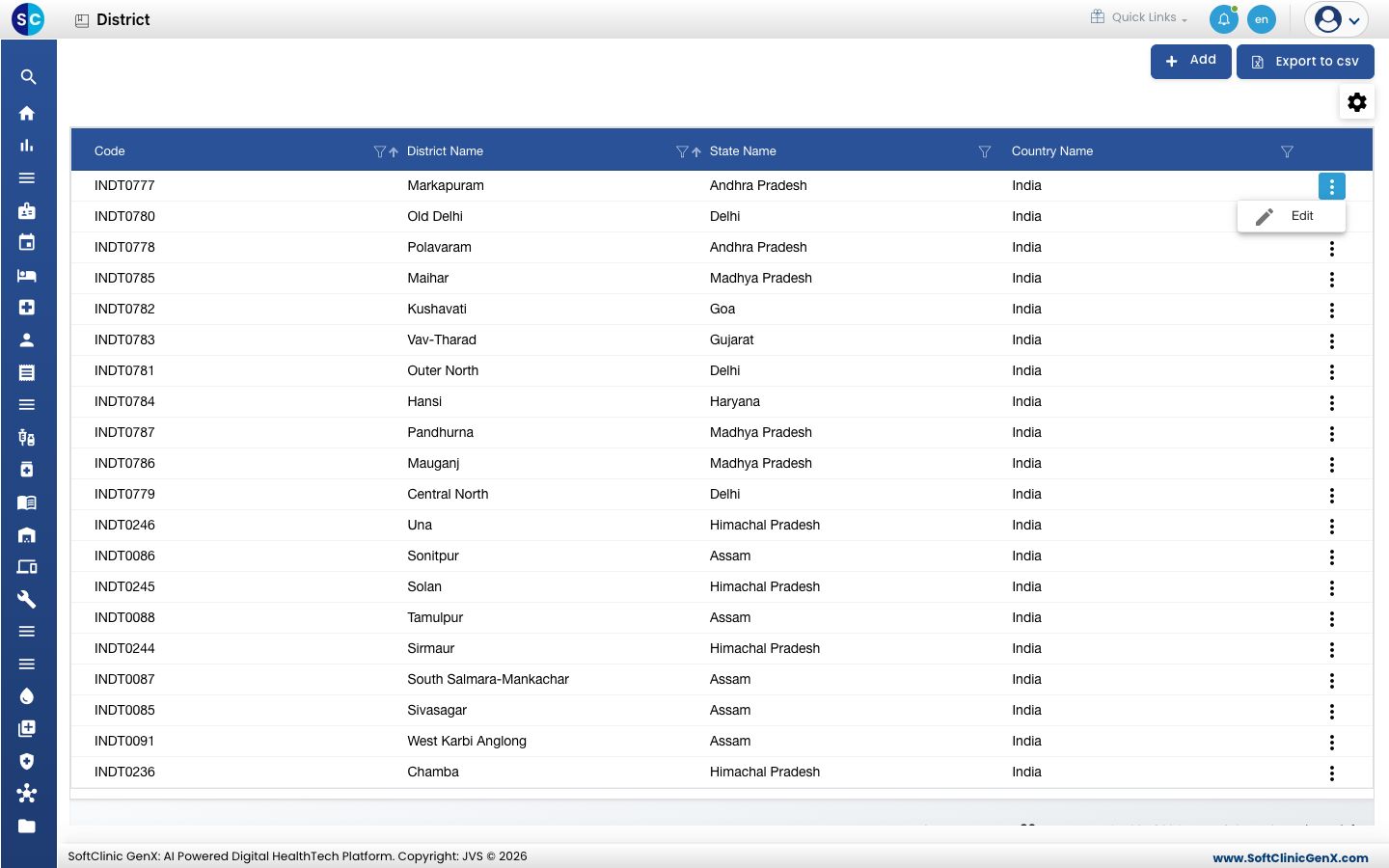
- Change the fields you need. To hide the district from address lists, switch Status to Inactive.
- Click Save.
Districts cannot be deleted. Make a district Inactive instead.
Good to know
- Each district name must be unique.
- Pick the country before the state. If a state is missing, add it in State.
- Export to csv downloads the list.
- Click Back to List to leave the form without saving.
Related
- Previous: Set up State
- Next: Set up City
- General Masters FAQs