Set up Shift
Create the work shifts, such as Day Shift 06:00 to 18:00, that you assign on the Duty Roster.
Who does this: hospital administrator or HR staff Where: Human Resource › Employee Masters › Shift Master
A shift is a block of working hours with a name, such as Day Shift. The Duty Roster offers only the shifts you create here.
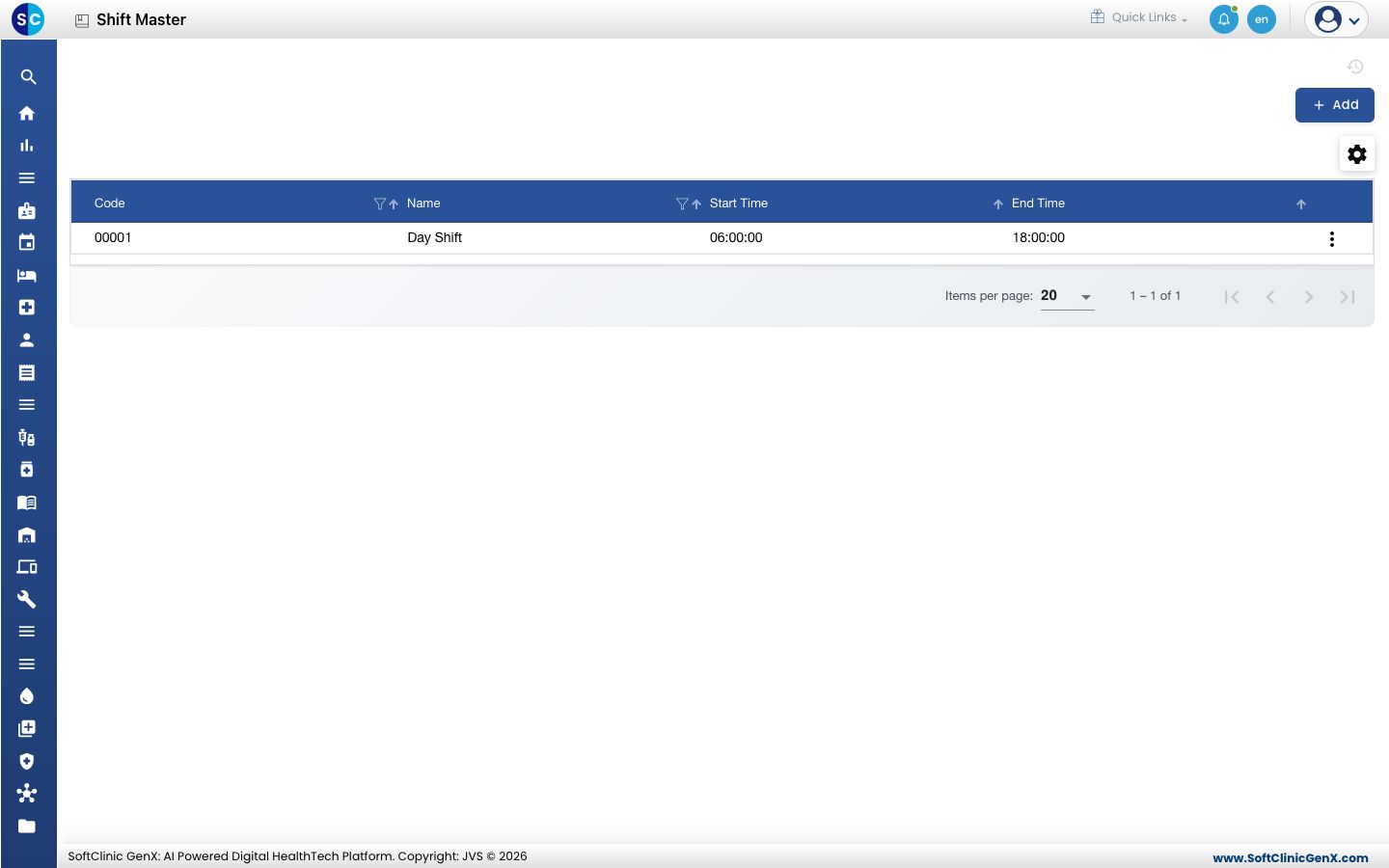
Add a shift
-
Go to Human Resource › Employee Masters › Shift Master.
-
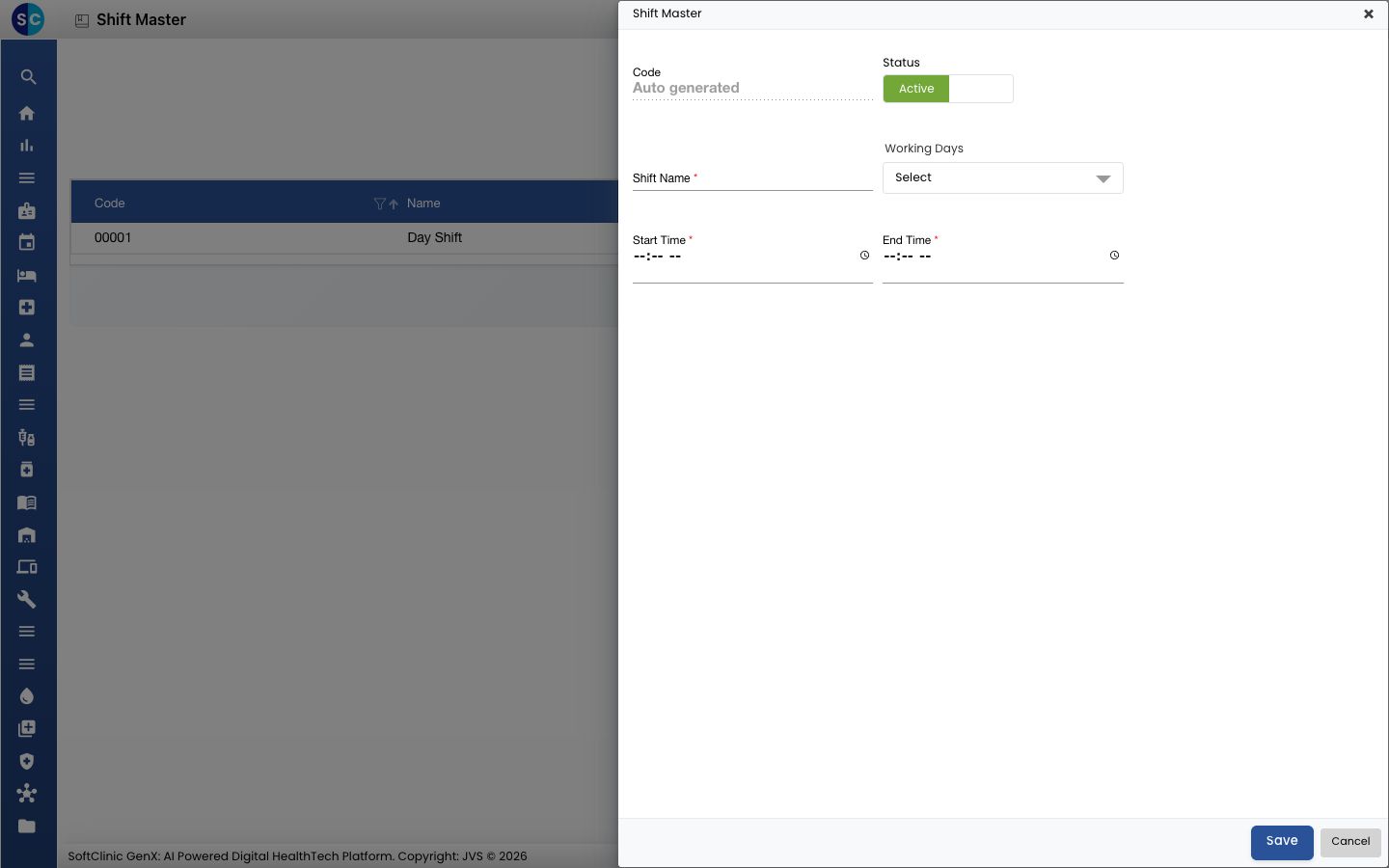
Click Add. The Shift Master form opens.
-
Fill in the fields:
Field What to enter Required Code Filled in automatically when you save. — Shift Name The shift, for example Evening Shift. Yes Working Days Open the list and tick the days, or choose Select All. No Start Time When the shift begins. Yes End Time When the shift ends. Yes Status Leave on Active. — 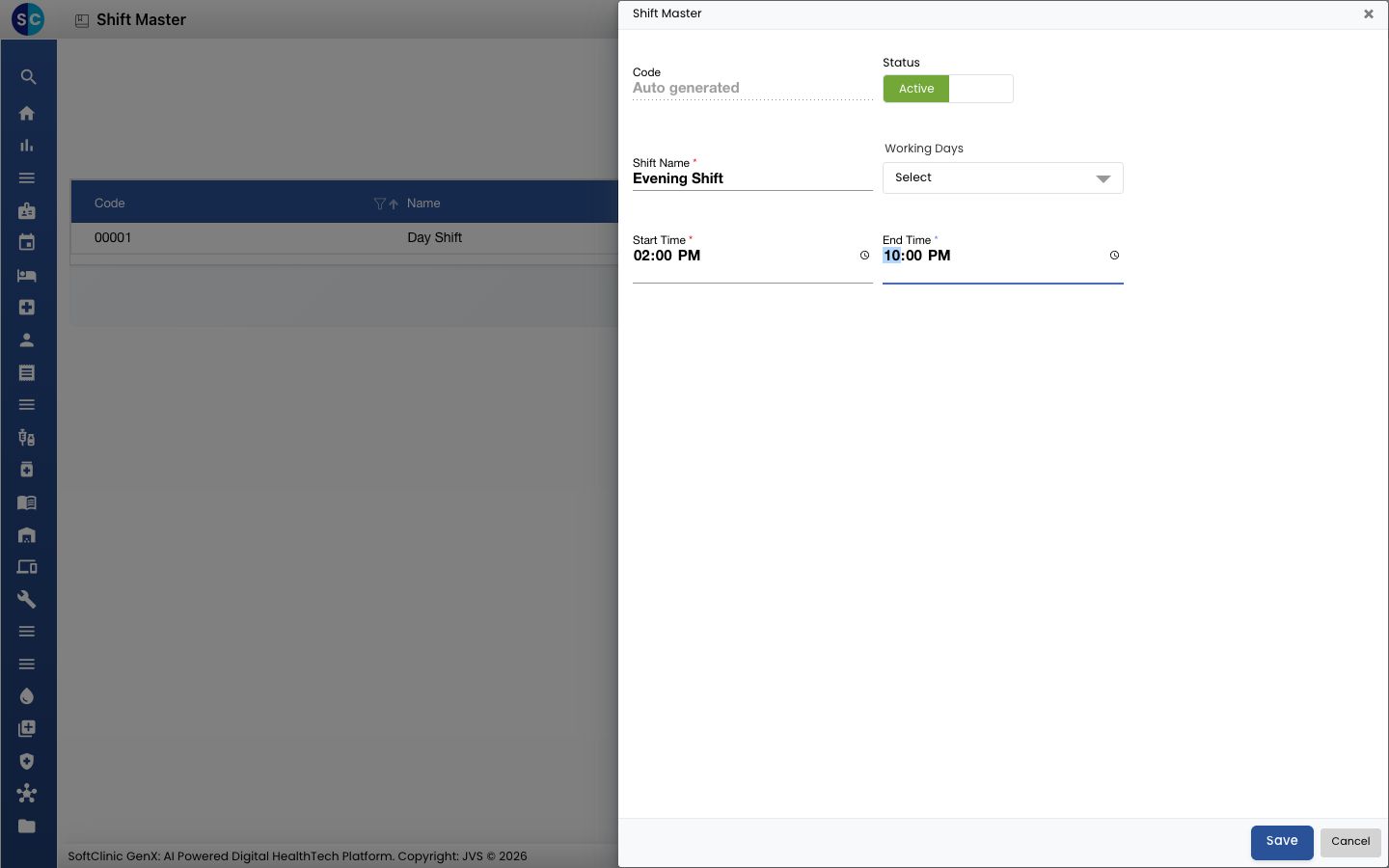
-
Click Save. You return to the list and the new shift appears in it.
Change or deactivate a shift
- In the list, click the ⋮ button at the end of the row.
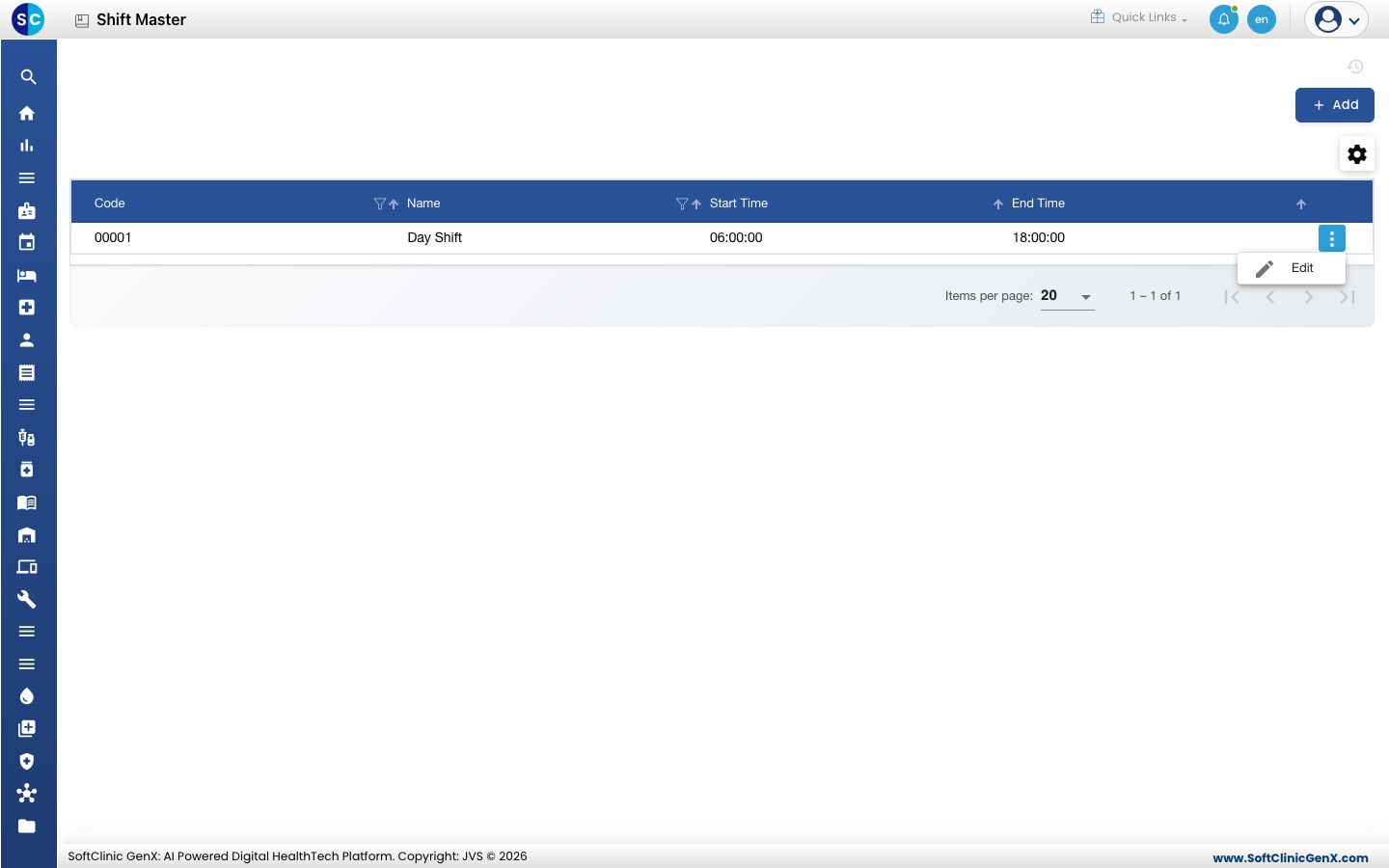
- Choose Edit, change the fields you need, or switch Status to Inactive to stop using the shift.
- Click Save.
Good to know
- Leaving Start Time or End Time empty shows a message and does not save.
- If the Duty Roster says no shifts are set up, add one here first.
Related
- Previous: Set up Employee Leave Master
- Next: Set up Holiday
- Plan the duty roster: assign shifts to staff
Was this helpful?