Set up Salary Component
Define the earnings and deductions, such as Basic Pay or Provident Fund, that make up your staff salaries.
Who does this: hospital administrator or HR staff Where: Human Resource › Employee Masters › Salary Component
A salary component is one line of a salary, either an earning such as Basic Pay or a deduction such as a tax or fund contribution. You set how it is taxed, how often it is paid and how its amount is worked out.
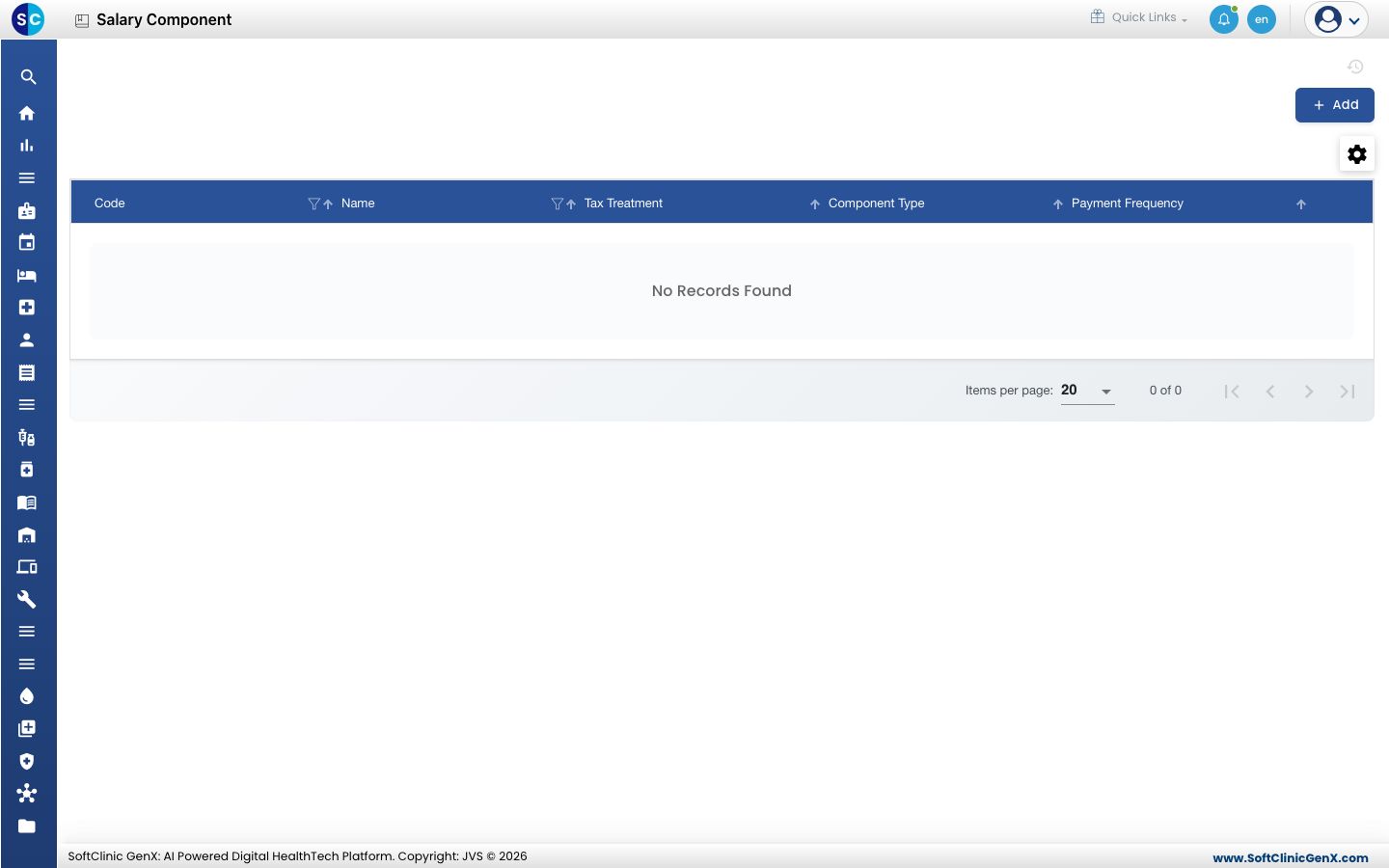
Add a salary component
-
Go to Human Resource › Employee Masters › Salary Component.
-
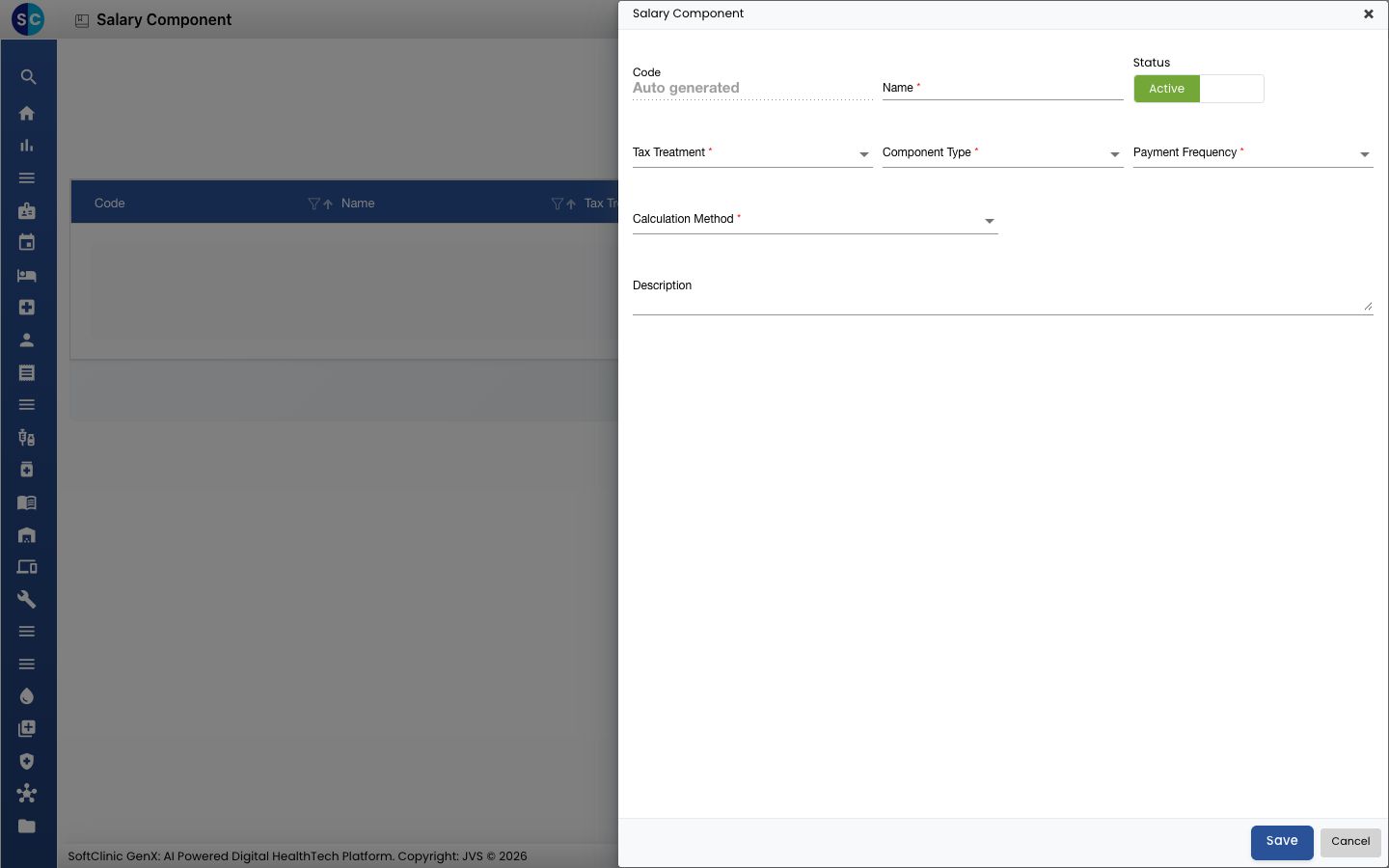
Click Add. The Salary Component form opens.
-
Fill in the fields:
Field What to enter Required Code Filled in automatically when you save. — Name The component, for example Basic Pay. Yes Status Leave on Active. — Tax Treatment Tax Free, Taxable or As per Tax Rules. Yes Component Type Earning or Deduction. Yes Payment Frequency Monthly or Final Settlement. Yes Calculation Method How the amount is worked out. See the next step. Yes Description A note for your own team. No -
Choose the Calculation Method:
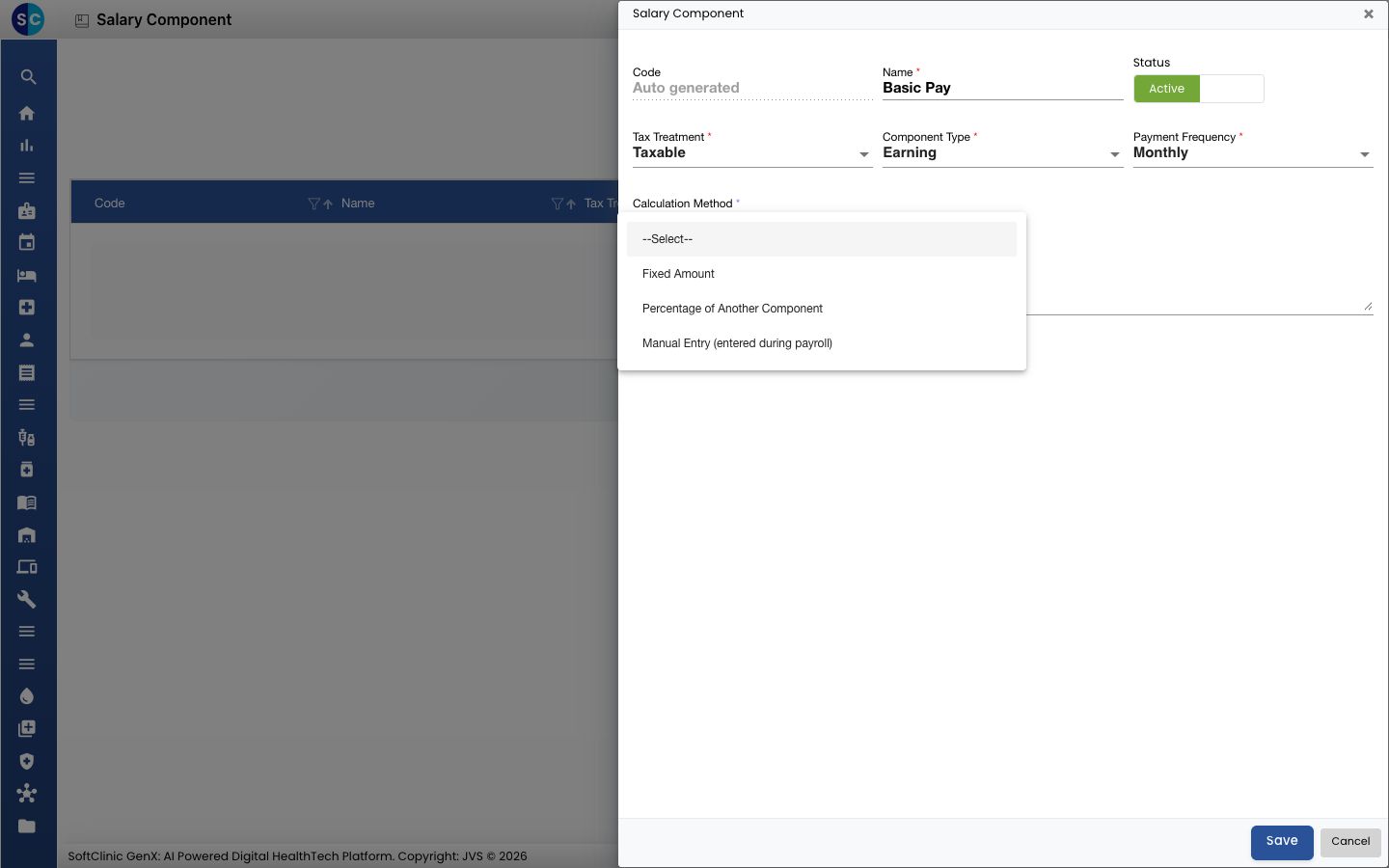
- Fixed Amount: the same amount every time. Enter it in Fixed Amount.
- Percentage of Another Component: a share of another component, such as a percentage of Basic Pay. The form asks for the percentage and the component it is based on.
- Manual Entry (entered during payroll): you type the amount each time payroll is prepared.
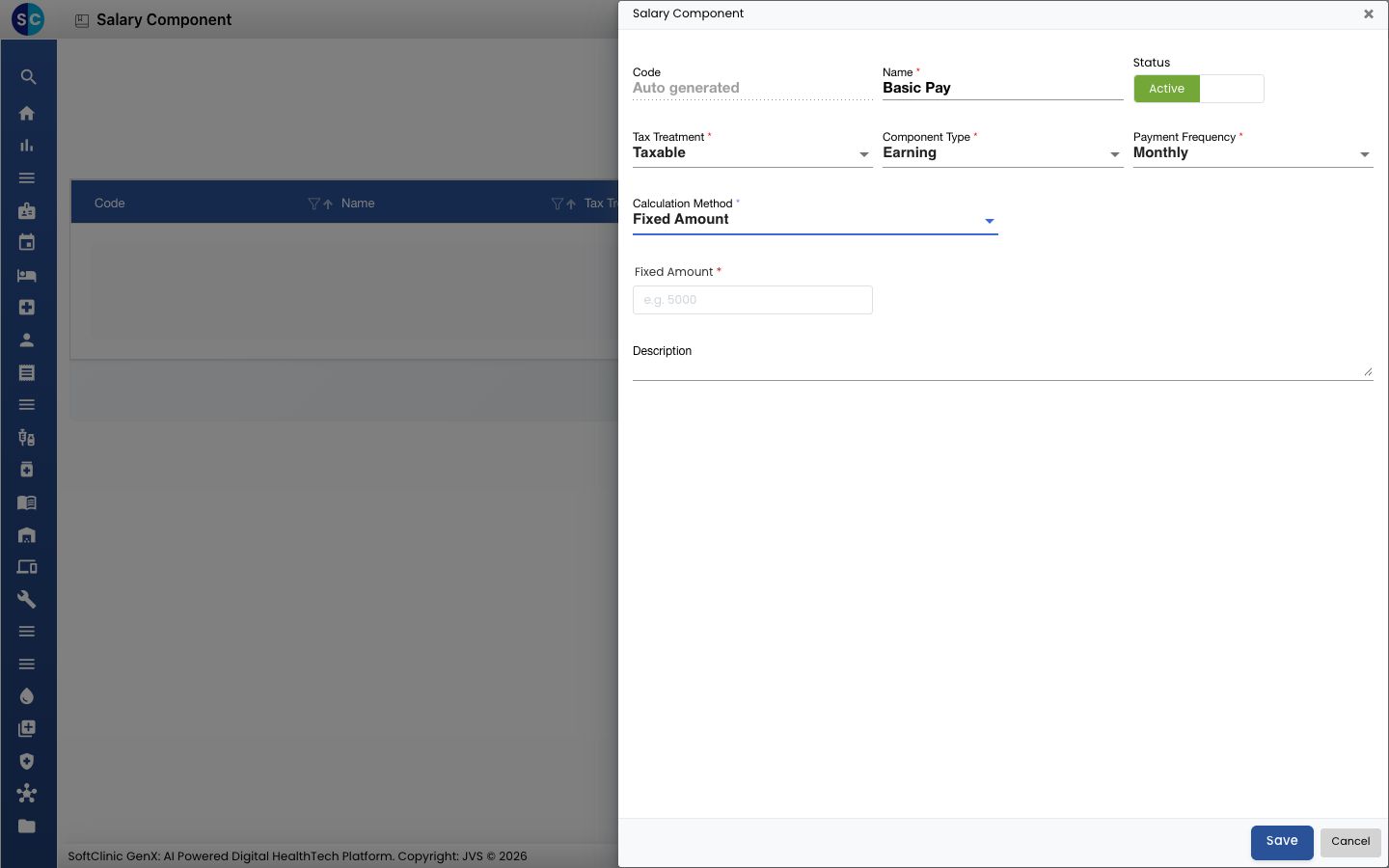
-
Click Save. You return to the list and the new component appears in it.
Change or deactivate a salary component
- In the list, click the ⋮ button at the end of the row and choose Edit.
- Change the fields you need. To stop using the component, switch Status to Inactive.
- Click Save.
Good to know
- A percentage component needs the component it is based on to exist first, so add Basic Pay before a percentage of it.
- Click Cancel to leave the form without saving.
Related
Was this helpful?