Set up Device Communicator
Who does this: JVS support, with the laboratory administrator Where: Laboratory › Lab Integration › Device Communicator Set up before: Machine Type and Machine Setting
Analysers send results as structured messages, often in the HL7 format. The Device Communicator entry for an analyser tells the system how to read those messages: where the sample number, the test code and the result value sit. Because this depends on the analyser model and its message format, it is set up and tested together with JVS support. This page shows what the screen holds.
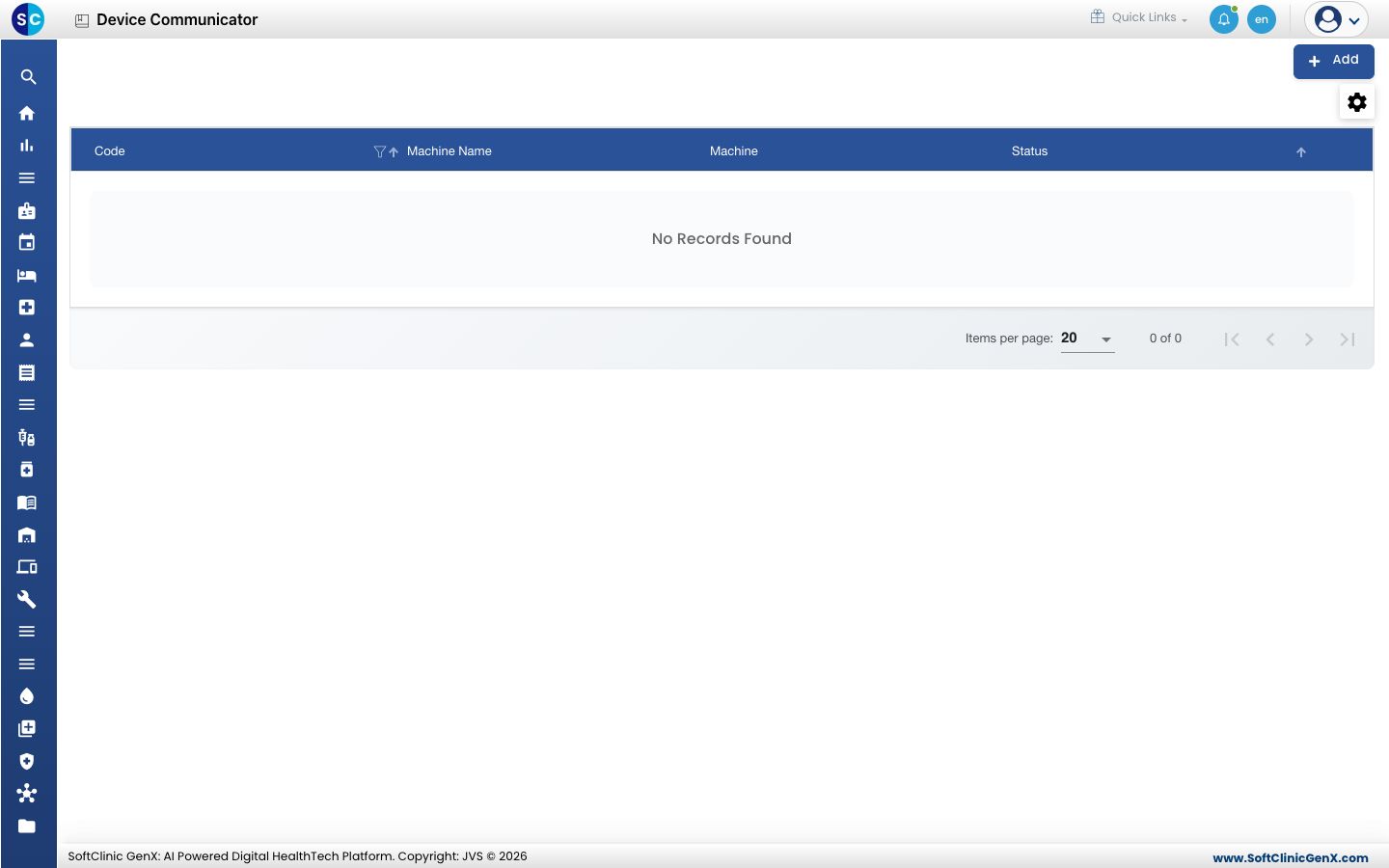
What the form shows
Click Add on the list to open the form.
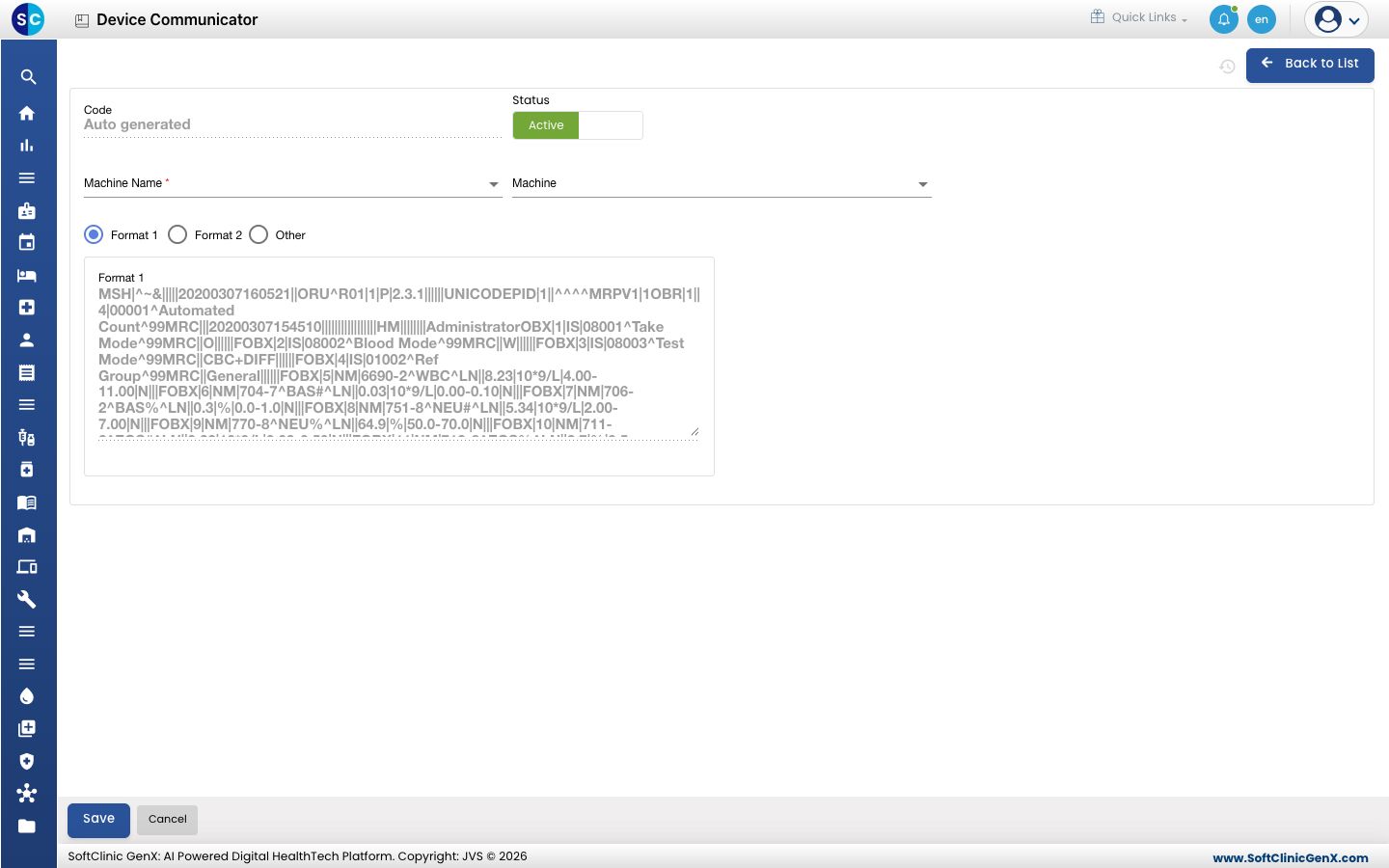
| Field | What it holds | Required |
|---|---|---|
| Code | Filled in by the system. | — |
| Status | Active or Inactive. | — |
| Machine Name | The analyser, from Machine Type. | Yes |
| Machine | The message format the analyser uses, such as HL7. | No |
| Format 1, Format 2 | Two ready-made message layouts. The box shows a sample message in that layout; it cannot be edited. | — |
| Other | For an analyser whose messages follow neither layout. | — |
When Other is chosen, the form shows the positions to read from the message:
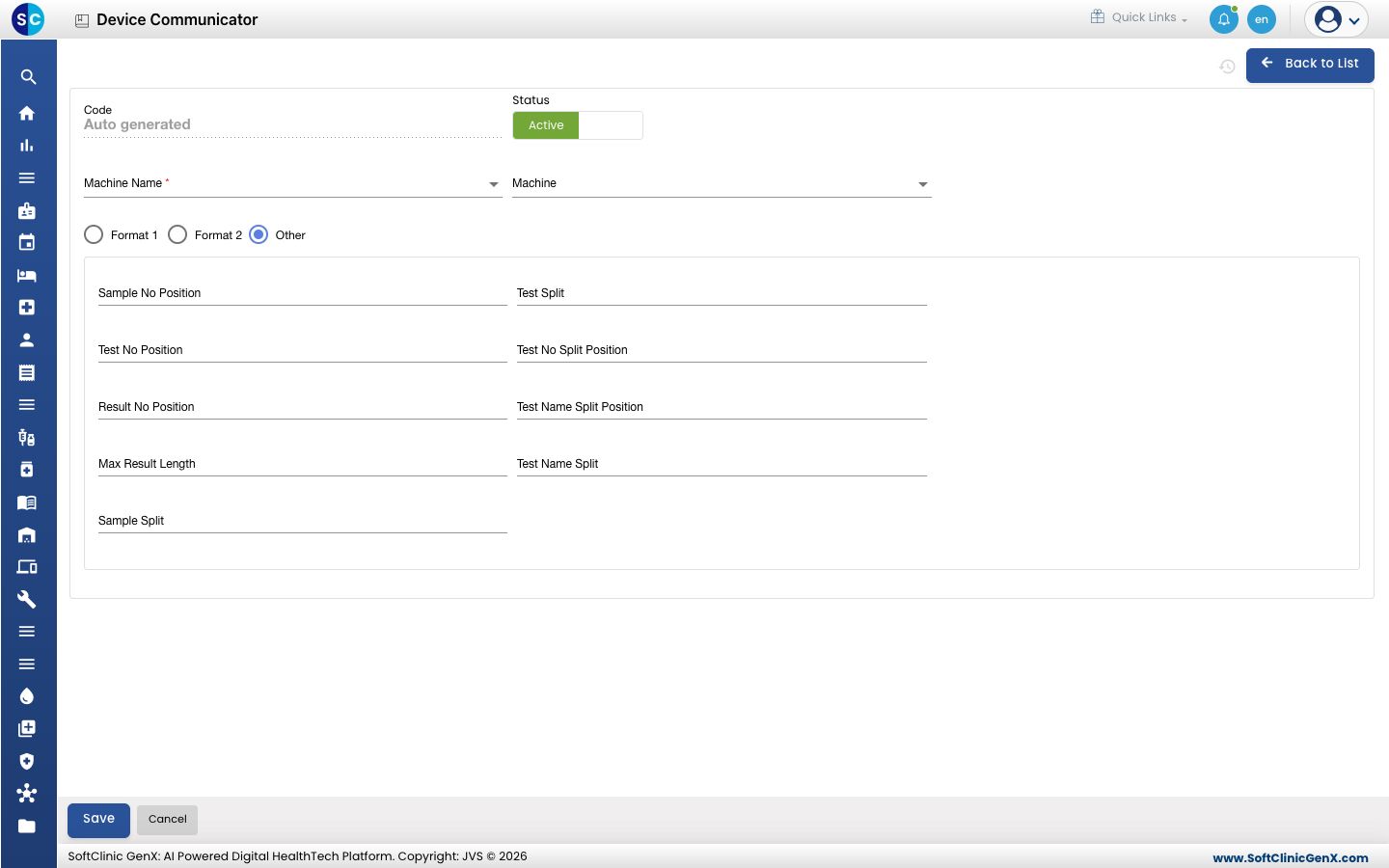
Sample No Position, Test Split, Test No Position, Test No Split Position, Result No Position, Test Name Split Position, Max Result Length, Test Name Split and Sample Split. JVS support fills these in from the analyser's message specification.
Good to know
- Results received from the analyser, and how each message was read, can be checked in Laboratory › Lab Integration › Machine Result Log List.
- Contact JVS support before changing an entry here. A wrong position stops results from reaching the patient's record.