Set up Machine Type Mapping
Who does this: laboratory administrator Where: Laboratory › Lab Integration › Machine Type Mapping Set up before: Machine Type and Investigation Masters
An analyser reports each result under its own test name or code, such as WBC or HGB. A mapping tells the system which test or parameter in Investigation Masters that name belongs to. Add one mapping for each test name the analyser sends.
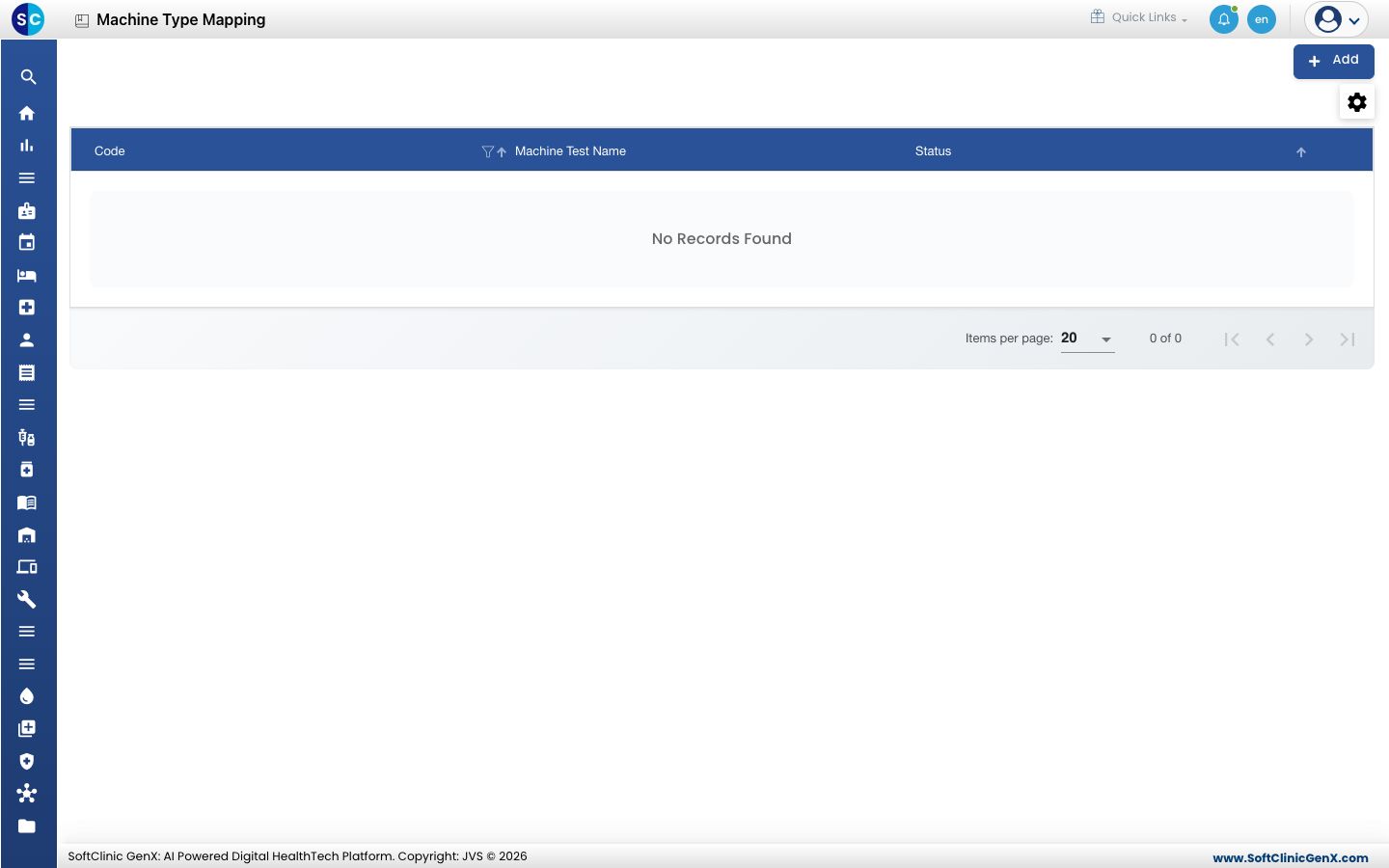
Add a mapping
-
Go to Laboratory › Lab Integration › Machine Type Mapping.
-
Click Add. The form opens.
-
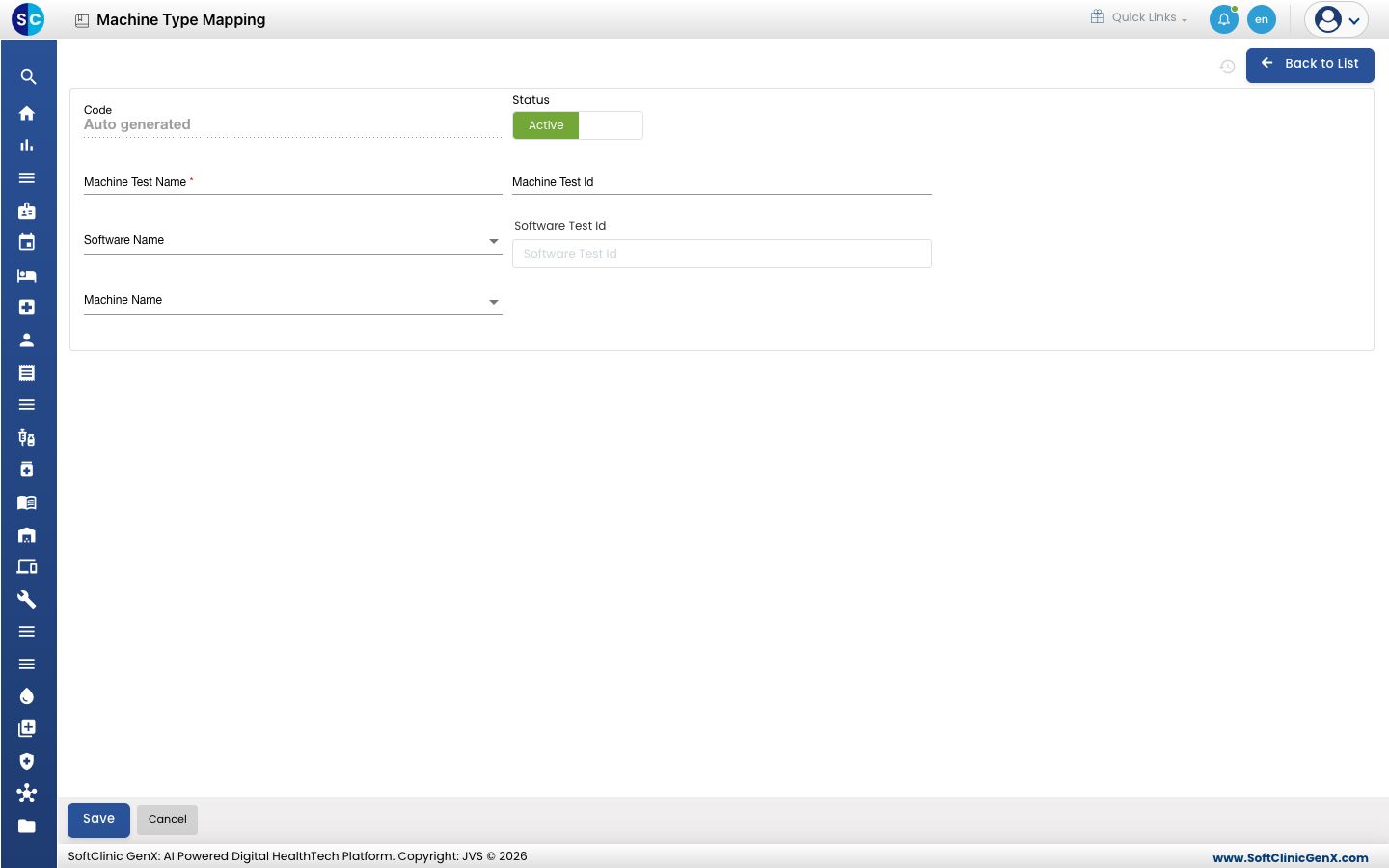
Fill in the fields:
Field What to enter Required Code Filled in by the system. — Status Leave on Active. — Machine Test Name The test name exactly as the analyser sends it. Yes Machine Test Id The analyser's code for the test, if it has one. No Software Name The software the mapping is for, if listed. No Software Test Id Start typing and pick the matching test or parameter from Investigation Masters. No Machine Name The analyser, from Machine Type. No -
Click Save. The mapping appears in the list.
Change or deactivate a mapping
- Open the mapping from the list.
- Change the fields you need, or switch Status to Inactive.
- Click Save. Click Back to List or Cancel to leave without saving.
Good to know
- Codes and machine test names must be unique.
- Pick the Software Test Id for every mapping. A mapping without it does not tell the system where the result belongs.
Related
- Previous: Set up Machine Setting
- Next: Set up Device Communicator
- Laboratory FAQs