Set up Container Type
Who does this: laboratory administrator Where: Laboratory › Laboratory Masters › Container Type Set up before: Additive or Fixative
A container type is the tube or bottle a sample is collected in, such as a Sodium Citrate tube, an SST (Gel) tube or a culture bottle. Container types are picked when a test is set up and are shown to staff when they collect and receive samples.
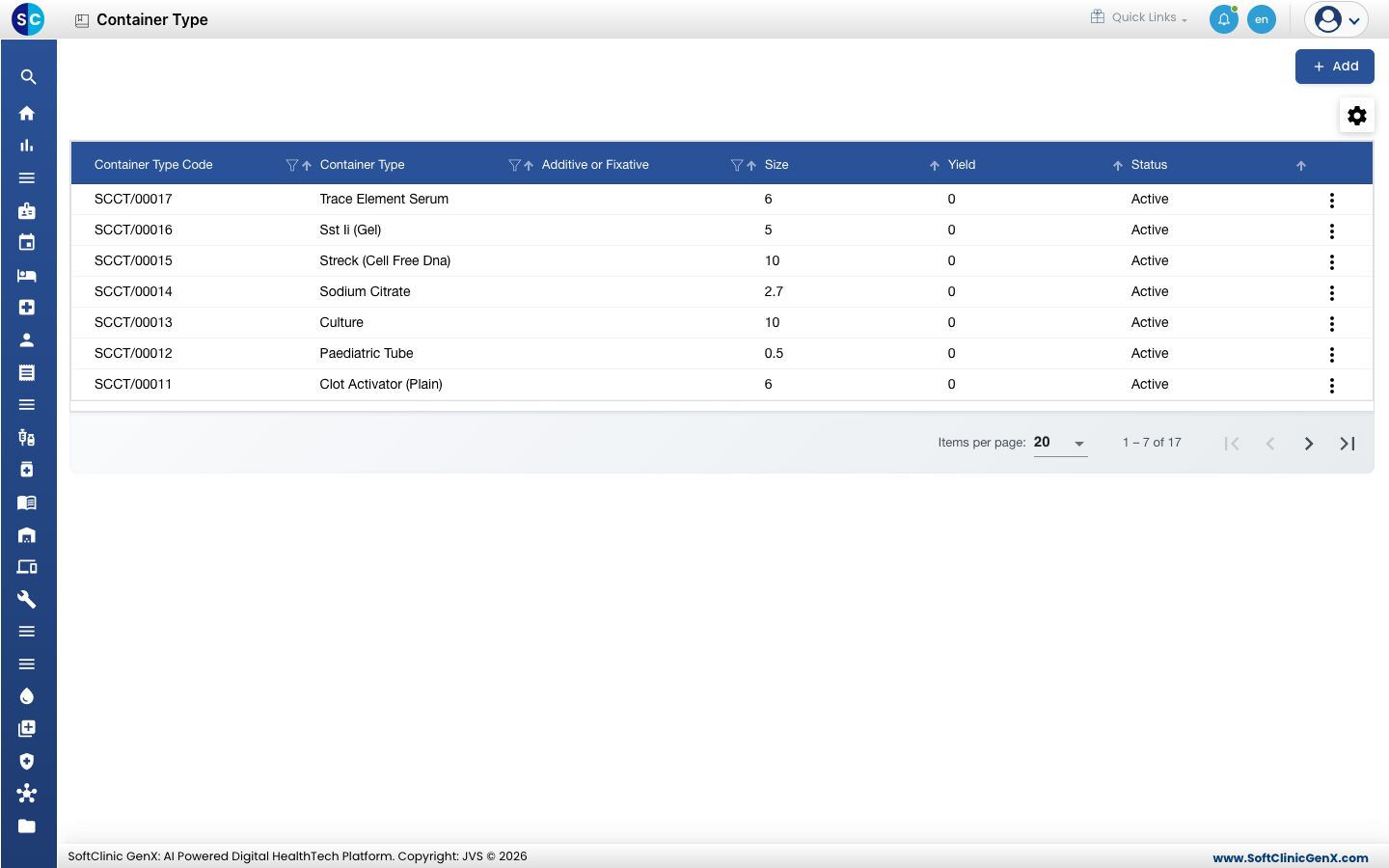
Add a container type
-
Go to Laboratory › Laboratory Masters › Container Type.
-
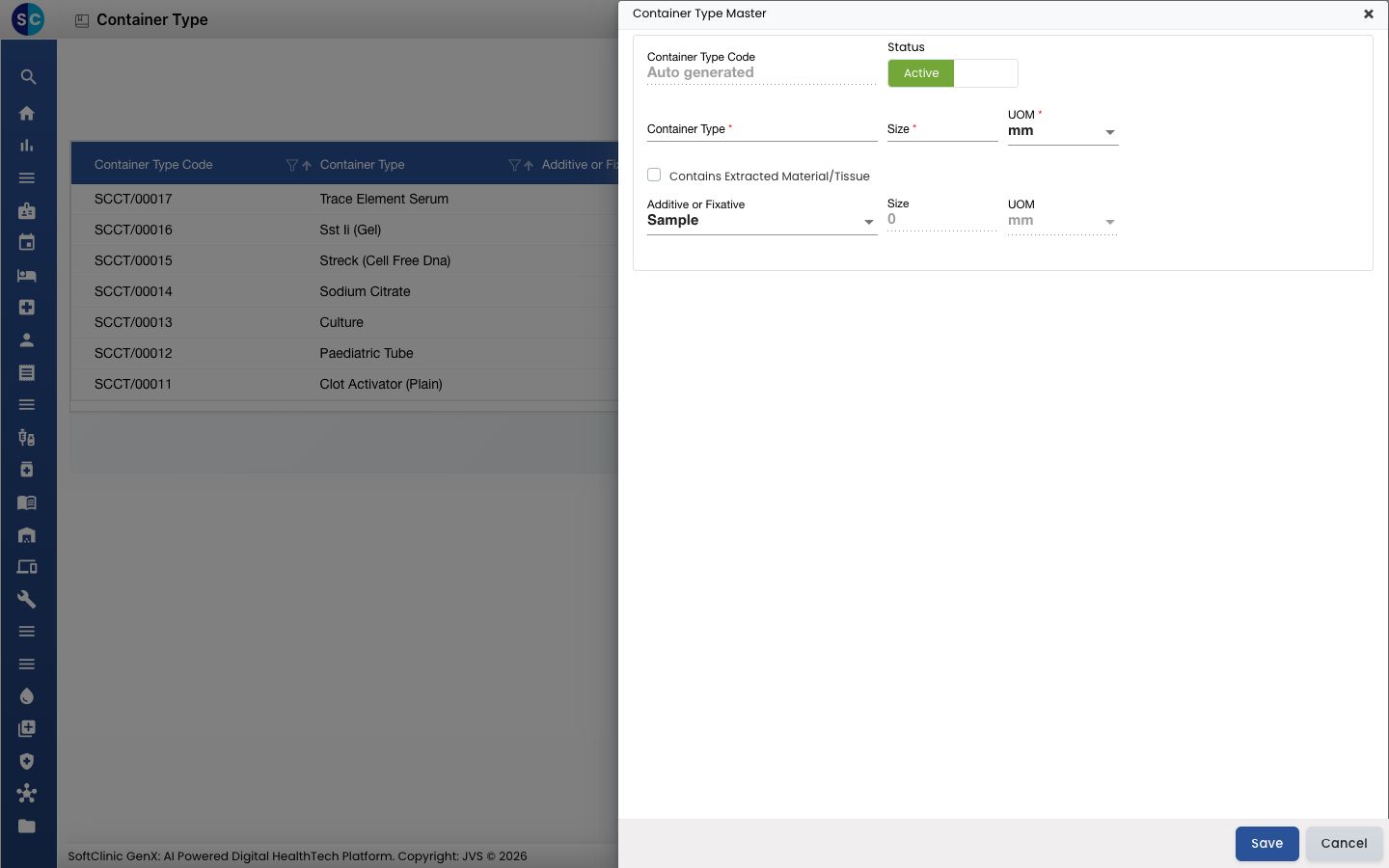
Click Add. The form opens on the right.
-
Fill in the fields:
Field What to enter Required Container Type Code Filled in automatically when you save. — Status Leave on Active. — Container Type The container name, for example Sodium Citrate or Paediatric Tube. Up to 50 characters. Yes Size The container size, up to 100. Yes UOM The unit of the size, for example mm. Yes Contains Extracted Material/Tissue Tick when the container holds extracted material or tissue. This unlocks the three fields below. No -
If you ticked Contains Extracted Material/Tissue, fill in the extra fields:
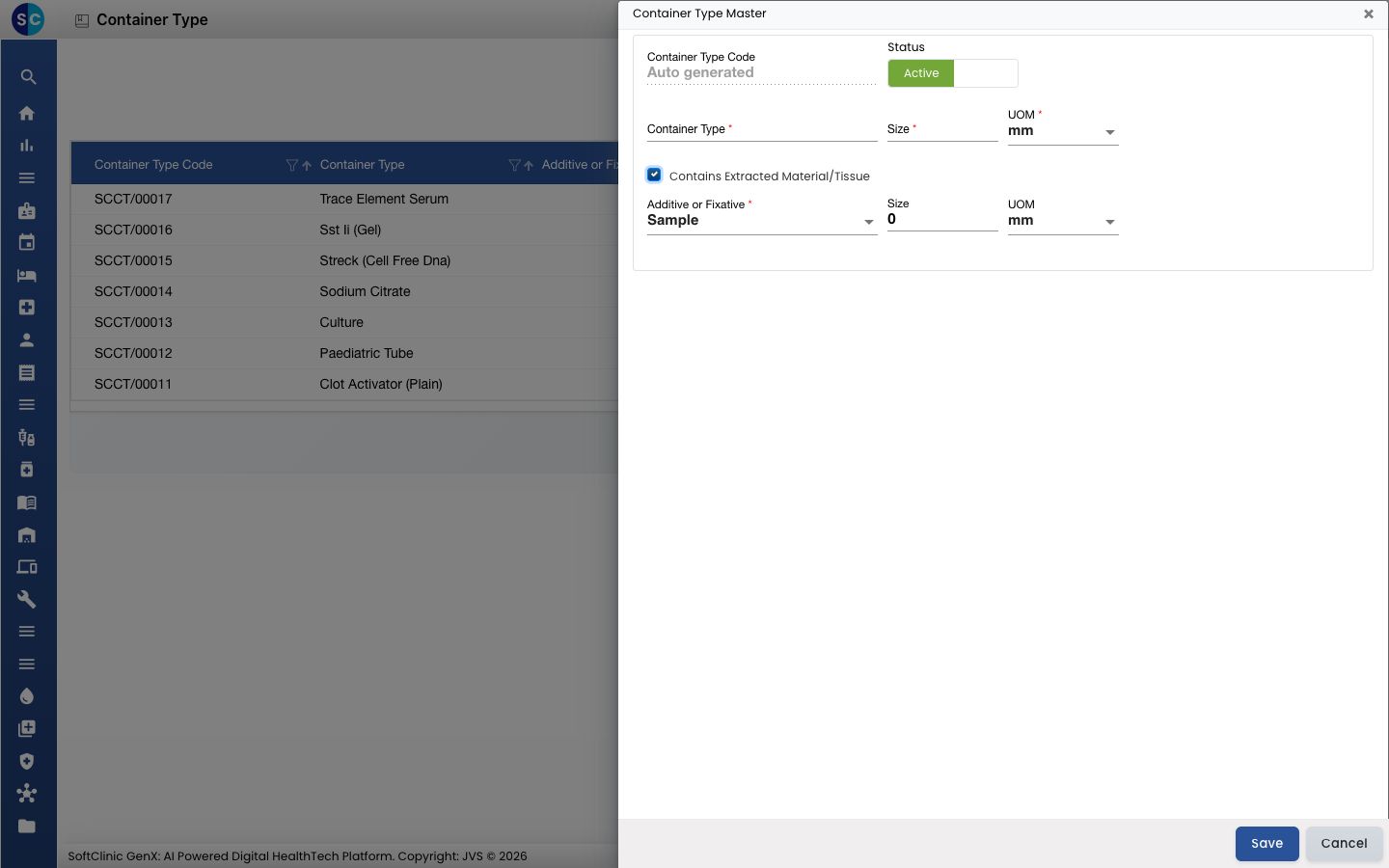
Field What to enter Required Additive or Fixative The additive or fixative in the container. Yes Size (second row) The yield: how much material the container holds, up to 100. No UOM (second row) The unit of the yield. No -
Click Save. The form closes and the new container type appears in the list.
Change or deactivate a container type
- In the list, click the ⋮ button at the end of the row and choose Edit.
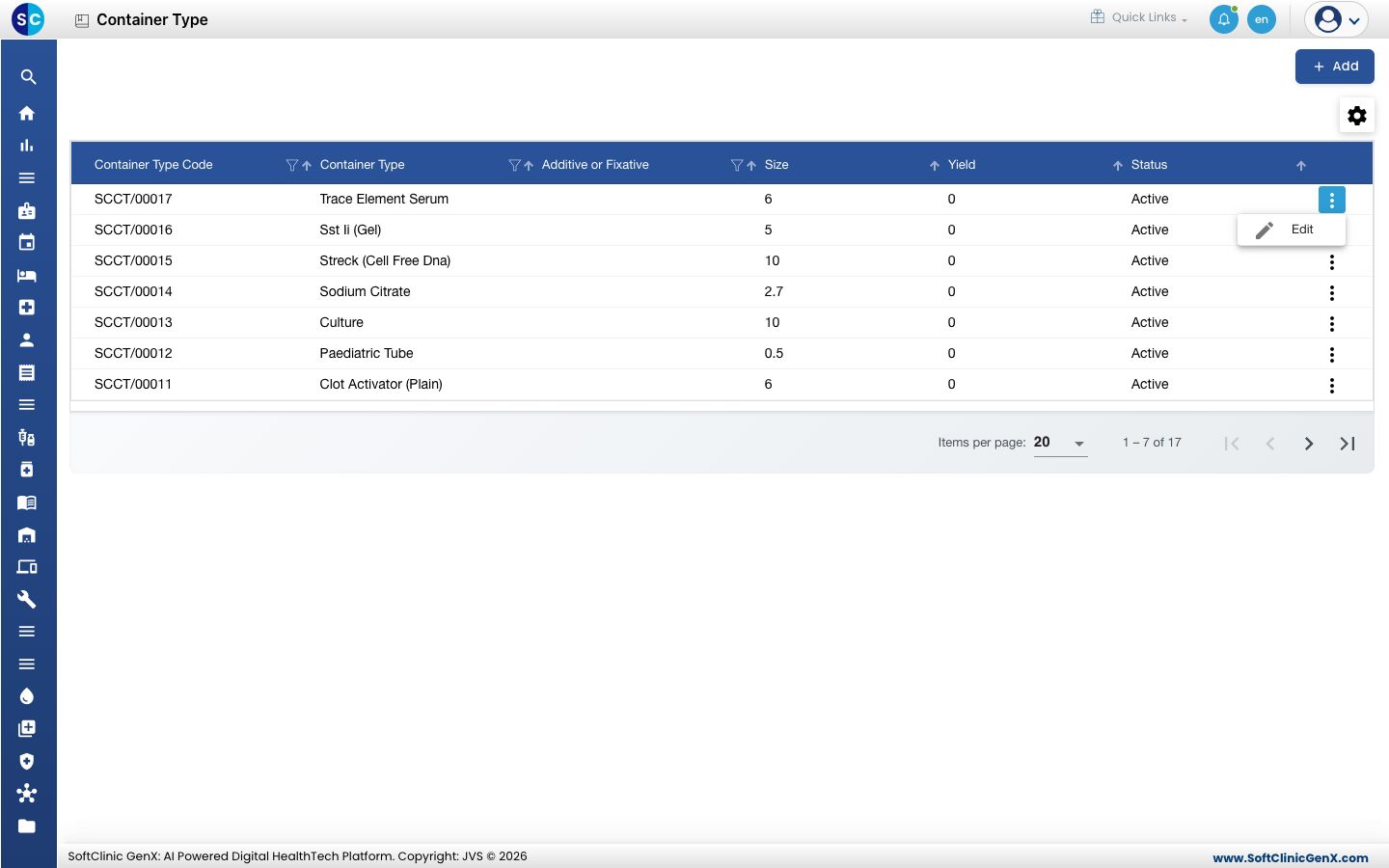
- Change the fields you need. To stop using the container type, switch Status to Inactive.
- Click Save.
Container types cannot be deleted from this screen. Make a container type Inactive instead.
Good to know
- Size and yield cannot be more than 100.
- If the Additive or Fixative list is empty, add the entry first in Additive or Fixative.
- Click Cancel to close the form without saving.
Related
- Previous: Set up Additive or Fixative
- Next: Set up Specimen
- Laboratory FAQs