Set up Section & Investigation Display Order
Who does this: laboratory administrator Where: Laboratory › Laboratory Masters › Section & Investigation Display Order Set up before: Section Master and Investigation Masters
This screen sets the order in which sections, and the tests inside each section, appear on the Lab Dashboard, Sample Collection, Result Entry and Certification screens. A section or test you leave unordered keeps its current place.
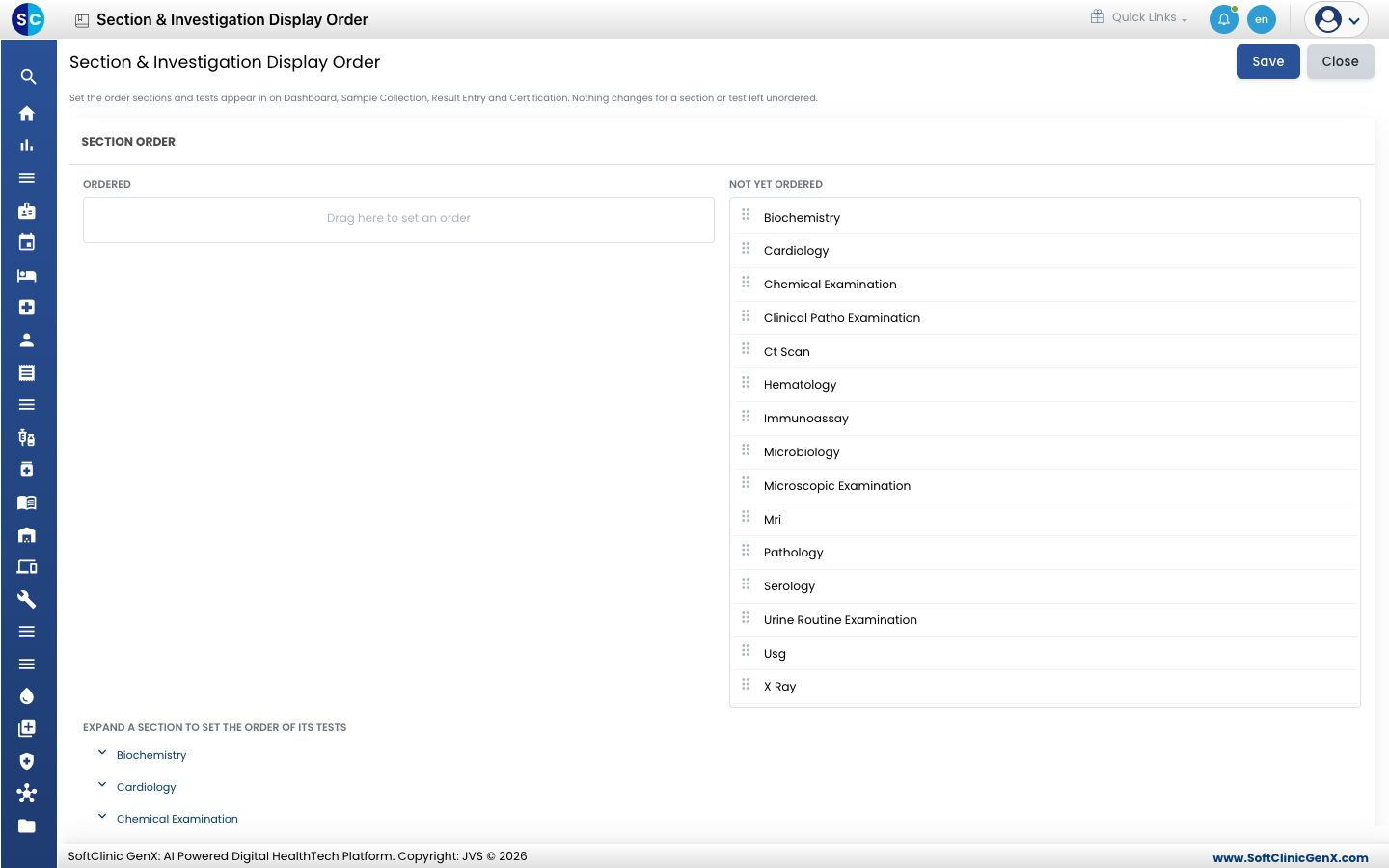
Order the sections
- Go to Laboratory › Laboratory Masters › Section & Investigation Display Order.
- Under SECTION ORDER, drag a section by its handle from NOT YET ORDERED into ORDERED. The first section you drop appears first.
- Drag the sections within ORDERED to change their order.
Order the tests within a section
- Under EXPAND A SECTION TO SET THE ORDER OF ITS TESTS, click the section name. The TEST ORDER WITHIN SECTION panel opens.
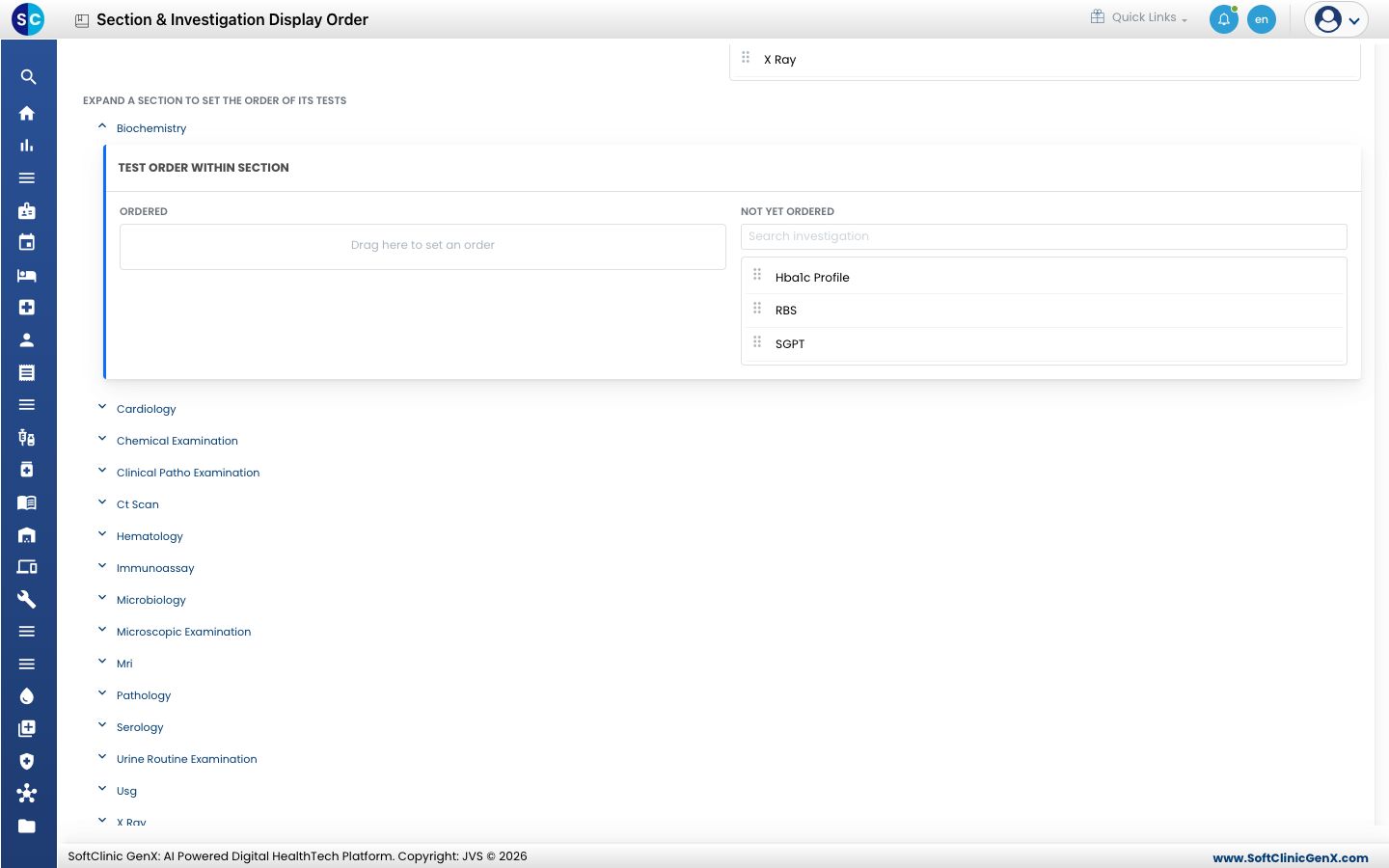
- Drag tests from NOT YET ORDERED into ORDERED, in the order you want. Use Search investigation to find a test in a long list.
- Repeat for other sections. Your changes are kept while you move between sections.
Save
Click Save. The message Saved successfully appears. Click Close to leave without saving.
Good to know
- Ordering is done only by dragging; there are no number fields.
- Only sections and tests that already exist are listed. To add one, set it up first in Section Master or Investigation Masters.
Related
- Previous: Set up Investigation Masters
- Next: Set up Machine Type
- Laboratory FAQs