Set up Machine Setting
Who does this: laboratory administrator, together with JVS support Where: Laboratory › Lab Integration › Machine Setting Set up before: Machine Type
A machine setting holds the connection details of one analyser: whether it is linked over the network or through a serial cable, and the values that go with that link. Each analyser has one machine setting. The connection itself is set up and tested together with JVS support.
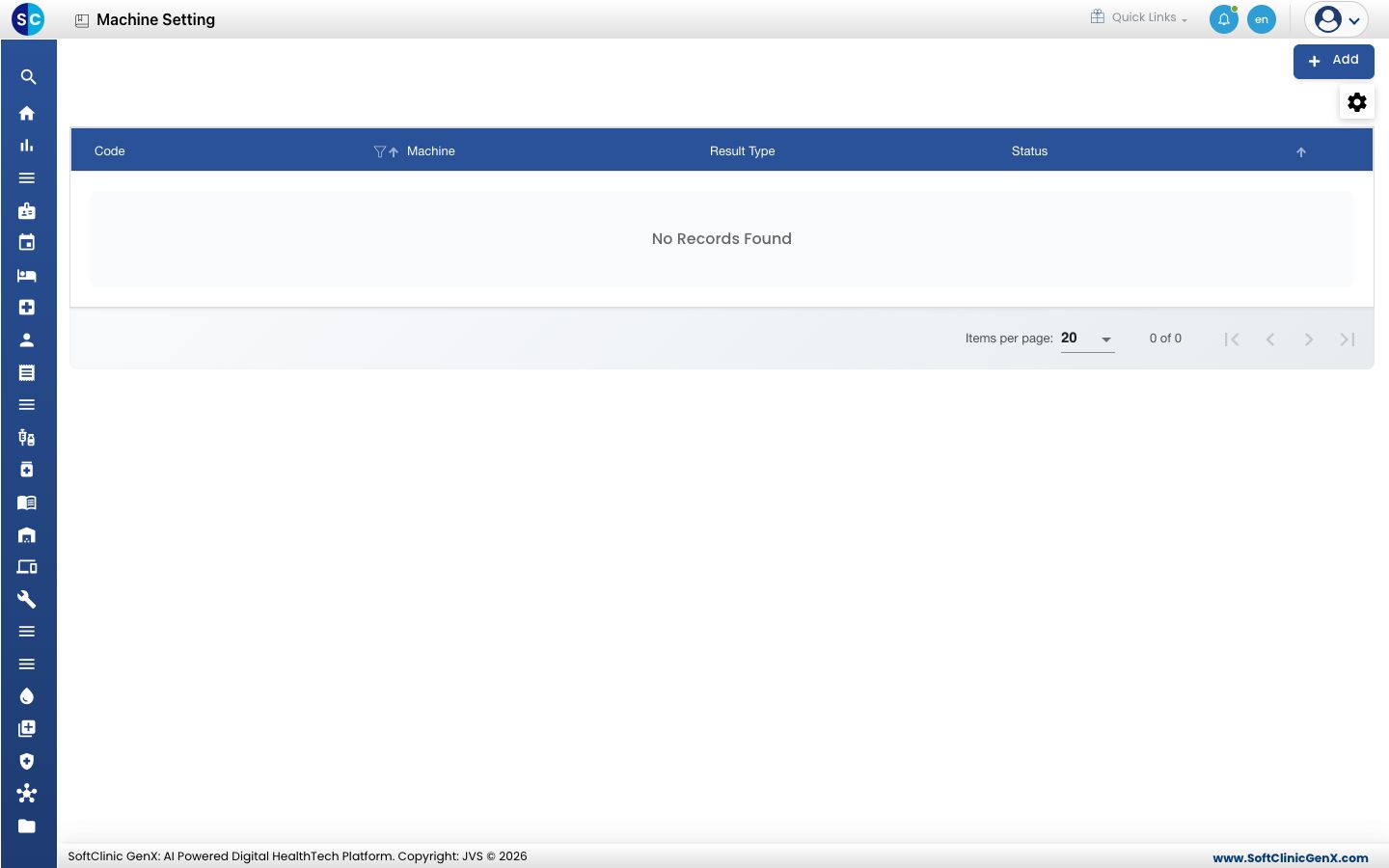
Add a machine setting
-
Go to Laboratory › Lab Integration › Machine Setting.
-
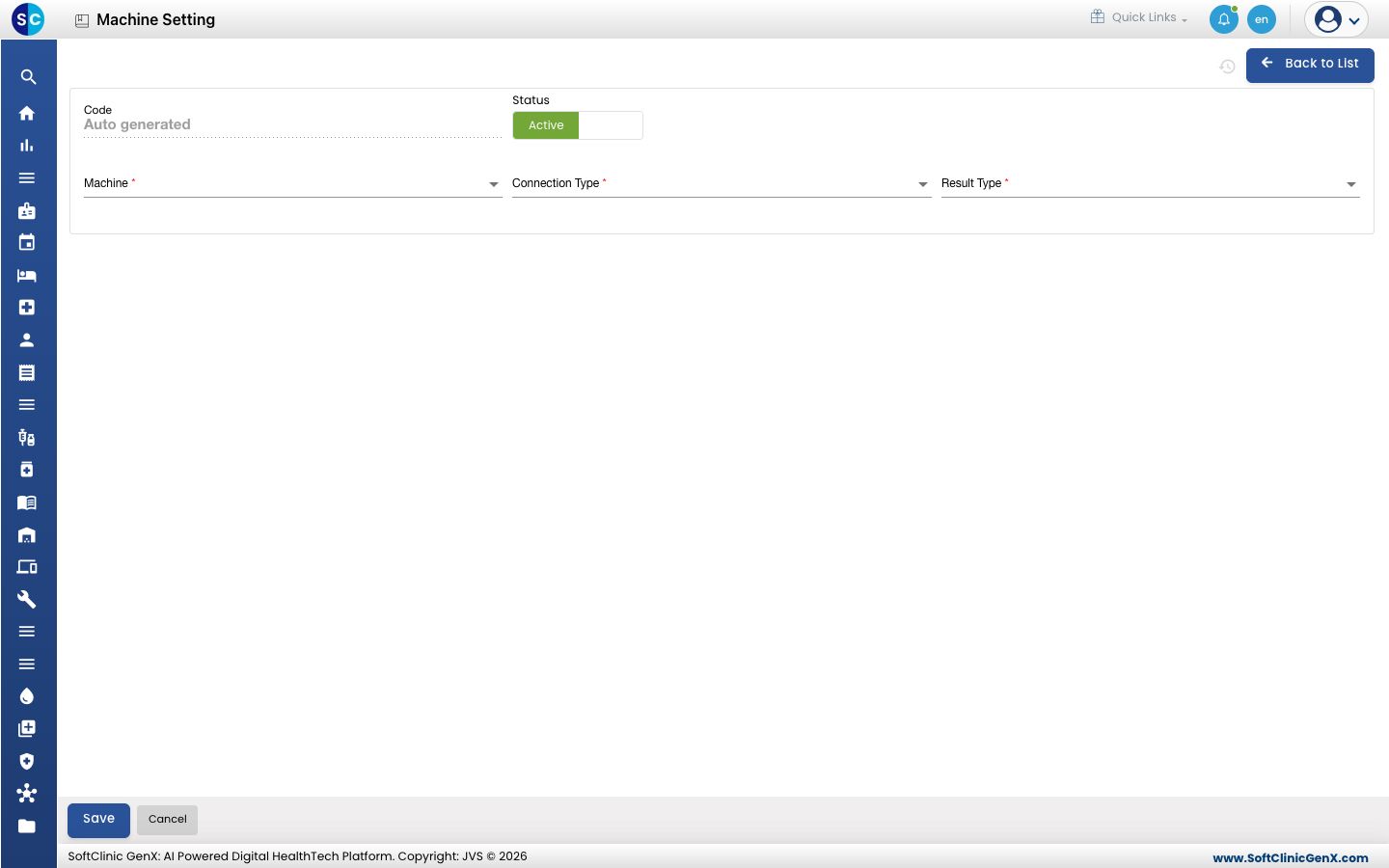
Click Add. The form opens.
-
Fill in the fields:
Field What to enter Required Code Filled in by the system. — Status Leave on Active. — Machine The analyser, from Machine Type. Yes Connection Type LAN for a network link, COM for a serial cable. Yes Result Type Text or Hex, as the analyser sends its results. Yes -
More fields appear for the connection type you chose:
Connection Type Fields Required LAN Connection As (Server or Client), Server Port No, Server Ip Address Yes COM Comport, Baud Rate, Stop Bits, Data Bits, Parity Yes COM Protocol Type No Take these values from the analyser's own communication settings.
-
Click Save. The setting appears in the list.
Change or deactivate a machine setting
- Open the setting from the list.
- Change the fields you need. To stop receiving results from the analyser, switch Status to Inactive.
- Click Save. Click Back to List or Cancel to leave without saving.
Good to know
- Codes must be unique, and each machine can have only one machine setting.
- Baud Rate offers 4800 to 230400; Stop Bits None, One, Two or One Point Five; Data Bits 7, 8 or 9; Parity None, Odd, Even or Space.
Related
- Previous: Set up Machine Type
- Next: Set up Machine Type Mapping
- Laboratory FAQs