Set up Video Consultation Setting
Connect the video service that doctors use for online (tele) consultations.
Who does this: hospital administrator, together with JVS support Where: Configurations › Application Settings › Video Consultation Setting
Online consultations run on a video service account. This screen holds the account details that connect SoftClinic GenX to that service. Until an account is added here, doctors cannot start a video consultation.
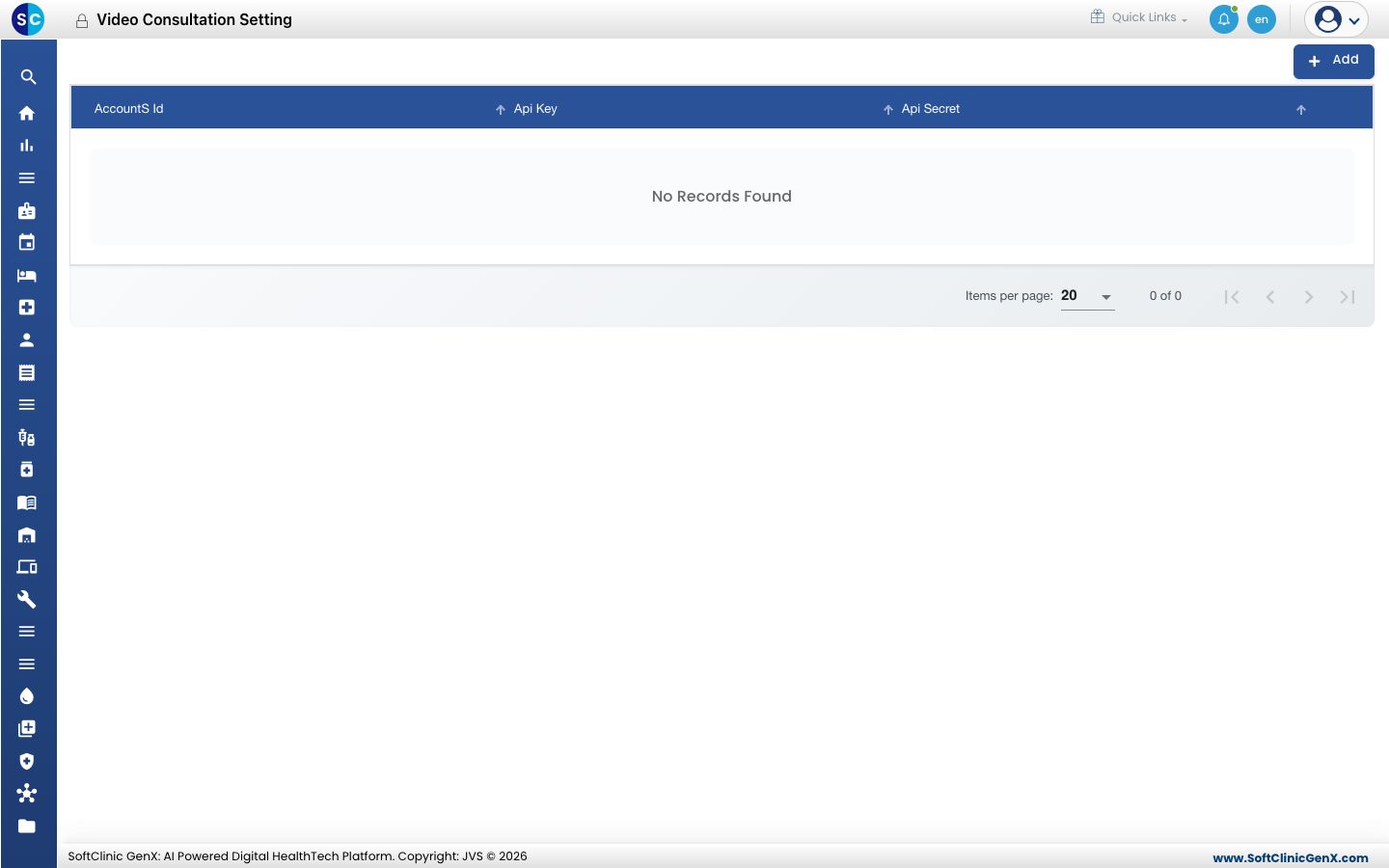
Add the video account
-
Go to Configurations › Application Settings › Video Consultation Setting.
-
Click Add. The form opens.
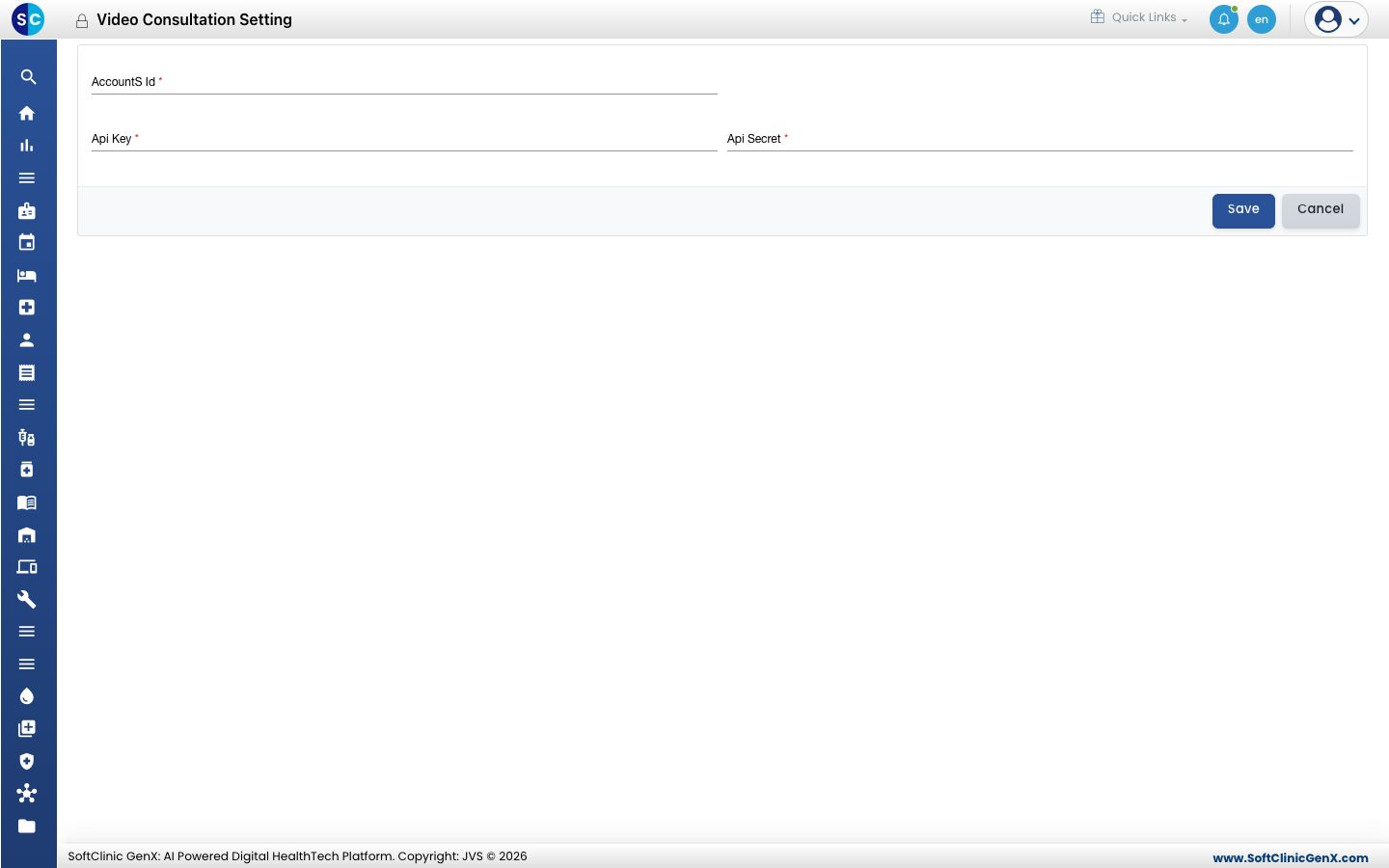
-
Enter the details from your video service account:
Field What to enter Required AccountS Id The account ID from the video service. Yes Api Key The key issued by the video service. Yes Api Secret The secret issued with the key. Yes -
Click Save. The account appears in the list.
To change the details later, click the ⋮ button on the row and choose Edit.
Good to know
- These details are private. Set them up with JVS support, and do not share them by email or chat.
- If the key is changed at the video service, update it here too, or video consultations stop connecting.