Set up Notification Channel Setting
Choose which events send an SMS, email, WhatsApp or in-app message, and to whom.
Who does this: hospital administrator Where: Configurations › Application Settings › Notification Channel Setting Set up before: Provider Setting and Notification Configuration
This screen decides which messages go out automatically. Each row is an event, such as a new appointment, a bill or a certified lab report. Each column is a channel: SMS, Email, WhatsApp or Web (the in-app bell). Tick a box and that event sends a message on that channel.
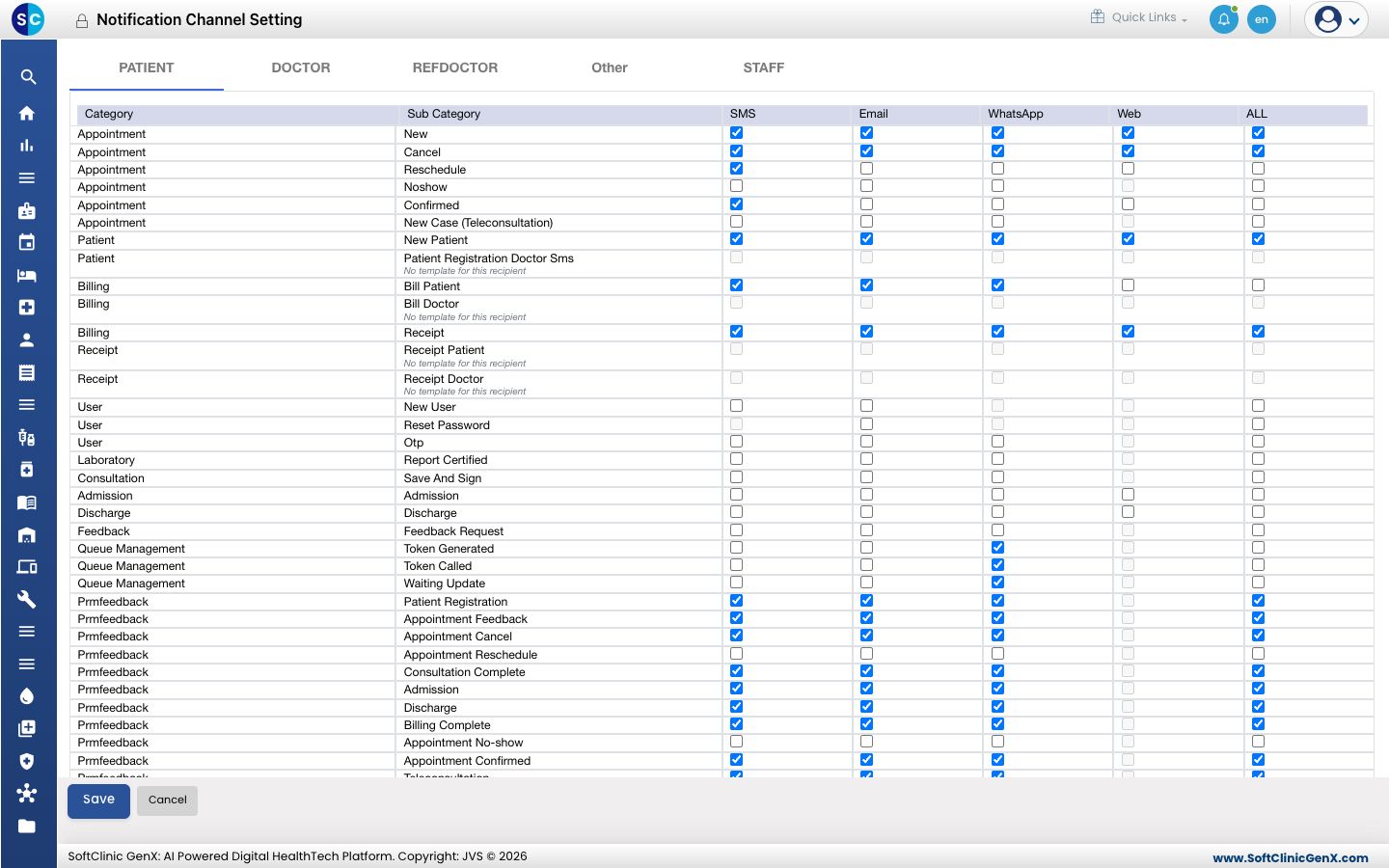
Choose which messages are sent
- Go to Configurations › Application Settings › Notification Channel Setting.
- Pick who receives the messages by clicking a tab: PATIENT, DOCTOR, REFDOCTOR (referring doctor), Other or STAFF.
- For each event (Category and Sub Category), tick the channels to use. Tick ALL to turn on every channel for that event.
- Click Save.
Send messages to other people
On the Other tab you can send an event's message to extra numbers or email addresses, for example a manager. When you tick SMS, Email or WhatsApp on this tab, a window asks for the numbers or addresses. Separate several with commas.
Good to know
- A box that cannot be ticked, with "No template for this recipient" under the event, has no message text for that channel and person, so it cannot be sent.
- A message is sent only when its channel is also switched on and connected in Provider Setting. SMS and WhatsApp use your hospital's message balance; see My Wallet.
- Turn on only the messages patients find useful. Too many messages lead patients to ignore them.