Set up User Roles
Create roles such as Receptionist, Nurse or Billing Clerk and choose which screens each role can read, add, change, delete and print.
Who does this: hospital administrator Where: Configurations › User Roles
A role is a set of rights that you give to many users at once. Create one role for each kind of job, for example reception, nursing, billing or pharmacy, and tick the screens that job needs. When you create a user, you assign a role for each facility they work in.
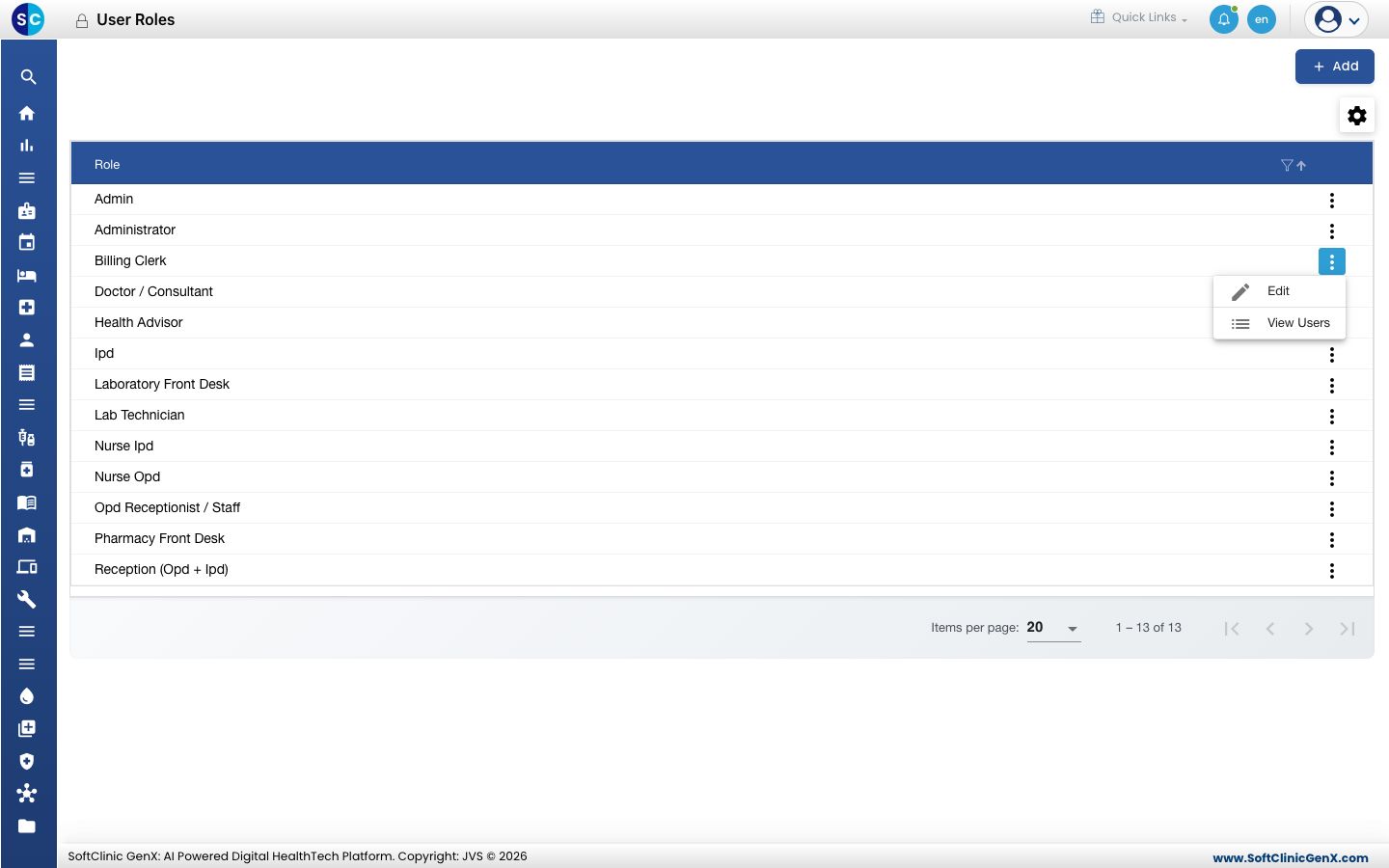
Add a role
-
Go to Configurations › User Roles.
-
Click Add. The role form opens.
-
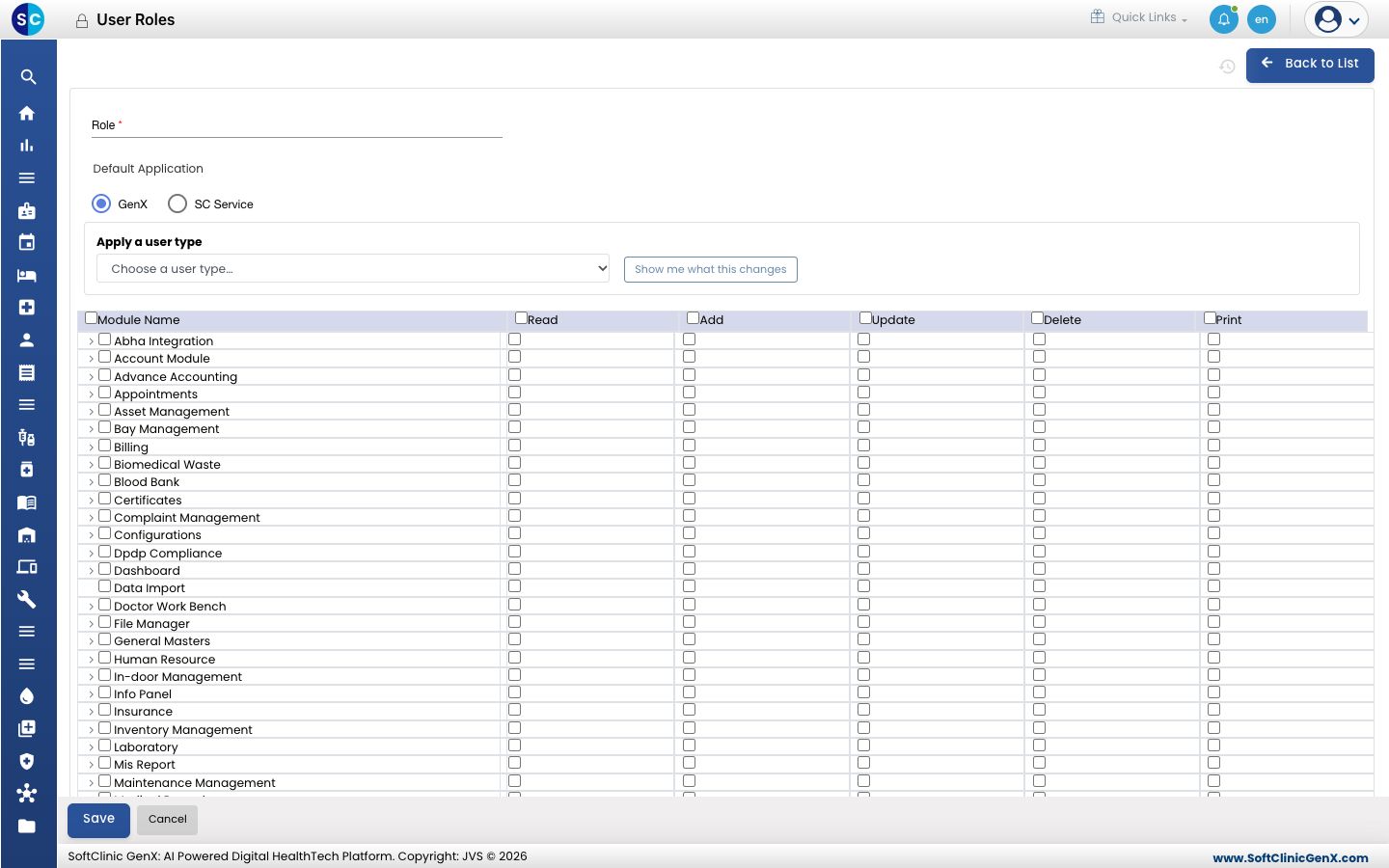
Fill in the form:
Field What to enter Required Role The name of the job, for example Pharmacy Front Desk. Yes Default Application GenX for the hospital application. SC Service for users who work only in the service app. Yes Apply a user type Optional. Pick a ready-made set of rights to start from. Click Show me what this changes to preview it. No -
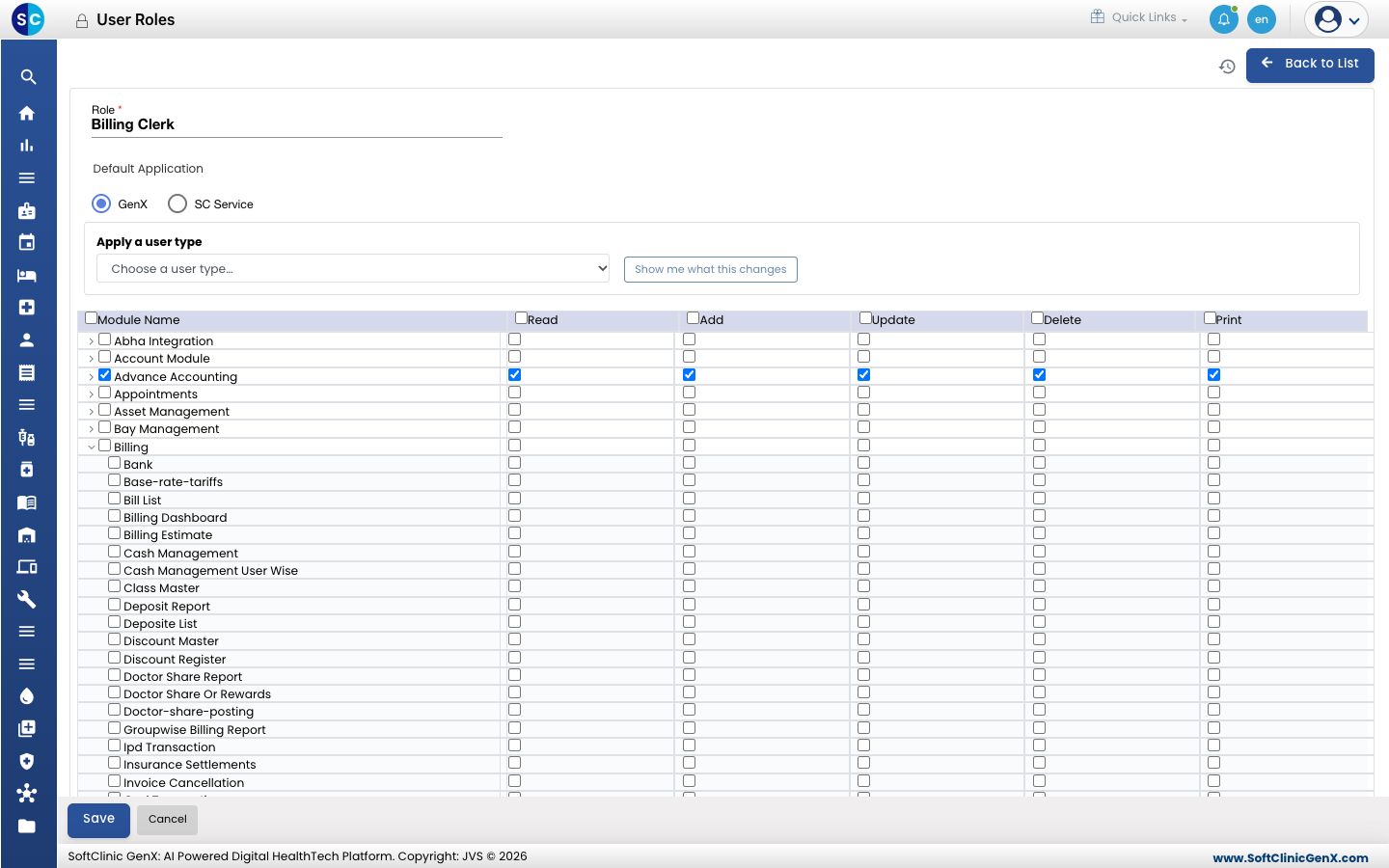
In the rights table, tick what the role may do in each module: Read, Add, Update, Delete and Print. Ticking a box on the module row gives that right on every screen of the module.
-
To give rights screen by screen, click the arrow next to a module name. Its screens are listed below it; tick the rights for each screen.
-
Click Save. The role appears in the list.
Change a role
- In the list, click the ⋮ button on the role's row and choose Edit.
- Change the name or the rights and click Save. The change applies to every user who has this role.
To see who has a role, click ⋮ and choose View Users.
Good to know
- Give each role only the rights the job needs. Delete and Print can be left off for most roles.
- Giving Add, Update, Delete or Print also gives Read, because a user must see a screen to work in it.
- Screen-by-screen rights are available when Access Control System is set to Advanced in System Settings.
- A user who opens a screen without the right sees "You are not allowed to perform this operation". Add the right to their role.