Set up Provider Setting
Switch on the email, SMS, WhatsApp and in-app message channels your hospital uses.
Who does this: hospital administrator, together with JVS support Where: Configurations › Application Settings › Provider Setting
Before SoftClinic GenX can send any message, the channel must be switched on here and connected to a message service. There are four channels: Email, SMS, WhatsApp and Web (the in-app bell).
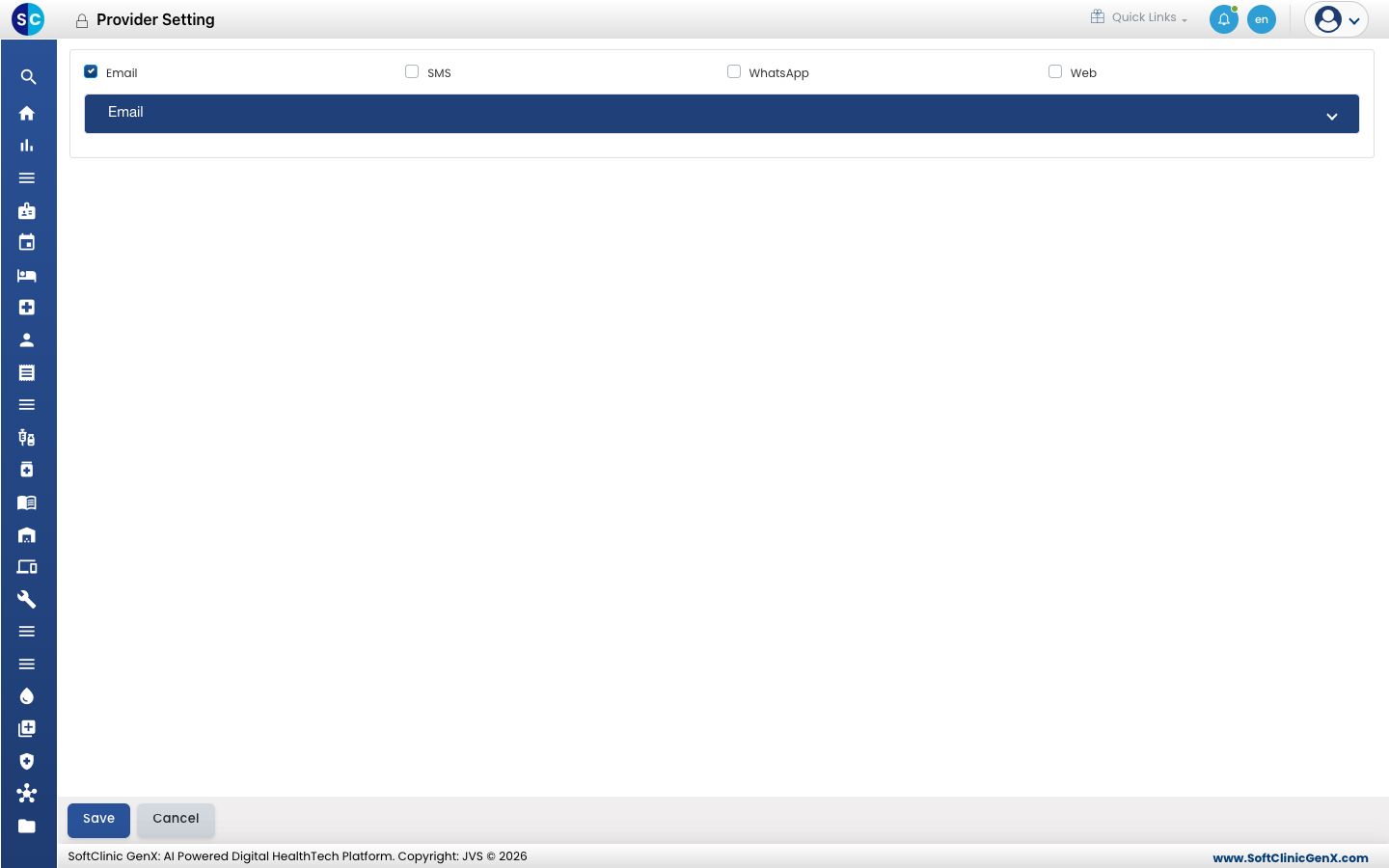
Switch on a channel
- Go to Configurations › Application Settings › Provider Setting.
- Tick each channel your hospital will use: Email, SMS, WhatsApp or Web. A panel for each ticked channel appears below.
- Open a channel's panel. It lists the message services connected for that channel, with an Add button.
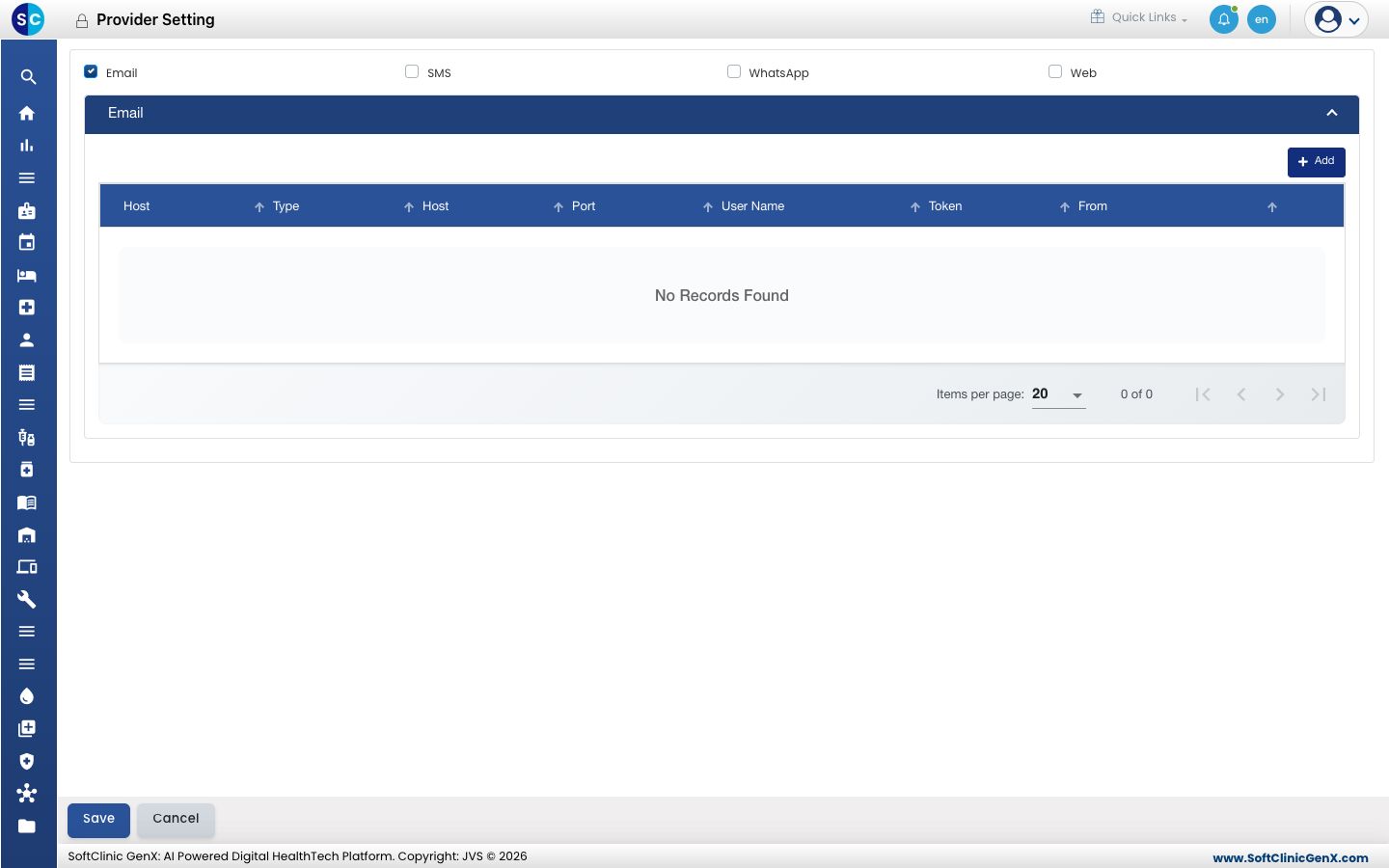
- Click Save.
Good to know
- The connection details (mail server, SMS gateway and WhatsApp account) are private. They are set up with JVS support. Do not change them unless support asks you to.
- Clearing a channel's tick stops all messages on that channel. The details are kept, so ticking it again turns it back on.
- At least one channel must be ticked to save.
- Which events send a message is set in Notification Channel Setting.