View a patient's previous visits
Read the notes and prescriptions of a patient's earlier visits, copy the last visit into today's note, and find any past OPD note.
When a patient returns, you can read the earlier visits without leaving today's SOAP note, and copy the last visit into it. To find a note when the patient is not in front of you, use OPD SOAP Notes List.
note
Who can do this: doctors
Where: the PREVIOUS PRESCRIPTION and PATIENT SNAPSHOT tabs of the SOAP note, and Doctor Work Bench › Views › OPD SOAP Notes List
Before you start
- To read earlier visits during a consultation, open the patient's SOAP note. See Start a consultation from the Doctor Dashboard.
Read earlier visits during a consultation
- Click the PREVIOUS PRESCRIPTION tab. The earlier visits are listed on the left by date, with the doctor.
- Click a visit. Its note shows on the right: vitals, chief complaints, history, allergies, diagnosis, analysis and plan, the medicines under Rx, and other orders.
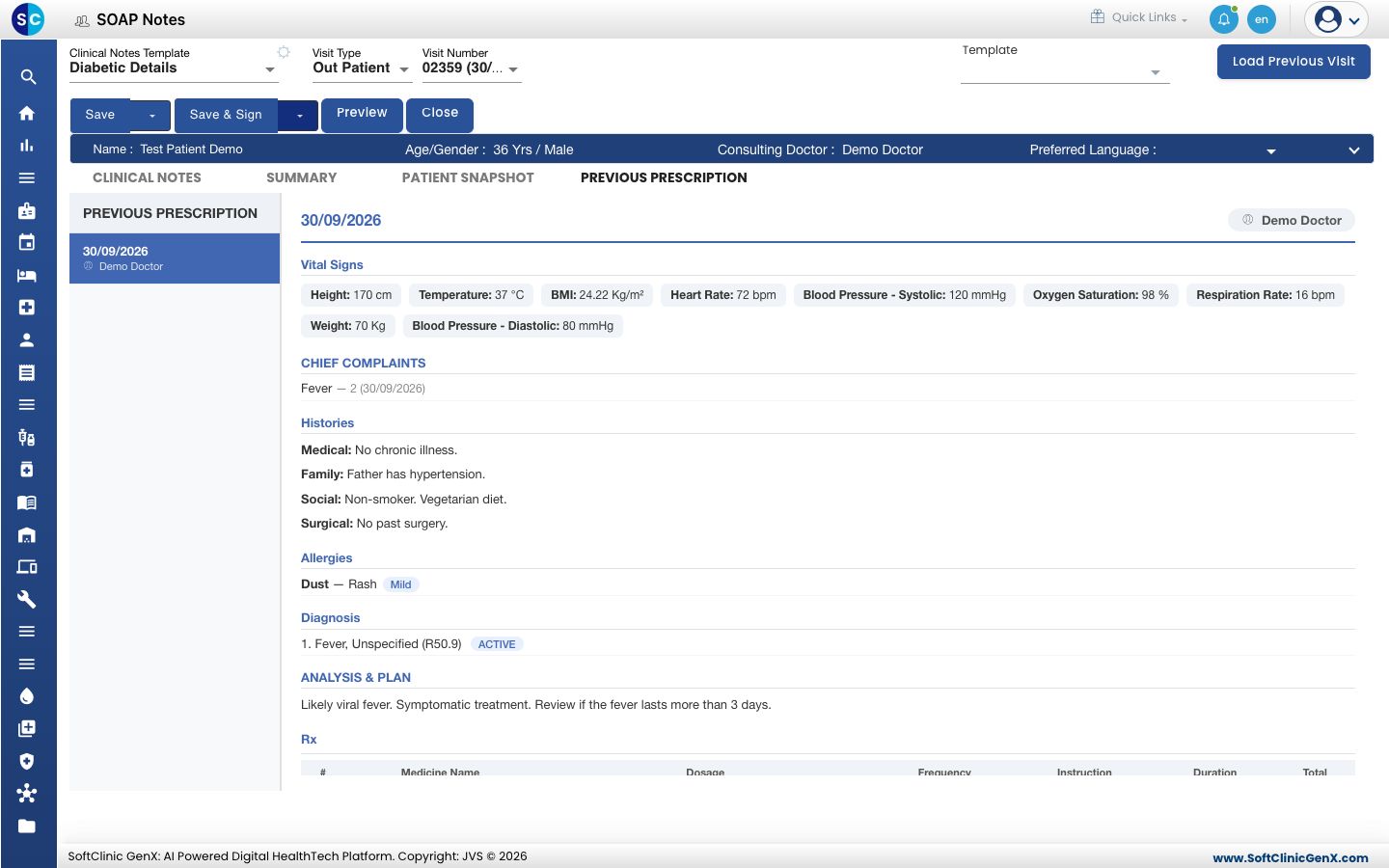
- Click the PATIENT SNAPSHOT tab to read the visits one after another on a single page.
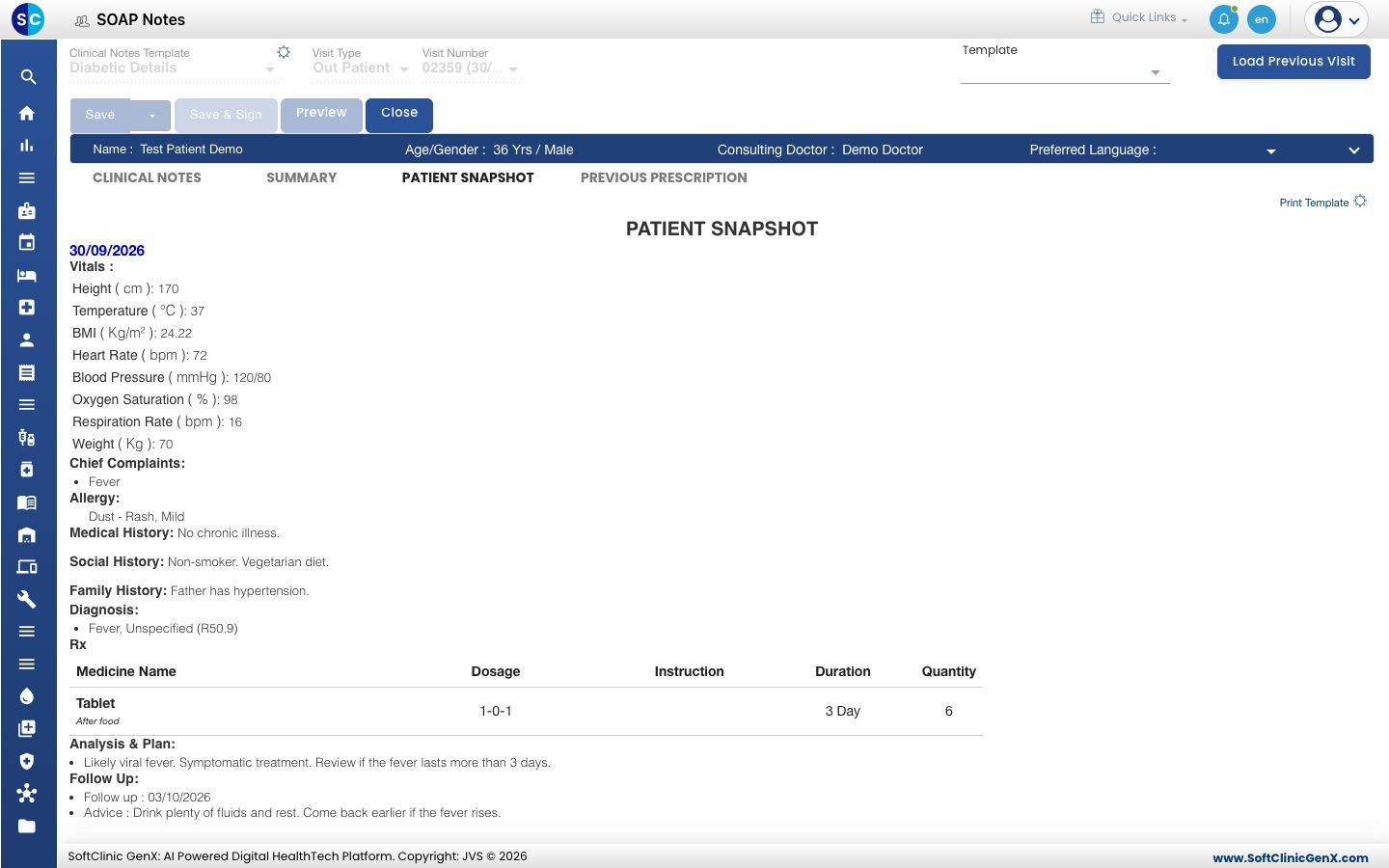
- Click CLINICAL NOTES to return to today's note.
Copy the last visit into today's note
- On the CLINICAL NOTES tab, click Load Previous Visit at the top right. There is no confirmation.
- Wait for the sections to fill. The chief complaints, diagnosis, medicines and other orders of the last visit are copied into today's note.
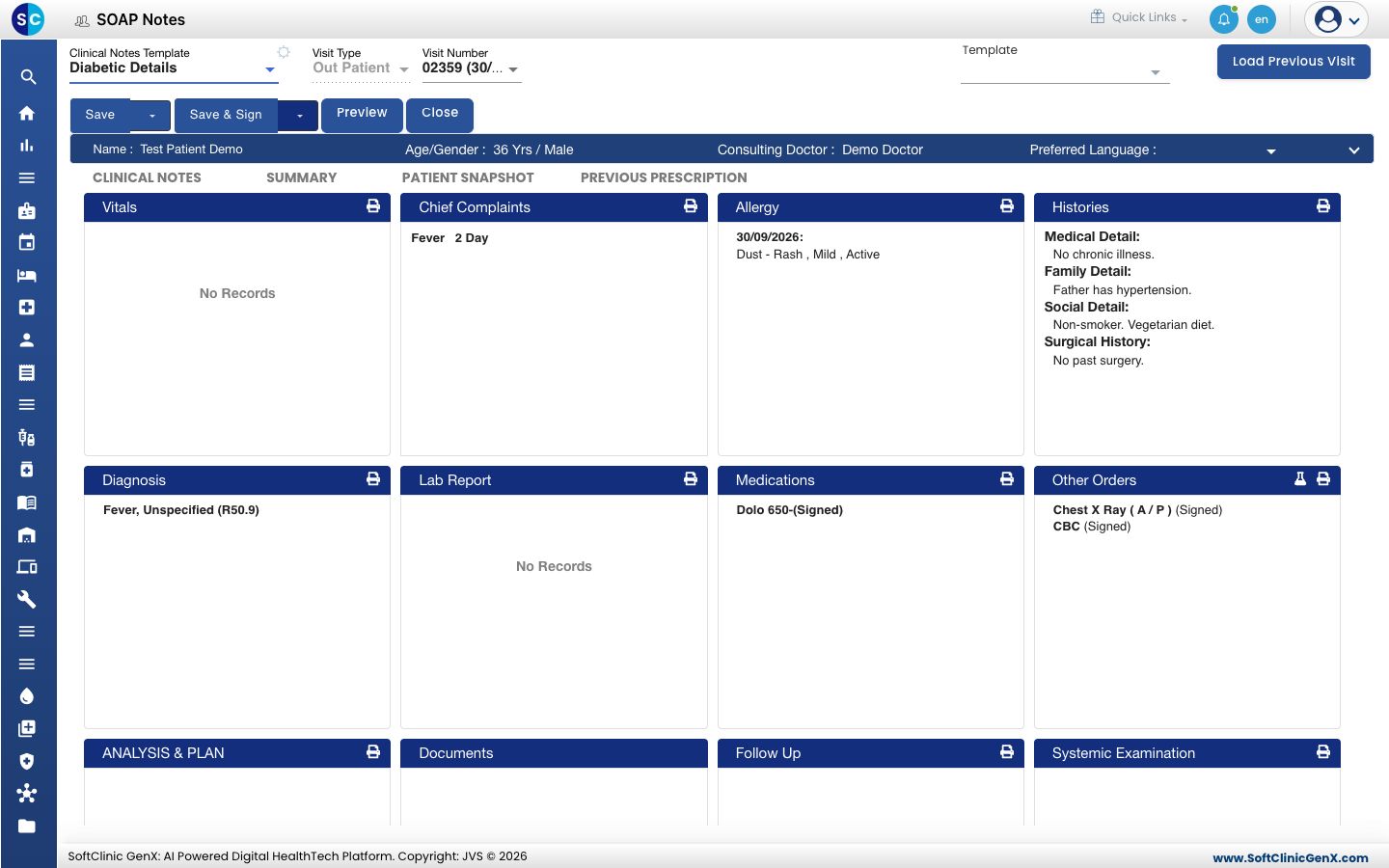
- Open each section and change what is different today. Record today's vitals and the follow-up yourself.
warning
Click Load Previous Visit once only. Medicines and orders are copied as signed lines, so a second click adds them again.
Find a past note
- Go to Doctor Work Bench › Views › OPD SOAP Notes List. The list opens with today's notes.
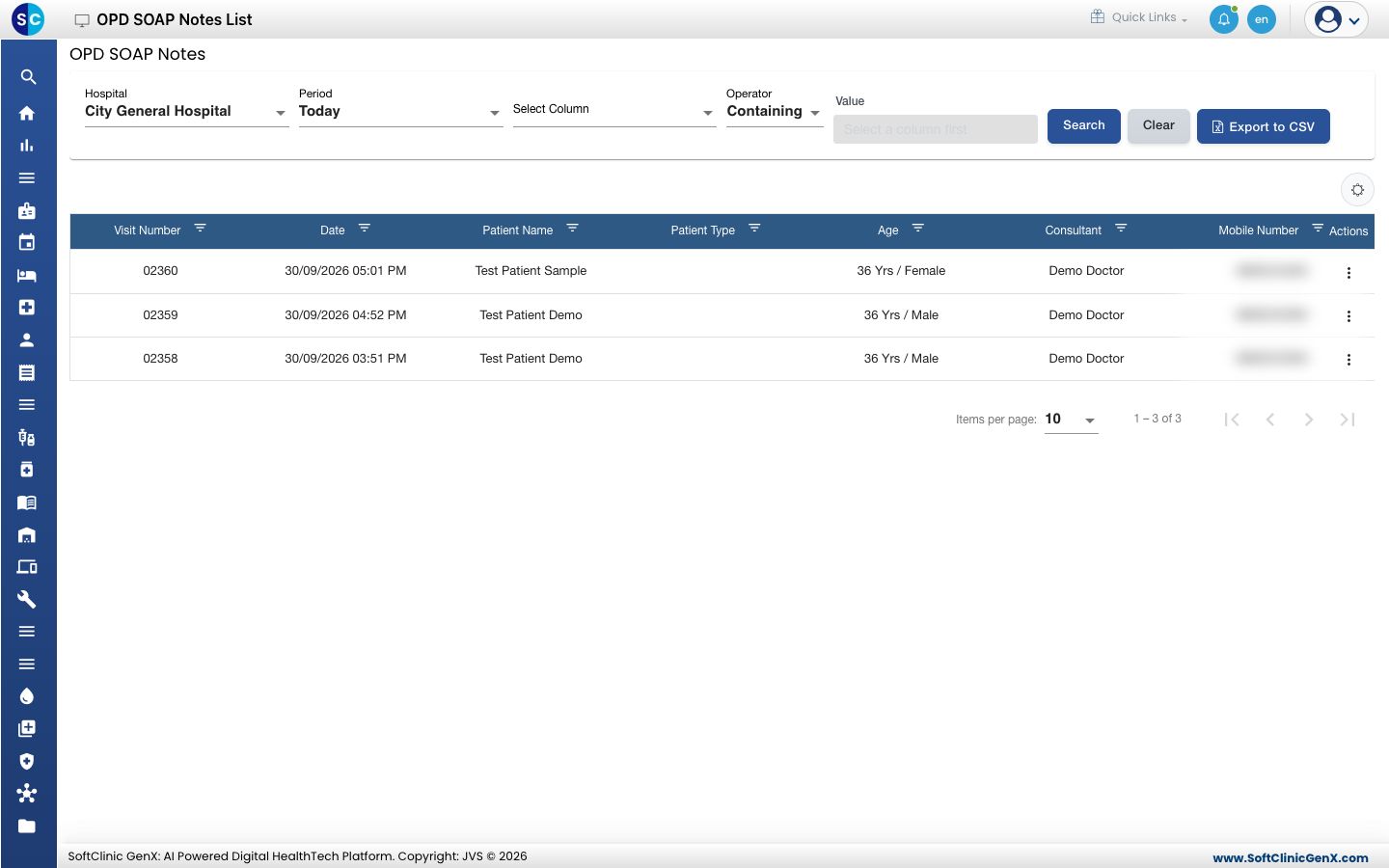
- Choose the Period, for example Last Year, or choose Select to enter a From Date and To Date.
- To search for one patient, choose Patient Name in Select Column, leave Operator as Containing, type the name in Value, and click Search.
- Click the three dots at the end of the row.
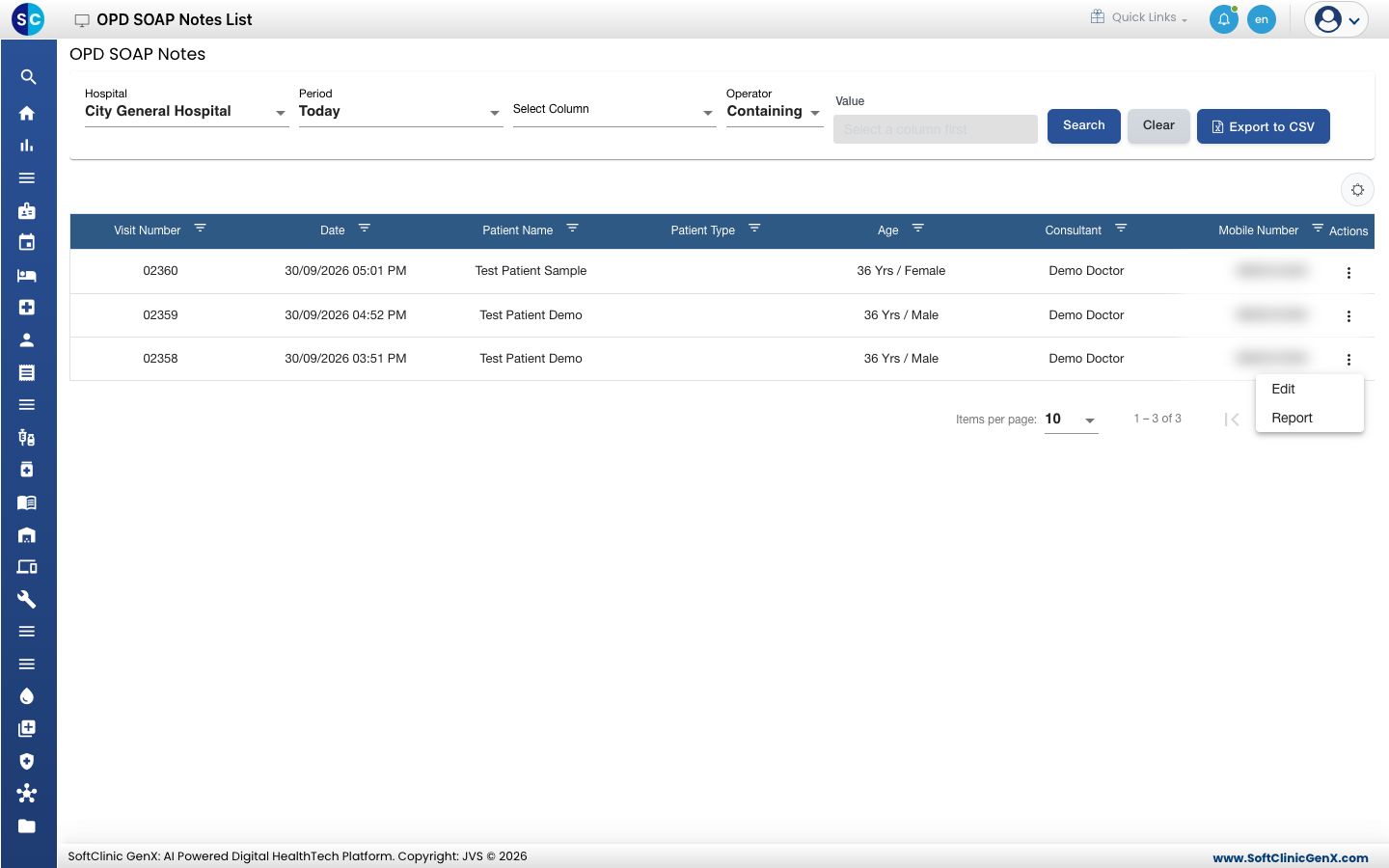
- Choose Edit to open the note. Choose Report to open the patient's reports.
Export to CSV downloads the list. The gear icon above the list lets you add columns such as Final Diagnosis and Medication.
Good to know
- Allergies and history carry over to every visit by themselves. You do not copy them.
- A signed note cannot be changed. See Save, sign and print a SOAP note.
- For in-patient notes, use SOAP Note List under Views.
Troubleshooting
| What you see | What it means | What to do |
|---|---|---|
| No Records on PREVIOUS PRESCRIPTION | This is the patient's first visit with a note. | Nothing to do. |
| The list has no notes | Period is Today and the note is older. | Choose a longer Period and click Search. |
| The sections still show No Records after Load Previous Visit | The screen has not refreshed yet. | Close the note and open it again from the Doctor Dashboard. Do not click the button a second time. |
| Value is greyed out | No column is chosen. | Choose a column in Select Column first. |
Related
- Use a template in a SOAP note: fill a note from a saved template instead.
- Save, sign and print a SOAP note: print an earlier prescription again.
- Doctor Work Bench (EMR) FAQs: common questions about the list.