Write a prescription
Add medicines to the SOAP note with strength, frequency and duration, then sign them so that they print on the prescription.
You prescribe medicines in the Medications section of the SOAP note. Each medicine is one line with its form, strength, frequency and duration. Signing the lines sends them to the prescription.
Who can do this: doctors
Where: Doctor Work Bench › Doctor Dashboard › row menu › Start Consultation › Medications
Before you start
- Open the patient's SOAP note. See Start a consultation from the Doctor Dashboard.
- The medicine must be in the hospital's item list. See Set up Item.
- The frequencies you use must exist. See Set up Frequency.
Add a medicine
-
Click the Medications card. The MEDICATION section opens on the New Order tab.
-
Type the first letters of the medicine in the Search box and pick it from the list. The list shows the stock as Qty. Medicines you have prescribed before are highlighted.
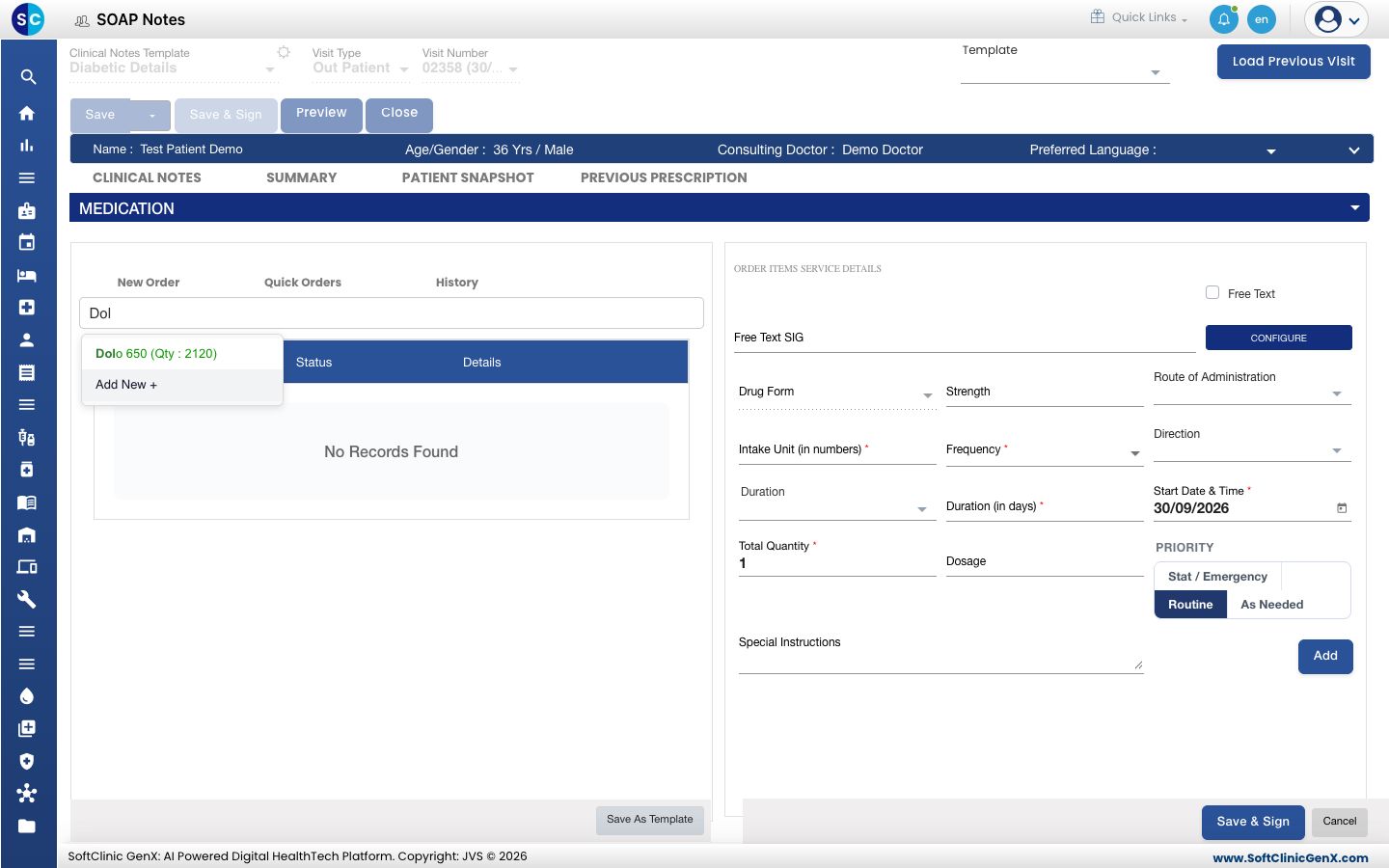
-
Fill in the details on the right.
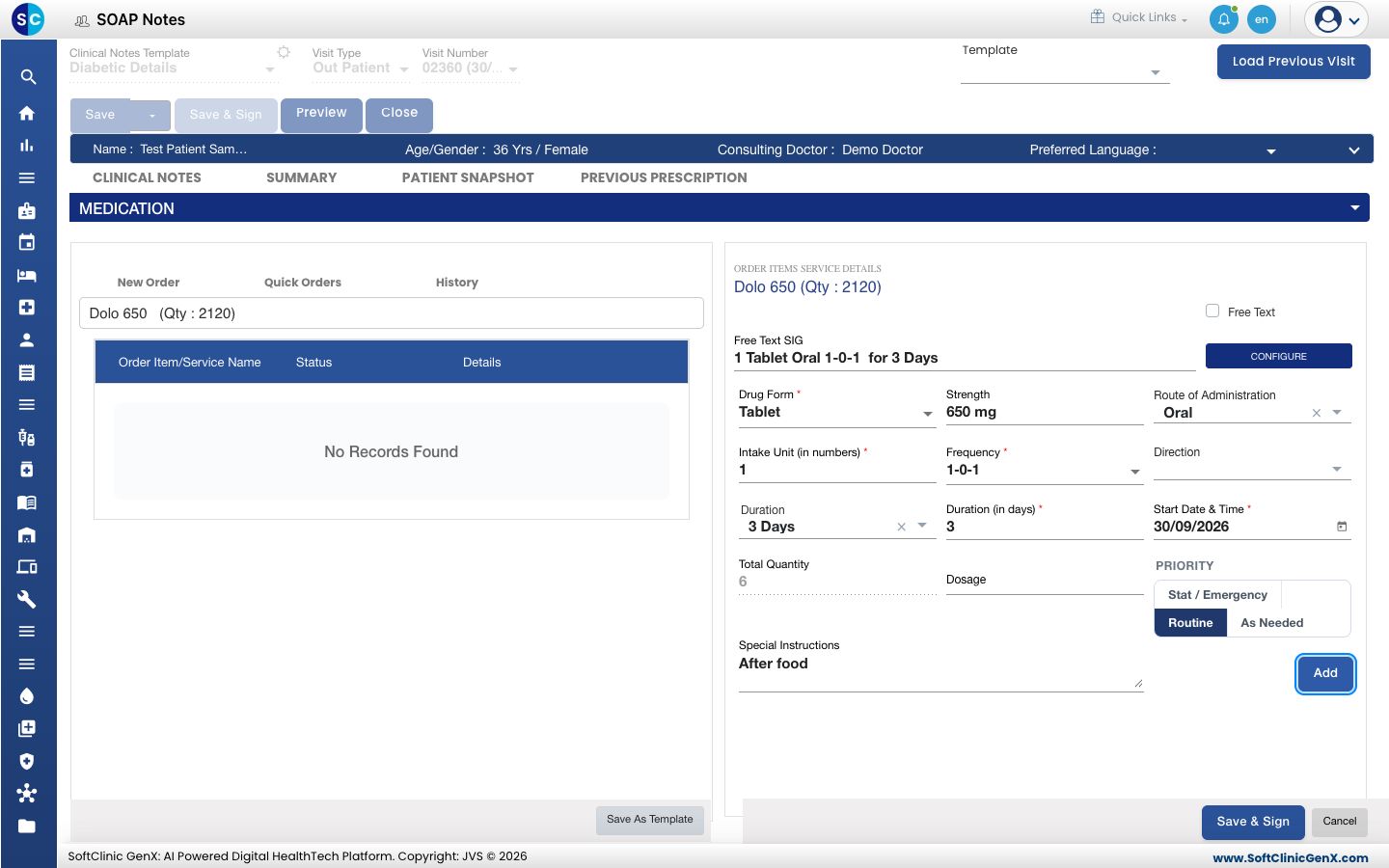
Field What to enter Required Drug Form Tablet, syrup and so on. It fills in from the medicine. Yes Strength The strength, for example 650 mg.Yes Route of Administration How the medicine is taken, for example Oral. No Intake Unit (in numbers) How many units the patient takes each time. Yes Frequency The dose pattern, for example 1-0-1. Yes Direction When to take it, if your hospital uses directions. No Duration The length of the course, for example 3 Days. It fills Duration (in days). No Duration (in days) The number of days. Yes Start Date & Time The first day of the course. It starts as today. Yes Total Quantity Worked out from the frequency and the days for tablets and capsules. Yes PRIORITY Stat / Emergency, Routine or As Needed. No Special Instructions A note for the patient, for example After food.No -
Read Free Text SIG. It shows the line as the patient will read it, for example
1 Tablet Oral 1-0-1 for 3 Days. -
Click Add. The medicine moves to the list on the left with the status Pending.
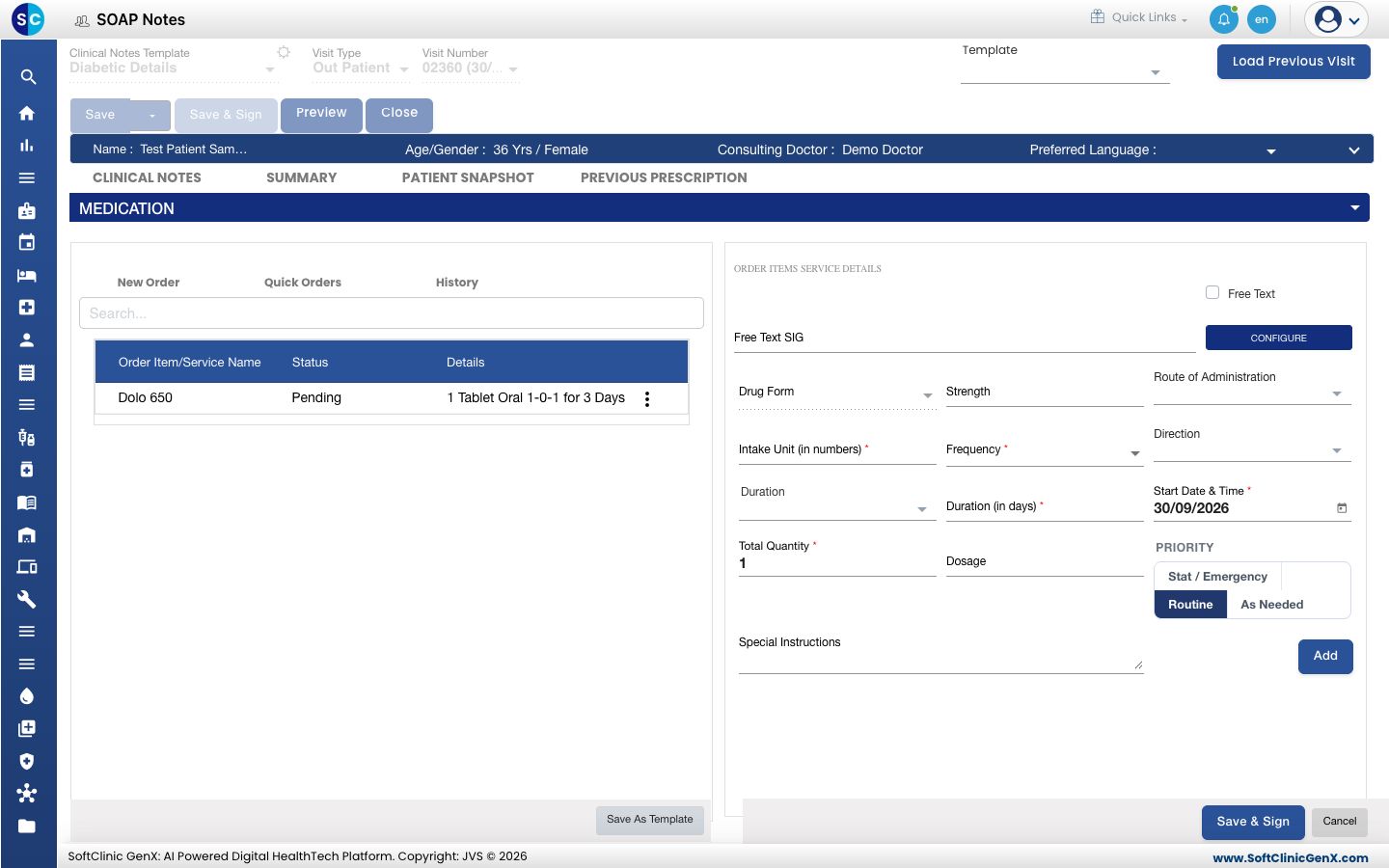
-
Repeat for each medicine.
-
Click Save & Sign at the bottom of the section. The Medications card now shows each medicine as Signed.
For a medicine that is not in the list, tick Free Text and type the name yourself.
Change or remove a medicine
- Click the three dots at the end of the line.
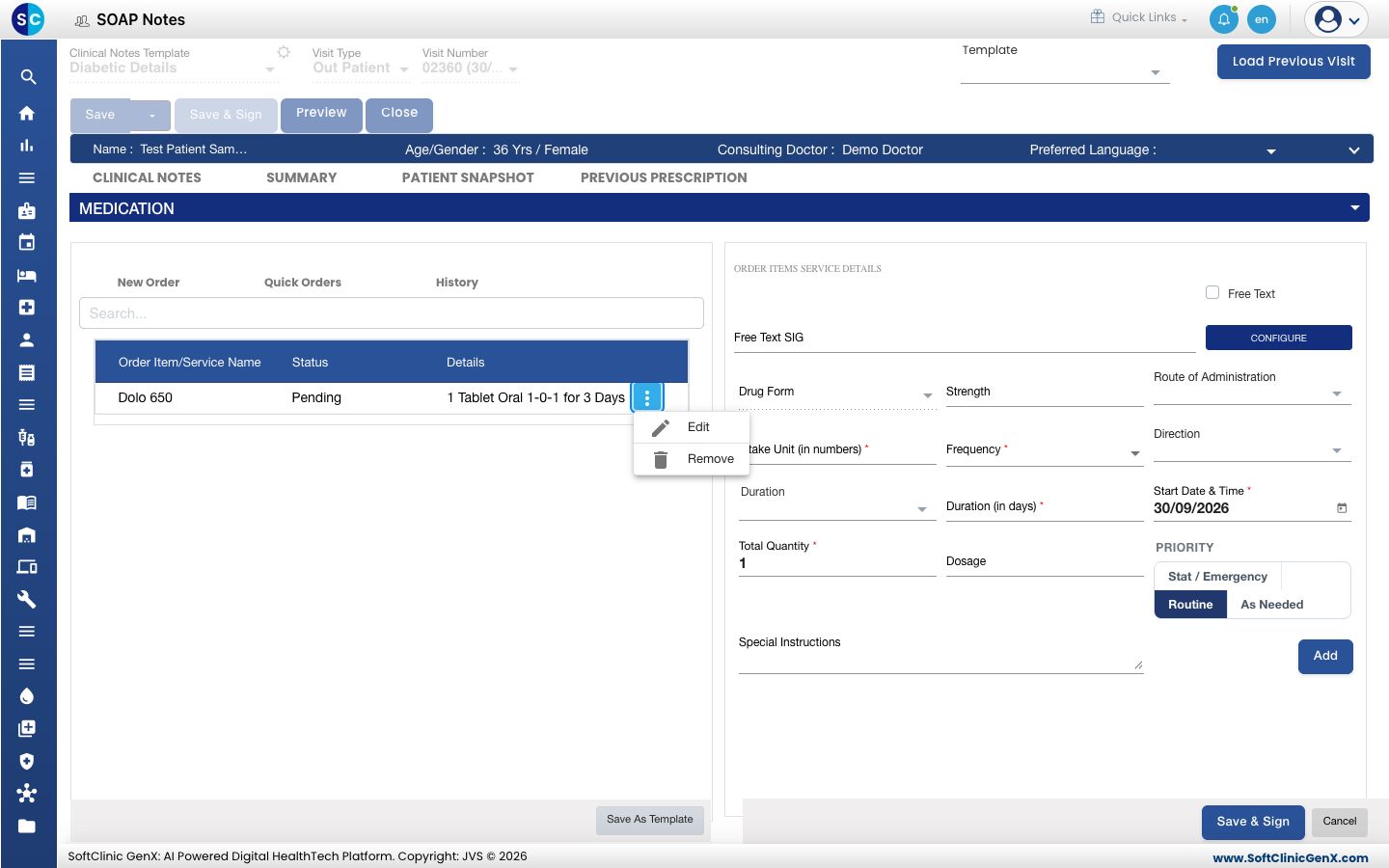
- Choose Edit to open the line again, change it and click Add. Choose Remove to delete it.
Reuse earlier medicines
- Quick Orders: your saved medicine sets, under Medication and Templates.
- History: the medicines of the Current Visit, All Visits or the Active ones.
- Save As Template: keeps the medicines in the list as a set you can use again.
Troubleshooting
| What you see | What it means | What to do |
|---|---|---|
| please select Order Item first | A required field is empty. Most often it is Strength or Frequency. | Fill every field marked with a star, and Strength, then click Add. |
| You have already added this item | The medicine is already in the list. | Edit the existing line instead. |
| The medicine is not in the search list | It is not in the hospital's item list. | Tick Free Text, or ask the pharmacy to add it. See Set up Item. |
| The frequency you want is not in the list | It has not been created. | See Set up Frequency. |
The line reads 1-0-1 for with nothing after it | Duration is empty. | Edit the line and choose a Duration, for example 3 Days. |
Related
- Save, sign and print a SOAP note: print the prescription for the patient.
- Order lab tests, radiology and services: order investigations from the same note.
- Use a template in a SOAP note: fill a note from a saved template.
- Doctor Work Bench (EMR) FAQs: common questions about orders.