Use a template in a SOAP note
Pick the set of sections for a consultation, and fill a note in one step from a template you saved from an earlier visit.
The SOAP note has two kinds of template. Clinical Notes Template decides which sections the note has. Template holds content you saved from an earlier note, such as the complaints, diagnosis and orders for a common condition, and fills them in for you.
note
Who can do this: doctors
Where: Doctor Work Bench › Doctor Dashboard › row menu › Start Consultation, then the top row of the SOAP note
Before you start
- Open the patient's SOAP note. See Start a consultation from the Doctor Dashboard.
- The templates in Clinical Notes Template are created by your administrator. See Set up SOAP Note Template.
Choose the sections for the note
- Open Clinical Notes Template at the top left of the SOAP note.
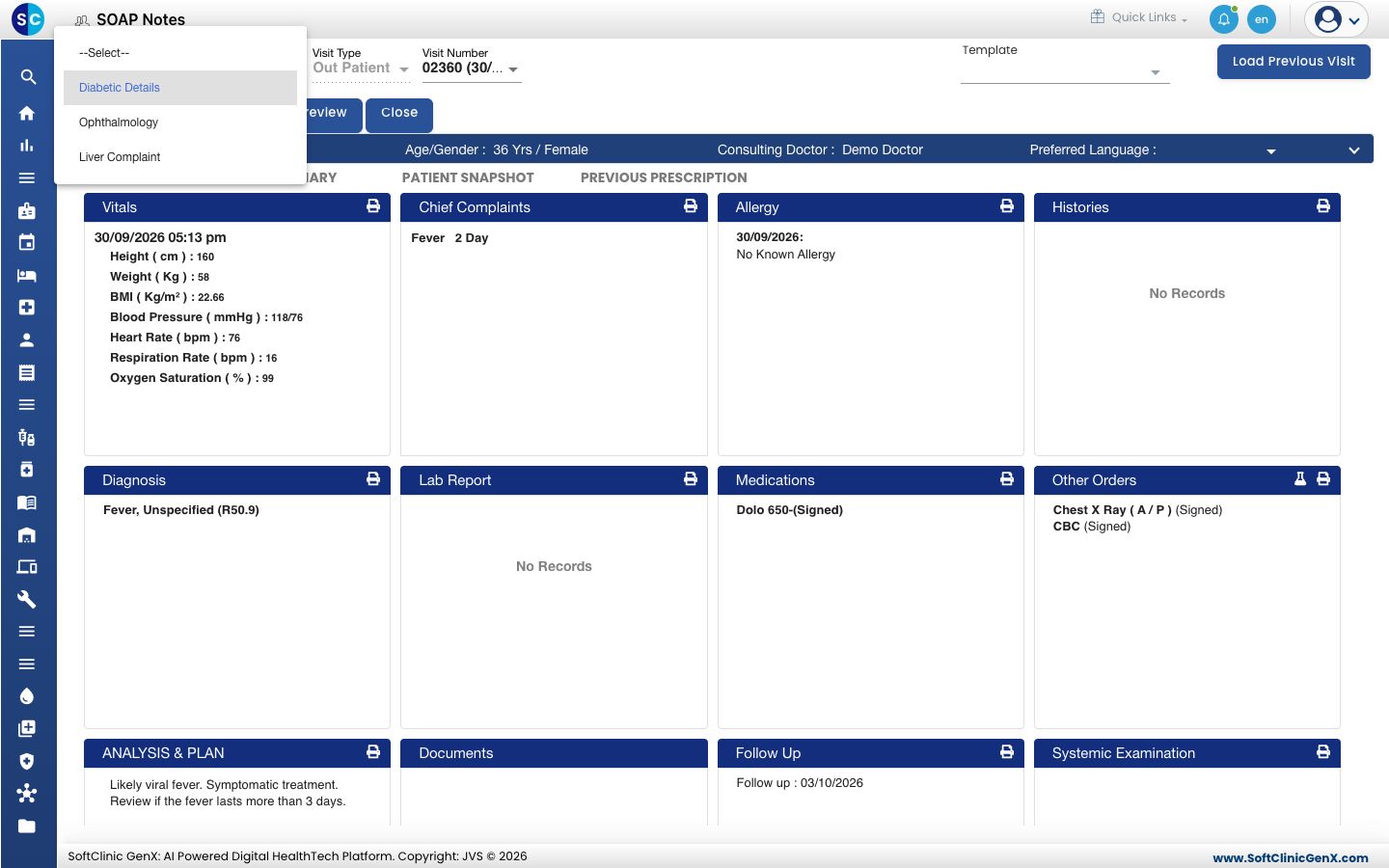
- Choose a template. The cards change to the sections of that template.
- Click the arrow next to Save and choose Save Soap Notes to keep the choice for this visit.
Save a note as a template
Do this on a note that already holds what you want to reuse.
- Record the chief complaints, diagnosis, analysis and plan, medicines and orders.
- Click the Template box at the top right and type a name, for example
Viral Fever. - Click Add item under the box, or press Enter. You see Record saved successfully.
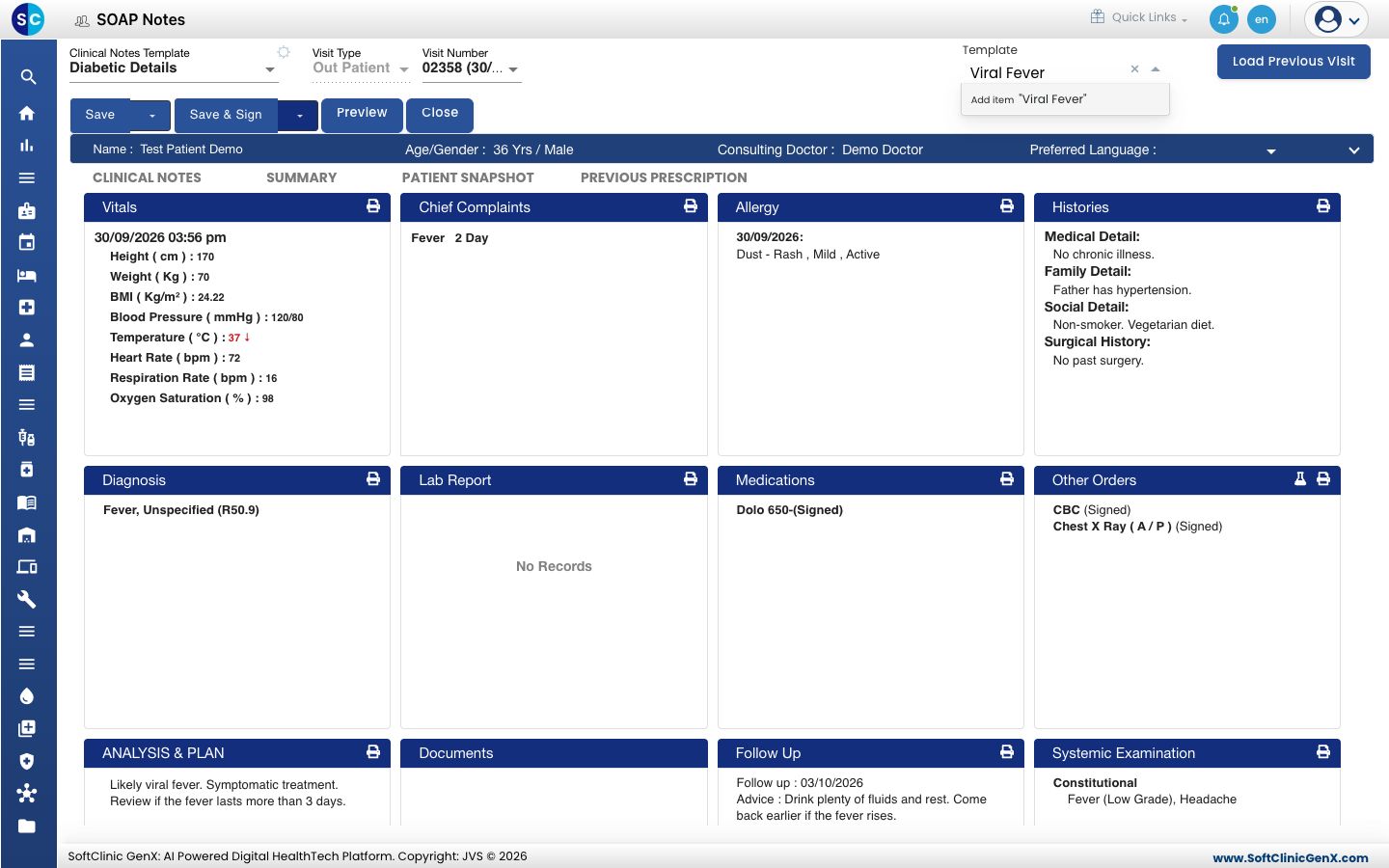
- Click Cancel in the window that opens. The template is saved.
Fill a note from a saved template
- Click the Template box and choose the template.
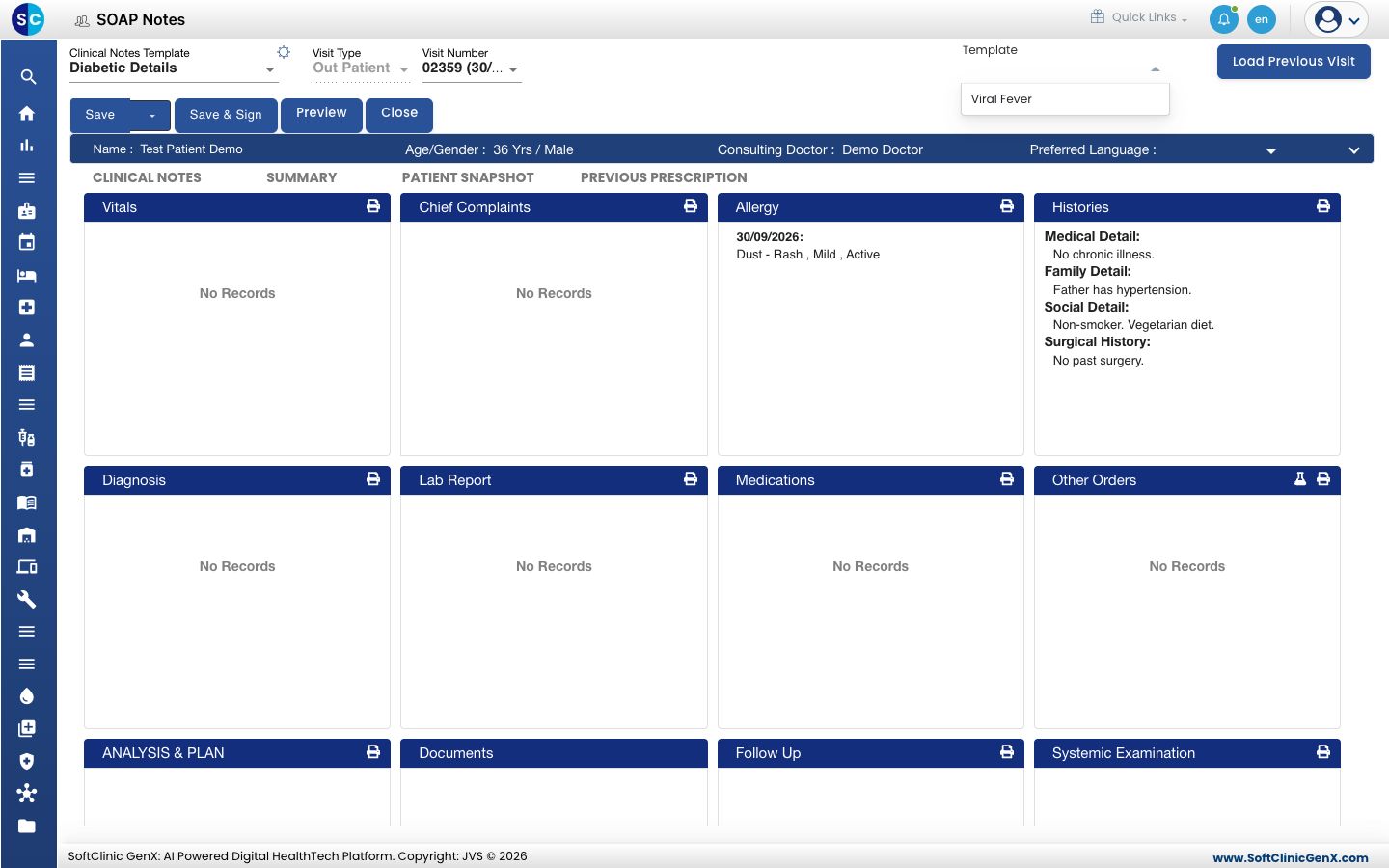
- Read the preview. It lists the chief complaints, diagnosis, analysis and plan, medicines and orders in the template.
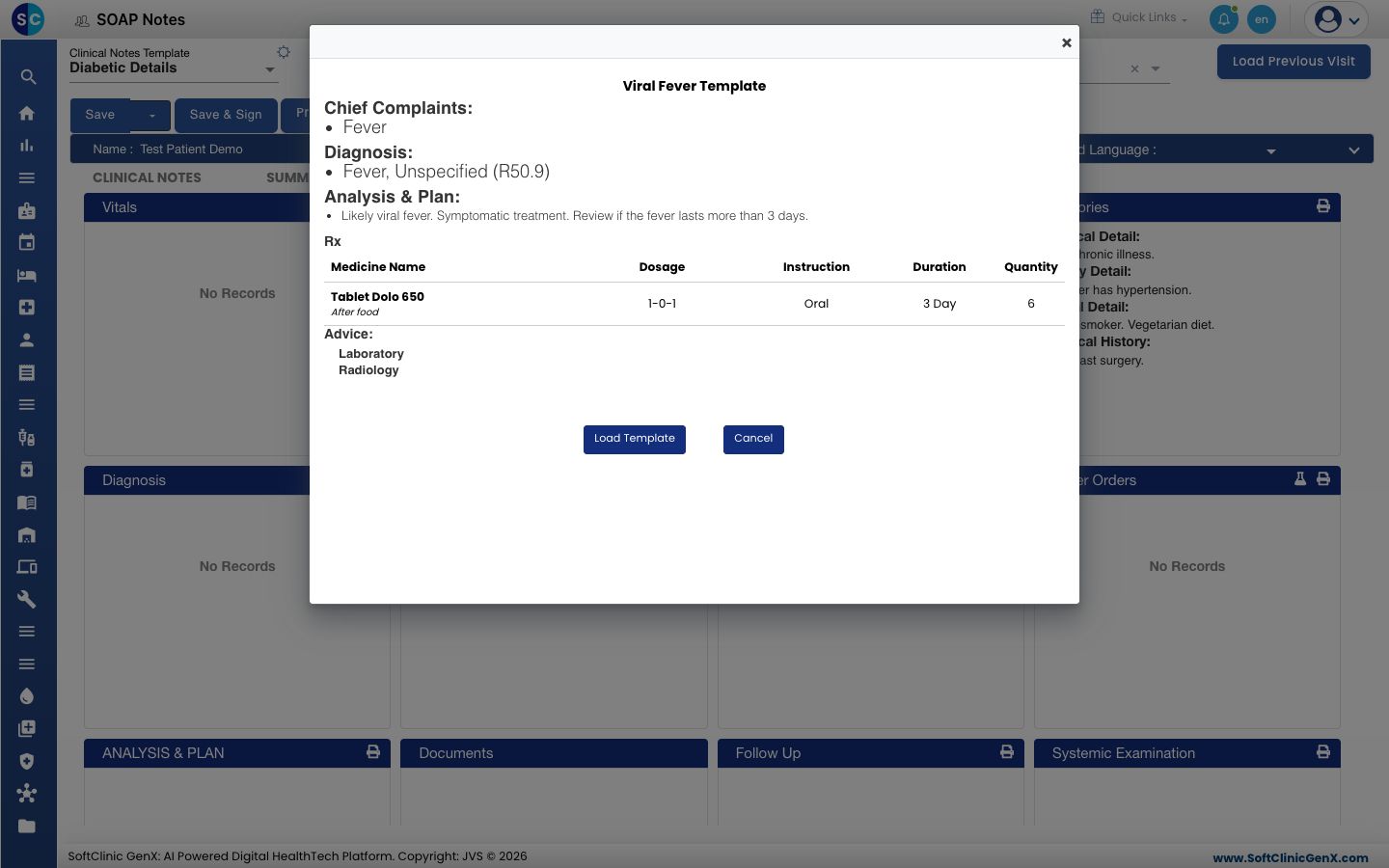
- Click Load Template. The sections of the note fill in.
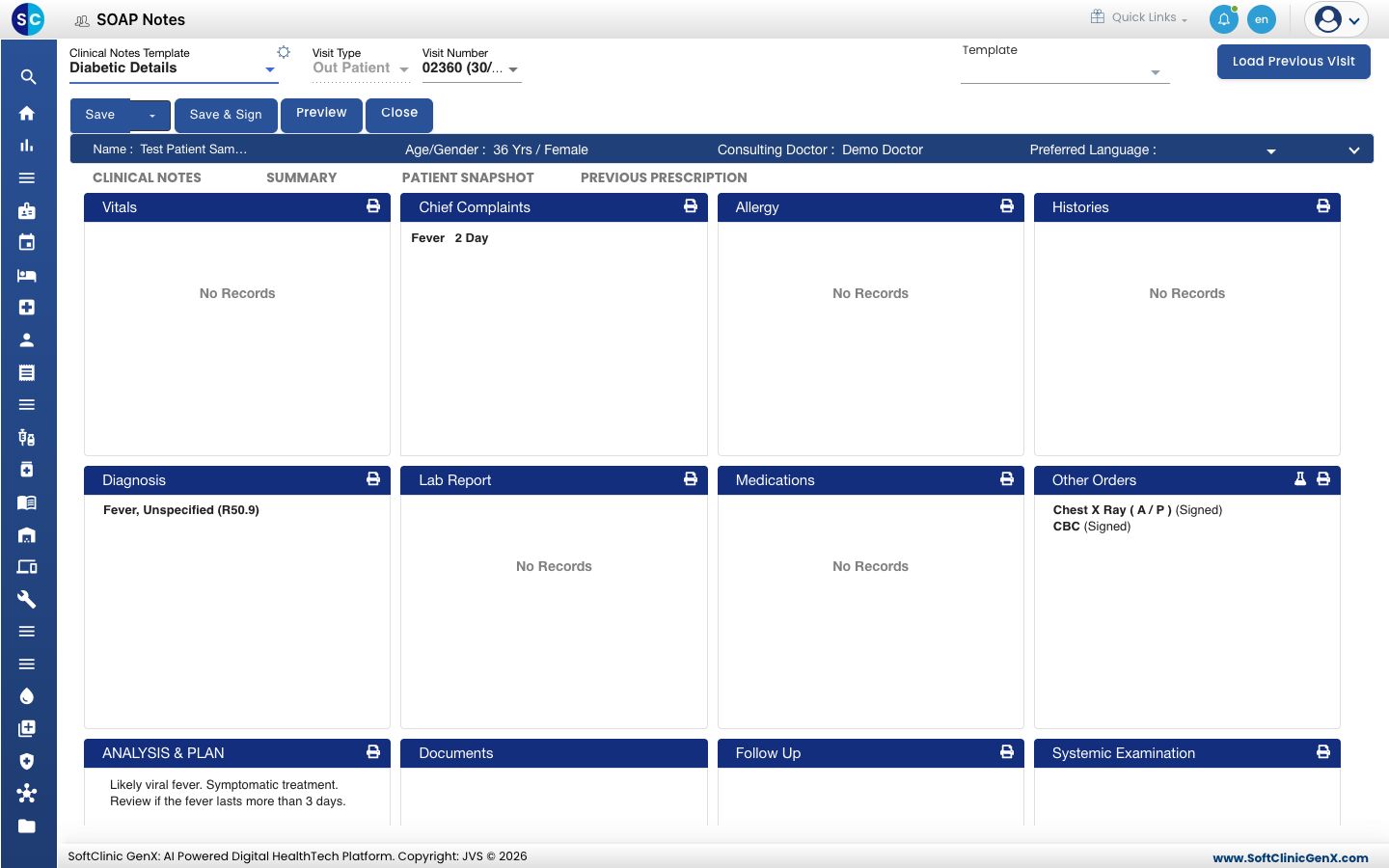
- Open each section and adjust it for this patient. Add anything the template did not bring, such as the medicines, vitals and the follow-up.
Good to know
- A saved template holds chief complaints, problems, diagnosis, analysis and plan, medicines and other orders. It does not hold vitals, allergies or history.
- Orders that come from a template are added as signed orders. Load a template only when the patient needs those tests.
- To copy the last visit of the same patient instead, use Load Previous Visit. See View a patient's previous visits.
Troubleshooting
| What you see | What it means | What to do |
|---|---|---|
| Clinical Notes Template has no template you need | It has not been created, or it is not set for outpatient visits. | See Set up SOAP Note Template. |
| The sections change back when you reopen the note | The template choice was not saved. | Choose the template, then click the arrow next to Save and choose Save Soap Notes. |
| A section stays empty after Load Template | The template had nothing for that section, or the section has not refreshed yet. | Close the note and open it again. Then add what is missing. |
Related
- Set up SOAP Note Template: create the templates that set the sections.
- Set up Template Section: create your own sections.
- View a patient's previous visits: copy from the last visit.
- Doctor Work Bench (EMR) FAQs: common questions about templates.