Start a consultation from the Doctor Dashboard
Find your patient in the day's list and open the SOAP note to begin the OPD consultation.
The Doctor Dashboard lists the patients booked with you for the day. From a patient's row you open the SOAP note, the screen where you record the whole consultation: vitals, complaints, diagnosis, medicines and orders.
note
Who can do this: doctors
Where: Doctor Work Bench › Doctor Dashboard
Before you start
- The patient needs an appointment with you for today. See Book a walk-in appointment or Mark a patient as arrived.
- Your hospital needs at least one SOAP note template for outpatient visits. See Set up SOAP Note Template.
Find the patient
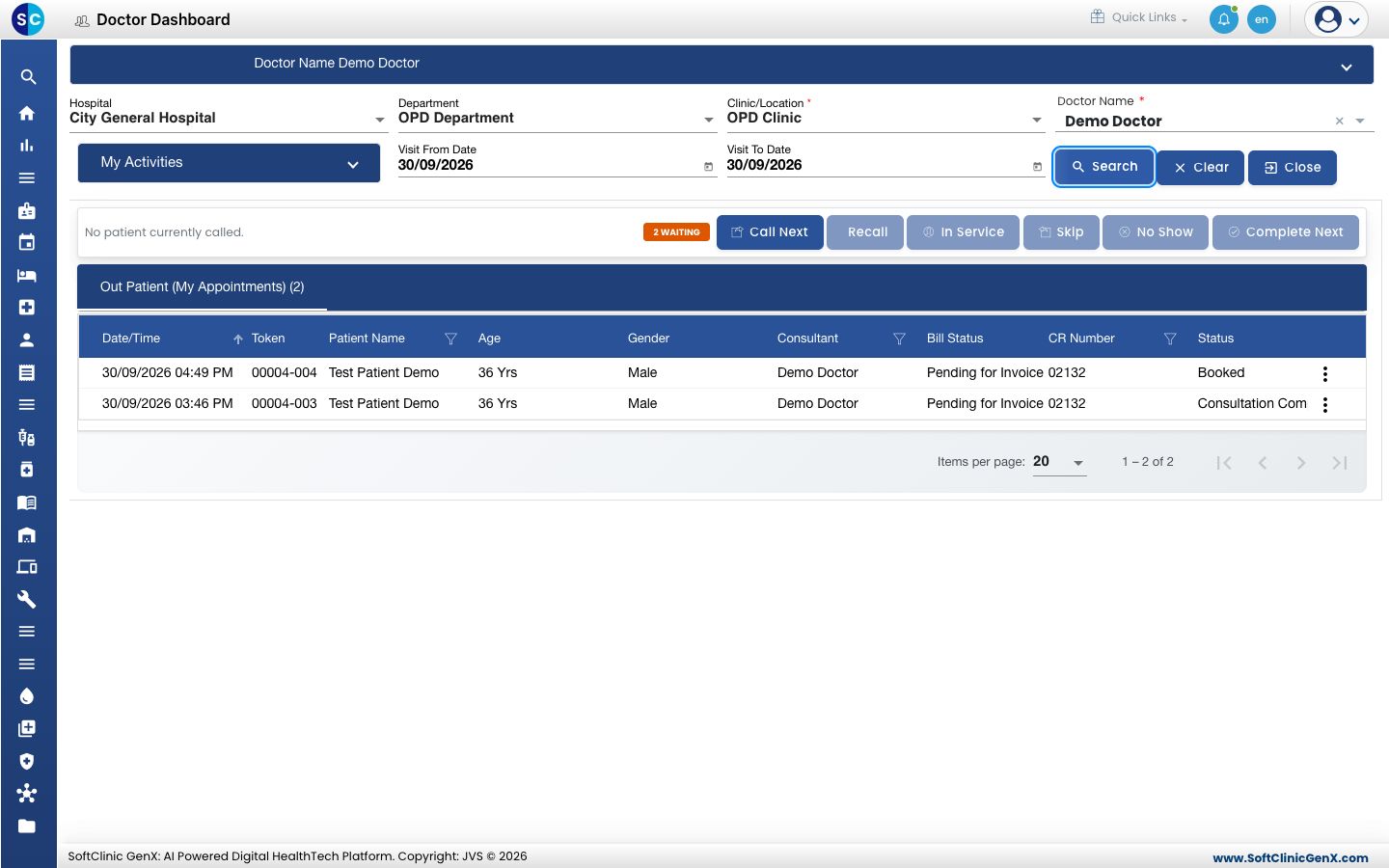
- Go to Doctor Work Bench › Doctor Dashboard.
- Choose the Department and the Clinic/Location. Doctor Name shows your own name.
- Check Visit From Date and Visit To Date. Both start as today.
- Click Search. Your patients appear under Out Patient (My Appointments) with the token, the bill status and the visit Status.
Open the SOAP note
- Click the three dots at the end of the patient's row.
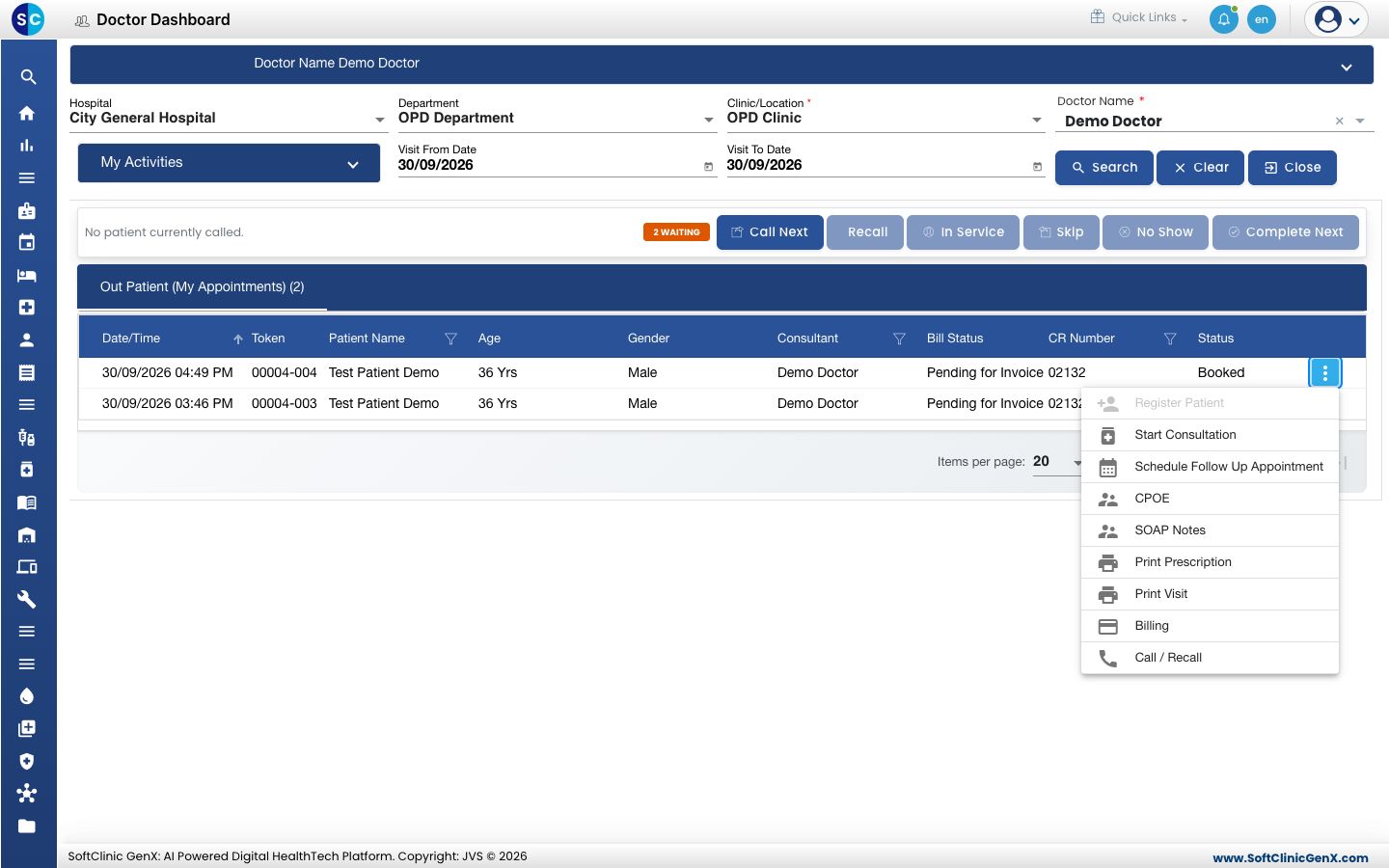
- Choose Start Consultation. The SOAP Notes screen opens for that visit.
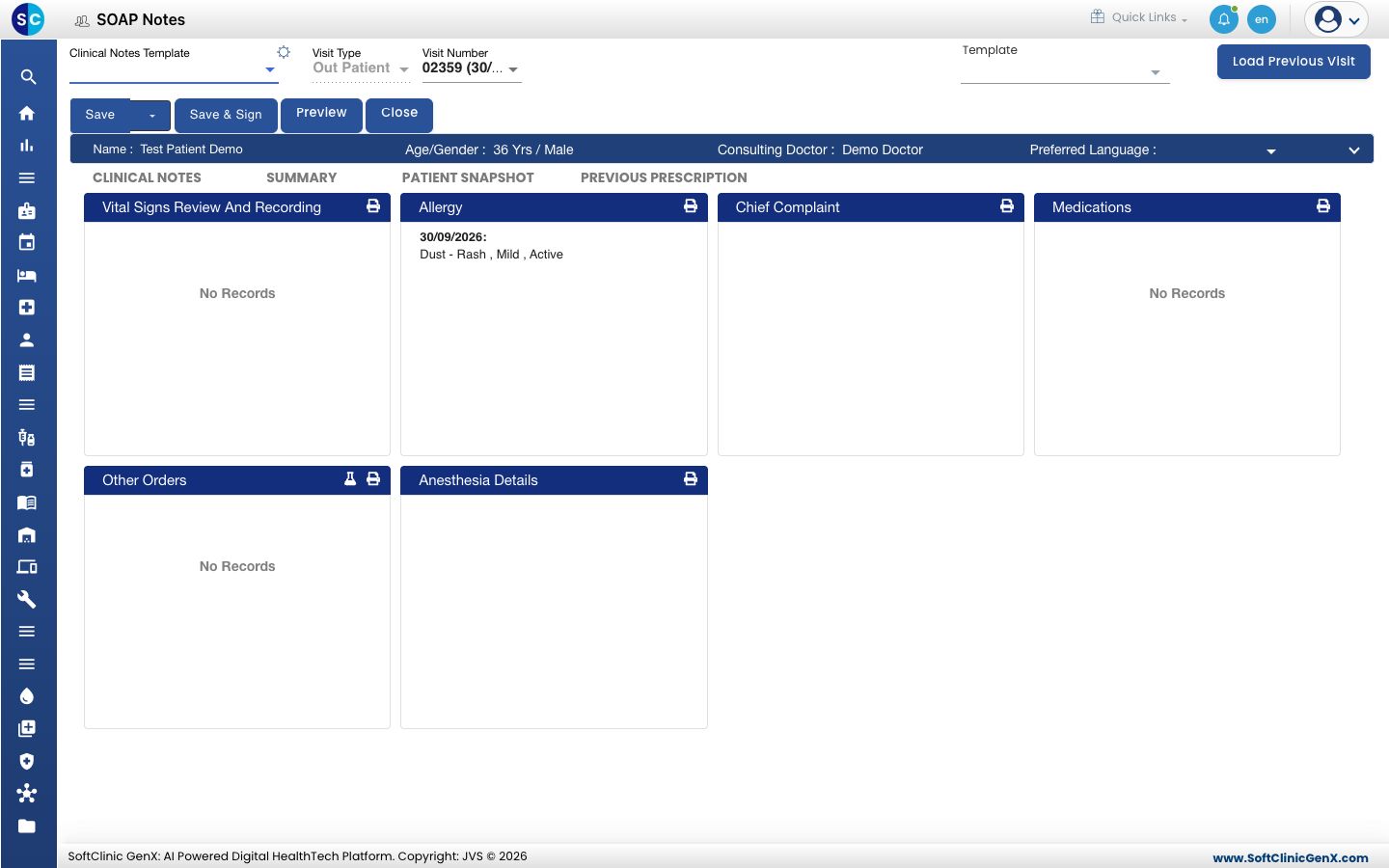
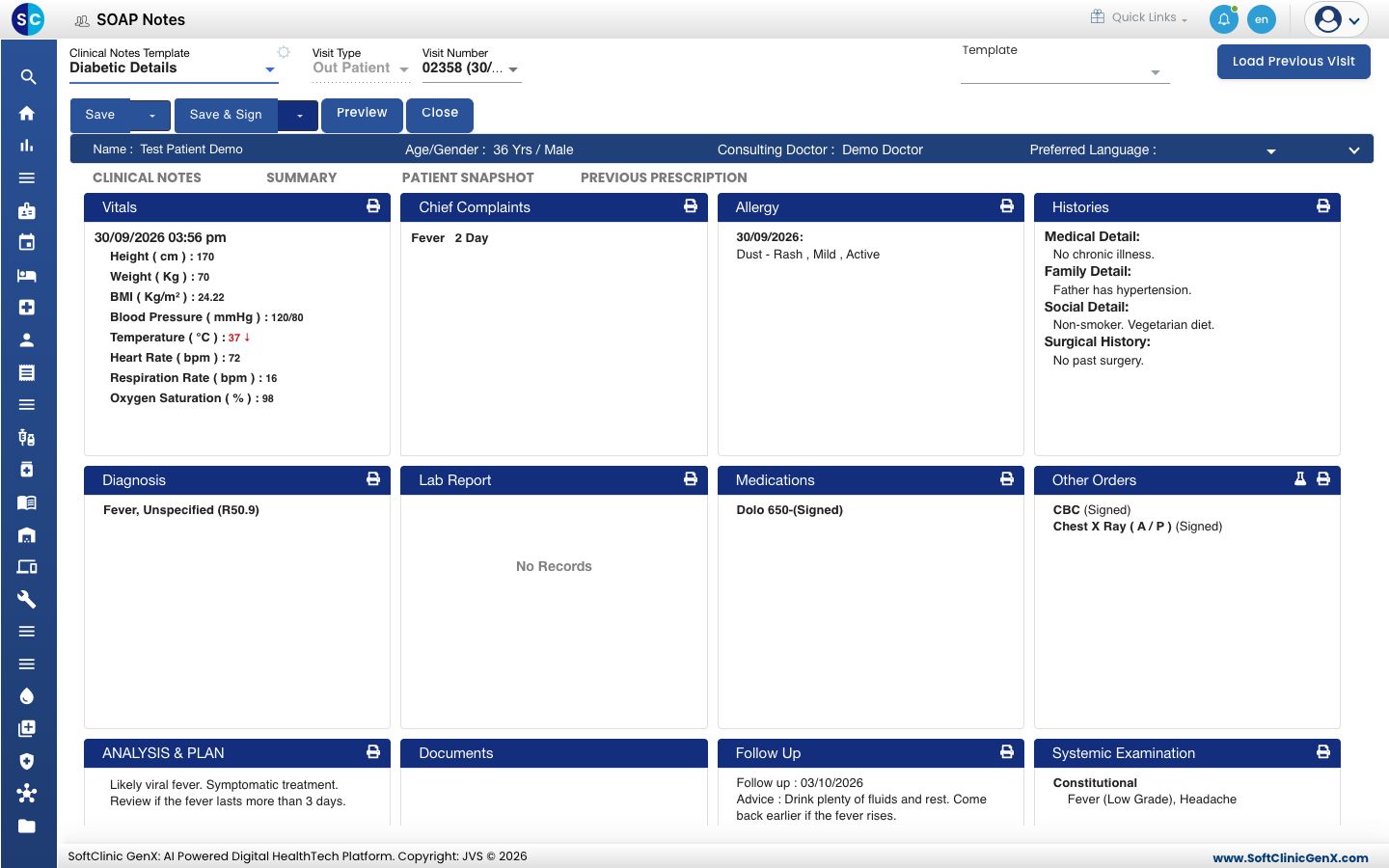
- Open Clinical Notes Template and choose the template you want to work with. The sections on the screen change to the ones in that template. See Use a template in a SOAP note.
To go back to a note you already started, choose SOAP Notes from the same row menu.
Find your way around the SOAP note
- Patient bar: the patient's name, age and gender, and the consulting doctor.
- CLINICAL NOTES: one card per section, such as Vitals, Chief Complaints, Diagnosis and Medications. Each card shows what is already recorded.
- SUMMARY: the whole note on one page, as it prints.
- PATIENT SNAPSHOT and PREVIOUS PRESCRIPTION: the patient's earlier visits. See View a patient's previous visits.
- Save, Save & Sign, Preview and Close: the buttons for the whole note. See Save, sign and print a SOAP note.
Click a card to open that section on the right. Enter the details, then click Save & Next to save the section and move to the next one, or Close to leave it. While a section is open, Save and Save & Sign are greyed out.
tip
The printer icon on a card prints that one section.
Troubleshooting
| What you see | What it means | What to do |
|---|---|---|
| No Records Found in the list | No clinic is chosen, or the dates or the doctor do not match the booking. | Choose the Department and Clinic/Location, check both dates, then click Search. |
| Appointment is Cancelled | The booking was cancelled, so a consultation cannot start. | Ask the front desk to book the patient again. |
| The note shows only a few sections | No Clinical Notes Template is chosen, so you see the basic sections. | Choose a template in Clinical Notes Template. |
| A section you need is missing | The chosen template does not include it. | Choose another template, or ask your administrator to add the section. See Set up SOAP Note Template. |
Related
- Record a patient's vitals: the first section of most notes.
- Record complaints, history and allergies: what the patient tells you.
- Write a prescription: add medicines with frequency and duration.
- Doctor Work Bench (EMR) FAQs: common questions about the dashboard.