Record examination findings and a diagnosis
Note what you find on examination, add the diagnosis from the coded list, and write your assessment and plan in the SOAP note.
After the patient's complaints, you record what you find and what you conclude. In the SOAP note this is the examination section, the Diagnosis section and ANALYSIS & PLAN.
Who can do this: doctors
Where: Doctor Work Bench › Doctor Dashboard › row menu › Start Consultation › the examination section, Diagnosis or ANALYSIS & PLAN
Before you start
- Open the patient's SOAP note and choose a template that has these sections. See Start a consultation from the Doctor Dashboard.
- Diagnoses come from the hospital's diagnosis list. See Set up Diagnosis.
Record the examination
Examination sections are built by your hospital, so their names and questions differ from one template to another. This example uses a section named Systemic Examination.
- Click the examination card, for example Systemic Examination.
- Click each finding that applies. A chosen finding turns blue.
- If more choices appear under a finding, click the one that fits. Fever opens choices such as Low Grade and Moderate.
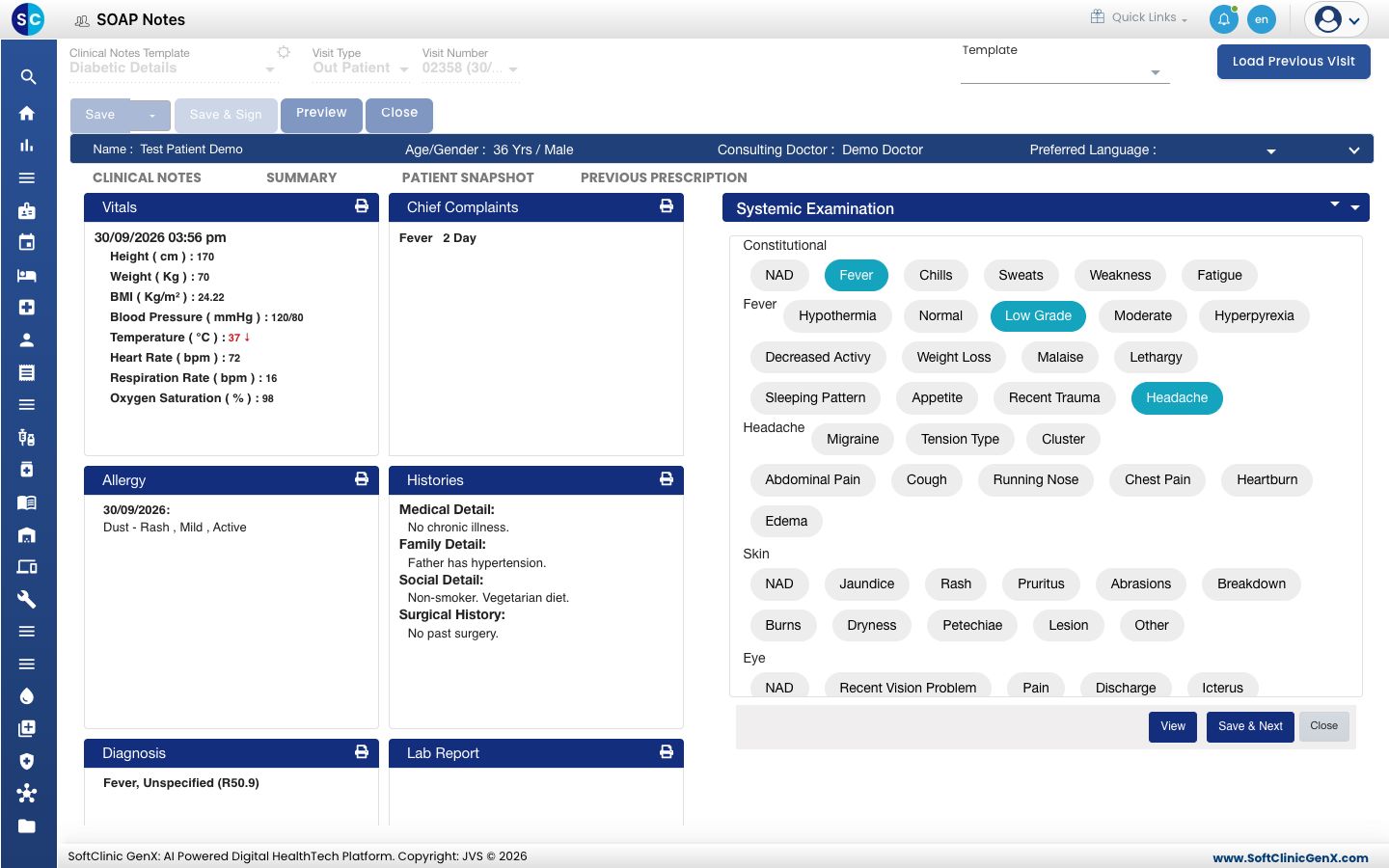
- Click Save & Next. The card shows your findings as a line of text, for example
Fever (Low Grade), Headache.
Add a diagnosis
-
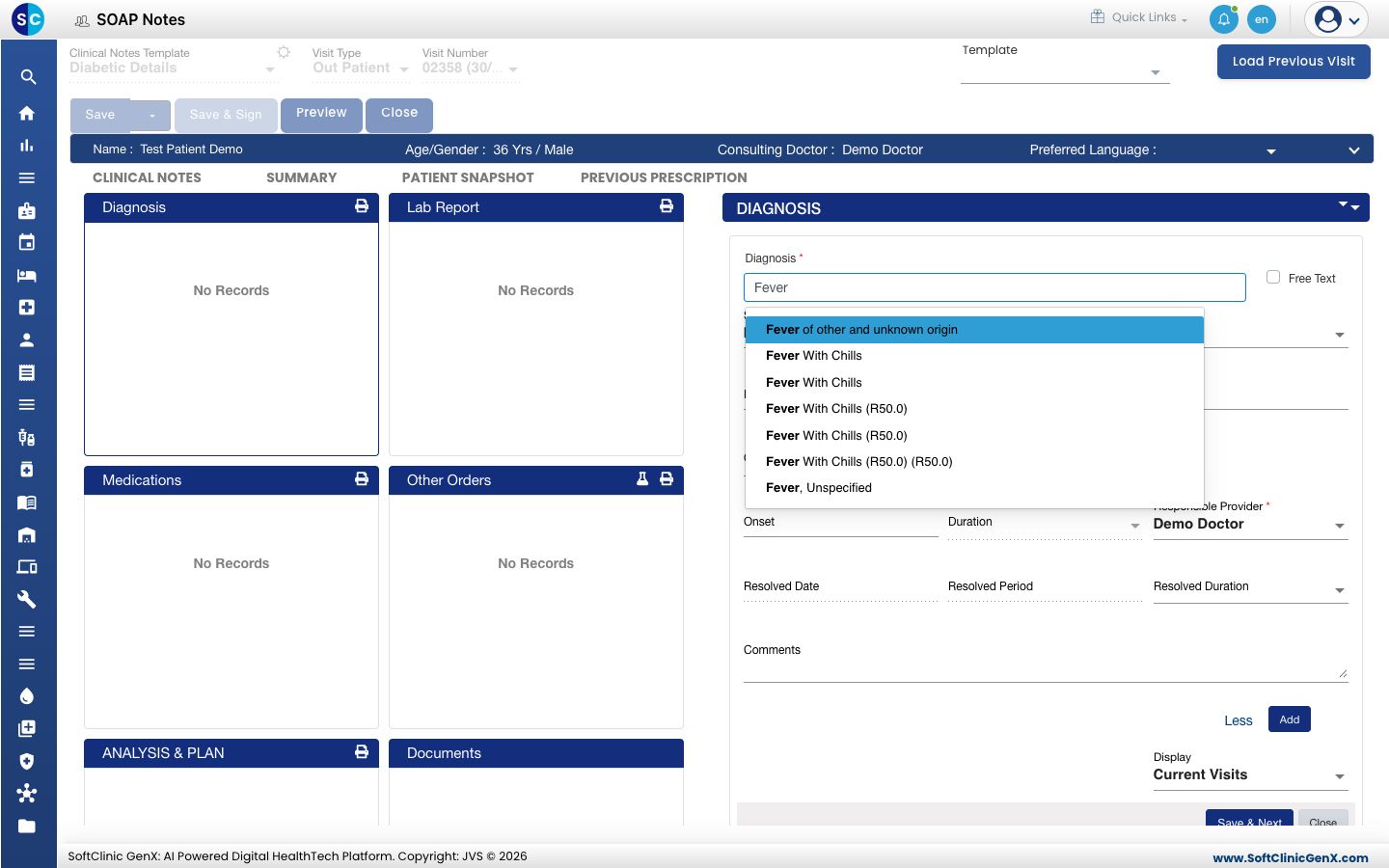
Click the Diagnosis card.
-
Type the first letters in Diagnosis and pick the diagnosis from the list.
-
Check the fields that fill in, and change them if needed.
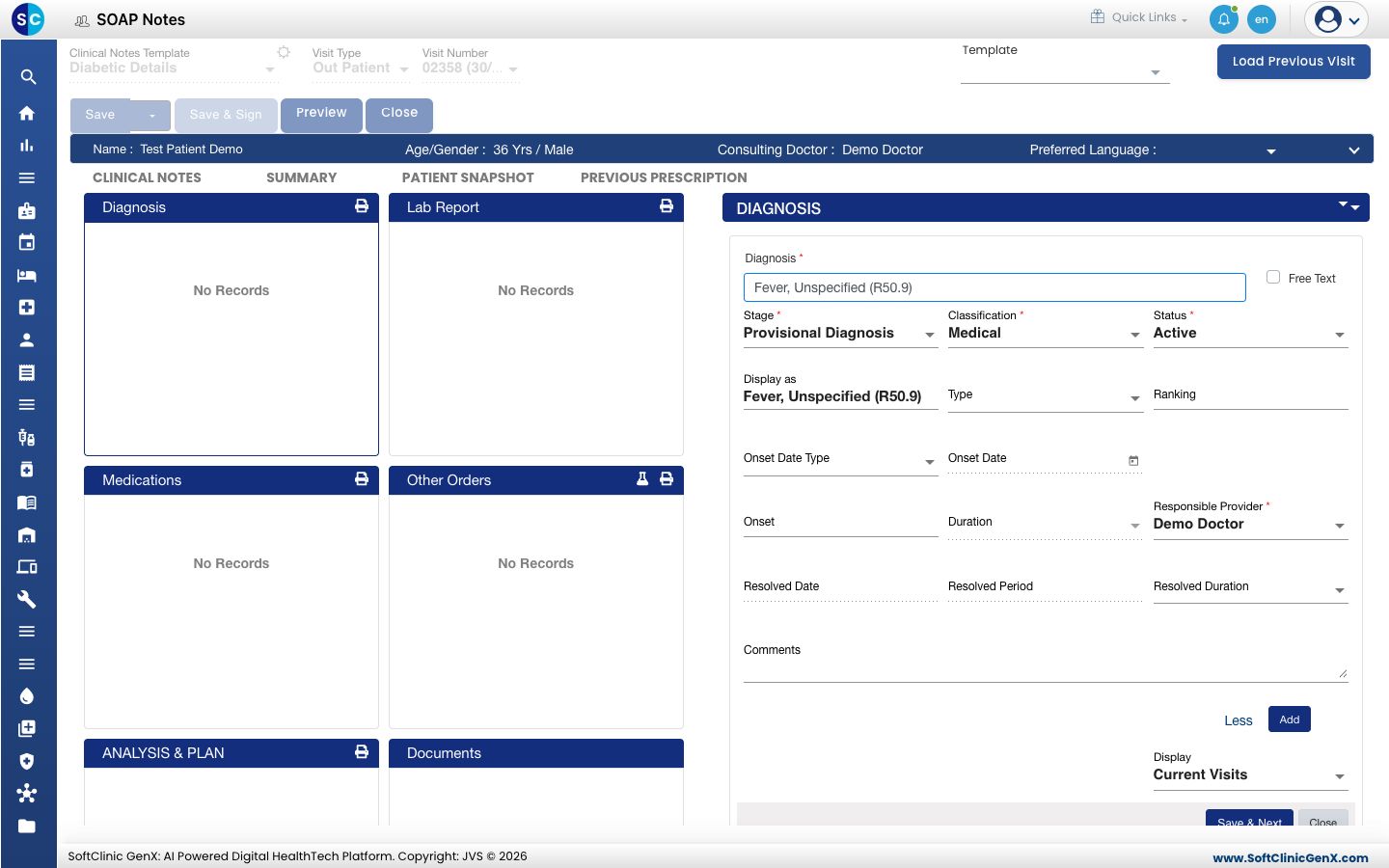
Field What to enter Required Diagnosis The diagnosis from the list. Yes Stage Provisional Diagnosis, Differential Diagnosis or Final Diagnosis. Yes Classification Medical or Patient Stated. Yes Status Active, Resolved, Cancelled or Non-Active. Yes Responsible Provider The doctor responsible. It starts as the consulting doctor. Yes Display as The wording shown on the note. It starts as the diagnosis name. No Onset, Duration, Comments and the rest Extra detail. Click Details to show these fields and Less to hide them. No -
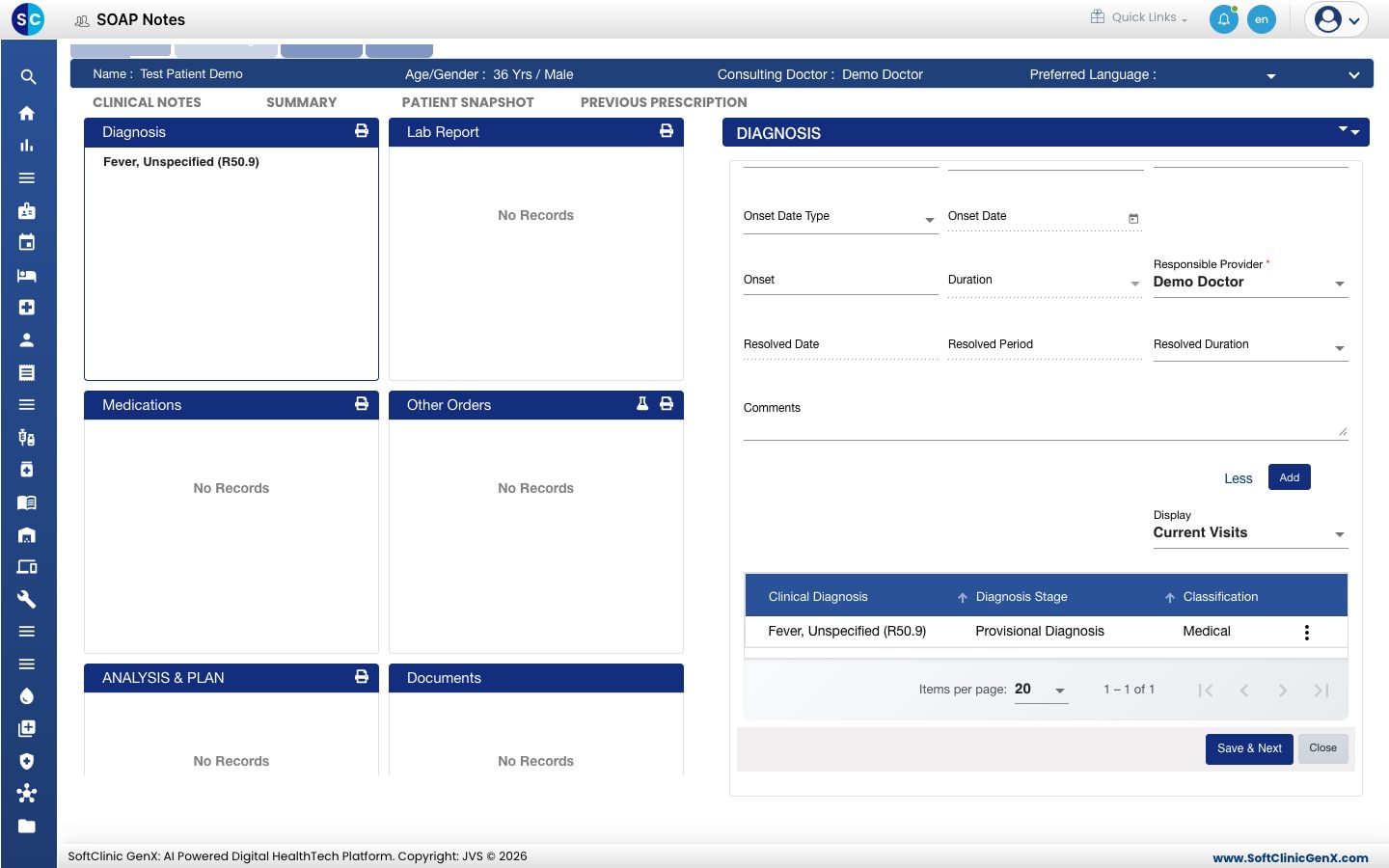
Click Add. You see Record saved successfully and the diagnosis appears in the list below the form.
-
Repeat for each diagnosis, then click Save & Next.
To change a diagnosis, click the three dots on its line. The menu has View, Edit, Resolve Diagnosis, Add to Problem, Repeat and Remove.
For a diagnosis that is not in the list, tick Free Text and type it.
Write the assessment and plan
- Click the ANALYSIS & PLAN card.
- Type your assessment and plan in Details.
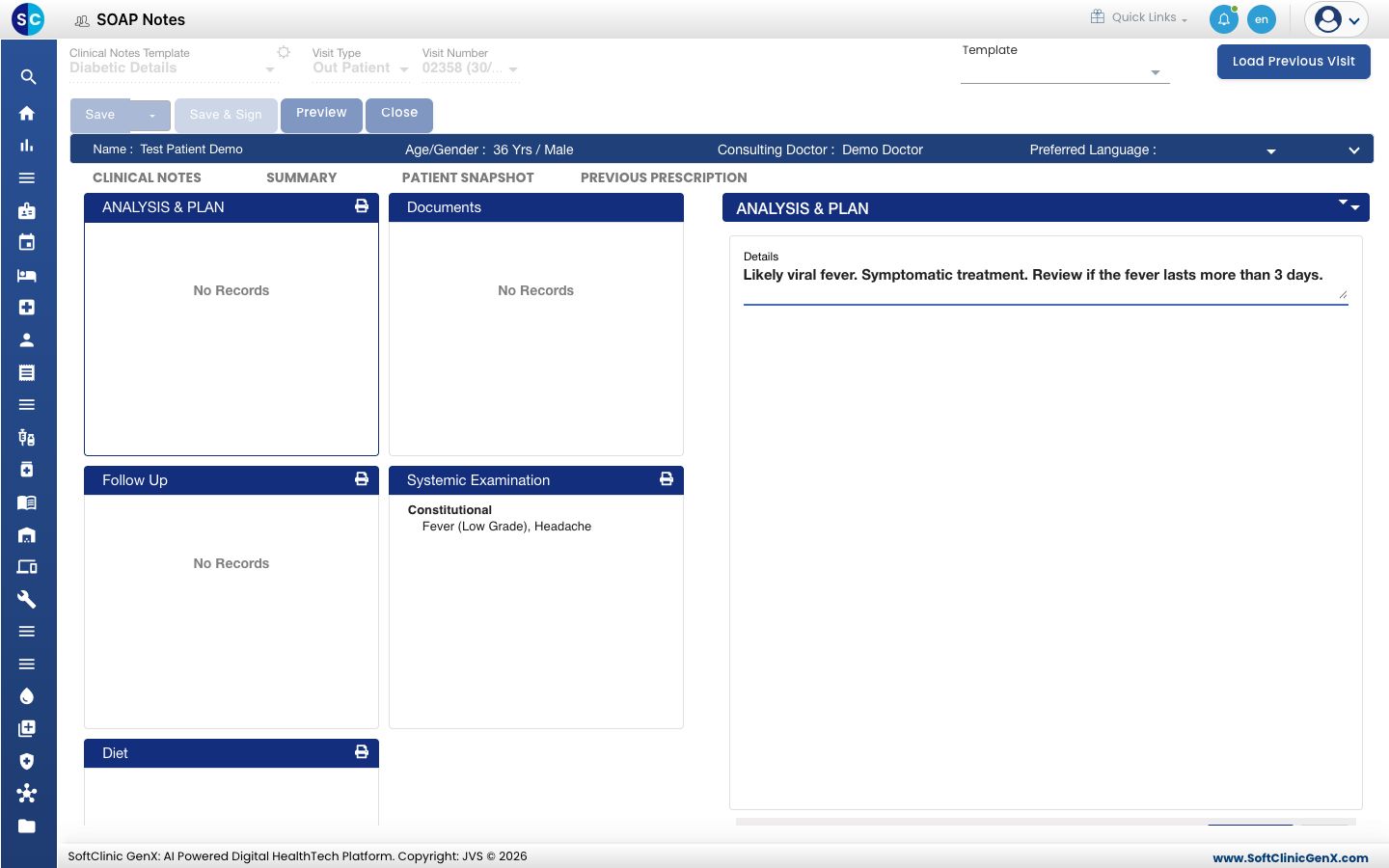
- Click Save & Next.
Troubleshooting
| What you see | What it means | What to do |
|---|---|---|
| The diagnosis is not in the list | It is not in the hospital's diagnosis list. | Tick Free Text, or see Set up Diagnosis. |
| There is no examination section | The chosen template does not include one. | Choose another template. See Use a template in a SOAP note. |
| A finding you need is not among the choices | The question does not have that answer. | Ask your administrator to add it. See Set up SOAP Notes Questionnaires. |
Related
- Record complaints, history and allergies: the part of the note before this one.
- Write a prescription: add the medicines.
- Set up Sentence Builder: how findings turn into text.
- Doctor Work Bench (EMR) FAQs: add a diagnosis to the pick list.