Set up Storage Condition
Who does this: hospital administrator or store manager Where: Inventory Management › Masters › Storage Condition
A storage condition describes how an item must be kept, for example Refrigeration (between 2 to 8 degree Celsius) or Room Temperature. You pick a storage condition on the item record, so store staff know where to keep each item.
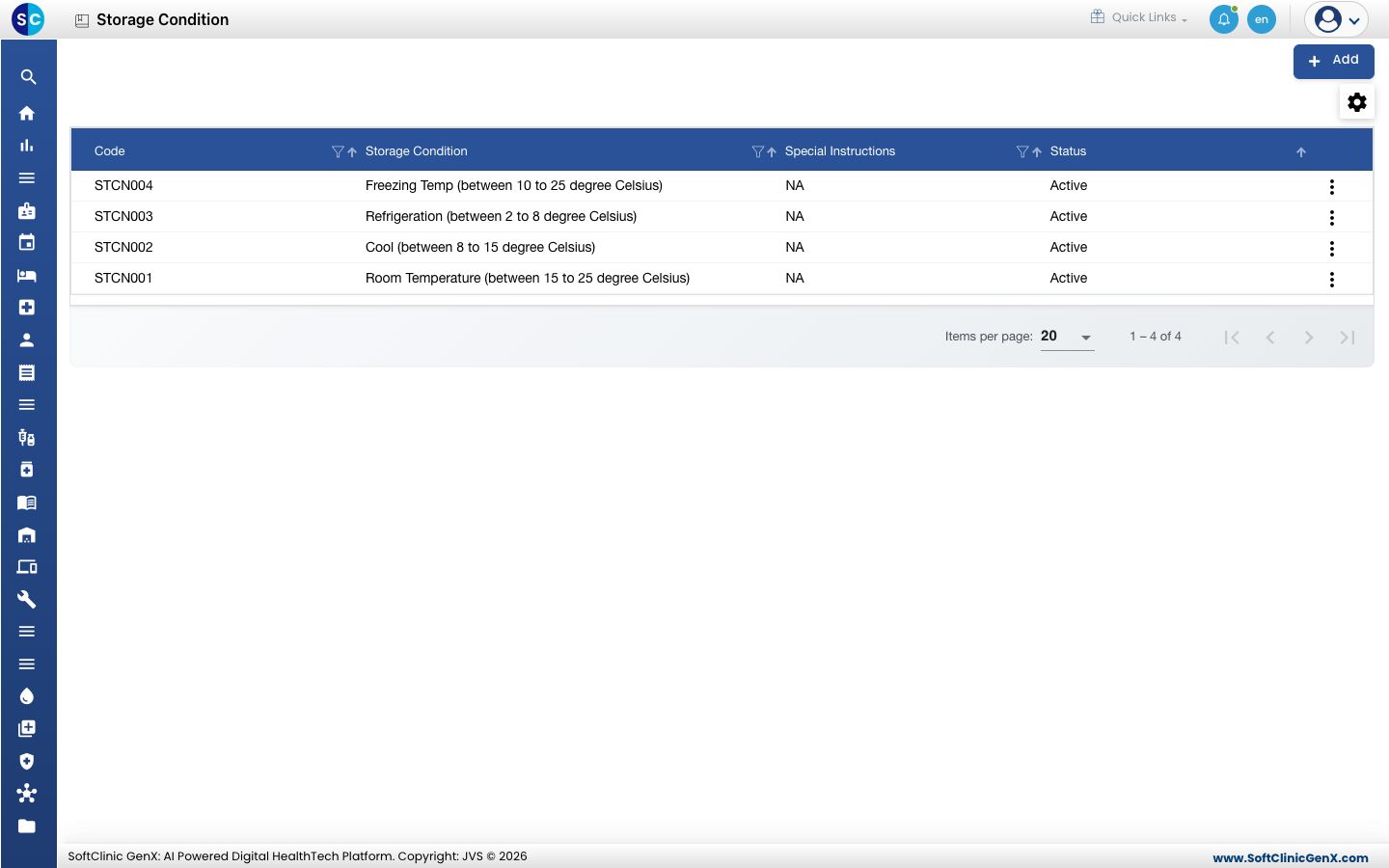
Add a storage condition
-
Go to Inventory Management › Masters › Storage Condition.
-
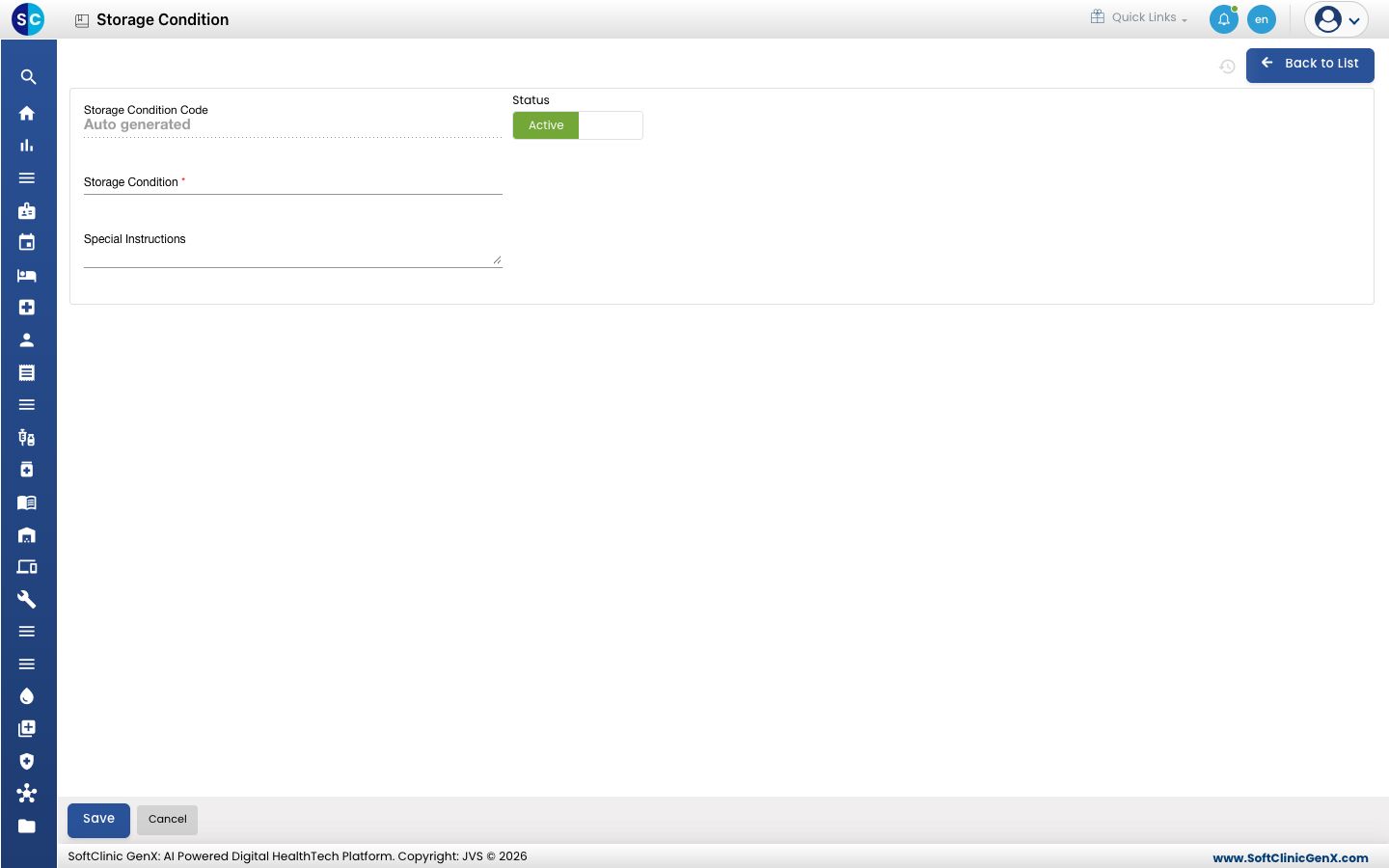
Click Add. The storage condition form opens.
-
Fill in the fields:
Field What to enter Required Storage Condition Code Filled in automatically when you save. — Status Leave on Active. — Storage Condition The condition, for example Refrigeration (between 2 to 8 degree Celsius). Up to 50 characters. Yes Special Instructions Any handling note, for example Do not freeze. Up to 300 characters. No -
Click Save. You return to the list and the new condition appears in it.
Change or deactivate a storage condition
- In the list, click ⋮ at the end of the row and choose Edit.
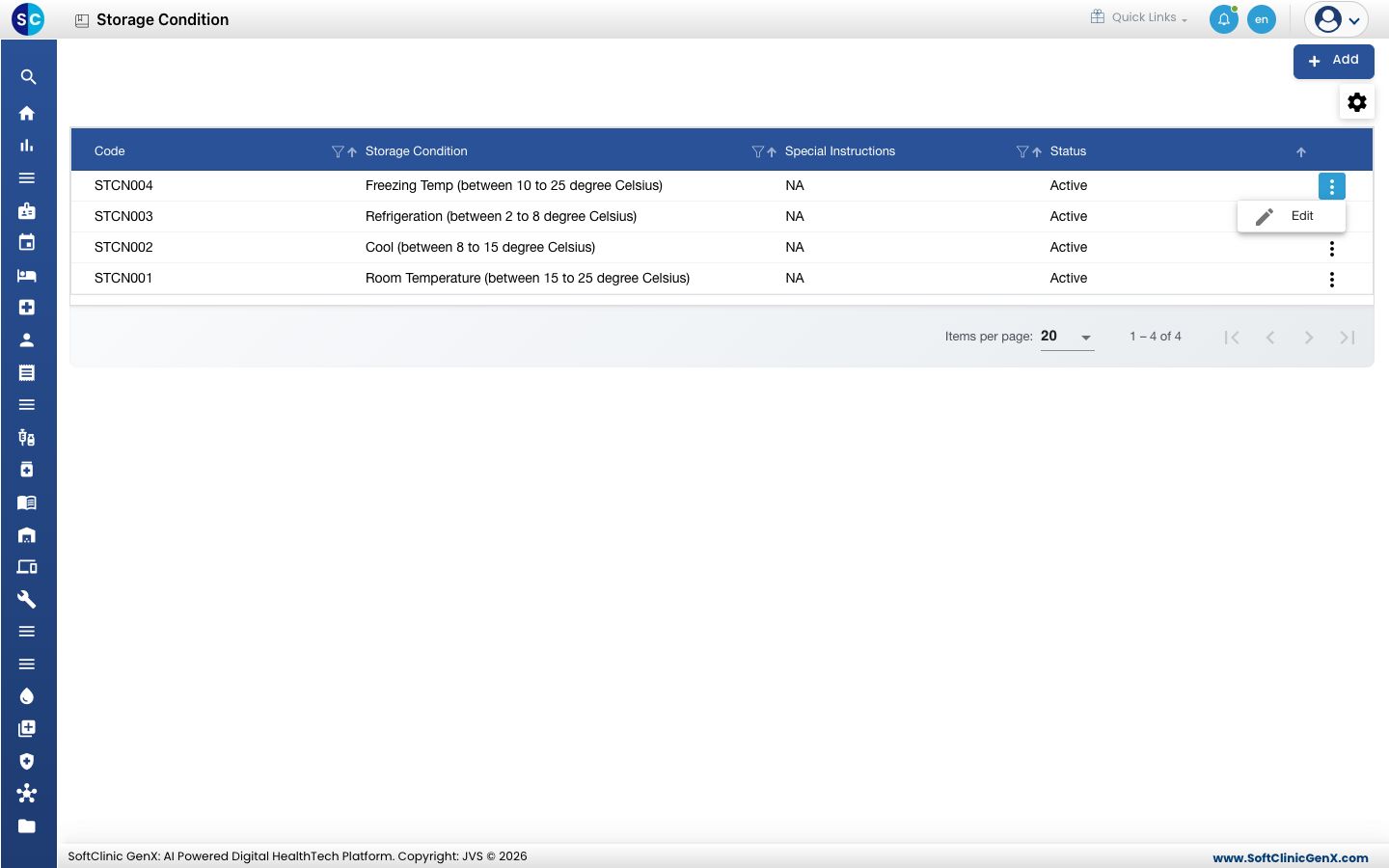
- Change the fields you need. To stop using the condition, switch Status to Inactive.
- Click Save.
Storage conditions cannot be deleted from this screen. Make a condition Inactive instead.
Good to know
- The four common conditions (room temperature, cool, refrigeration and freezing) are usually already in the list. Add only what is missing.
- Use the filter icons in the column headers to find a condition quickly.
Related
- Previous: Set up Unit of Measurement
- Next: Set up Item Category
- Inventory Management FAQs