Set up Item
Who does this: hospital administrator, store manager or pharmacist Where: Inventory Management › Masters › Item Set up before: Unit of Measurement, Item Category, Storage Condition, Supplier, Inventory Tax Configuration
The item master is the list of everything your hospital keeps in stock: medicines, IV fluids, consumables, implants, stationery and more. Every purchase order, goods receipt, stock transfer, consumption and pharmacy sale picks items from this list. You can add an item quickly with just its name, type and category, and fill in the rest of its details later.
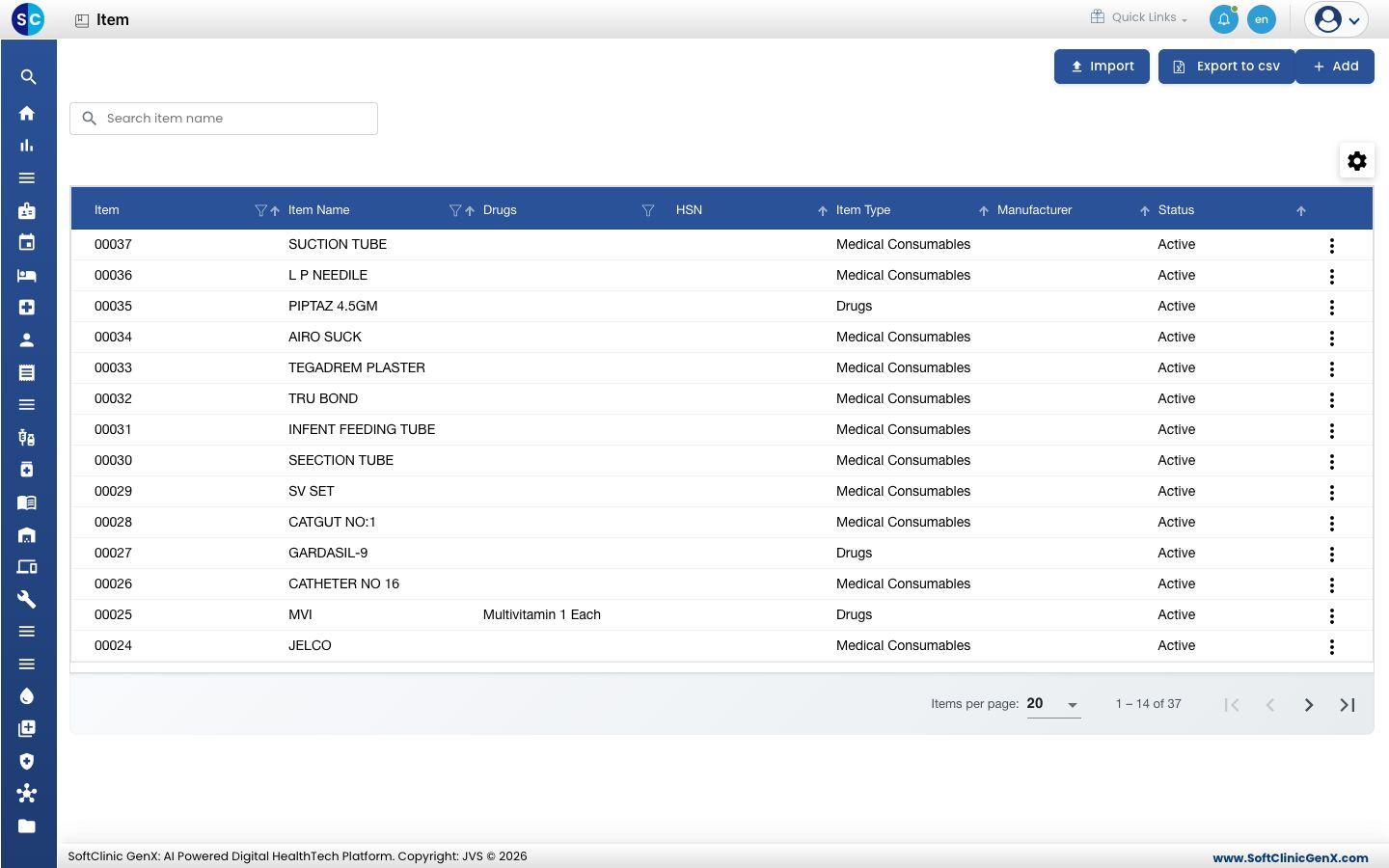
Add an item quickly
-
Go to Inventory Management › Masters › Item.
-
Click Add. The Quick Create form opens.
-
Fill in the form:
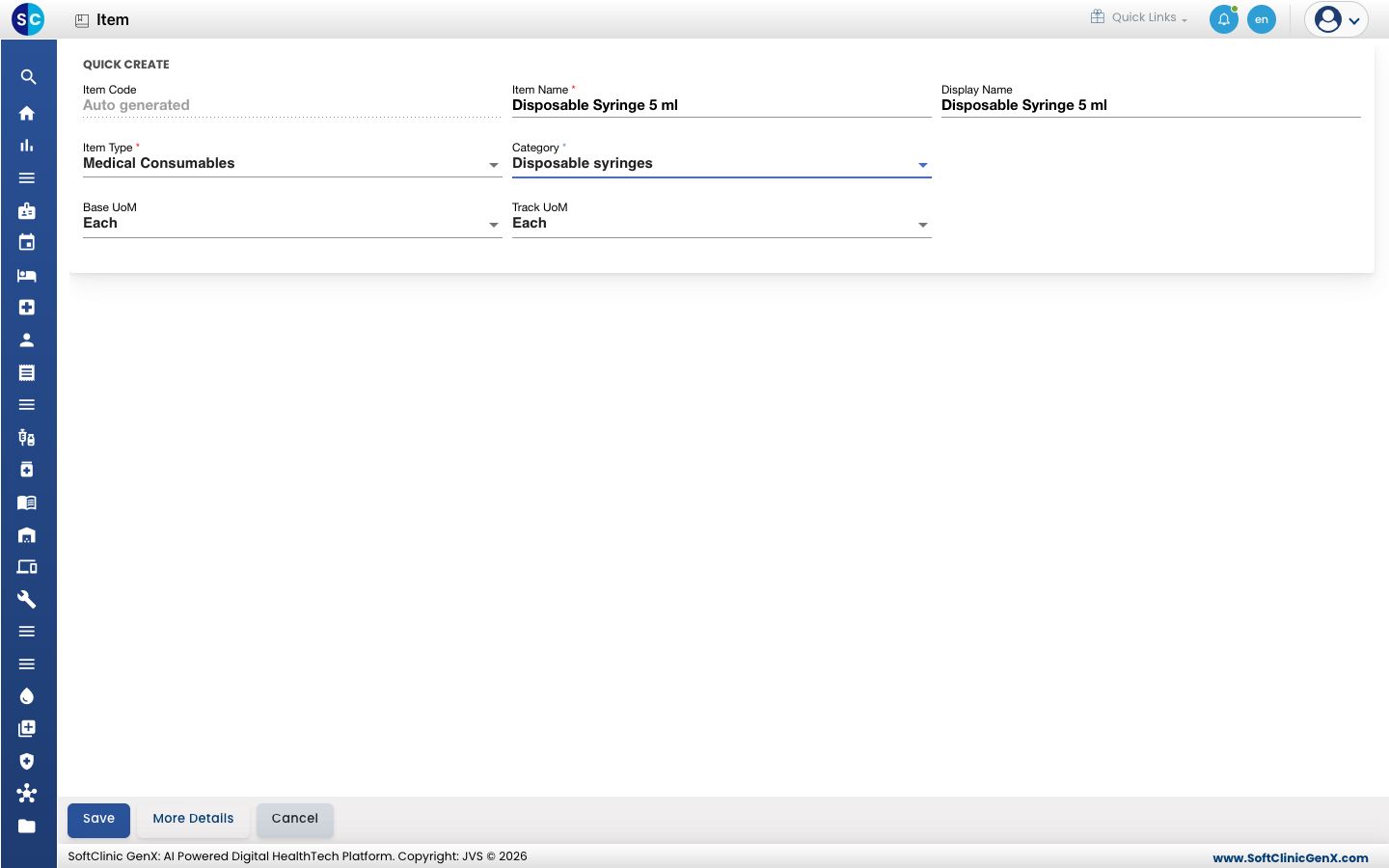
Field What to enter Required Item Code Filled in automatically when you save. — Item Name The full name of the item, for example Disposable Syringe 5 ml. Up to 200 characters. Yes Display Name The name shown on screens and prints. It copies the Item Name until you change it. No Item Type What kind of item it is, for example Medical Consumables, Surgical Consumables, Implants, Drugs or IV Fluids. Yes Category The item category it belongs to. Yes Base UoM The unit the item is counted in. Starts as Each. No Track UoM The unit stock is tracked in. Starts the same as Base UoM. No -
Click Save to add the item and return to the list, or click More Details to add it and open the full item form straight away.
If you choose Drugs or IV Fluids as the Item Type, the full item form opens instead, with what you have typed so far. A medicine needs its drug details before it can be saved.
Fill in the full item details
Open the full form with More Details, or from the list: click ⋮ at the end of the item's row and choose Edit.
The top of the form holds the item's identity. Below it are sections you open one at a time by clicking their blue bar. Previous and Next at the bottom of each section move between them.
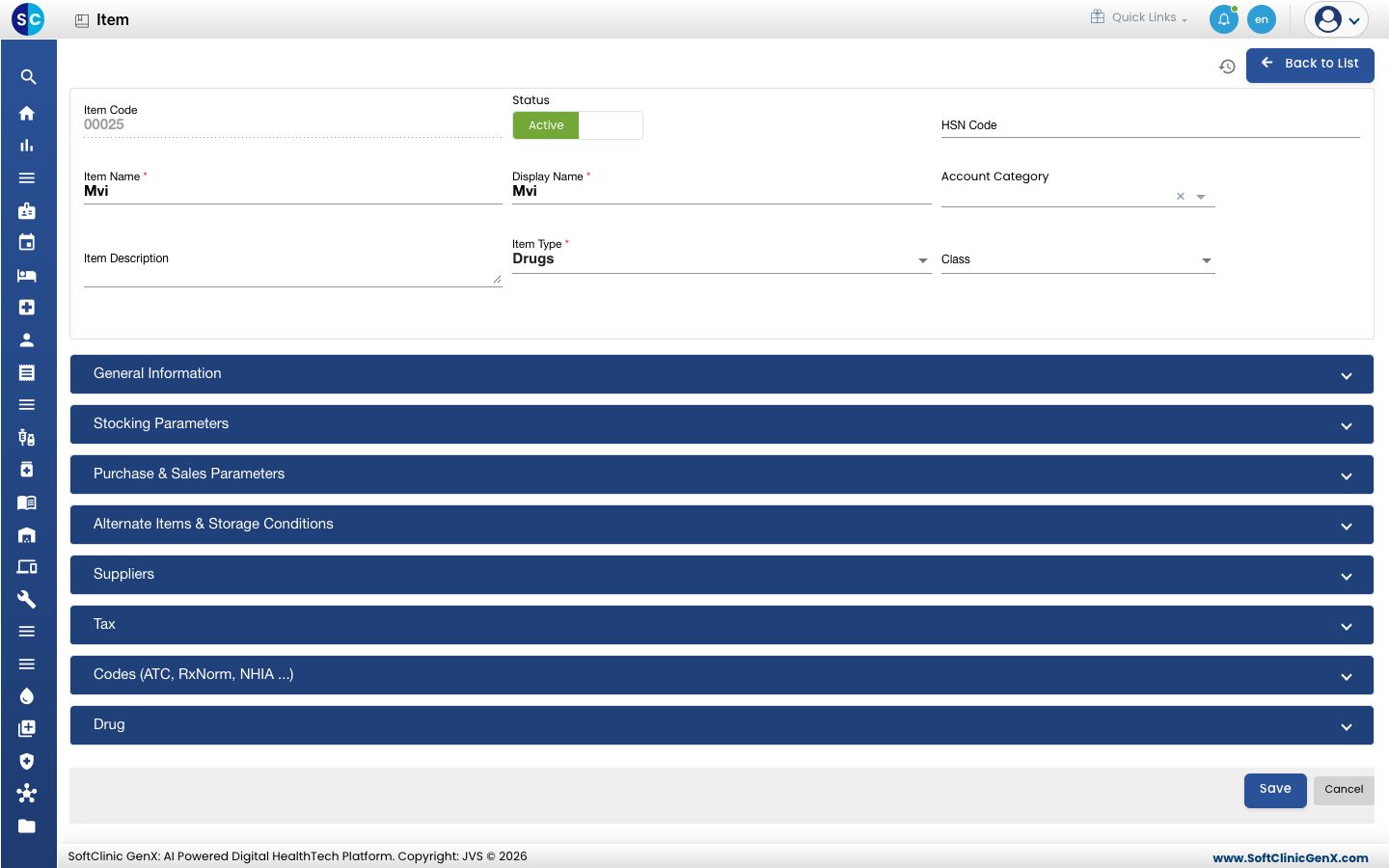
| Field | What to enter | Required |
|---|---|---|
| Item Code | Filled in automatically. | — |
| Status | Active or Inactive. | — |
| HSN Code | The item's HSN code for GST. Letters and numbers only, up to 20 characters. | No |
| Item Name | The full name of the item. | Yes |
| Display Name | The name shown on screens and prints. | Yes |
| Account Category | The accounts group for this item, if your accounts team uses one. | No |
| Item Description | A short description. Up to 200 characters. | No |
| Item Type | What kind of item it is. | Yes |
| Class | The item class, if you use classes. | No |
General Information
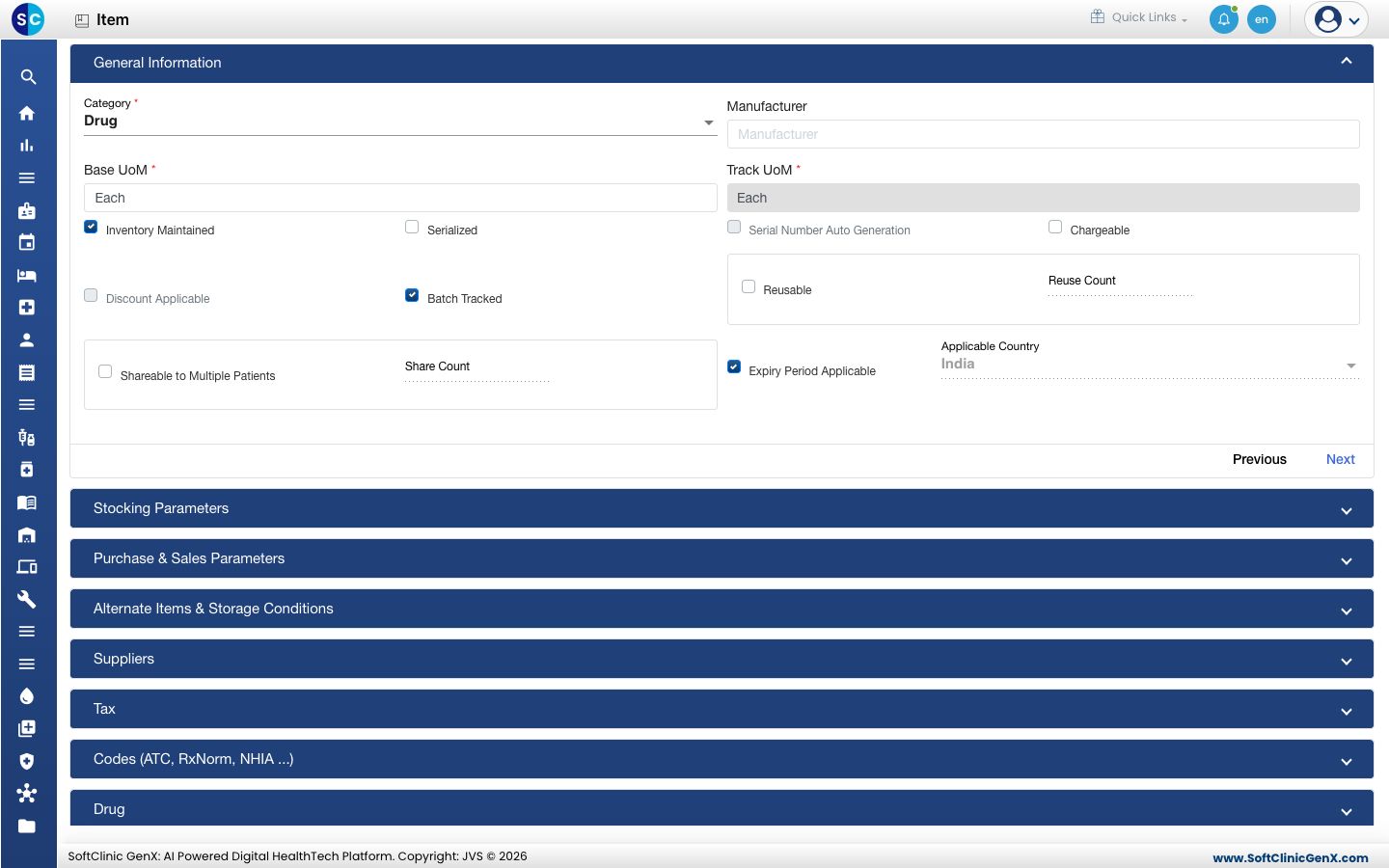
| Field | What to enter | Required |
|---|---|---|
| Category | The item category. | Yes |
| Manufacturer | Start typing and pick the manufacturer. Manufacturers are added in Supplier with the vendor type Manufacturer. | No |
| Base UoM, Track UoM | The unit the item is counted in and the unit stock is tracked in. | Yes |
| Inventory Maintained | Tick if stock of this item is tracked. | No |
| Serialized, Serial Number Auto Generation | Tick if each unit has its own serial number, and whether the system should number them. | No |
| Chargeable | Tick if the item can be charged to a patient. | No |
| Discount Applicable | Tick if discounts may be given on it. | No |
| Batch Tracked | Tick if stock is kept by batch. | No |
| Reusable, Reuse Count | Tick Reusable for an instrument that is used many times, then enter how many uses it is rated for in Reuse Count. | Reuse Count, if Reusable is ticked |
| Shareable to Multiple Patients, Share Count | Tick if one unit can be shared between patients, and enter how many. | Share Count, if ticked |
| Expiry Period Applicable | Tick if the item has an expiry date. | No |
| Applicable Country | The countries where the item is used. | No |
Stocking Parameters
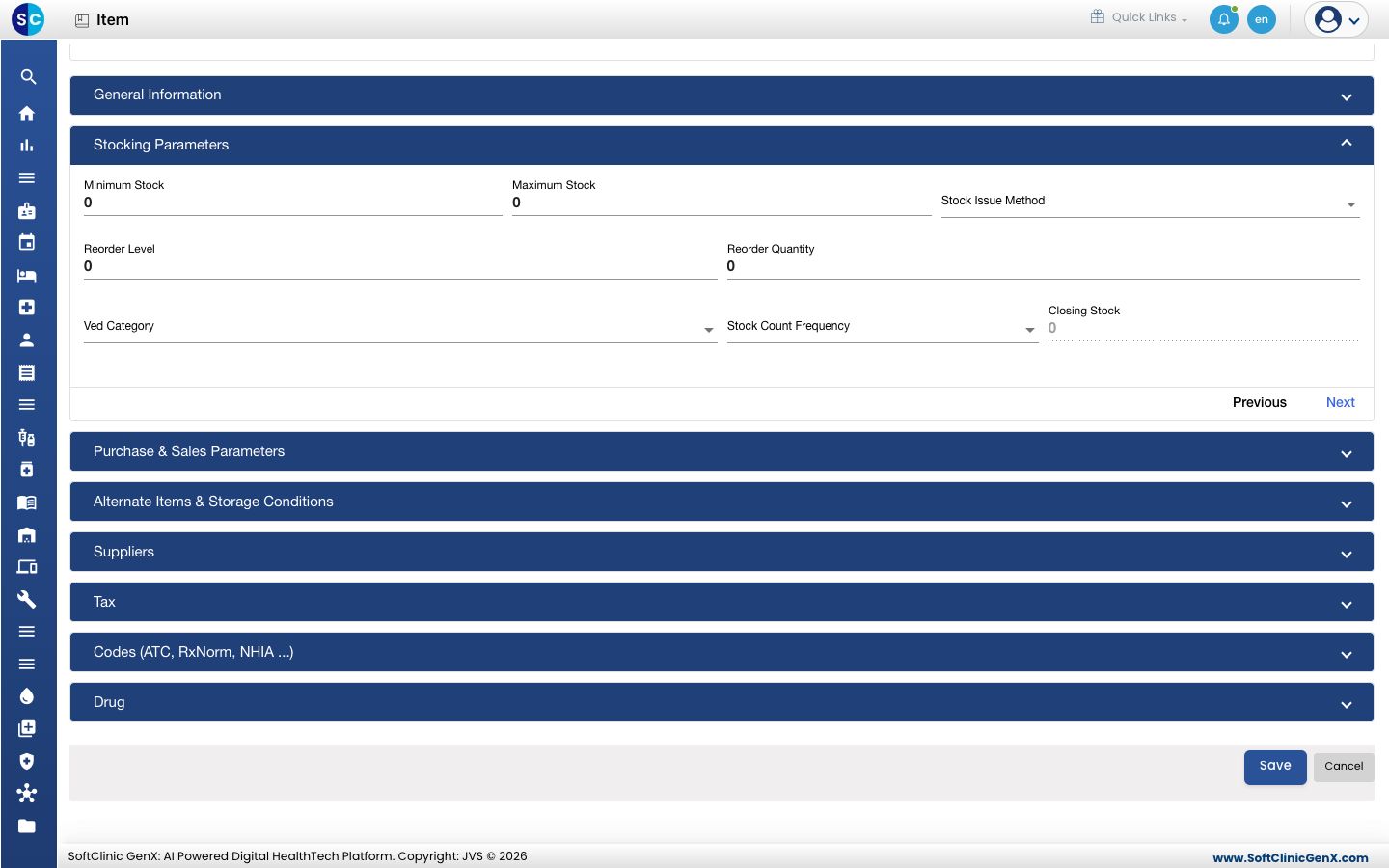
| Field | What to enter | Required |
|---|---|---|
| Minimum Stock, Maximum Stock | The lowest and highest quantity you want to hold. | No |
| Stock Issue Method | The rule that decides which stock is issued first. | No |
| Reorder Level, Reorder Quantity | The stock level at which to reorder, and how much to order. | No |
| Ved Category | How critical the item is to patient care (VED classification). | No |
| Stock Count Frequency | How often the item is counted in a stock check. | No |
| Closing Stock | Shows the current stock. You cannot type here. | — |
Purchase & Sales Parameters
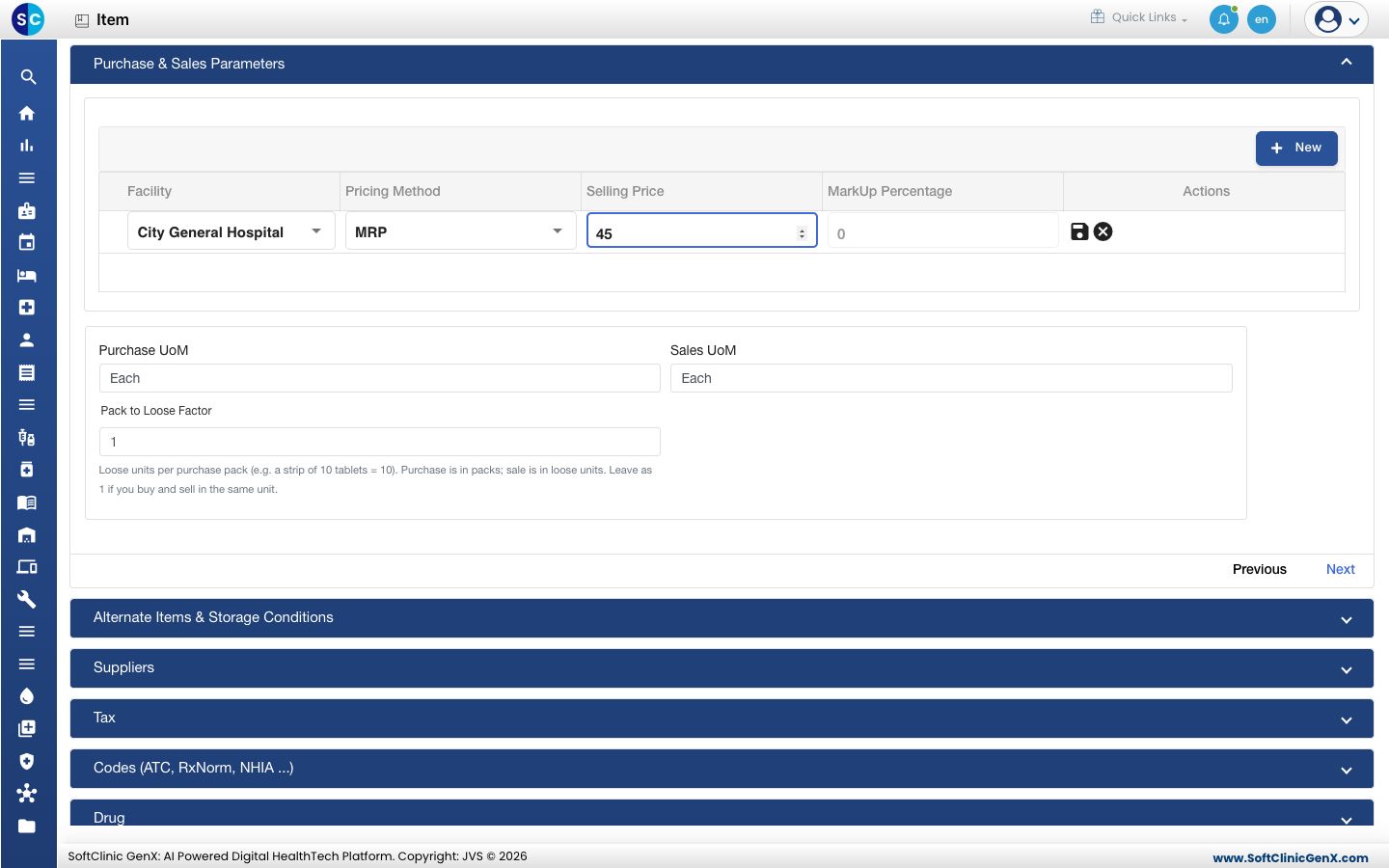
- Click New to add a price row for a facility.
- Choose the Facility and the Pricing Method: Purchase Price, MRP, Selling Price, Rate Contract, Weighted Average Method, Markup Price or Cost Price.
- Enter the Selling Price, or the MarkUp Percentage (1 to 100) for a markup price, and click the save icon on the row.
- Set the Purchase UoM and Sales UoM, and the Pack to Loose Factor: how many loose units are in one purchase pack. For a strip of 10 tablets enter 10. Leave it at 1 if you buy and sell in the same unit.
Alternate Items & Storage Conditions
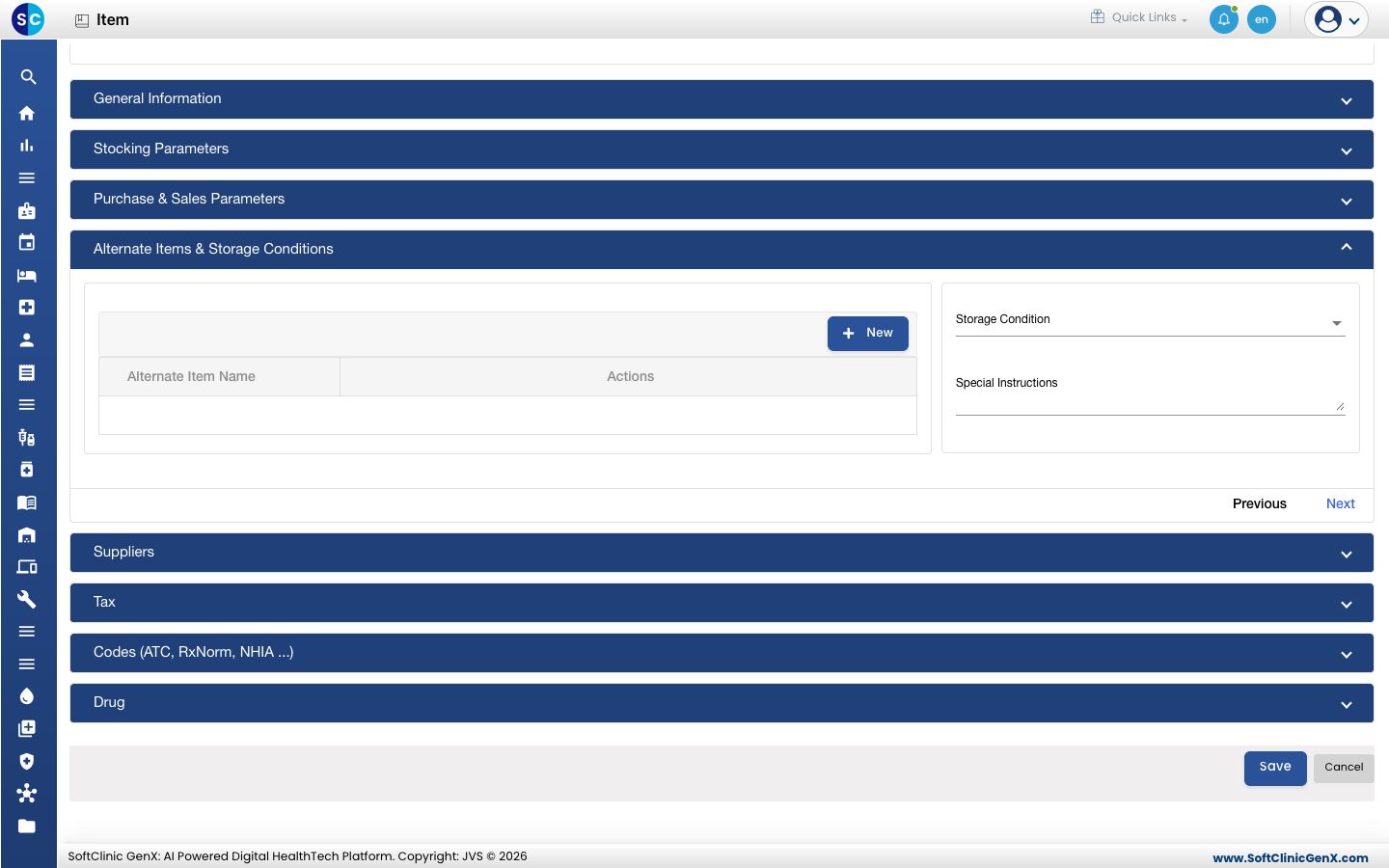
- Click New to add items that can be given in place of this one.
- Choose the Storage Condition, for example refrigerated, and add any Special Instructions (up to 300 characters).
Suppliers
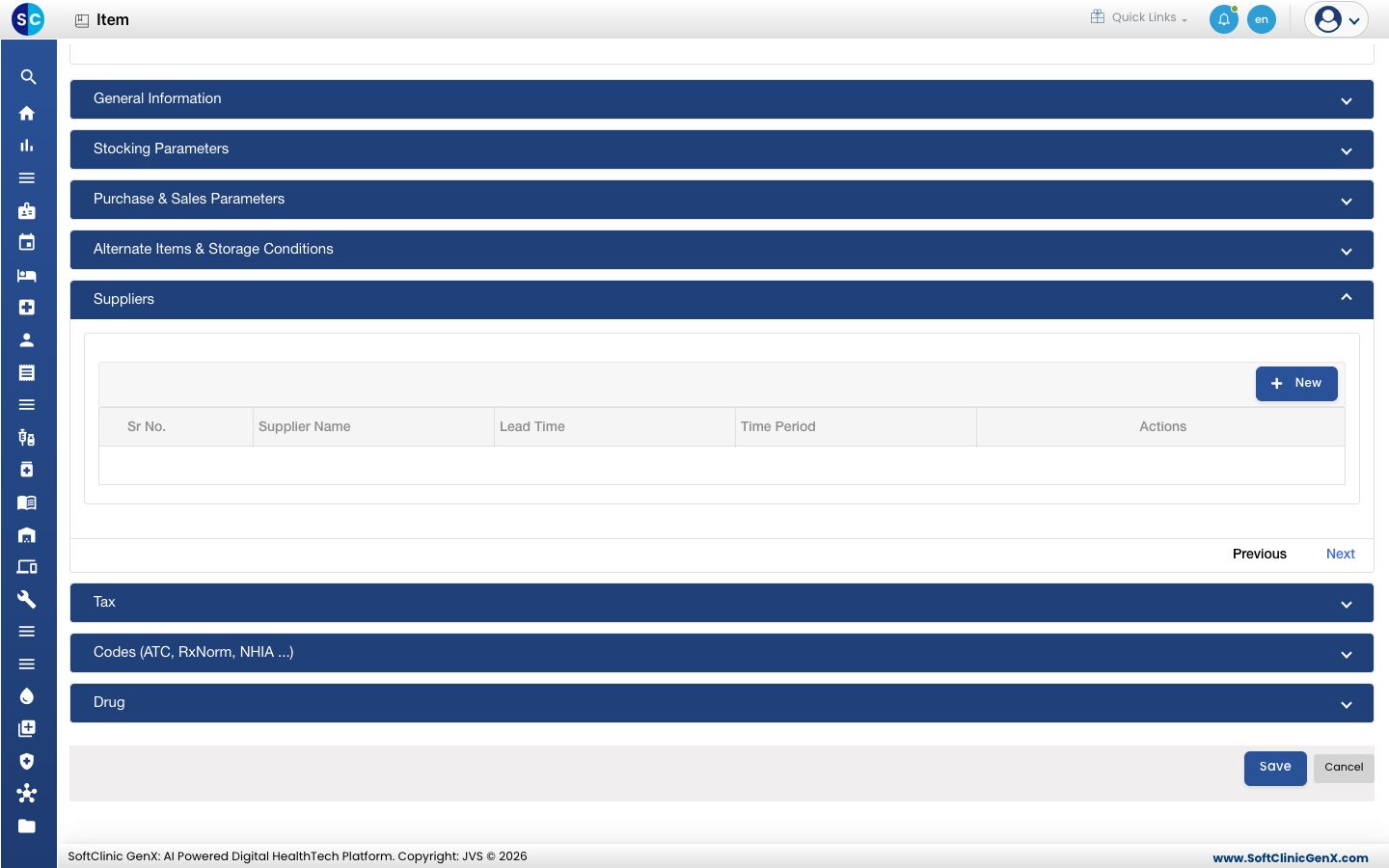
Click New to add each supplier you buy this item from. Choose the Supplier Name and, if you like, the Lead Time and its Time Period (for example 3 days).
Tax
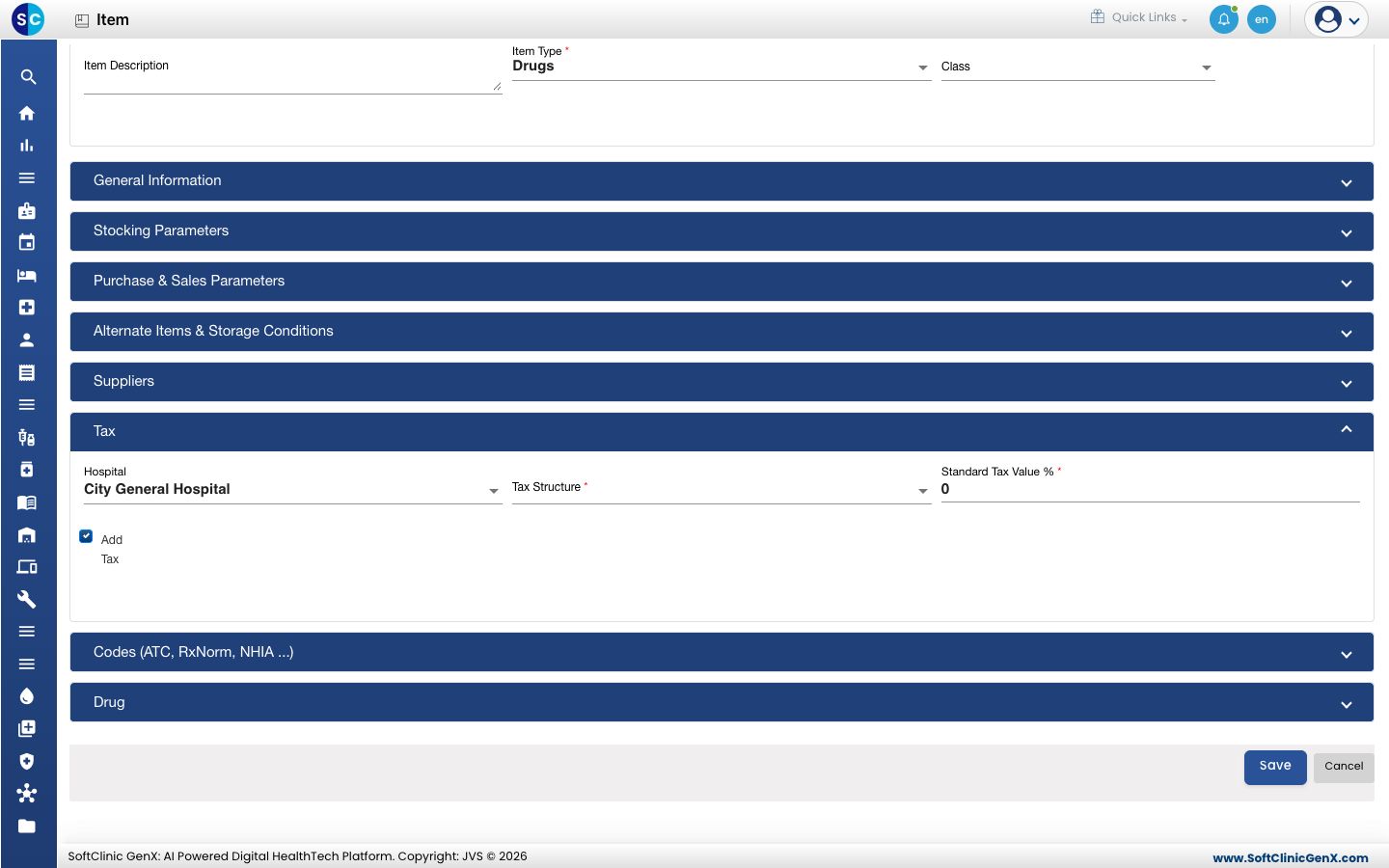
| Field | What to enter | Required |
|---|---|---|
| Hospital | The facility the tax applies in. | No |
| Tax Structure | The tax on this item, for example GST 12%. | Yes |
| Standard Tax Value % | Filled in from the tax you choose. | Yes |
Codes (ATC, RxNorm, NHIA ...)
Click New to add standard codes for the item. Choose the Coding Type, and enter the Code and a Description.
Drug
This section appears only for items of type Drugs or IV Fluids.
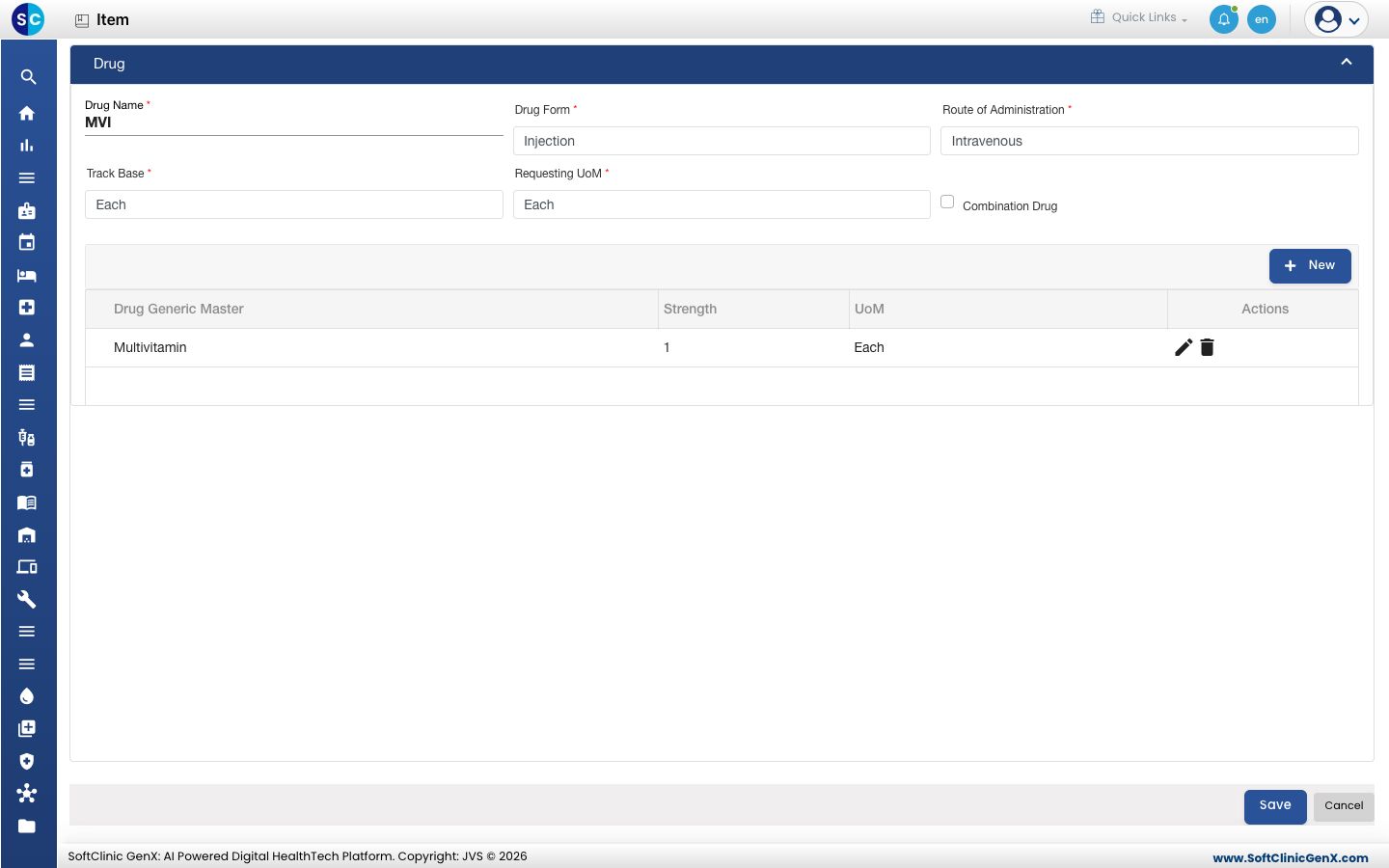
| Field | What to enter | Required |
|---|---|---|
| Drug Name | The name of the medicine. | Yes |
| Drug Form | For example tablet, syrup or injection. | Yes |
| Route of Administration | For example oral or intravenous. | Yes |
| Track Base, Requesting UoM | The unit stock is tracked in, and the unit wards request it in. | Yes |
| Combination Drug | Tick if the medicine has more than one generic. | No |
| Generic table | Click New and add each generic in the medicine with its Strength and UoM. | Yes |
When you are done, click Save. You return to the item list.
Change or deactivate an item
- In the list, type in Search item name to find the item, or use the filter icons in the column headers.
- Click ⋮ at the end of the row and choose Edit.
- Change what you need. To stop using the item, switch Status to Inactive.
- Click Save.
Items cannot be deleted. Make an item Inactive instead.
Good to know
- Item names and item codes must be unique.
- Minimum Stock must be less than Maximum Stock.
- The full form does not save without a Tax Structure ("Please select tax"), or without a Category and Base UoM ("Please select category and Base UOM"). If a section has a missing field, the form opens that section for you.
- Tax is not set on the Quick Create form. Open the item with Edit and fill in the Tax section.
- Changing the Pack to Loose Factor of an item that already has stock asks you to confirm first, because it changes how existing stock is counted.
- Use Import to load many items at once from a file, and Export to csv to download the list.
- The gear icon above the list lets you show or hide columns, such as HSN.