Set up Supplier
Who does this: hospital administrator, purchase manager or store manager Where: Inventory Management › Masters › Supplier
The supplier list holds every company your hospital deals with for stock: the suppliers you buy from, service vendors, and the manufacturers whose products you stock. Each entry has a Vendor Type that says what kind of company it is. Suppliers are picked when you raise a purchase order or receive goods, and manufacturers are picked on the item record.
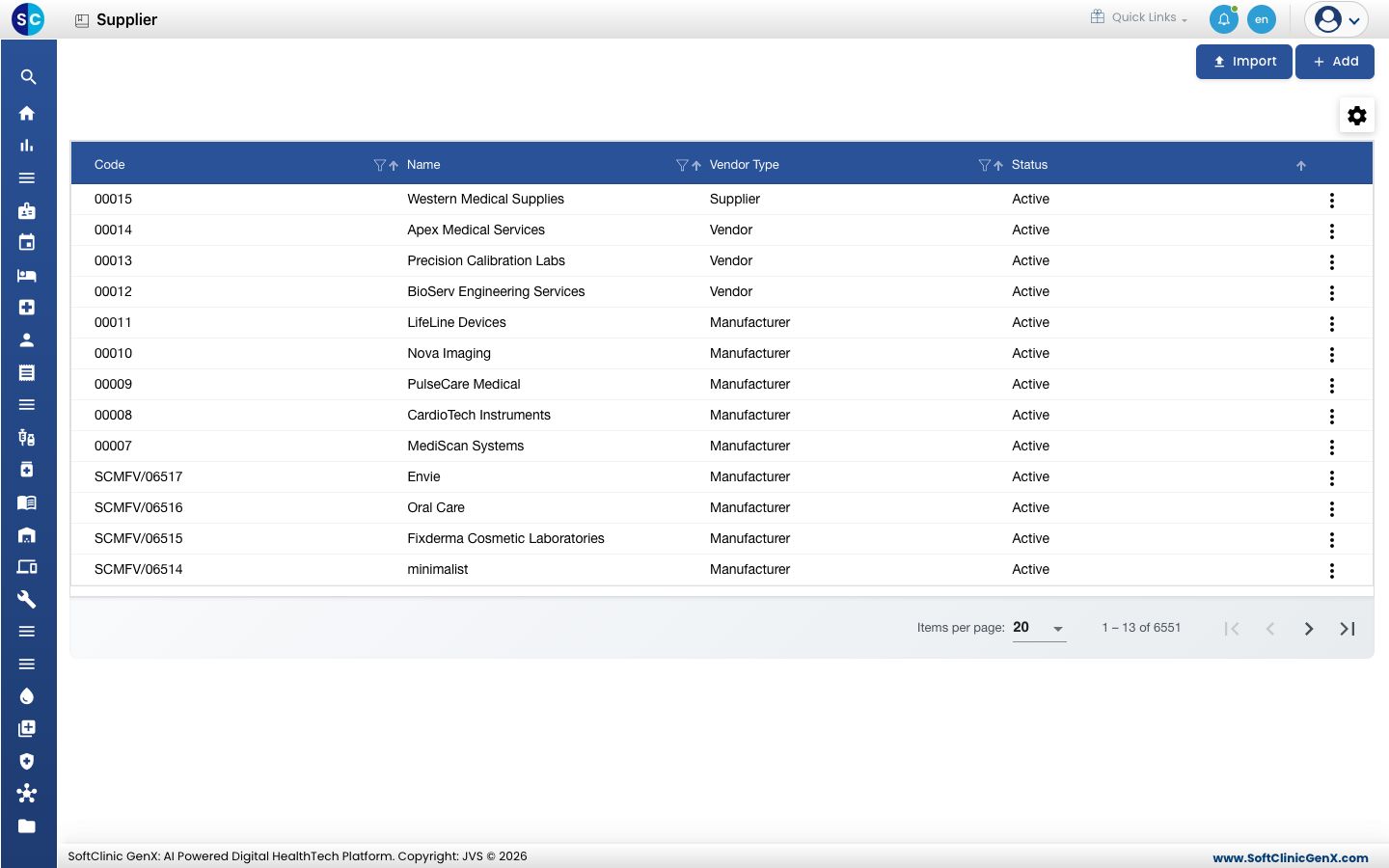
Add a supplier
-
Go to Inventory Management › Masters › Supplier.
-
Click Add. The supplier form opens.
-
Fill in the top of the form:
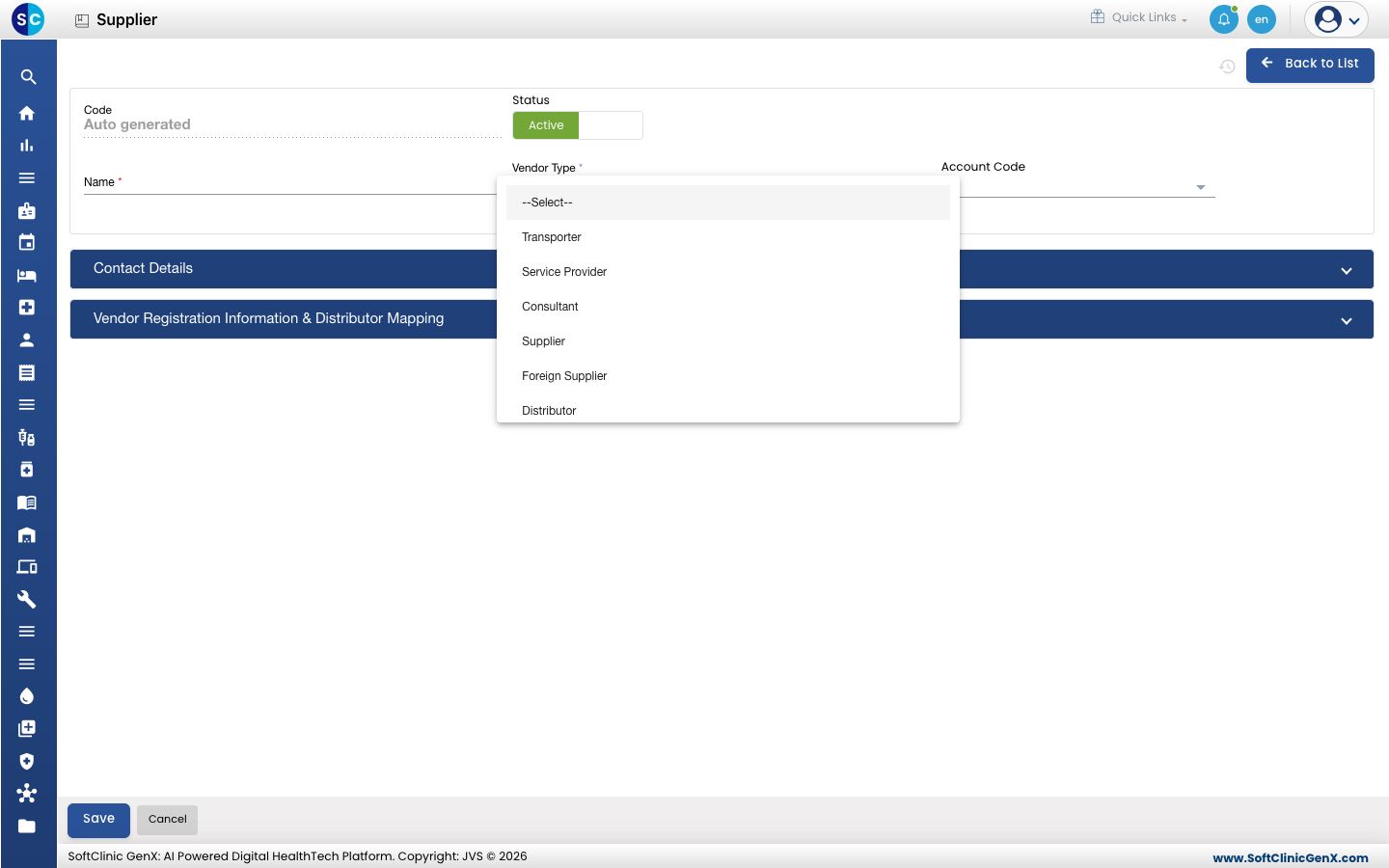
Field What to enter Required Code Filled in automatically when you save. — Status Leave on Active. — Name The company name. Up to 50 characters. Yes Vendor Type What the company is to you: Supplier, Foreign Supplier, Manufacturer, Vendor, Distributor, Transporter, Service Provider, Consultant, Contractor or Agent. Yes Account Code The accounts ledger for this company, if your accounts team uses one. No Supplier Type Appears for Supplier and Vendor. Choose Local for a supplier in your own state or Interstate for one in another state. Required for Supplier. Yes, for a Supplier -
Click Contact Details to open the section, and enter the address, phone numbers and email:
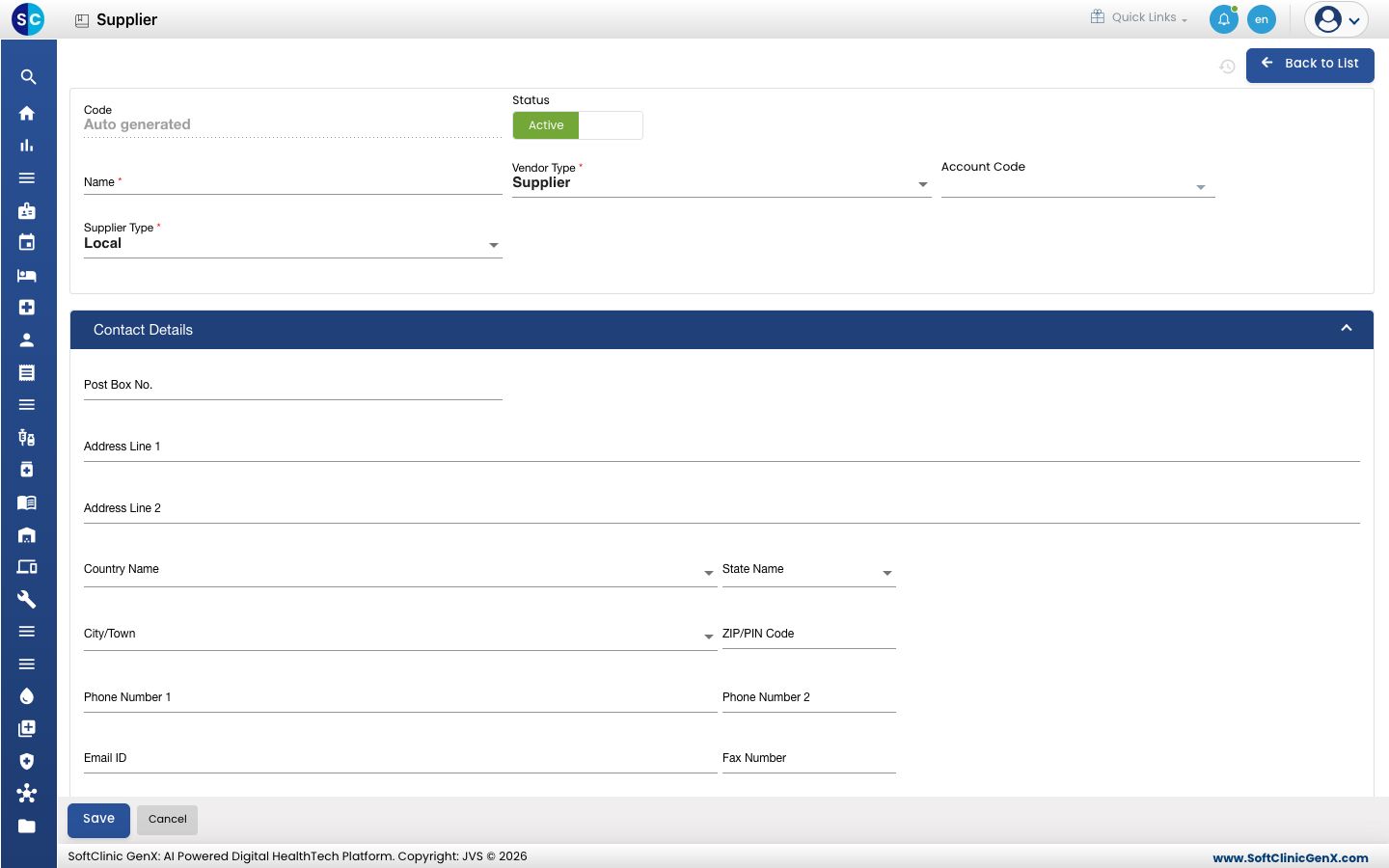
Field What to enter Required Post Box No., Address Line 1, Address Line 2 The company's address. No Country Name, State Name, City/Town, ZIP/PIN Code Where the company is located. No Phone Number 1, Phone Number 2 Contact numbers. No Email ID The company's email address. No Fax Number Fax number, if any. No -
For a company of type Vendor, click Vendor Registration Information & Distributor Mapping and fill in its registrations and bank details. For other types this section is read-only.
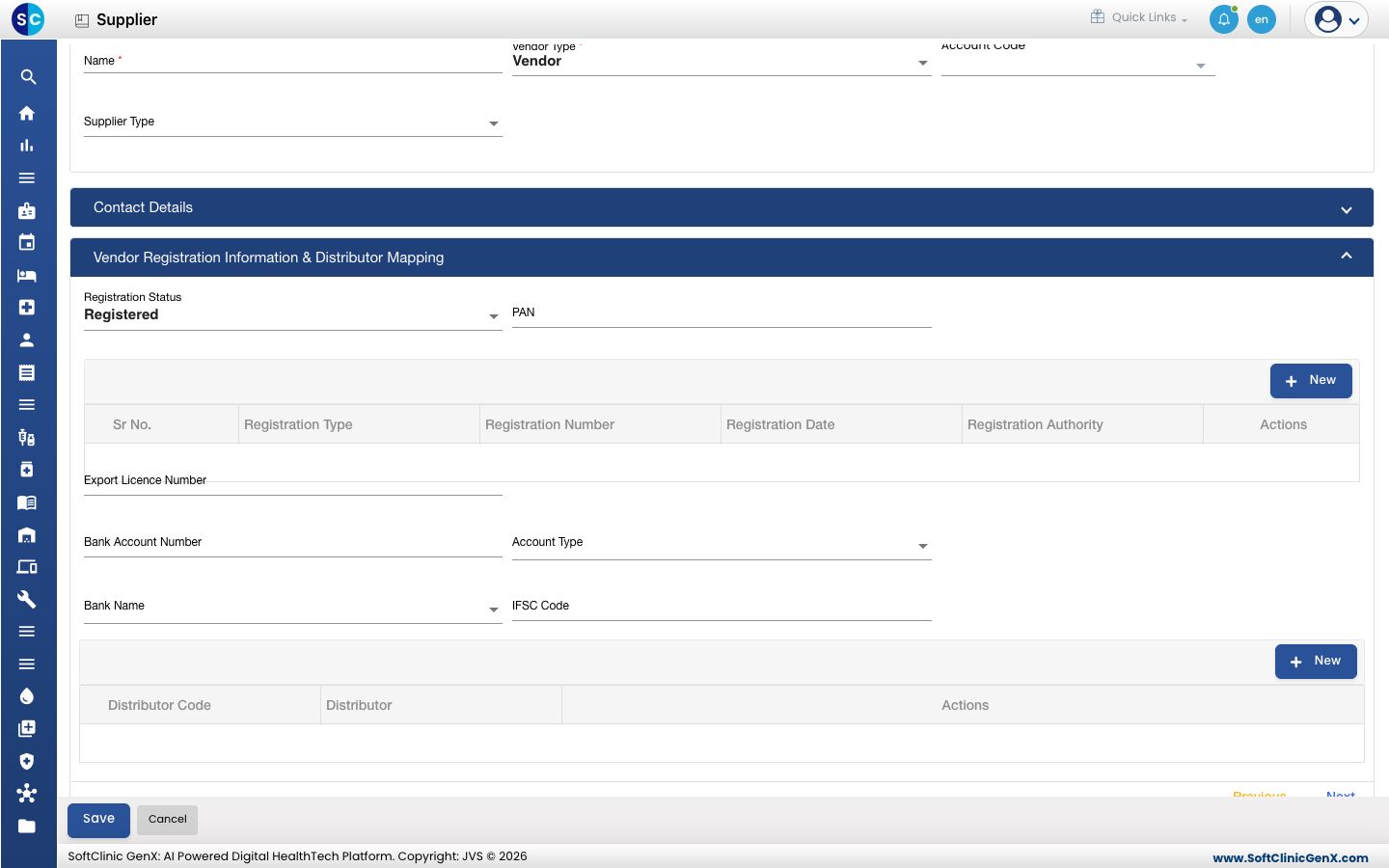
Field What to enter Required Registration Status Registered if the vendor holds tax or other registrations. No PAN The vendor's PAN, 10 characters. No Registrations table Click New and enter the Registration Type, Registration Number, Registration Date and Registration Authority, for example the vendor's GST registration. Yes, for a Registered vendor Export Licence Number For vendors who export. No Bank Account Number, Account Type, Bank Name, IFSC Code The vendor's bank account for payments. No Distributor table Click New to link the distributors this vendor supplies through. No -
Click Save. You return to the list and the new supplier appears in it.
Change or deactivate a supplier
- In the list, click ⋮ at the end of the row and choose Edit.
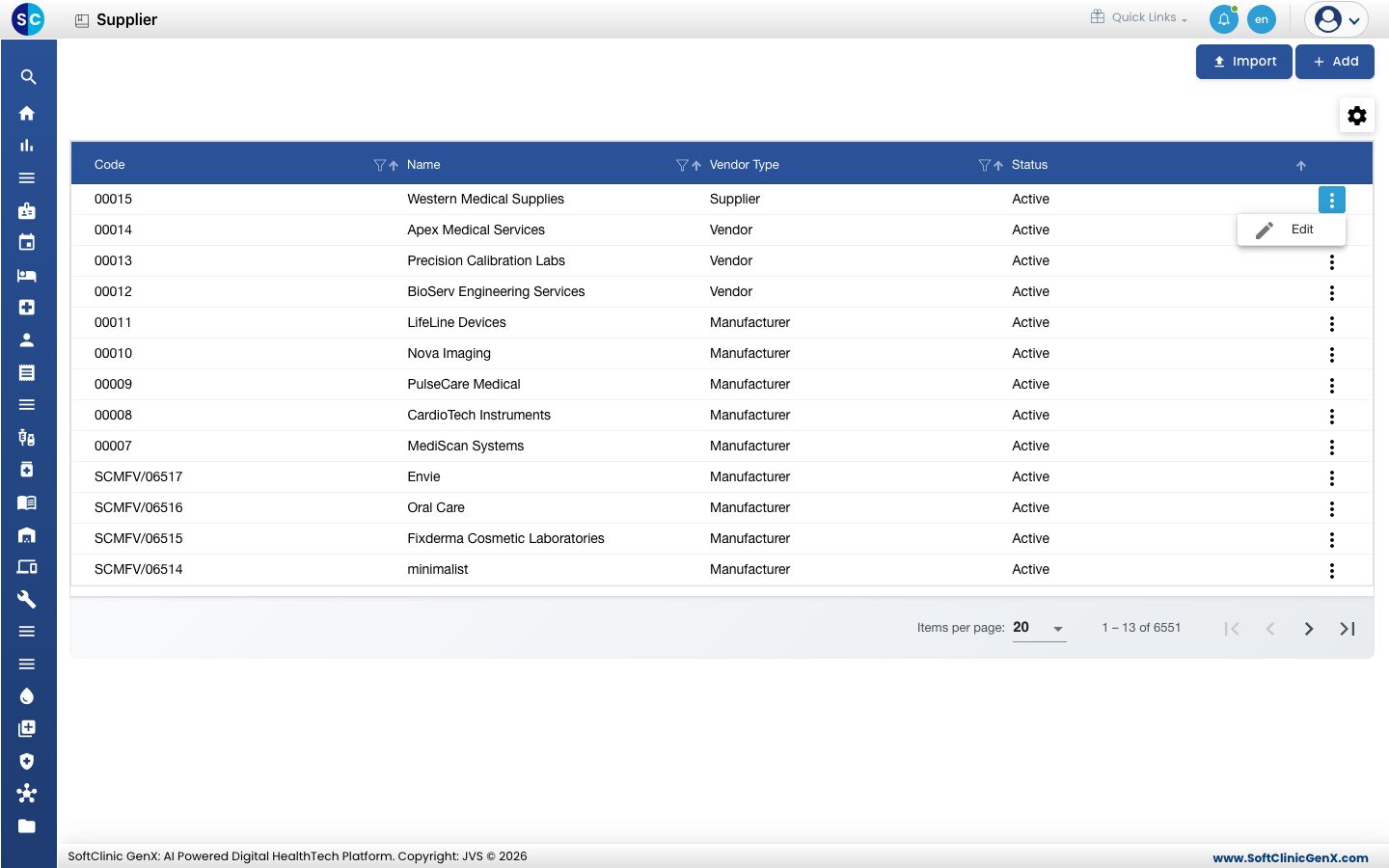
- Change the fields you need. To stop using the supplier, switch Status to Inactive.
- Click Save.
Suppliers cannot be deleted from this screen. Make a supplier Inactive instead.
Good to know
- A Vendor marked Registered must have at least one row in the registrations table, or the form shows "Please add Vendor registration information" and does not save.
- A distributor must itself be in this list with the vendor type Distributor before you can link it.
- Use Import to load many suppliers at once from a file.
- Use the filter icons in the column headers to find a supplier quickly.
Related
- Previous: Set up Item Category
- Next: Set up Store Master
- Inventory Management FAQs