Set up Inventory Tax Configuration
Who does this: hospital administrator or accounts manager Where: Inventory Management › Masters › Inventory Tax Configuration Set up before: Tax, Item Category
Inventory tax configuration links a tax, such as GST 12%, to the item categories it applies to, for one facility and from a start date. The taxes themselves are created in Billing › Masters › Tax; tax on services is set separately in Tax Configuration.
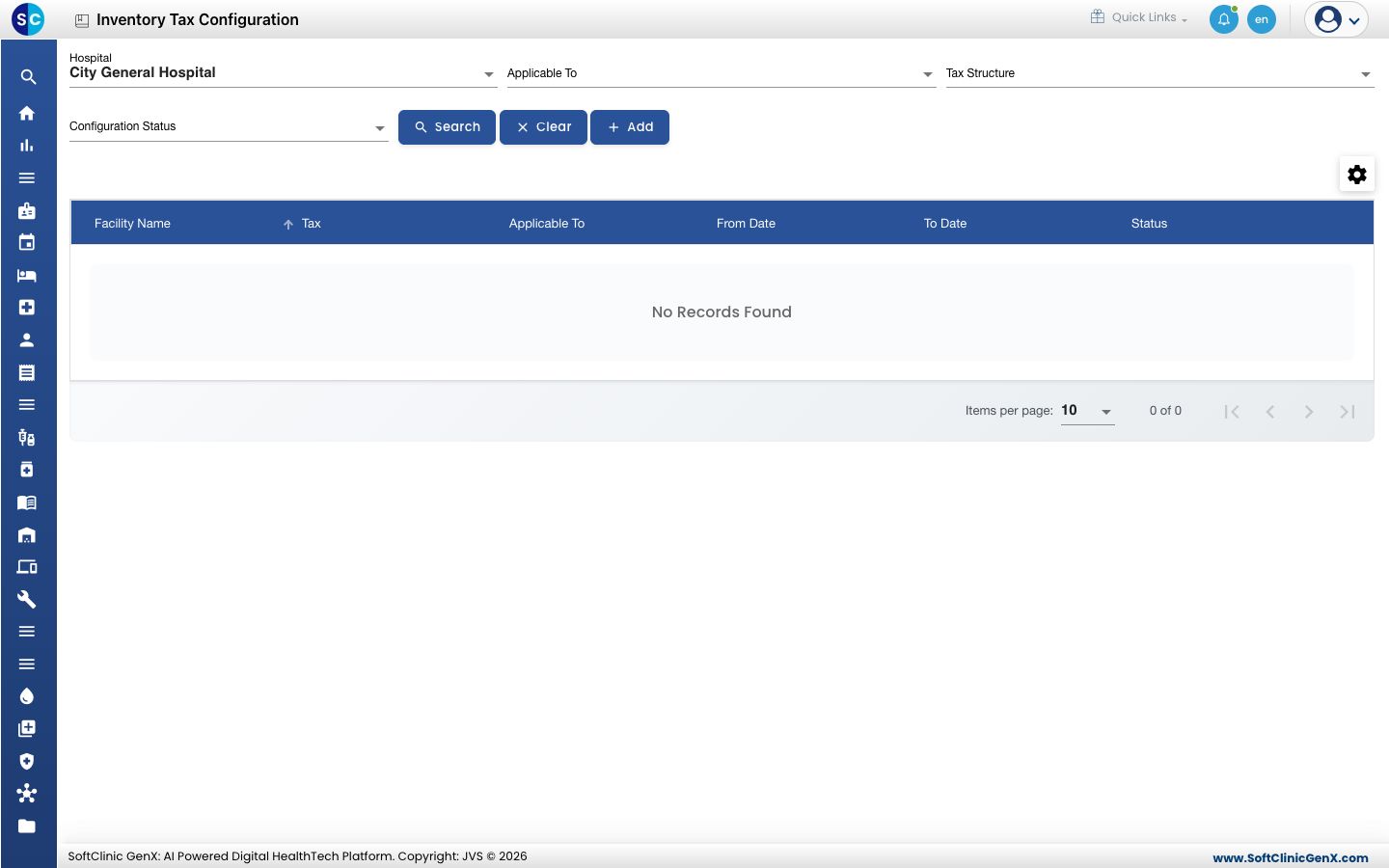
Add a tax configuration
-
Go to Inventory Management › Masters › Inventory Tax Configuration.
-
Click Add. The Procurement Tax Configuration panel opens on the General tab.
-
Fill in the General tab:
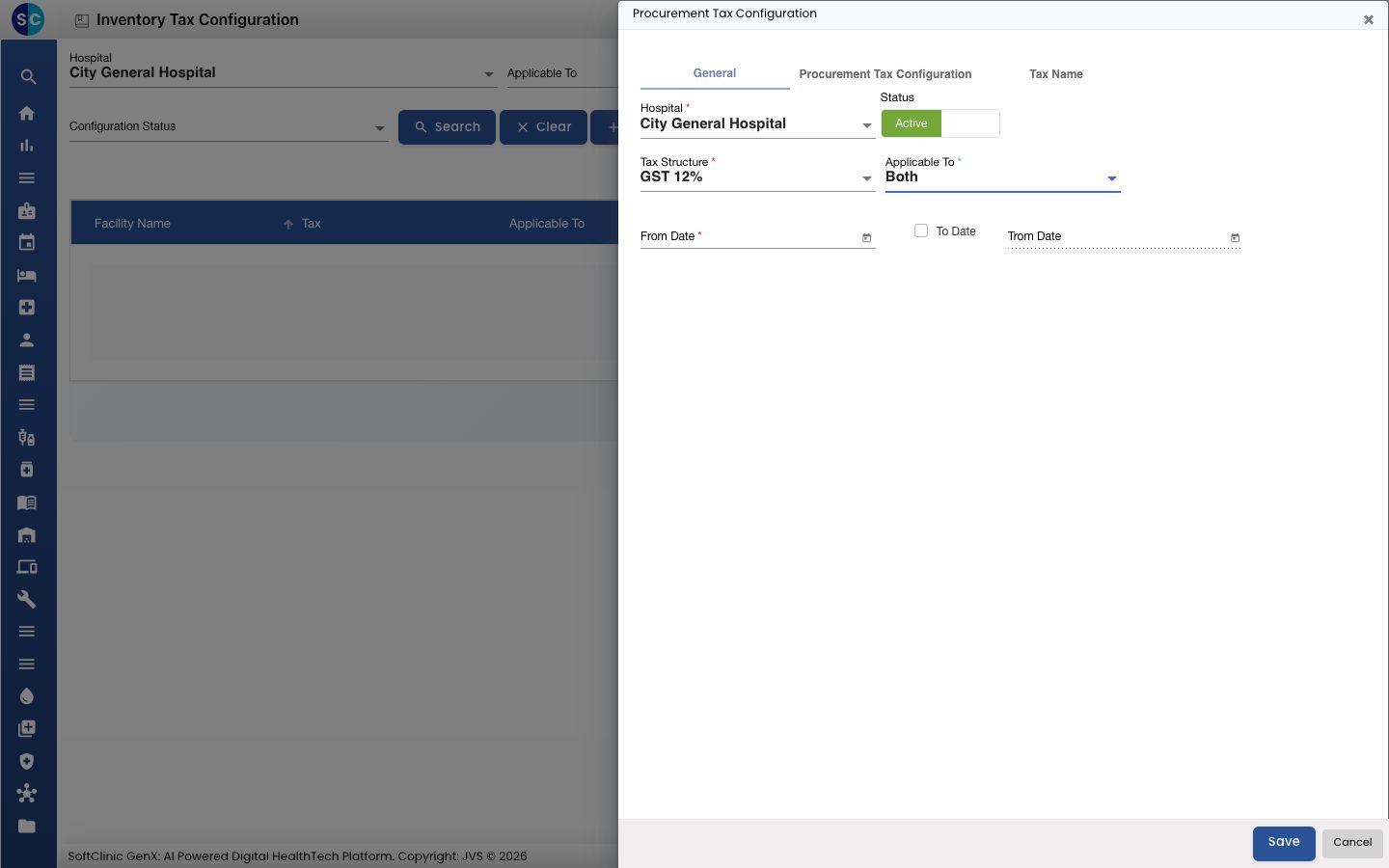
Field What to enter Required Hospital The facility this tax applies in. Yes Status Leave on Active. — Tax Structure The tax, for example GST 12%. Yes Applicable To Choose Both. Yes From Date The date from which the tax applies. Yes To Date Tick To Date only if the tax should stop on a set date, then pick that date in the field next to it. Leave unticked for no end date. No -
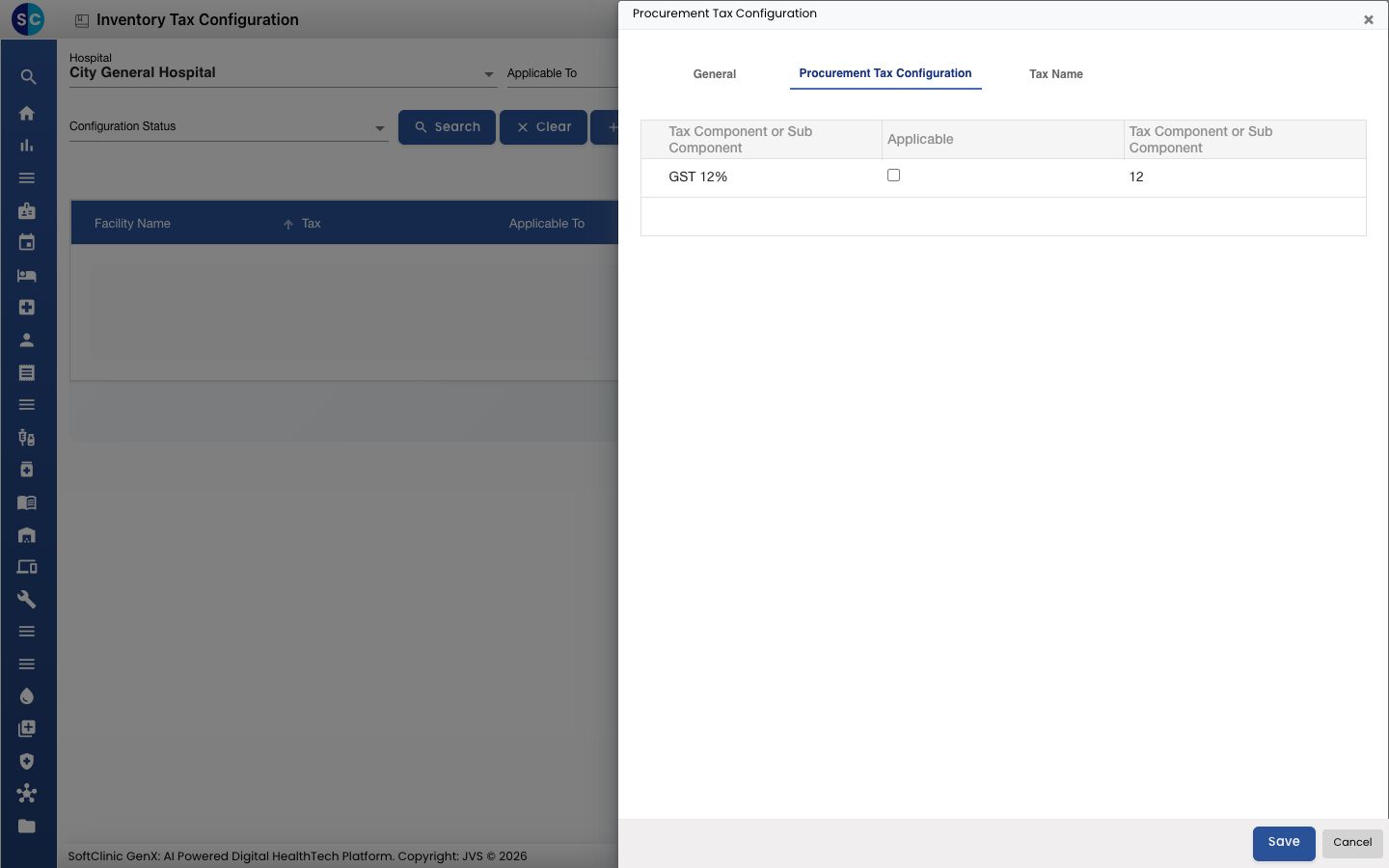
Open the Procurement Tax Configuration tab. The tax you chose is listed with its rate. Tick Applicable for it.
-
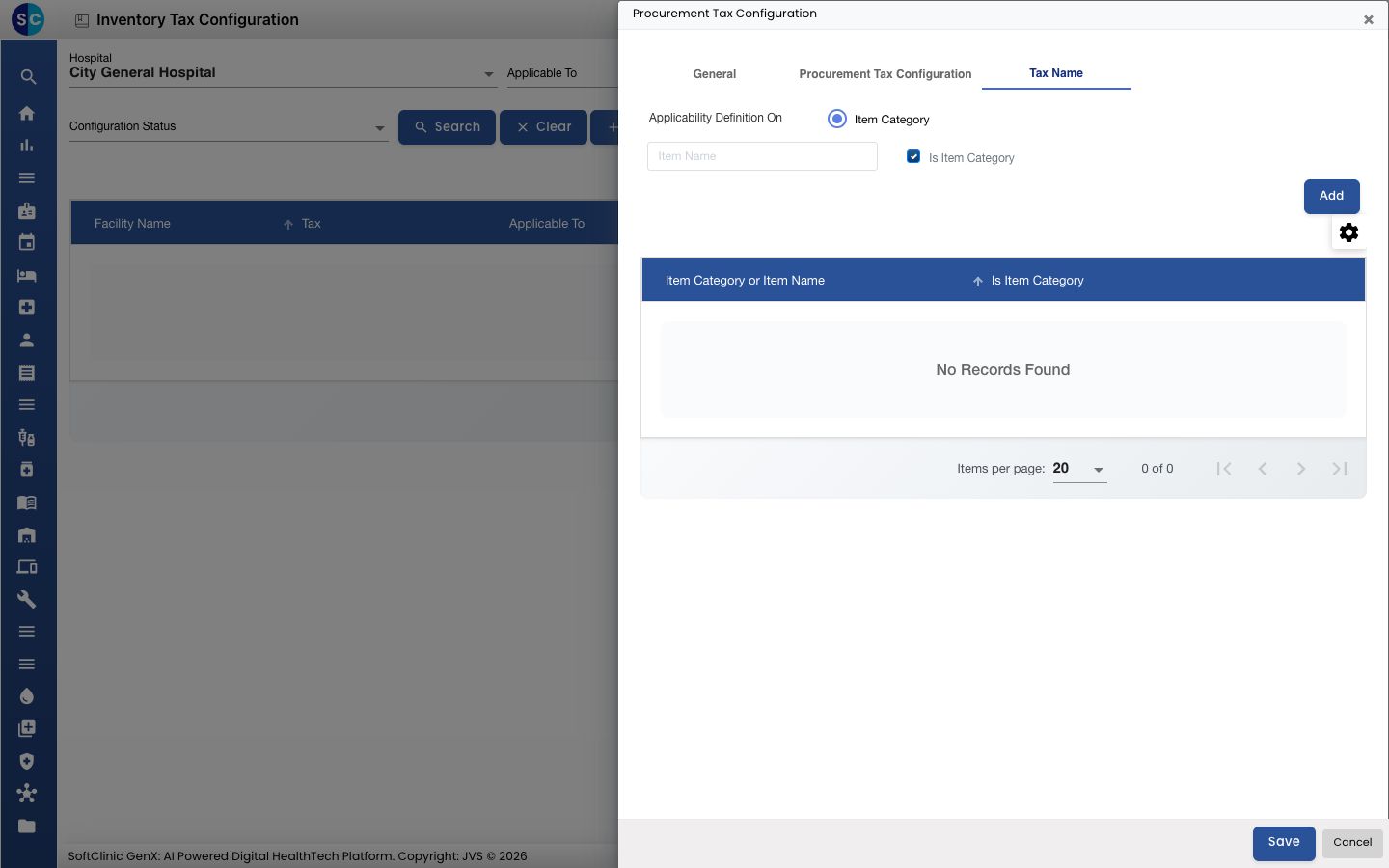
Open the Tax Name tab. Type the name of an item category in the search box, pick it and click Add. Repeat for every category this tax applies to.
-
Click Save. The panel closes and the configuration appears in the list.
Find or change a tax configuration
- Choose the Hospital, and if you like Applicable To, Tax Structure or Configuration Status, then click Search. Click Clear to reset the filters.
- Click ⋮ at the end of a row and choose Edit. Change what you need and click Save.
To stop a tax, set a To Date or switch Status to Inactive.
Good to know
- Only one tax can be ticked as Applicable in a configuration. Otherwise the form shows "Please select only single applicable Tax".
- Add at least one item category on the Tax Name tab, or the form shows "Please select any item or item category". The same category cannot be added twice.
- The To Date must be on or after the From Date.
- If the Procurement Tax Configuration tab shows no tax, go back to General and choose the Tax Structure again.
- Click Cancel or × to close the panel without saving.