Set up Item Category
Who does this: hospital administrator or store manager Where: Inventory Management › Masters › Item Category Set up before: Unit of Measurement
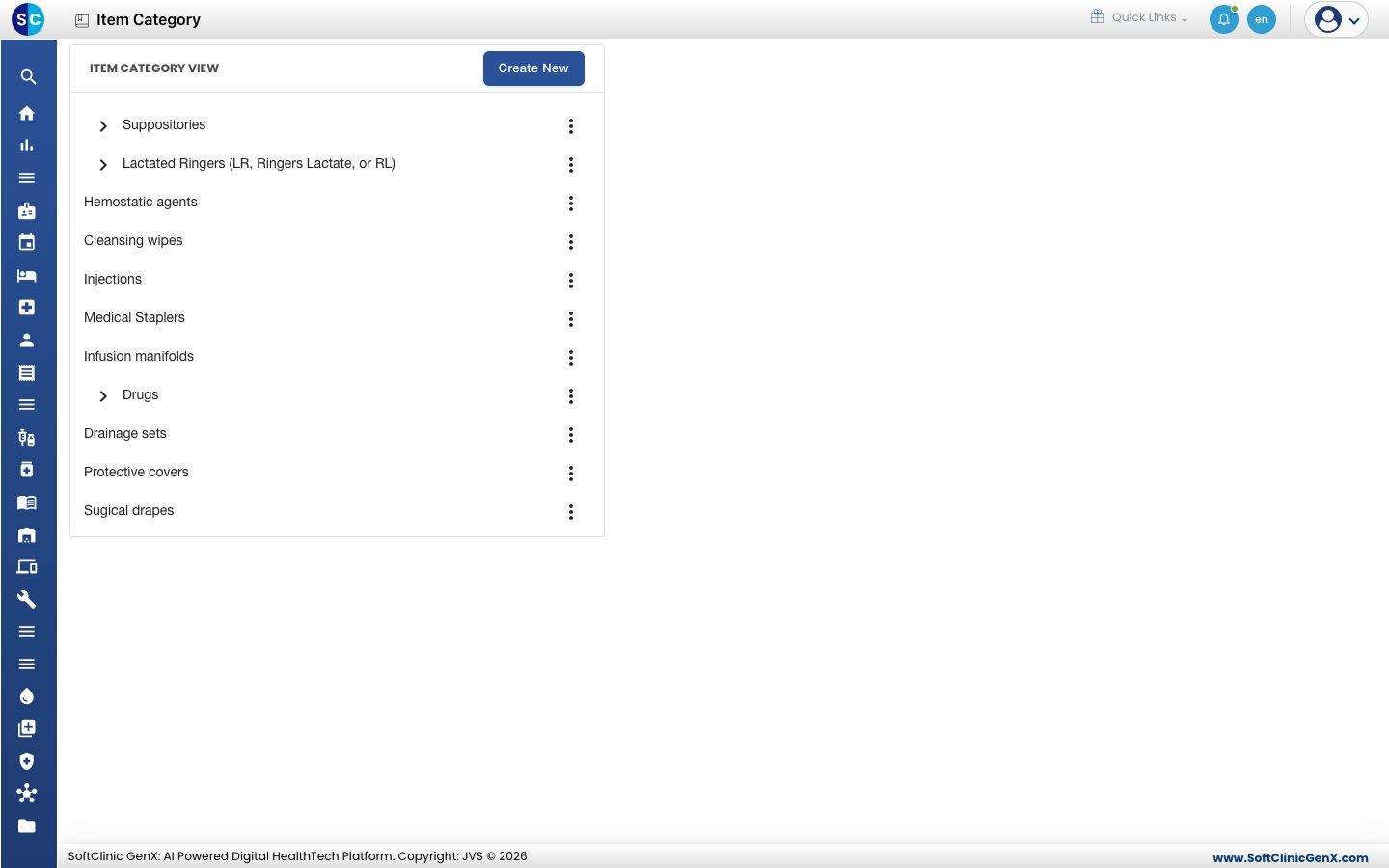
Item categories sort your stock into groups, such as Drugs, Injections or Surgical Consumables. Categories form a tree: a category can hold sub-categories, for example Drugs › Solution. Each category also records how its items are stocked — whether they are batch tracked or serialized, and which units they are bought, stocked and sold in. Every item you add is placed in a category.
Add a category
-
Go to Inventory Management › Masters › Item Category.
-
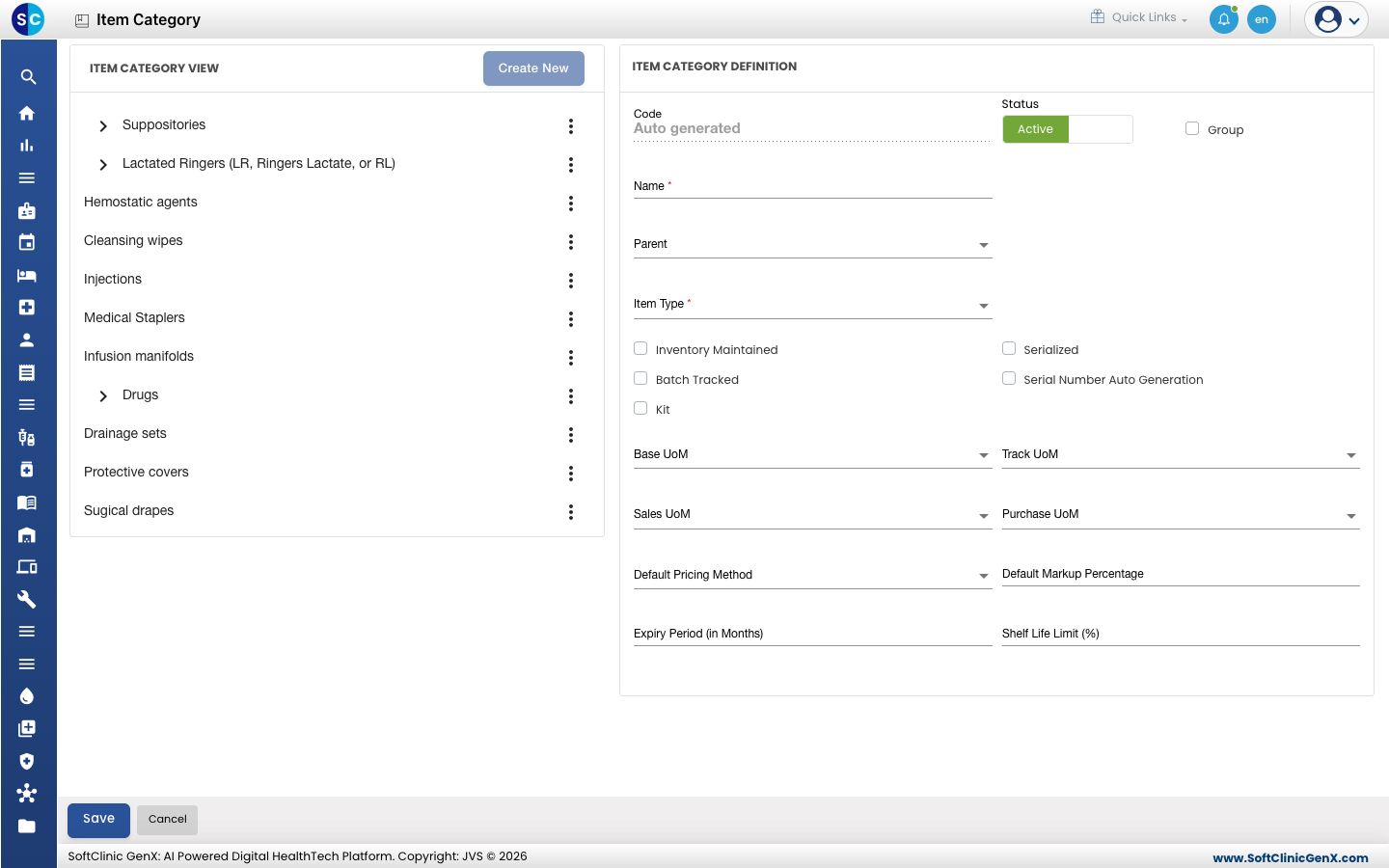
Click Create New. The Item Category Definition form opens on the right.
-
Fill in the fields:
Field What to enter Required Code Filled in automatically when you save. — Status Leave on Active. — Group Tick if this category will hold sub-categories, like Drugs. No Name The category name, for example Injections. Up to 50 characters. Yes Parent To make this a sub-category, choose the category it belongs under. Leave empty for a top-level category. No Item Type The broad kind of item: Blood Bag, Consumables, Drugs, Facility Furniture, Implants, IV Fluids, Medical Consumables, Medical Equipments, Stationary or Surgical Consumables. Yes Inventory Maintained Tick if stock of these items is counted in your stores. No Batch Tracked Tick if each purchase of these items carries a batch number and expiry date, as medicines do. No Serialized Tick if each piece has its own serial number, as equipment does. No Serial Number Auto Generation Tick to have serial numbers created automatically for serialized items. No Kit Tick if items in this category are kits made up of other items. No Base UoM, Track UoM, Sales UoM, Purchase UoM The units the items are counted in, tracked in, sold in and bought in. No Default Pricing Method How the selling price of items is worked out. No Default Markup Percentage The markup added on the cost price. No Expiry Period (in Months) The usual shelf life of items in this category. No Shelf Life Limit (%) The share of shelf life an item must still have. No -
Click Save. The new category appears in the tree.
Add a sub-category
- In the tree, click ⋮ next to the parent category and choose Add.
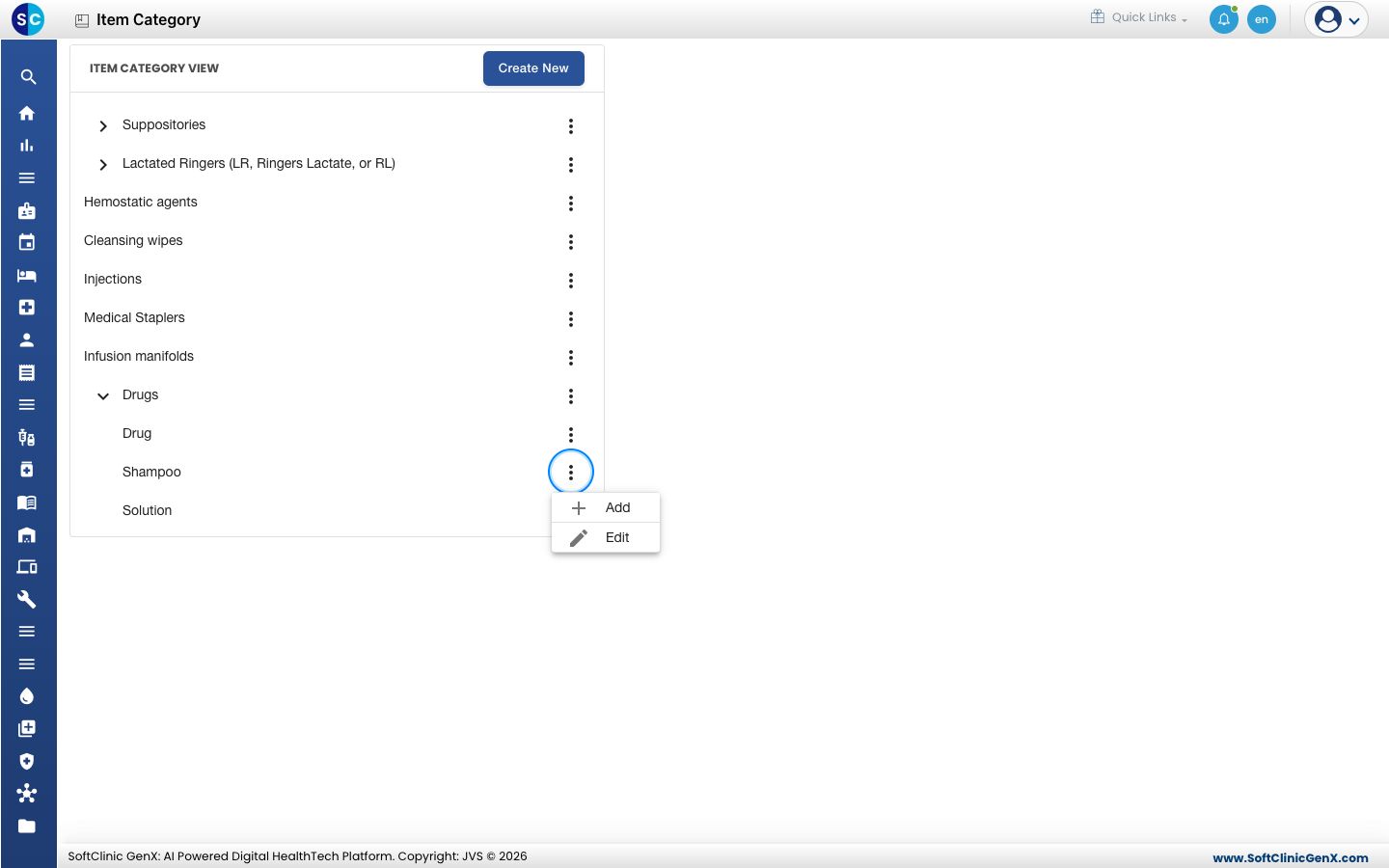
- Fill in the form as above. The new category is placed under the one you chose.
- Click Save.
Click the arrow next to a category to open or close its sub-categories.
Change or deactivate a category
- Click ⋮ next to the category and choose Edit. Its details open on the right.
- Change the fields you need. To stop using the category, switch Status to Inactive.
- Click Save.
Good to know
- Add appears only on active categories. Activate a category before adding sub-categories under it.
- Set Batch Tracked for medicines and other items that carry a batch number and expiry date.
- Click Cancel to leave the form without saving.
Related
- Previous: Set up Storage Condition
- Next: Set up Supplier
- Inventory Management FAQs