View and print an in-patient's running bill
See every charge on an admitted patient's bill so far, add a missed service and print an interim bill for the patient or the family.
The running bill is the list of charges an in-patient has collected since admission. It grows during the stay and becomes the final bill at discharge. Print it as an interim bill whenever the family asks how much is due.
Who can do this: billing and admission desk staff with billing rights
Where: In-Door Management › Admission List › row menu › Bill Adjustment (view) and Running Bill Transaction (print)
Before you start
- The patient is admitted. See Find an admitted patient.
See the running bill
- Go to In-Door Management › Admission List and find the patient.
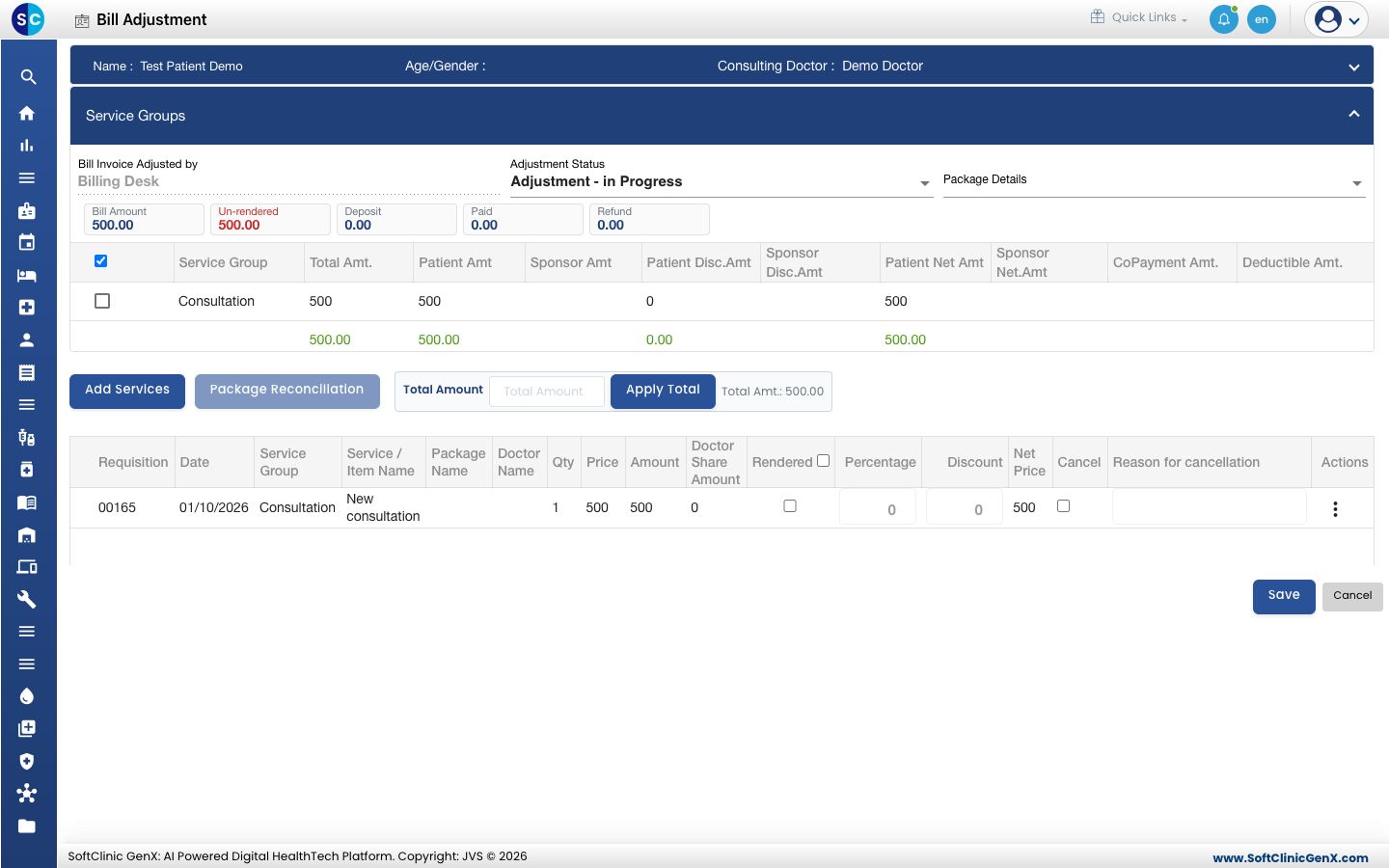
- Click the three dots at the end of the row and choose Bill Adjustment.
- The Bill Adjustment screen opens. The tiles at the top show Bill Amount, Un-rendered, Deposit, Paid and Refund. The Service Groups table totals the charges by group, and the grid below lists every service with its date, quantity, price and net price.
Add a missed charge
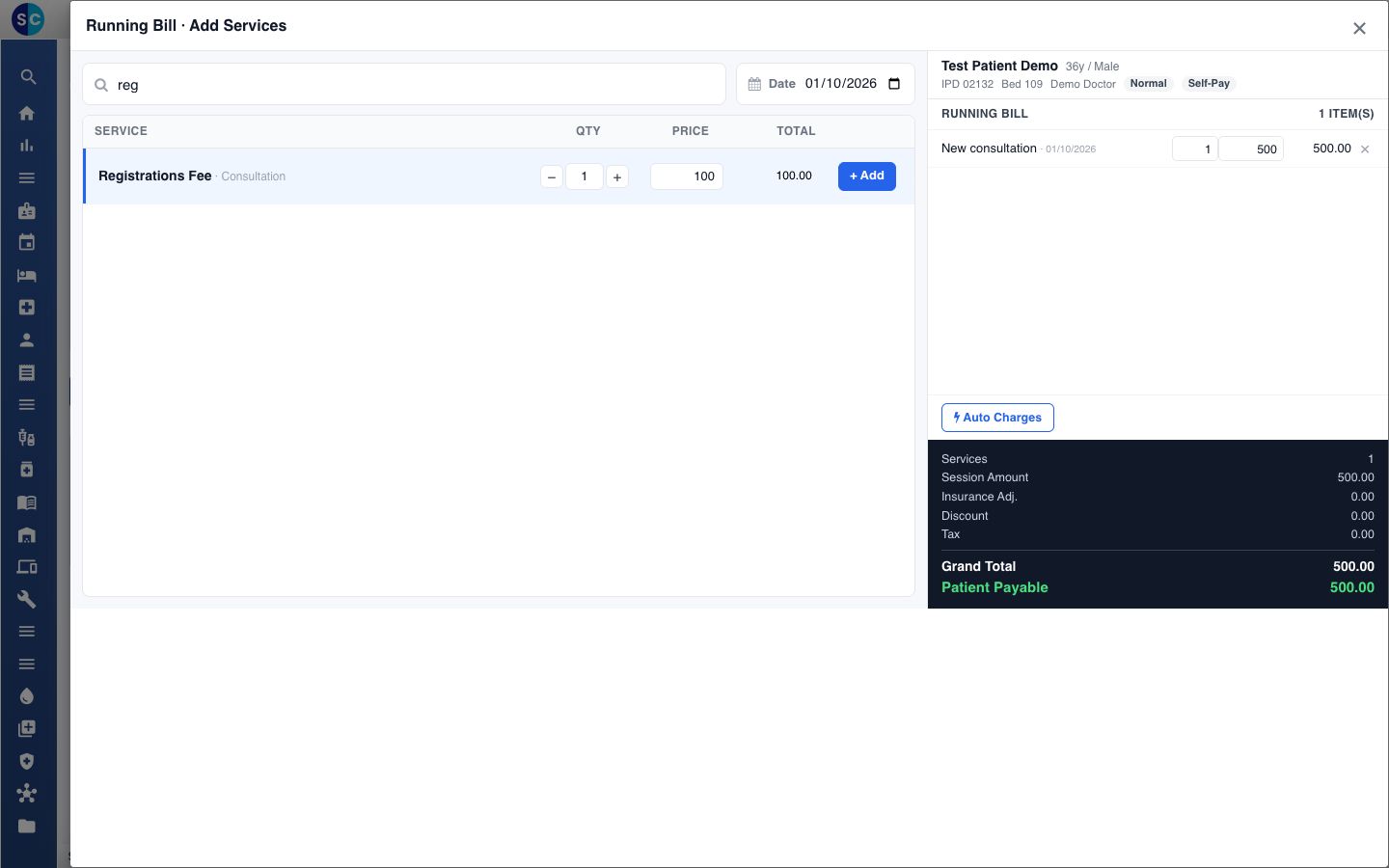
- On Bill Adjustment, click Add Services. The Running Bill · Add Services window opens.
- Type at least 2 letters of the service name, code or alias in the search box.
- Check the Date, the quantity and the price, then click + Add on the service. The line moves to RUNNING BILL on the right and is saved straight away.
- Close the window. The new line shows in the grid.
The summary on the right shows Grand Total and Patient Payable, which is the total after the patient's deposit.
Click Auto Charges in the same window to add the automatic charges your hospital has set up.
Print the interim bill
- On the Admission List, open the patient's row menu and choose Running Bill Transaction.
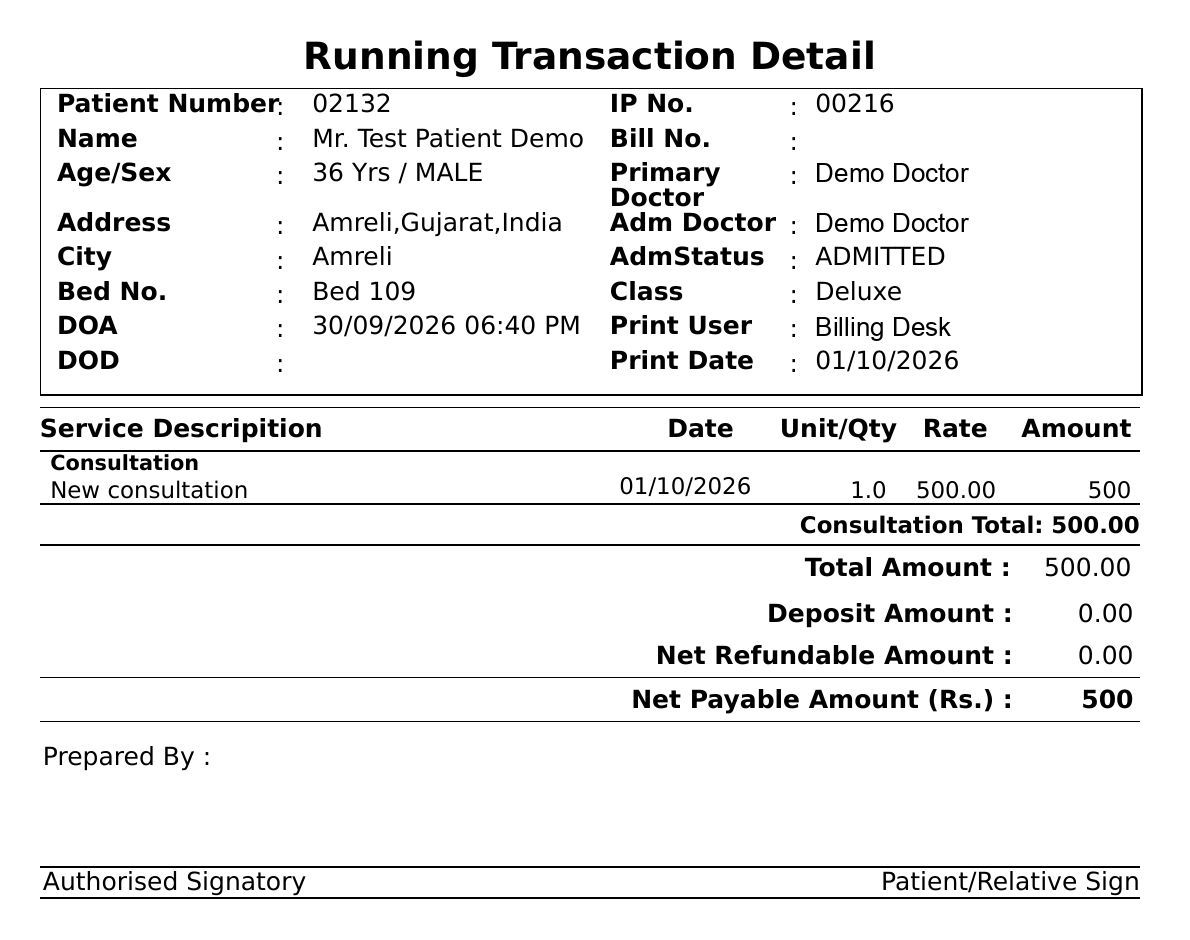
- The Print Preview opens. Choose Letter Head or Plain Paper, and pick Bill Detail, Bill Summary or Package Detail from the list.
- Click Print.
The print is titled Running Transaction Detail. It lists each service with its date, the Total Amount, the Deposit Amount and the Net Payable Amount.
Troubleshooting
| What you see | What it means | What to do |
|---|---|---|
| No services match in the search | The service is not set up, or not priced for this patient's class. | Ask the administrator to set up the service and its rate. See Set up a service. |
| You are not allowed to perform this operation | Your role has no billing rights for admitted patients. | Ask your administrator for the right. |
| A charge is wrong | The line was added by mistake. | Tick Cancel on the line, enter the Reason for cancellation and click Save. |
Related
- Finalise an in-patient bill: settle the bill at discharge.
- Take an admission deposit: collect an advance during the stay.
- Billing FAQs: common billing questions.