Open AI Scribe on a patient's note
Find the microphone button on the SOAP note and open the AI Scribe panel.
AI Scribe opens as a panel on the right of the patient's SOAP note. You open it from the microphone button at the top, then record the consultation without leaving the note.
note
Who can do this: doctors · Where: Doctor Work Bench › Doctor Dashboard › row menu › Start Consultation
Before you start
- Switch on the new screen. See Get ready to use AI Scribe.
- The patient has an appointment with you. See Start a consultation from the Doctor Dashboard.
Open the panel
- Go to Doctor Work Bench › Doctor Dashboard, click the three dots on the patient's row and choose Start Consultation. The patient's SOAP note opens.
- Find the microphone button among the icons at the top right of the patient bar. It is highlighted in the picture. Its tooltip reads Record consultation (AI Scribe).
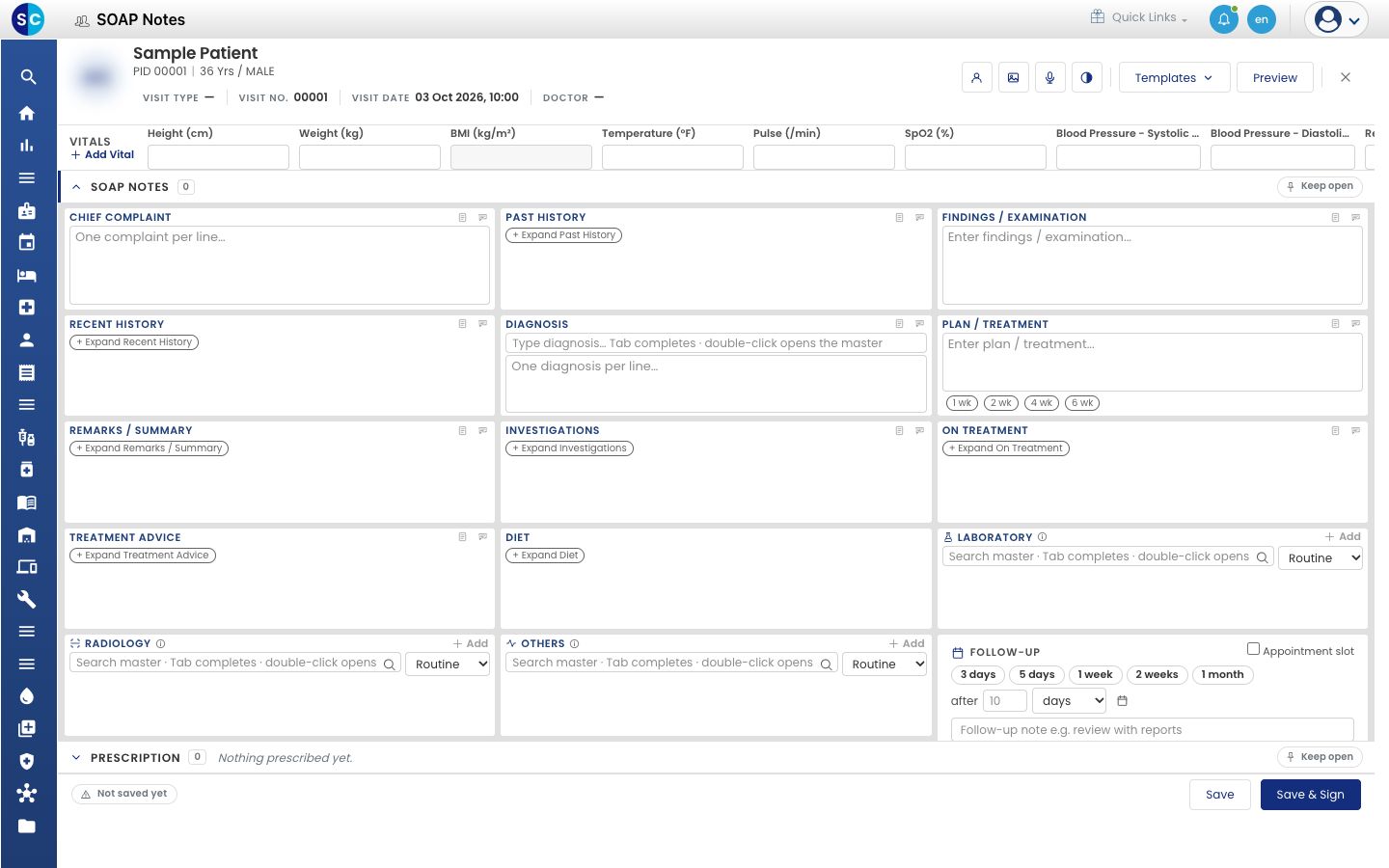
- Click the microphone button. The AI Scribe panel opens on the right.
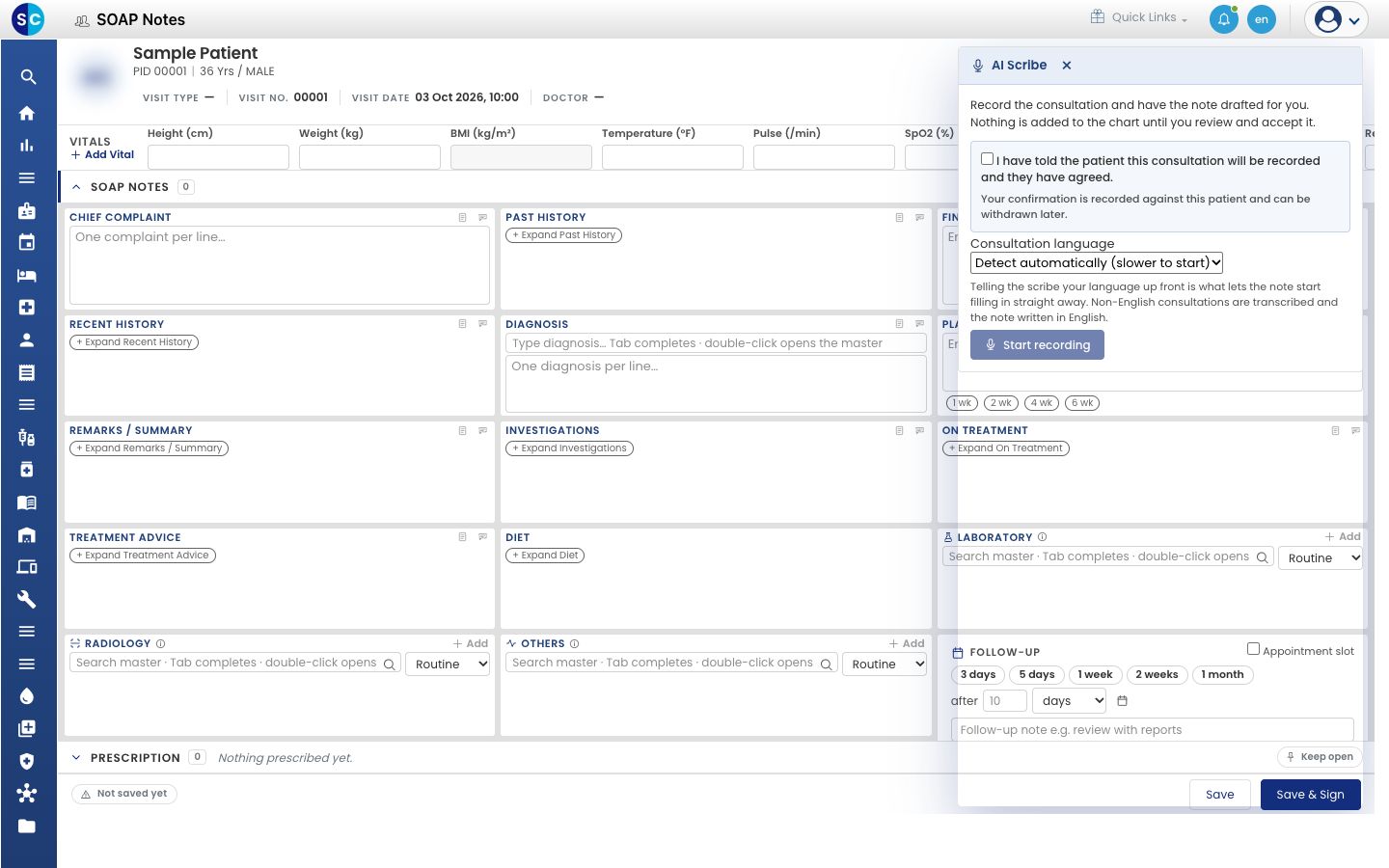
The panel says Record the consultation and have the note drafted for you. Nothing is added to the chart until you review and accept it.
To close the panel, click × at its top. If a recording is running, closing the panel stops and throws it away.
Troubleshooting
| What you see | What it means | What to do |
|---|---|---|
| The microphone button is greyed out | The time allowed for editing this note has passed | Open a note you can still edit |
| No microphone button | The new SOAP Notes screen is not switched on for your login | See Get ready to use AI Scribe |
Related
- Record a consultation: confirm consent and start.
- AI Scribe FAQs: common questions.
Was this helpful?