Review the suggestions and add them to the note
Check what AI Scribe drafted, see the words behind each suggestion, tick what is right, add it to the note and sign.
When you finish recording, AI Scribe lists its suggestions in the panel. You decide what goes into the note. Only the suggestions you tick are added, and you can edit them in the note afterwards.
Who can do this: doctors · Where: the AI Scribe panel after Finish and review
Before you start
- Record the consultation. See Record a consultation.
Read the suggestions
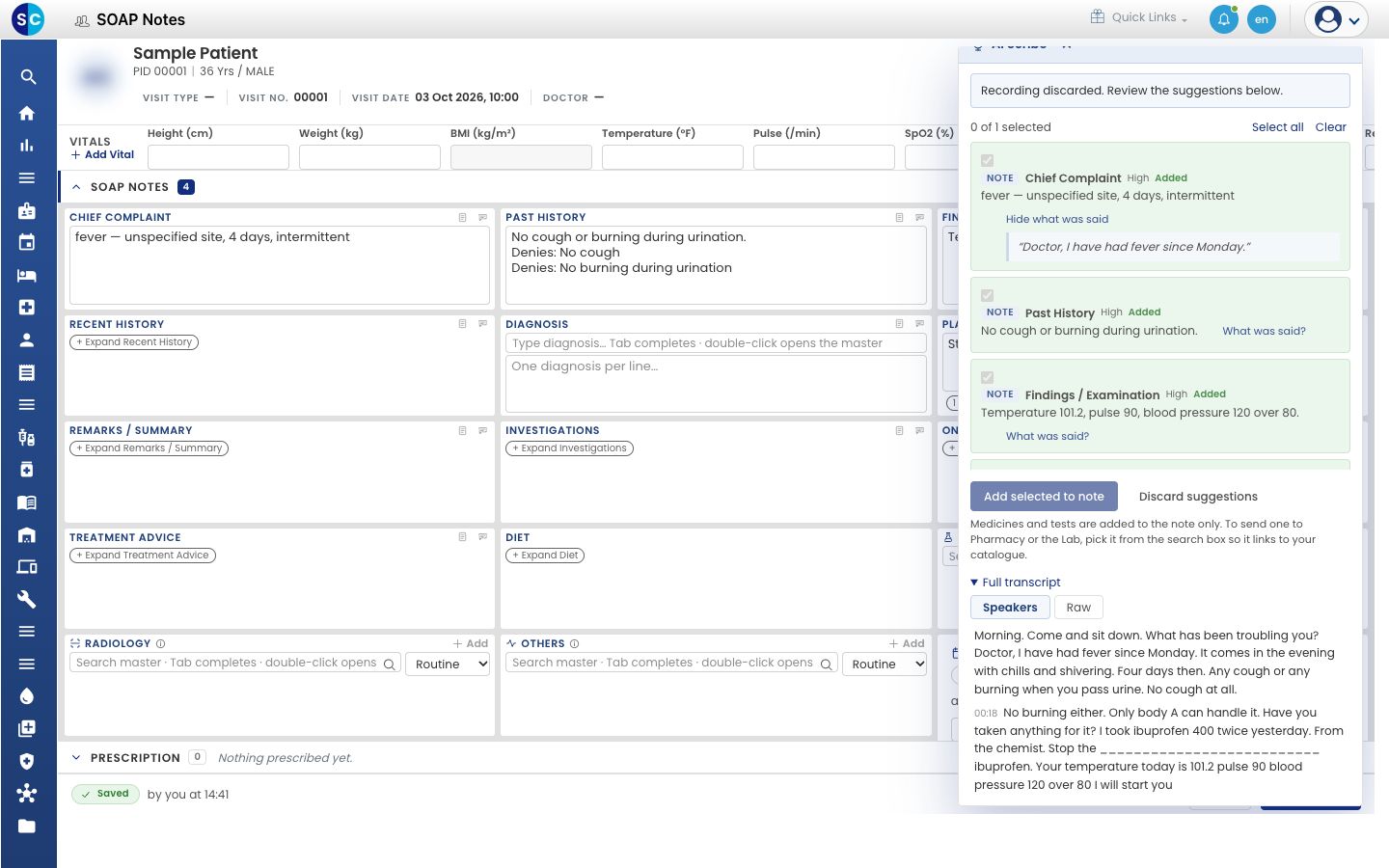
- When drafting ends, the panel says Recording discarded. Review the suggestions below. The line … of … selected shows how many suggestions are ticked.
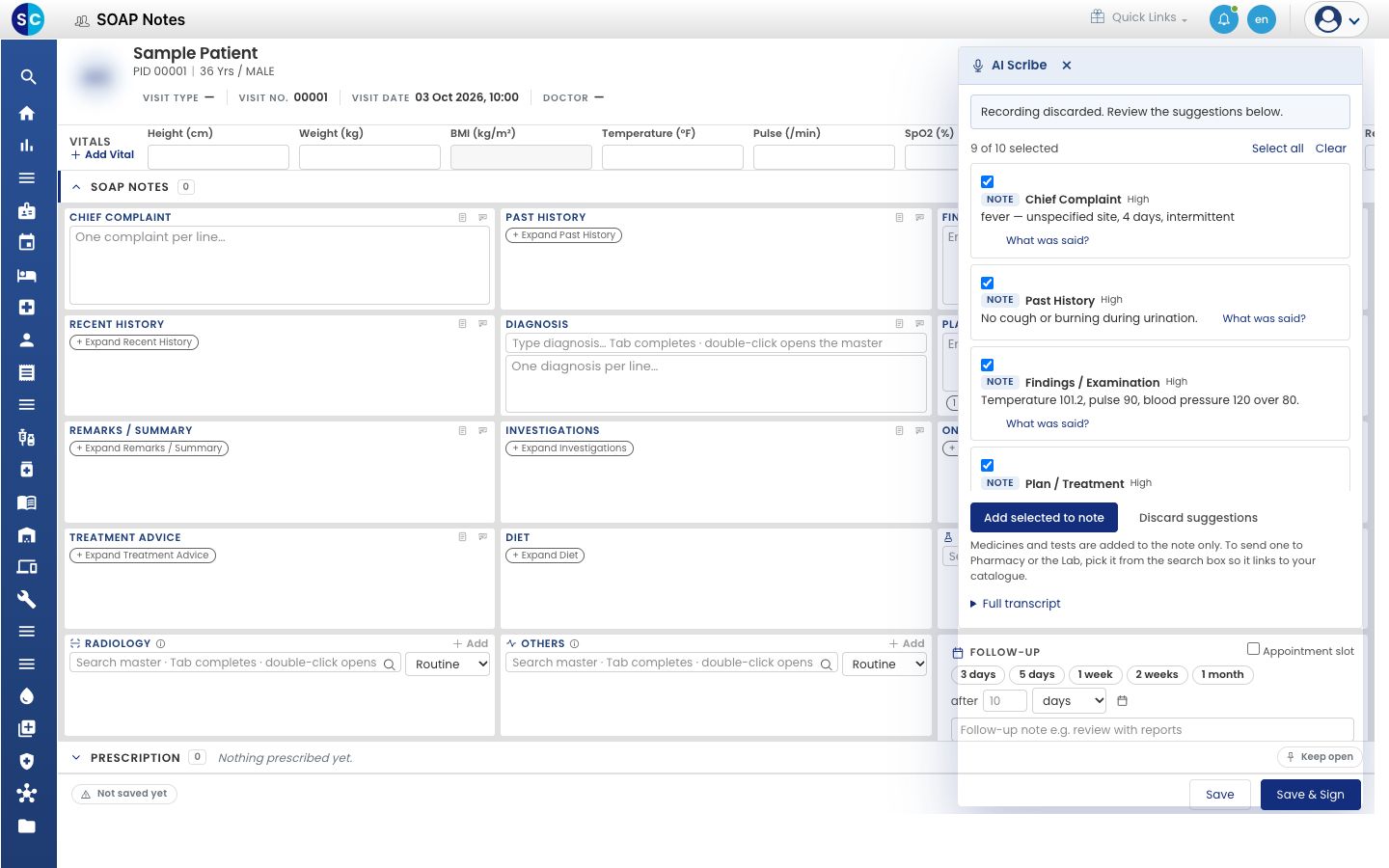
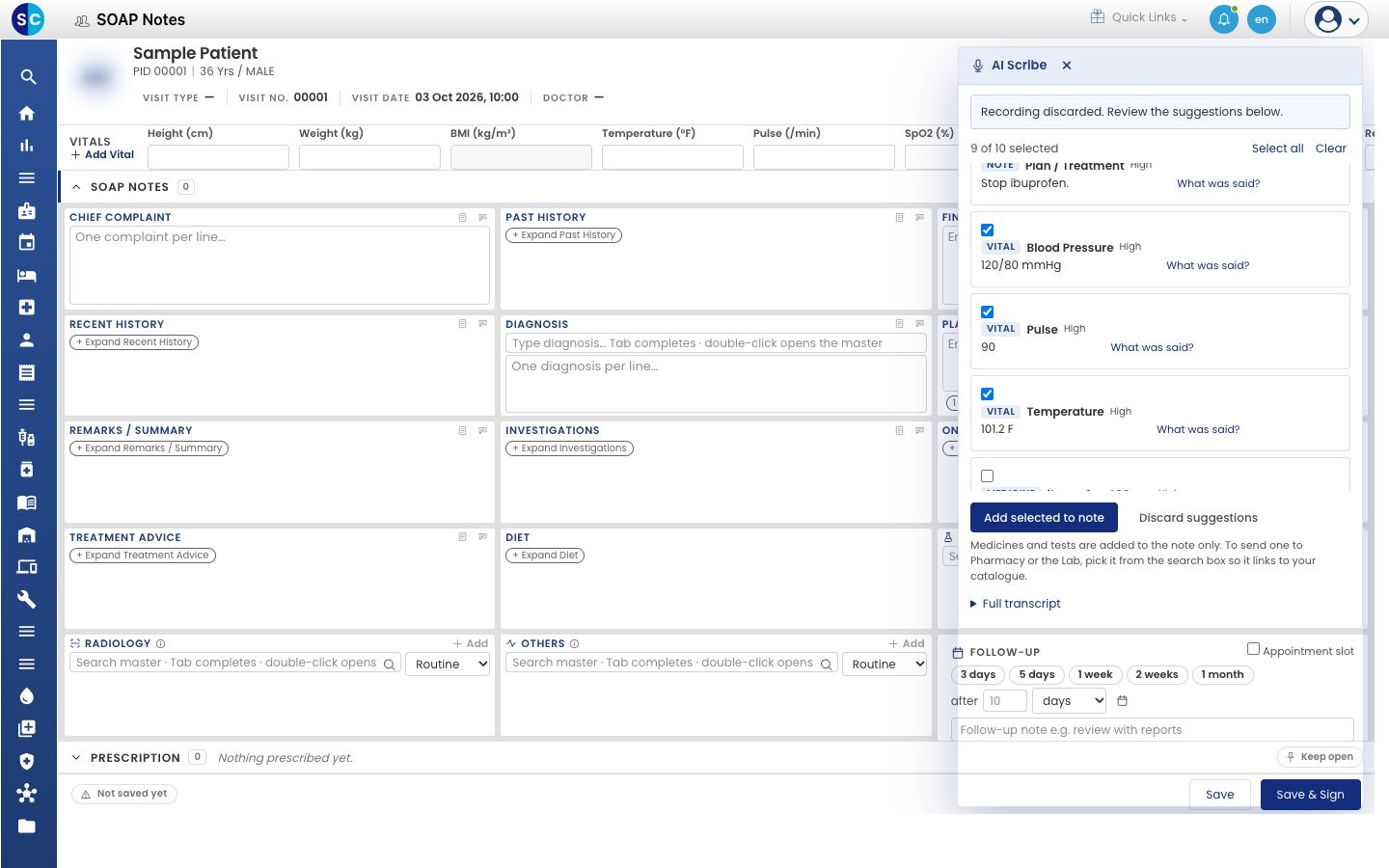
- Read each suggestion. The coloured label tells you what it is: Note, Vital, Medicine, Test, Diagnosis, Allergy, Denies or Follow-up. High, Medium or Low shows how sure AI Scribe is. Scroll down the list to see them all.
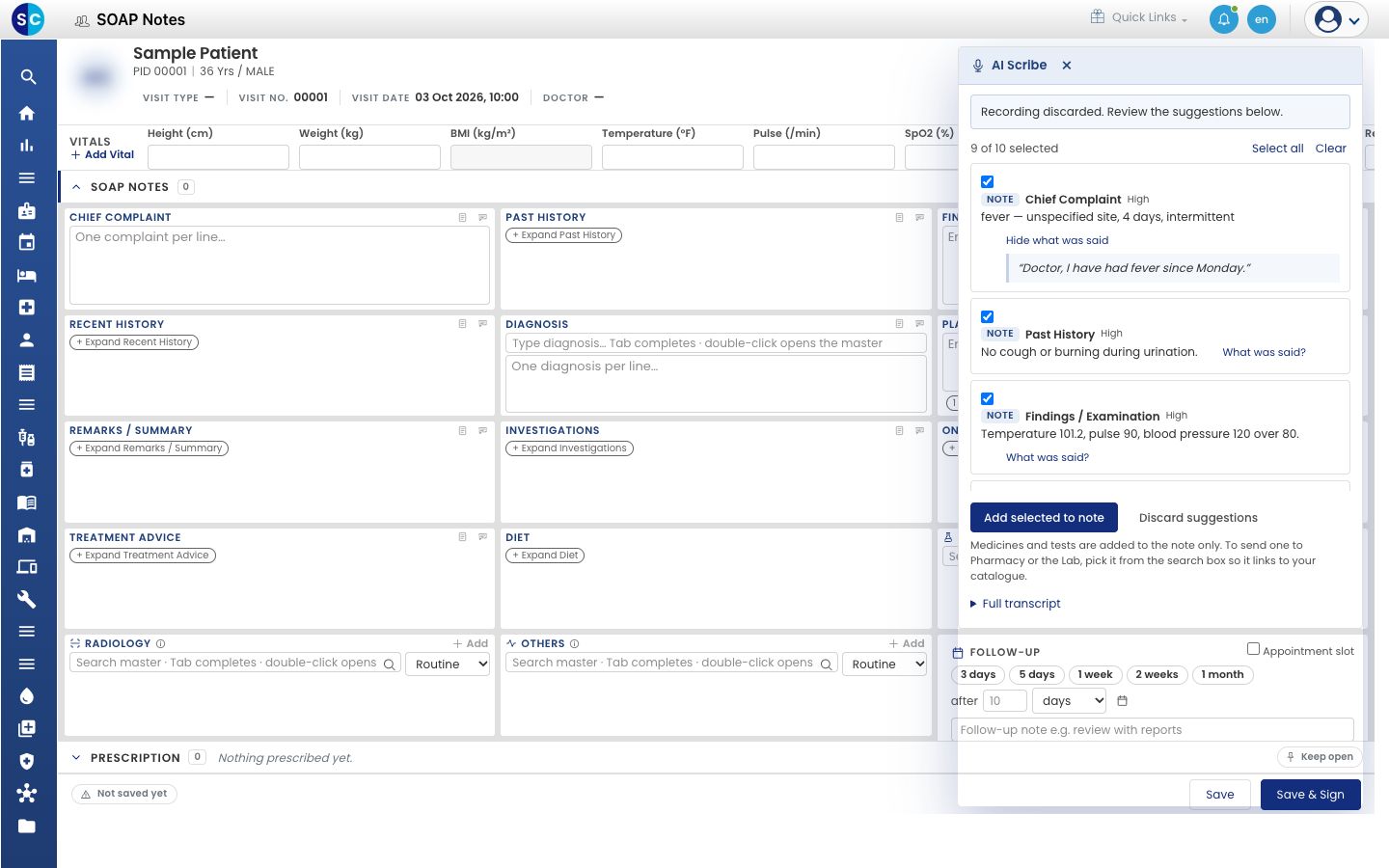
- Click What was said? under a suggestion to see the exact words it came from. Click Hide what was said to close it.
Check the label as well as the text. A suggestion can be right but sit in the wrong section, for example a symptom under Past History.
Choose what to add
- Tick the suggestions you want, and clear the ones you do not. Select all ticks every suggestion. Clear unticks them all.
- Medicines start unticked. A medicine shows Prescriptions are never selected automatically. Confirm the drug, dose and duration. Tick it only when it is correct.
- For a diagnosis, click Add a diagnosis code to pick the matching entry from your Diagnosis Master. If you skip this, the diagnosis is added as text.
Add them to the note
- Click Add selected to note.
- A message tells you what was added, for example Added 5 note sections and 1 diagnosis to the note. Each suggestion you added now shows Added.
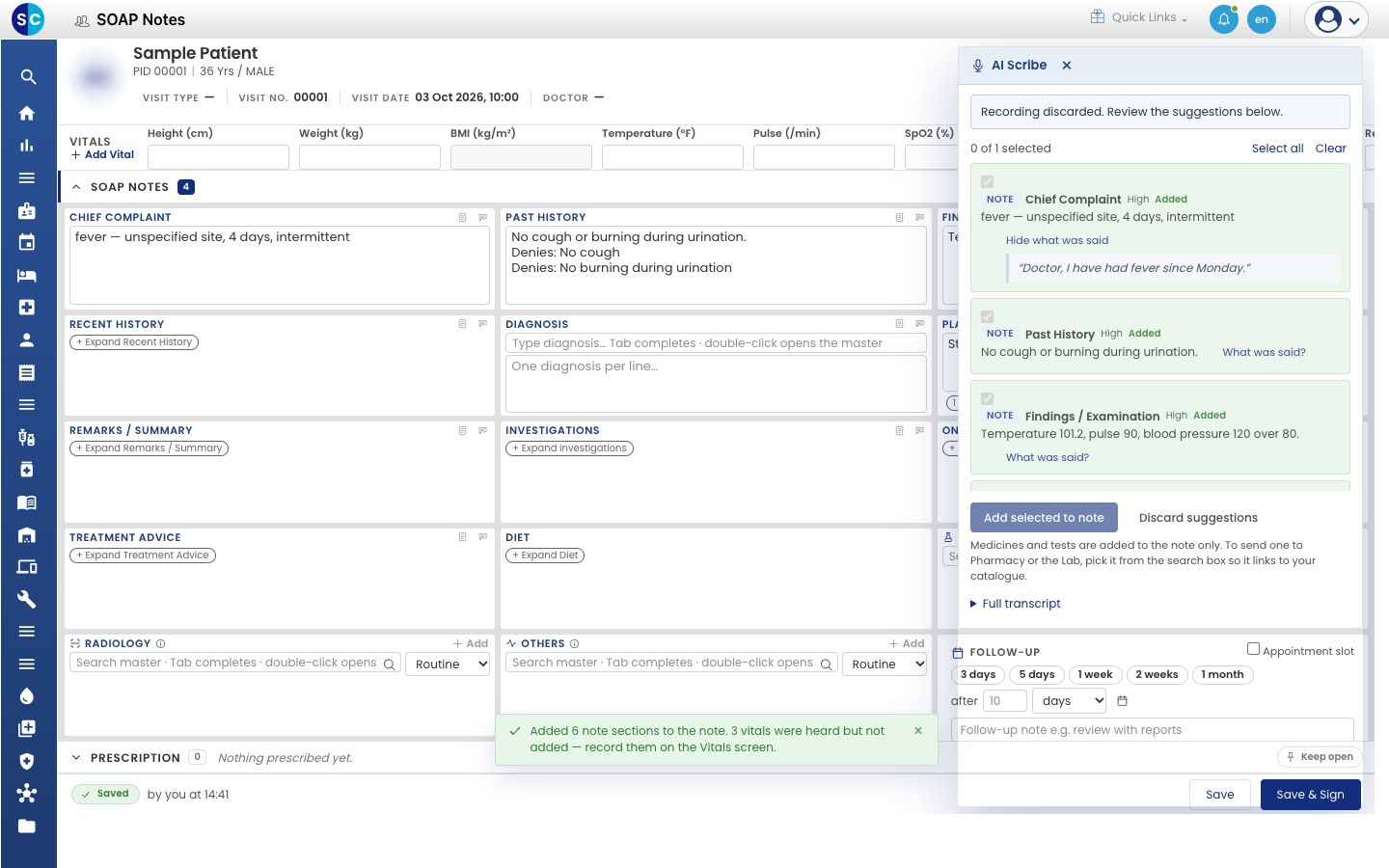
- The text is added to the matching section of the note, below anything you had already typed. The status at the bottom left changes to Saved.
Vitals are not added to the note. If AI Scribe heard vitals, the message says so: 3 vitals were heard but not added — record them on the Vitals screen. Type them in Vitals at the top of the note.
Medicines and tests are added to the note as text only. To send one to the pharmacy or the lab, pick it from the search box in the note so that it links to your catalogue.
Click Discard suggestions instead to add nothing.
Read the whole conversation
Click Full transcript at the bottom of the panel to read the transcript again. Speakers shows it line by line. Raw shows the unprocessed text.
Edit and sign the note
- Close the panel with ×.
- Edit the sections as you would any other text in the note. Fix a word, delete a line, or add what AI Scribe missed.
- Click Save & Sign when the note is correct. The button is highlighted in the picture.
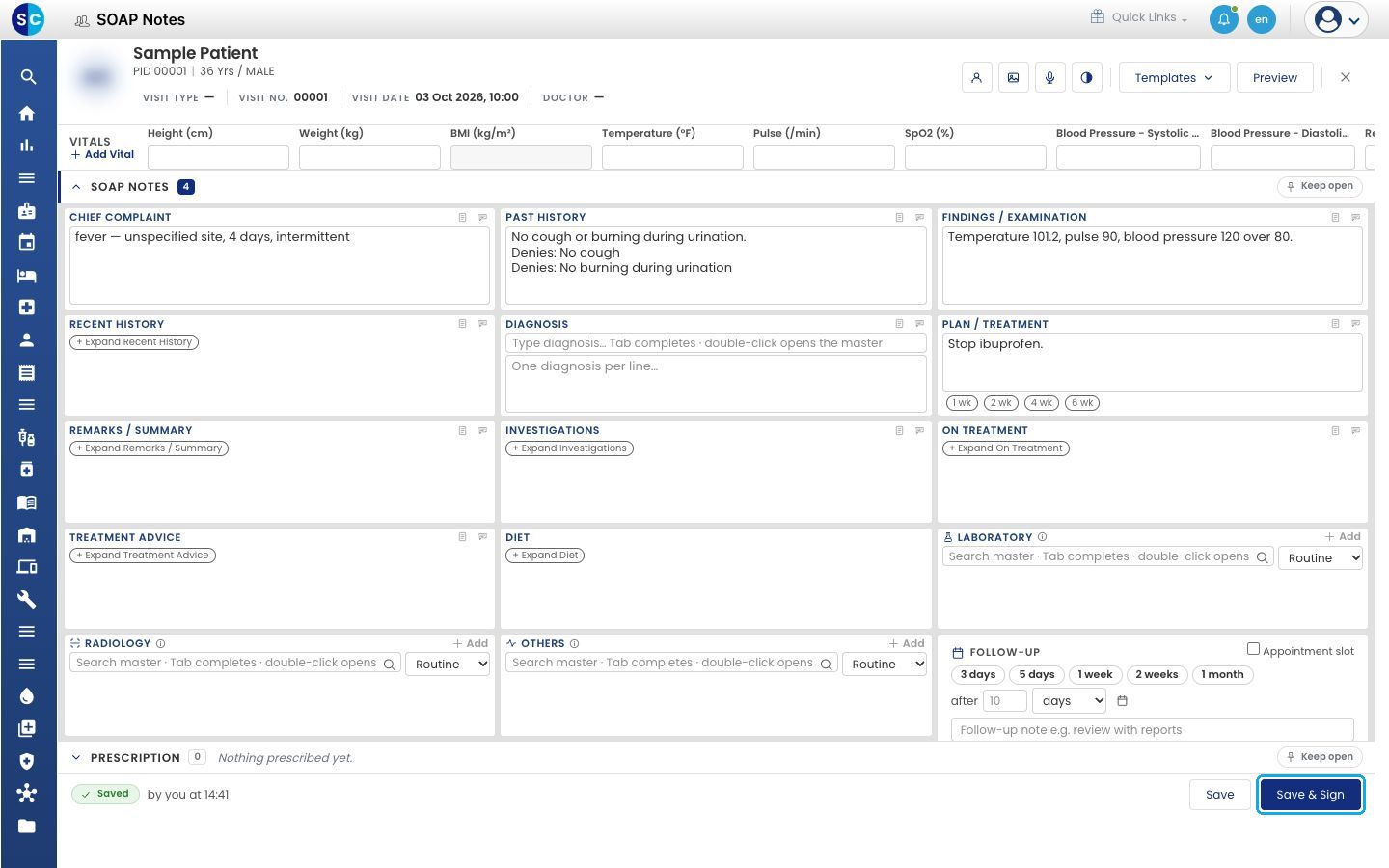
Signing completes the consultation and locks the note. See Save, sign and print a SOAP note.
Troubleshooting
| What you see | What it means | What to do |
|---|---|---|
| Nothing was extracted from this consultation. The transcript is above — please write the note yourself. | AI Scribe found nothing it could use | Read the Full transcript, then type the note |
| Drafting note… for a long time | A long consultation takes longer to draft | Wait. The list appears when drafting ends |
| A suggestion marked Low | AI Scribe is unsure | Open What was said?, and add it only if it is right |
Related
- Save, sign and print a SOAP note: the last step of the consultation.
- AI Scribe FAQs: accuracy, privacy and languages.