Record a consultation
Confirm the patient agrees, start AI Scribe, pause when needed and finish to get the drafted note.
Recording starts when you tick the consent box and click Start recording. While you talk, AI Scribe shows the words on screen. When you finish, it drafts the note from the whole consultation.
Who can do this: doctors · Where: the AI Scribe panel on the SOAP note
Before you start
- Open the panel. See Open AI Scribe on a patient's note.
- Tell the patient the consultation will be recorded, and ask if they agree.
Start recording
- Tick I have told the patient this consultation will be recorded and they have agreed. Start recording stays greyed out until you do. Your tick is recorded against this patient, and it can be withdrawn later.
- Under Consultation language, choose the language you and the patient speak. See Choose the consultation language.
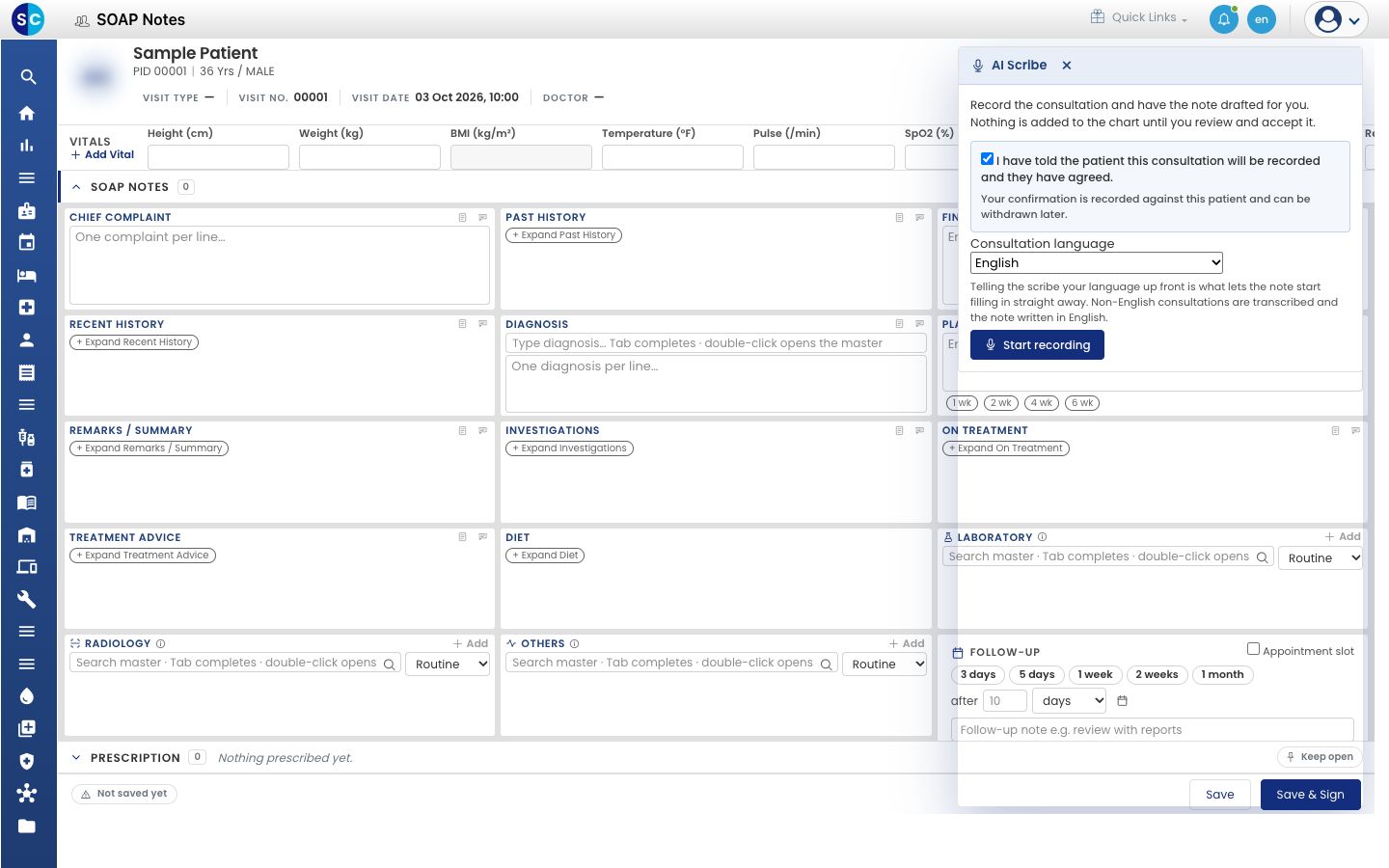
- Click Start recording. The button shows Waiting for microphone…, then Connecting….
- If your browser asks to use the microphone, choose Allow.
The panel header now shows a red dot, the time, and Live. That means your voice is reaching AI Scribe.
While you talk
Speak as you normally do with the patient. The transcript fills in under Speakers as each stretch of speech is recognised. Raw shows the text exactly as it was heard, before any clean-up.
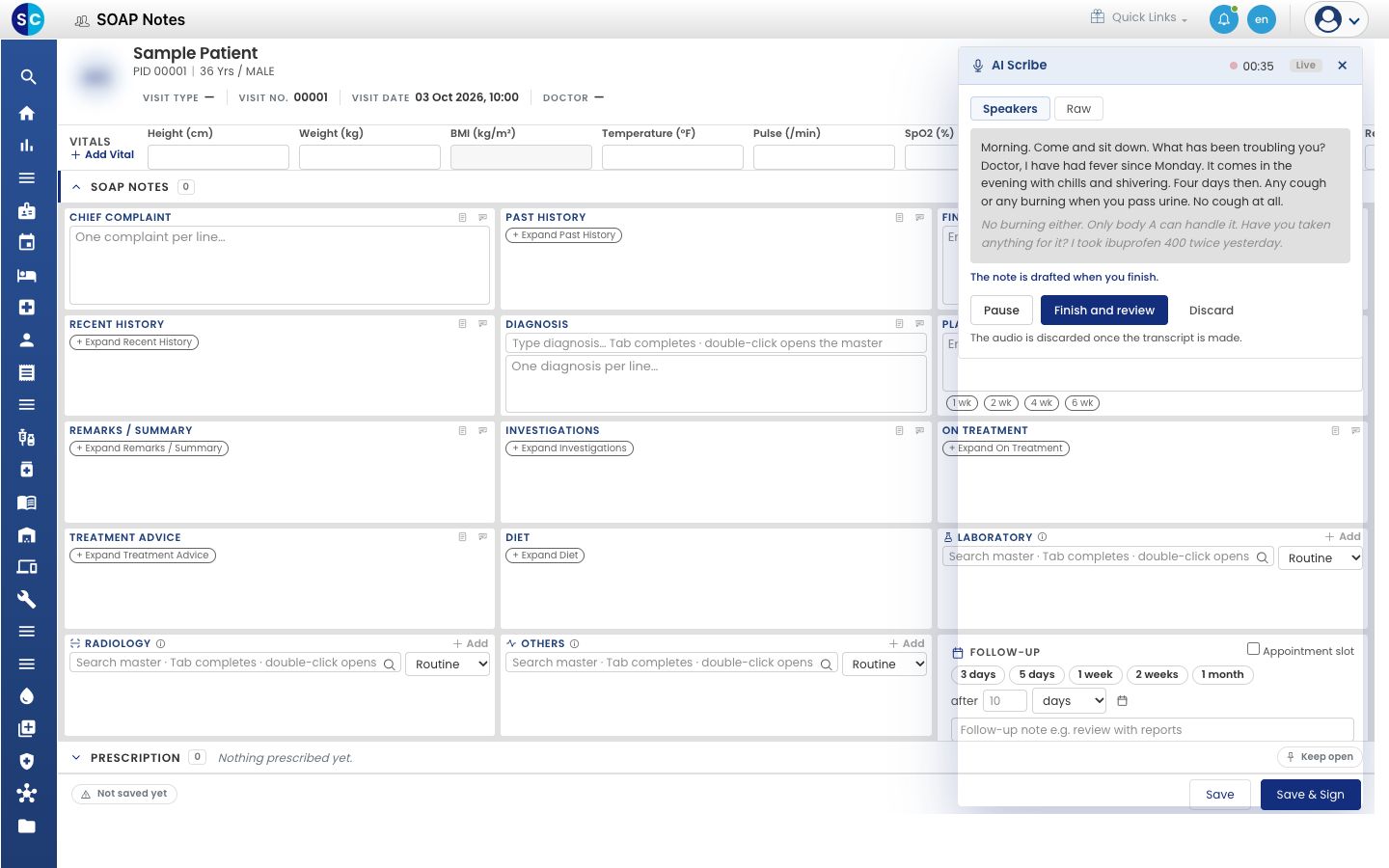
The panel says The note is drafted when you finish.
Pause and resume
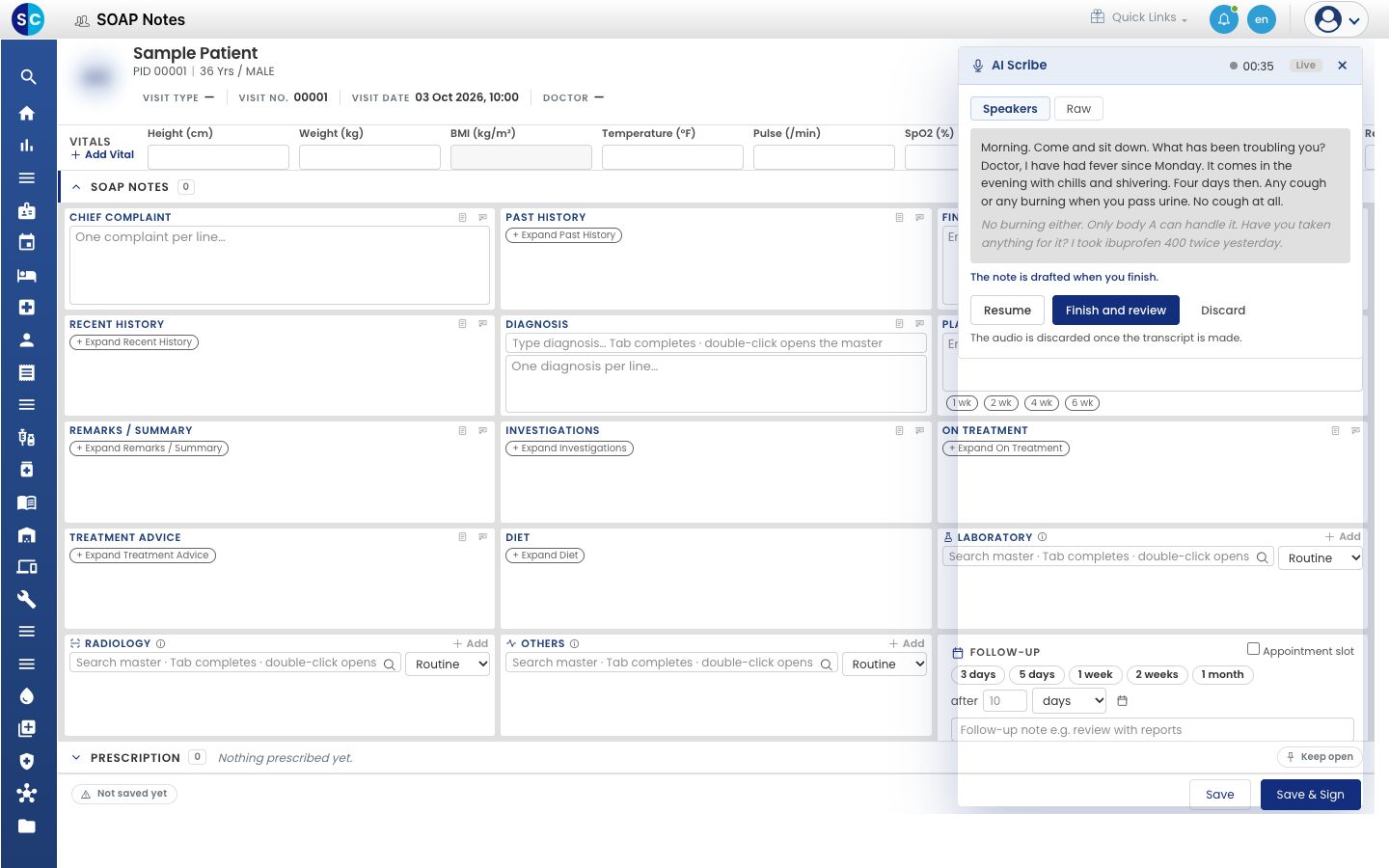
- Click Pause to stop listening, for example while the patient takes a call.
- Click Resume to carry on in the same recording.
If the connection drops
The panel shows Reconnecting… and the message Connection lost — reconnecting. Keep talking; the recording resumes automatically. If it comes back within about two minutes, the panel shows Reconnected — the recording continued.
Finish the recording
- Click Finish and review. The button changes to Drafting note… while AI Scribe works through the consultation. This can take a minute or more for a long consultation.
- When the suggestions appear, go on to Review the suggestions and add them to the note.
Click Discard instead to throw the recording away without drafting anything.
If part of the recording could not be turned into text, the panel says About … of this recording could not be transcribed and marks those stretches in the transcript. Read the note against what you remember before you sign it.
Troubleshooting
| What you see | What it means | What to do |
|---|---|---|
| Microphone access was blocked. Allow the microphone for this site and try again. | The browser did not get permission to use the microphone | Click the lock or microphone icon next to the address bar, set the microphone to Allow, then click Start recording again |
| No microphone was found. Check that one is connected and try again. | The computer has no working microphone | Connect a microphone and try again |
| Recording needs a secure (https) connection and microphone access, which this browser or address does not provide. | GenX was opened in a way the browser will not let it use the microphone | Open GenX from your hospital's usual https address |
| Recording is blocked because this clinic has not published a Privacy Notice | Your hospital has no active privacy notice | See Get ready to use AI Scribe |
| The consent record could not be saved, so the consultation was not recorded. | The patient's agreement could not be stored | Click Start recording again, or write the note as usual |
| Could not reach the transcription service. The note is unaffected — please type it. | The recording could not connect | Check your internet connection and try again, or type the note |
| The transcription connection could not be restored, so recording has stopped. | The connection stayed down | Anything already added to the note is safe. Type the rest, or start a new recording |
Related
- Choose the consultation language: get a faster start in your language.
- AI Scribe FAQs: privacy, languages and accuracy.