Choose the consultation language
Tell AI Scribe which language you and the patient speak so the note starts filling in straight away.
AI Scribe understands many languages. If you tell it the language before you record, it starts working at once. If you leave it on automatic, it first has to work out the language, so the note starts later.
Who can do this: doctors · Where: the AI Scribe panel, before you click Start recording
Choose the language
- Open the AI Scribe panel. See Open AI Scribe on a patient's note.
- Open the Consultation language list.
- Choose the language of the consultation, for example Hindi · हिन्दी.
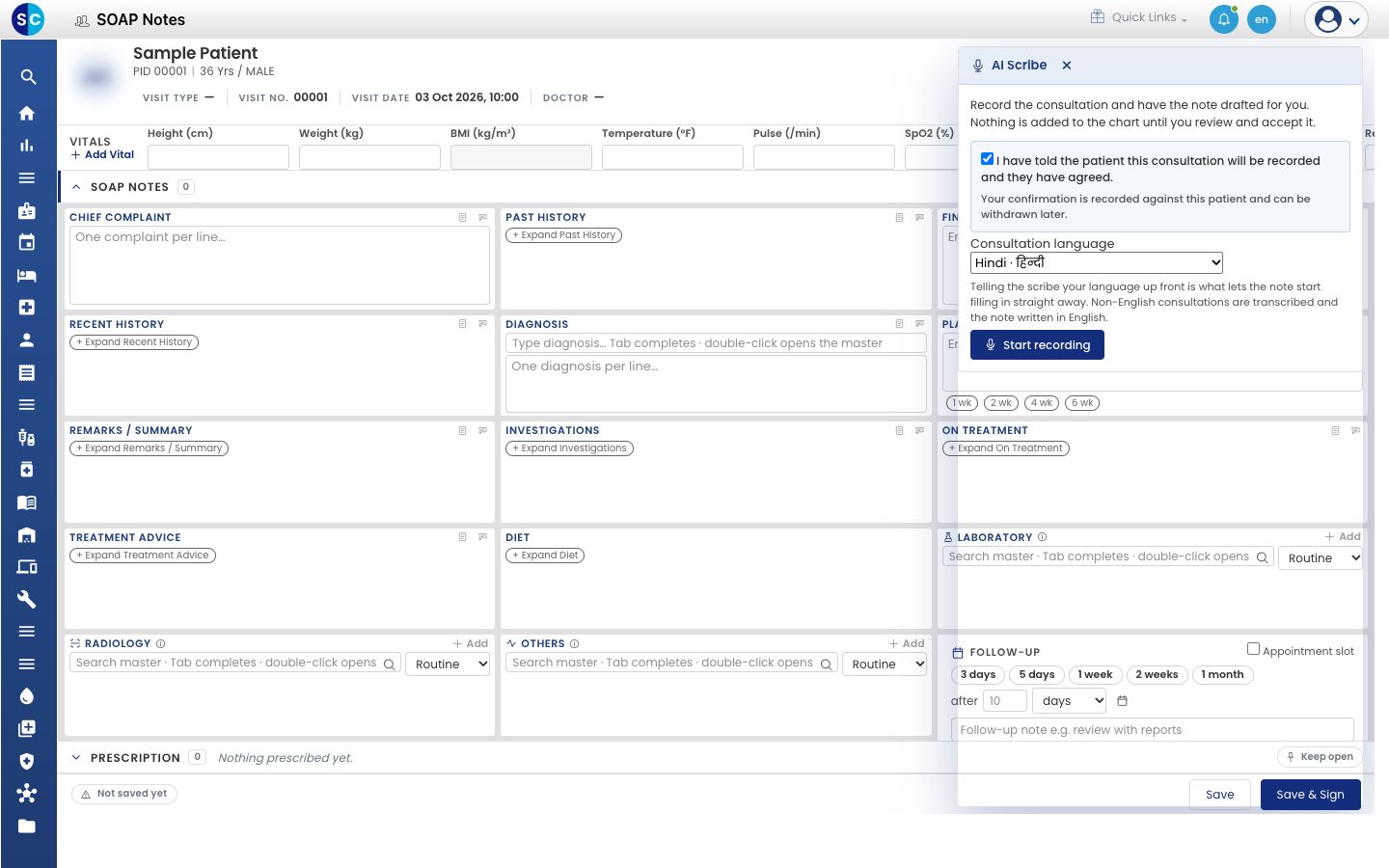
- Click Start recording.
GenX remembers your choice on this computer, so the list opens on the same language next time.
What happens with other languages
- The transcript stays in the language you spoke. For Hindi, you see Hindi text.
- The note is written in English. The panel reminds you with a line such as Hindi — the transcript stays in Hindi and the note is written in English.
- If more than one language is spoken, the panel tells you: More than one language was spoken. Anything said in another language may be less accurate, so check those lines.
Languages you can choose
English, Hindi, Marathi, Gujarati, Bengali, Tamil, Telugu, Kannada, Malayalam, Punjabi, Urdu, Assamese, Nepali, Arabic, Spanish, French, Portuguese, Swahili, Amharic, Hausa, Yoruba, Somali, Afrikaans, Shona, Lingala and Malagasy. Or choose Detect automatically (slower to start).
Troubleshooting
| What you see | What it means | What to do |
|---|---|---|
| No Consultation language list | The language list has not loaded yet | Wait a few seconds, or close and reopen the panel |
| The transcript is in the wrong language | The language you chose is not the one spoken | Click Discard, choose the right language, and record again |
Related
- Record a consultation: the next step.
- AI Scribe FAQs: which languages are supported.